CICON Simulator Screen Configuration
CICON Simulator Screen Configuration
- The CICON Simulator has the following screen components:
1. Menu Bar & Toolbar

Menu Bar
File
- Module Config. Load
- Load previously-saved module configurations.
- Module Config. Write
- Save the current module configurations.
- Exit
- Exit the CICON Simulator.
View
- Toolbar
- PLC Power
- Enables/disables the PLC power icons (PLC ON & PLC OFF).
- Basic
- Enables/disables the basic icons (PLC Config & PLC Mode).
- Module
- Enables/disables the module icons (Module Monitor & Module Setting).
- Mode
- Enables/disables the mode icons (PLC Run & PLC Stop).
- PLC Power
- Language
- English
- Sets the simulator language to English.
- Korean
- Sets the simulator language to Korean.
- English
- Module Status
- Enables/disables the Module window.
- Status
- Enables/disables the Status bar.
PLC Power
- POWER OFF
- Turns the simulator PLC OFF.
- POWER ON
- Turns the simulator PLC ON.
Tool
- PLC Type
- Change the PLC CPU type.
- PLC Mode
- Run
- Change the PLC mode to RUN.
- Stop
- Change the PLC mode to STOP.
- OK
- Exit the current window.
- Run
- Module Monitor
- Open the module monitor window.
- Module Setting
- Open the module settings.
- PLC Monitor
- Open the PLC monitor.
Window
The following options change the view of the Work Space.
- Next Window
- Cascade Type
- Tile Type
- Arrange Icon
About
- About Simulator
- Displays information about the CICON Simulator.
- Help
- Opens the offline help file.
Toolbar
| Icon | Name |
|---|---|
 | PLC ON |
 | PLC OFF |
 | PLC Config |
 | PLC Mode |
 | Module Monitor |
 | Module Setting |
 | PLC Run |
 | PLC Stop |
| PLC Monitor |
2. Module Information
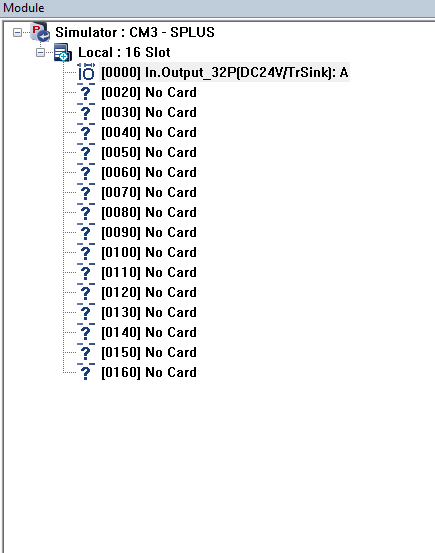
The module information section displays the current PLC CPU type and expansion modules configured for the current chassis.
3. Work Space
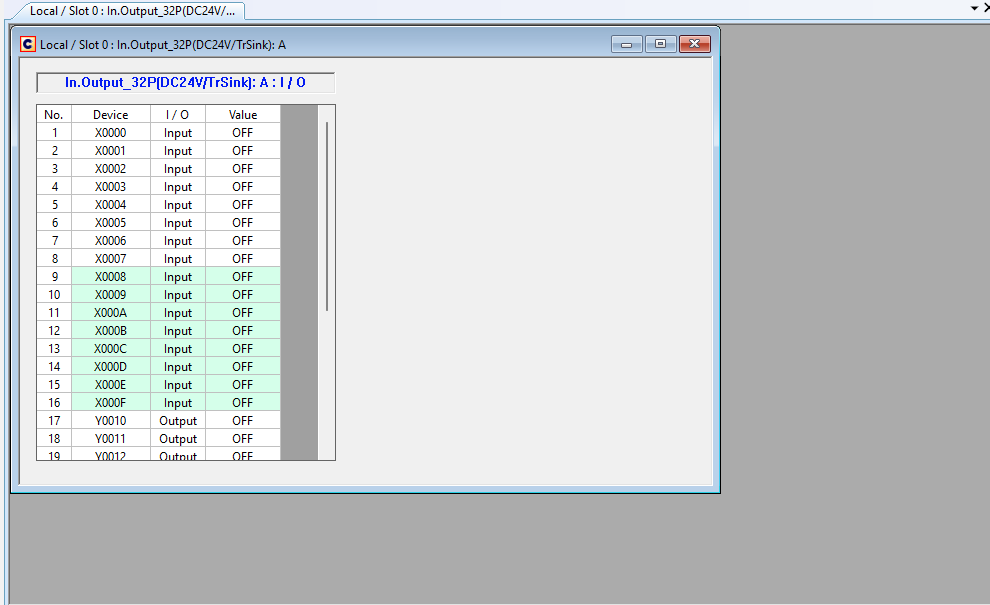
The work space displays information about the chassis including input and output values.
4. Status

The status bar displays the PLC status.