CICON Simulator Setup
Warning
When running the CICON simulator, it only opens the UDP port.
This means no other protocol, including Modbus, CIMON HMI (PLC Protocol) (TCP), EtherNet/IP, etc., will function as expected.
Open Simulator
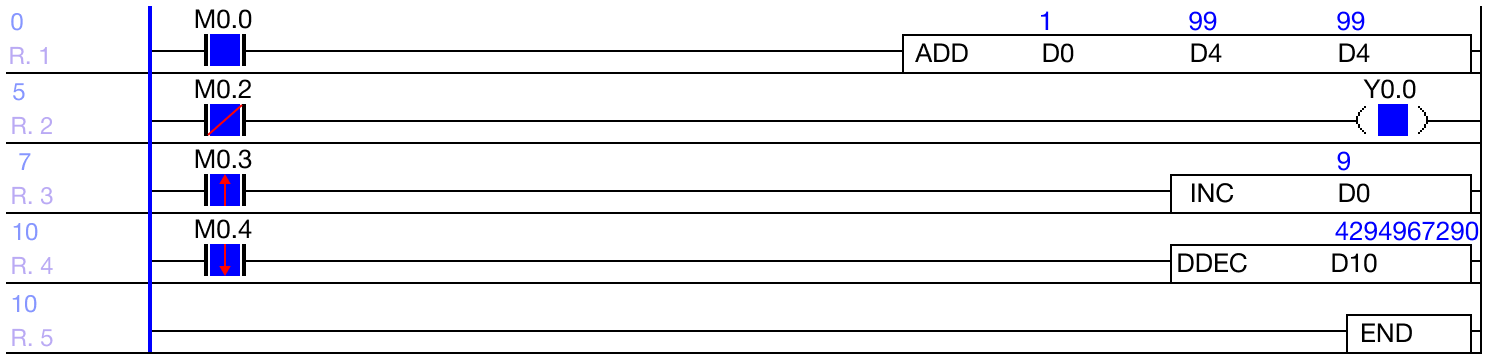
- Create a new project and a new scan program.

- On the menu bar, left-click Home and left-click Config.
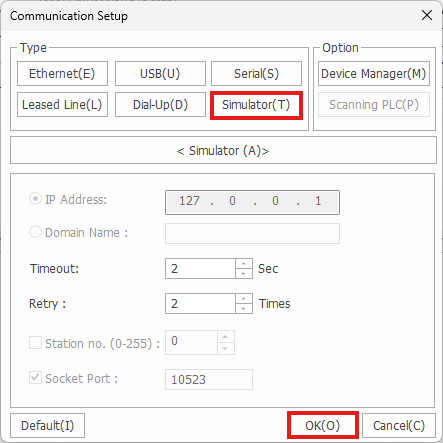
- Left-click Simulator and left-click OK.

- Left-click Home and left-click Download +. This will download the scan program to the CICON Simulator.

- Left-click Yes.
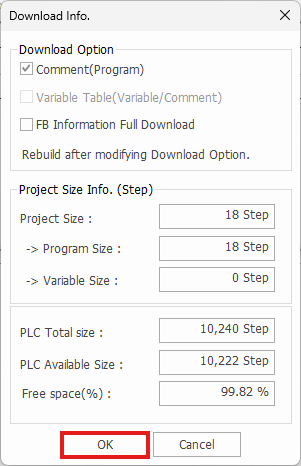
- Left-click OK.

- Left-click Yes.
Module Configuration

- To add modules to the CICON Simulator, disconnect from the simulated PLC. On the menu bar, left-click Home and left-click Disconnect.
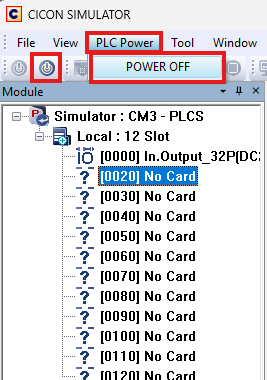
- On the CICON Simulator menu bar, left-click PLC Power and left-click POWER OFF. Optionally, on the toolbar, left-click the PLC OFF icon.
CPU Input Type
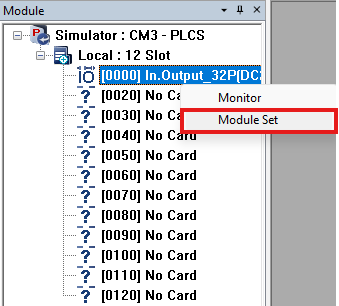
- To change the PLC input type, right-click in Module window and left-click Module Set.

- Optionally, on the CICON Simulator menu bar, left-click Tool and left-click PLC Type.

- Select the input type and left-click OK.
- To change the CPU type, change the project properties.
Expansion Module

- To add an expansion module to the chassis, in the CICON Simulator menu bar, left-click Tool and left-click Module Setting.

- Expand the Type menu to filter the possible PLC modules.
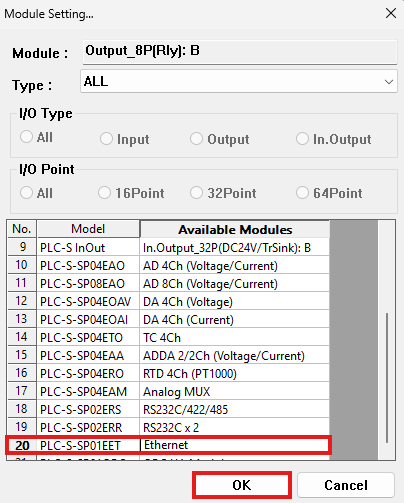
- Select the module to add and left-click OK.
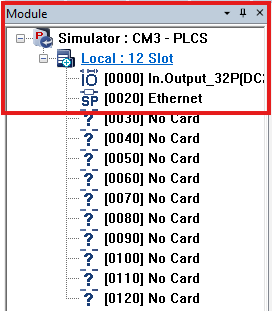
- The added modules will appear in the Module window.
Monitor
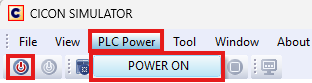
- To monitor the simulator PLC, on the CICON Simulator menu bar, left-click PLC Power and left-click POWER ON. Optionally, on the toolbar, left-click the PLC ON icon.
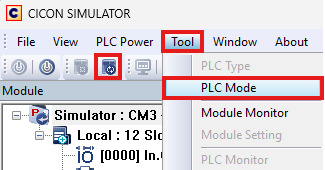
- On the CICON Simulator menu bar, left-click Tool and left-click PLC Mode. Optionally, on the toolbar, left-click the PLC Mode icon.

- Left-click Run and left-click OK.
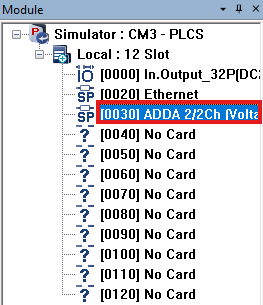
- Select the module to monitor.

- On the CICON Simulator menu bar, left-click Tool and left-click Module Monitor.
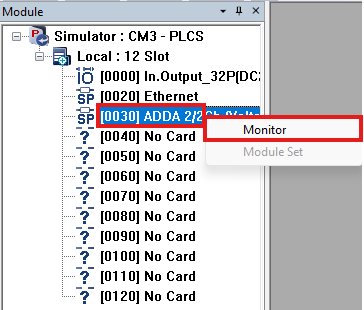
- Optionally, in the Module window, right-click the expansion module and left-click Monitor.
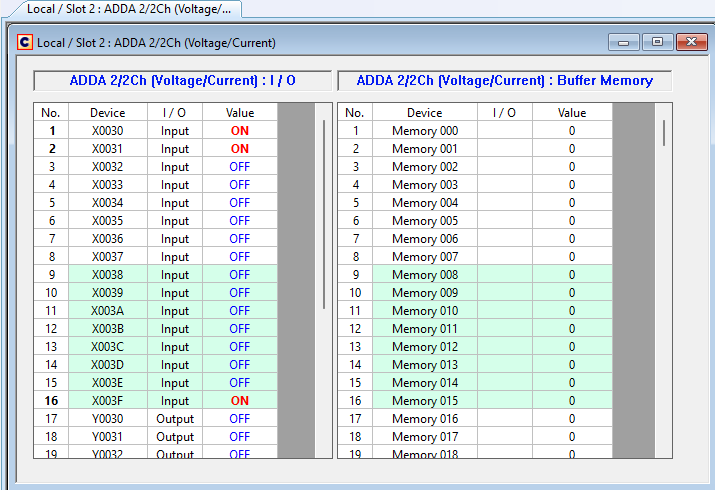
- The work space will display the memory monitor for the allocated input and output and the buffer memory (if applicable).
Close CICON Simulator
- To close the CICON Simulator, disconnect from the simulated PLC. On the menu bar, left-click Online and left-click Disconnect.

- On the CICON Simulator menu bar, left-click File and left-click Exit.

- Left-click Yes.