CICON Screen Configuration
CICON Software Screen Configuration
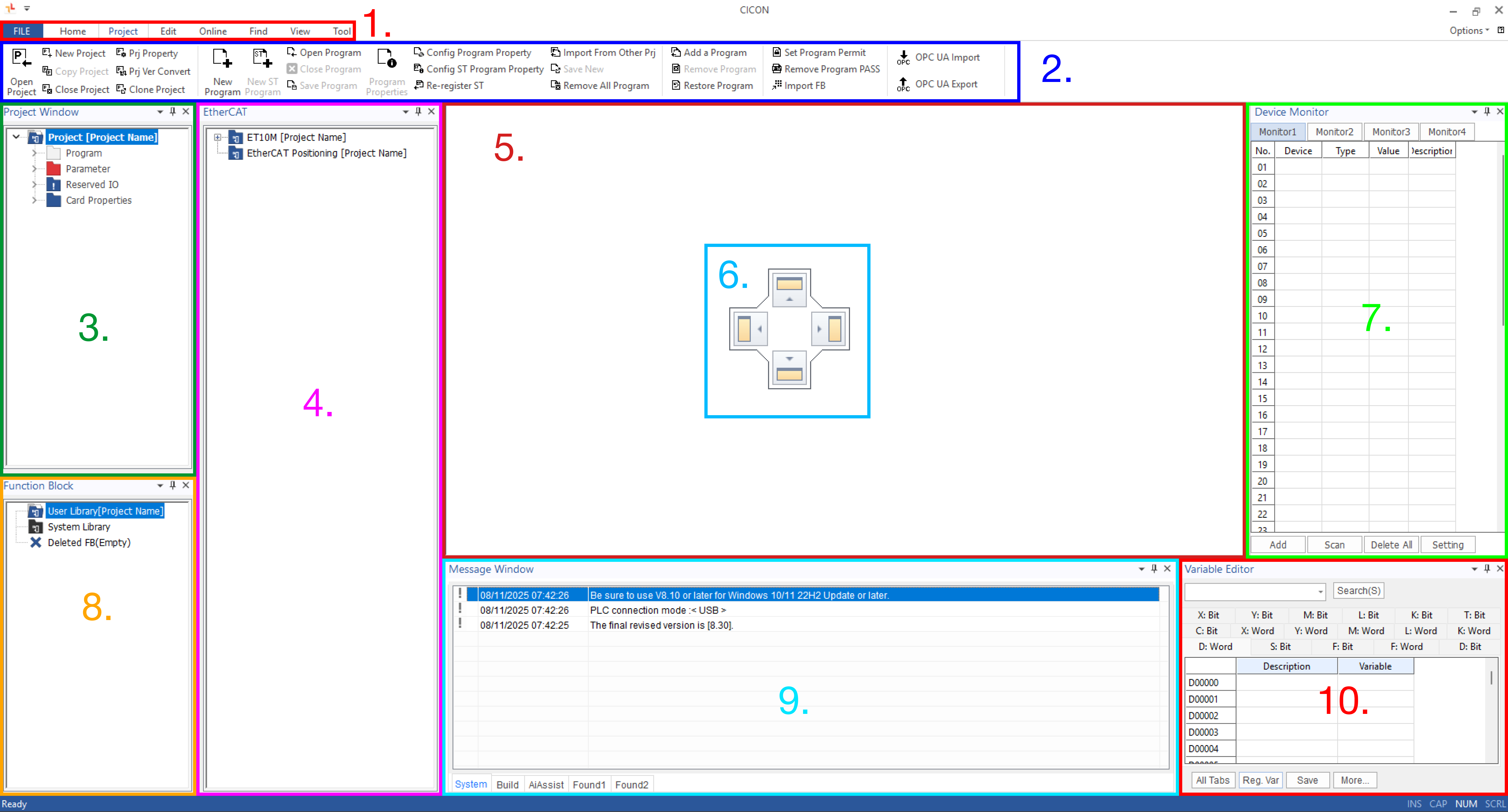
- The CICON software has the following screen components for configuration:
- Menubar
- Toolbar
- Project Window
- EtherCAT Window
- Program Window
- Docking Sticker
- Device Monitor
- Function Block
- Message Window
- Variable Editor
1. Menubar

2. Toolbar

Different Toolbars
Each tab of the menu bar contains a different toolbar.
3. Project Window
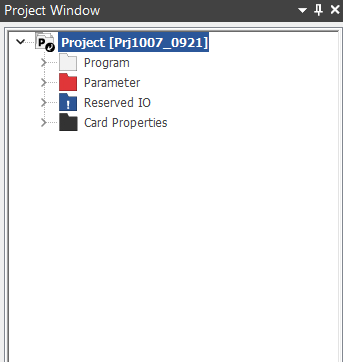
- The project window displays the following properties:
- Project name
- Program
- Parameter
- Reserved IO
- Card Properties
4. EtherCAT Window

- The EtherCAT window will display projects utilizing EtherCAT.
5. Program Window
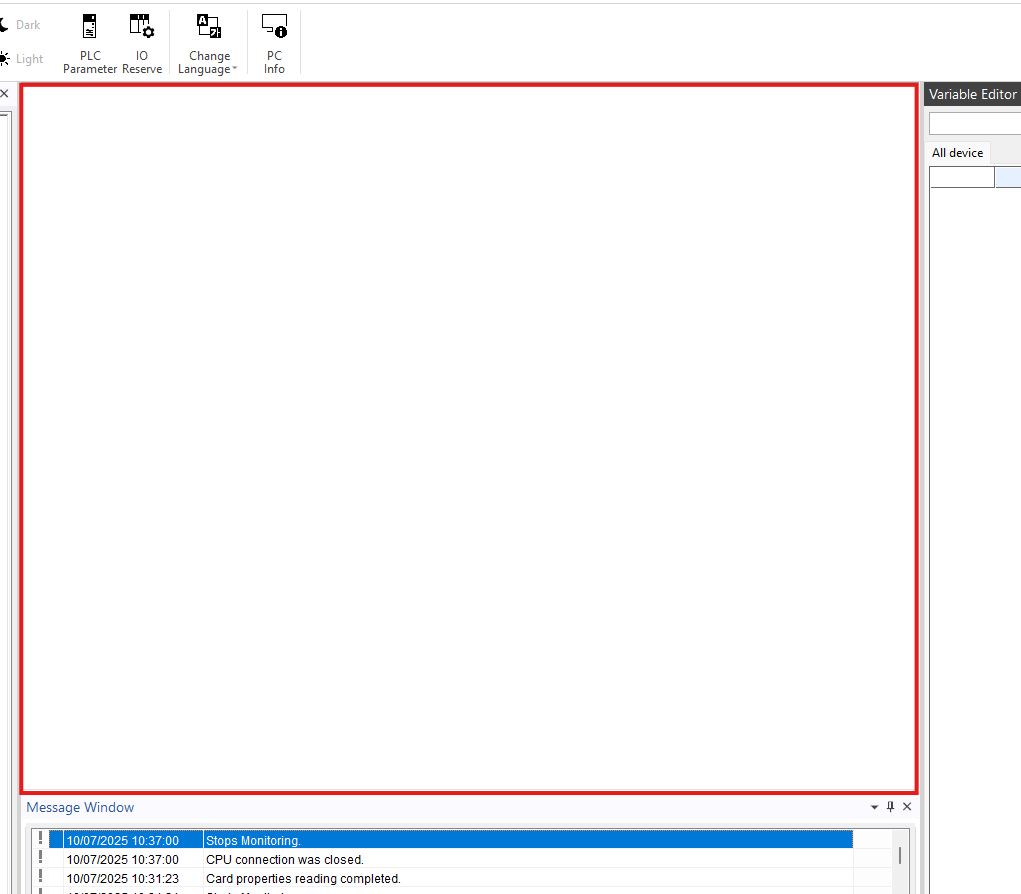
- The program window will display all programs open in the project.
- This includes scan programs, special programs, PLC parameters, Structured Text programs, etc.
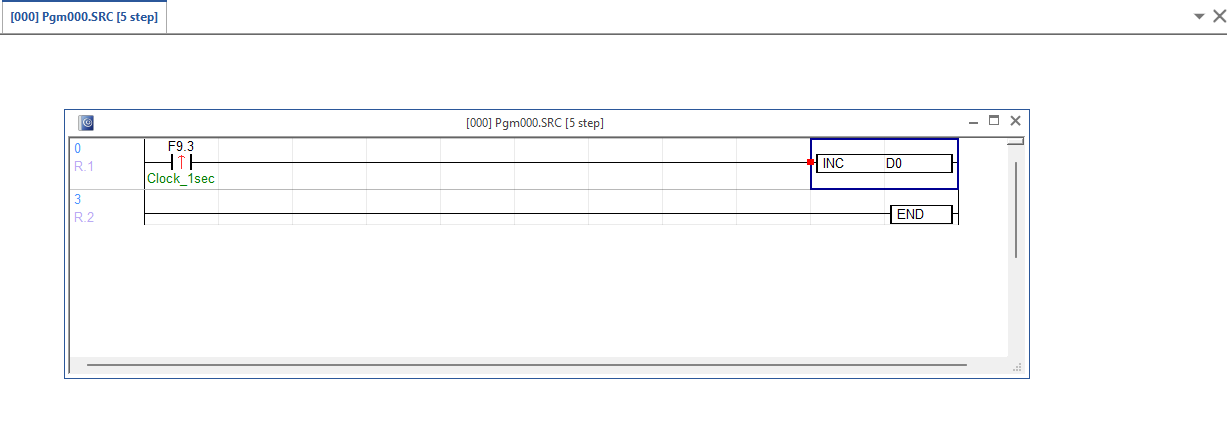
6. Docking Sticker

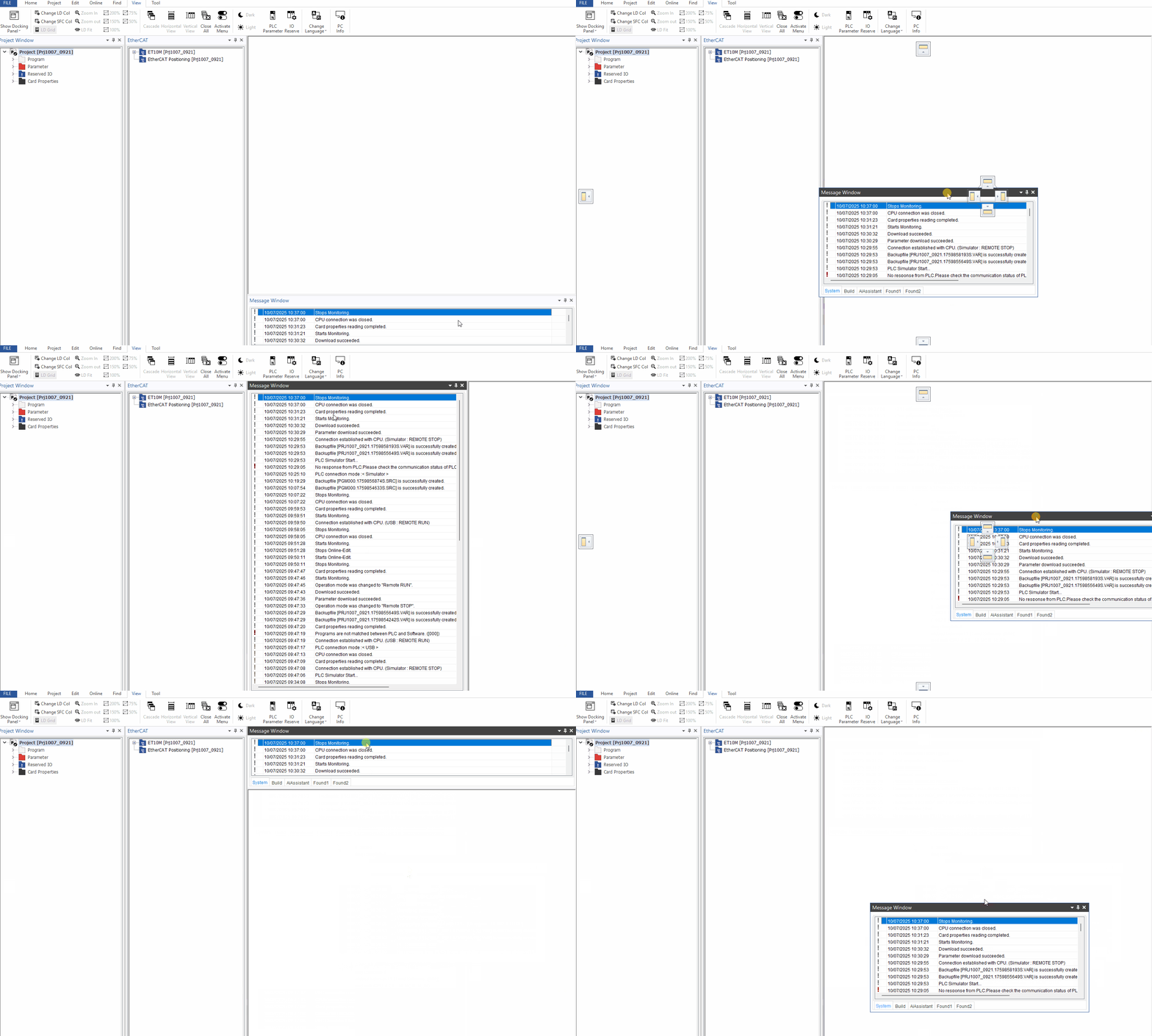
- The docking sticker appears when dragging a window across the CICON software.
- Dragging the window into a space on the docking sticker will place that window in that location:
7. Device Monitor

- The device monitoring window allows for the data type, value, and description of a data register to be changed and monitored.
8. Function Block
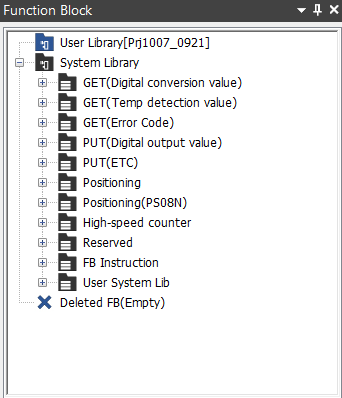
- The function block window displays all of the built-in function blocks for CICON.
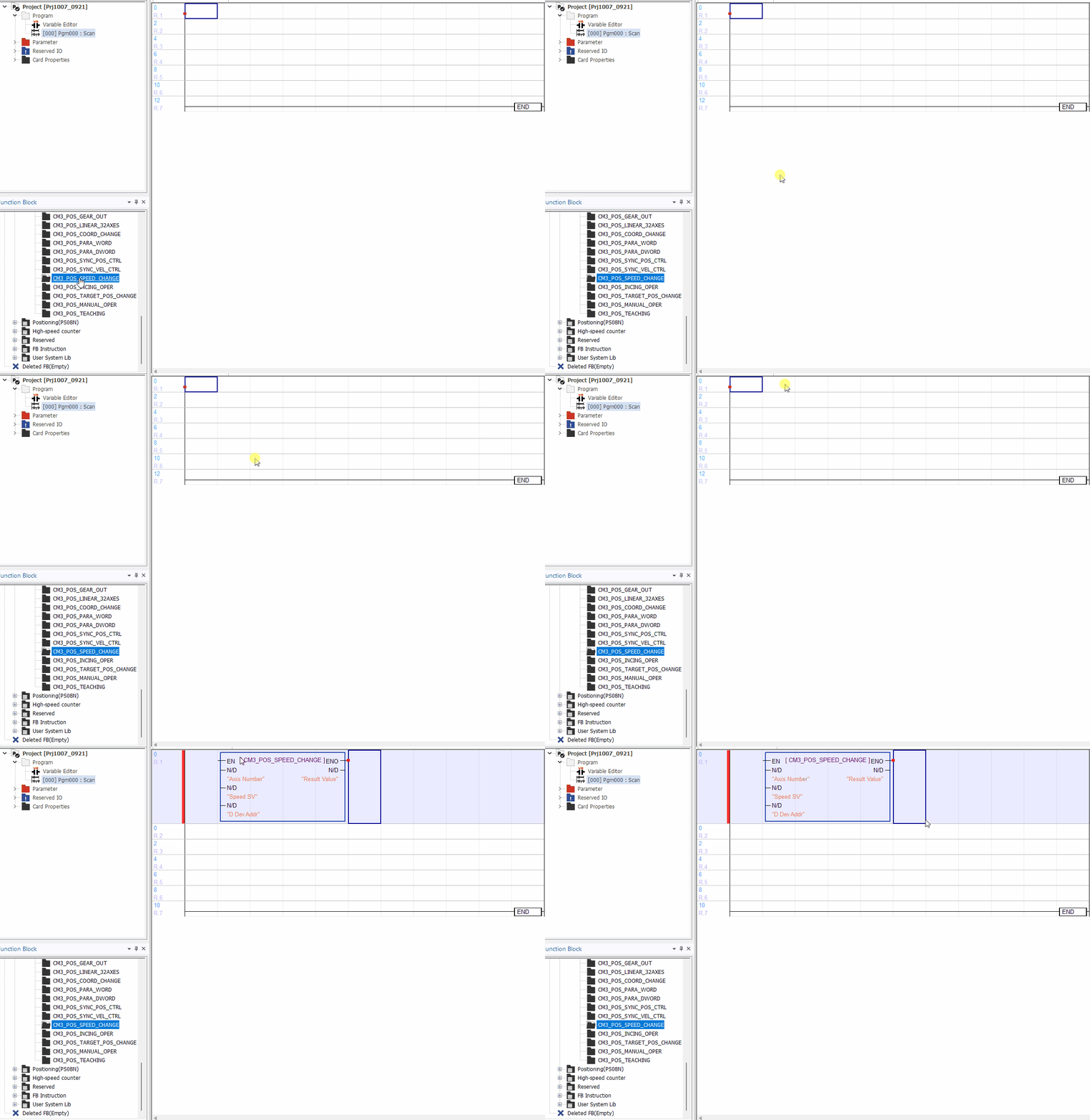
- Function blocks can be dragged into the program window of a scan program:
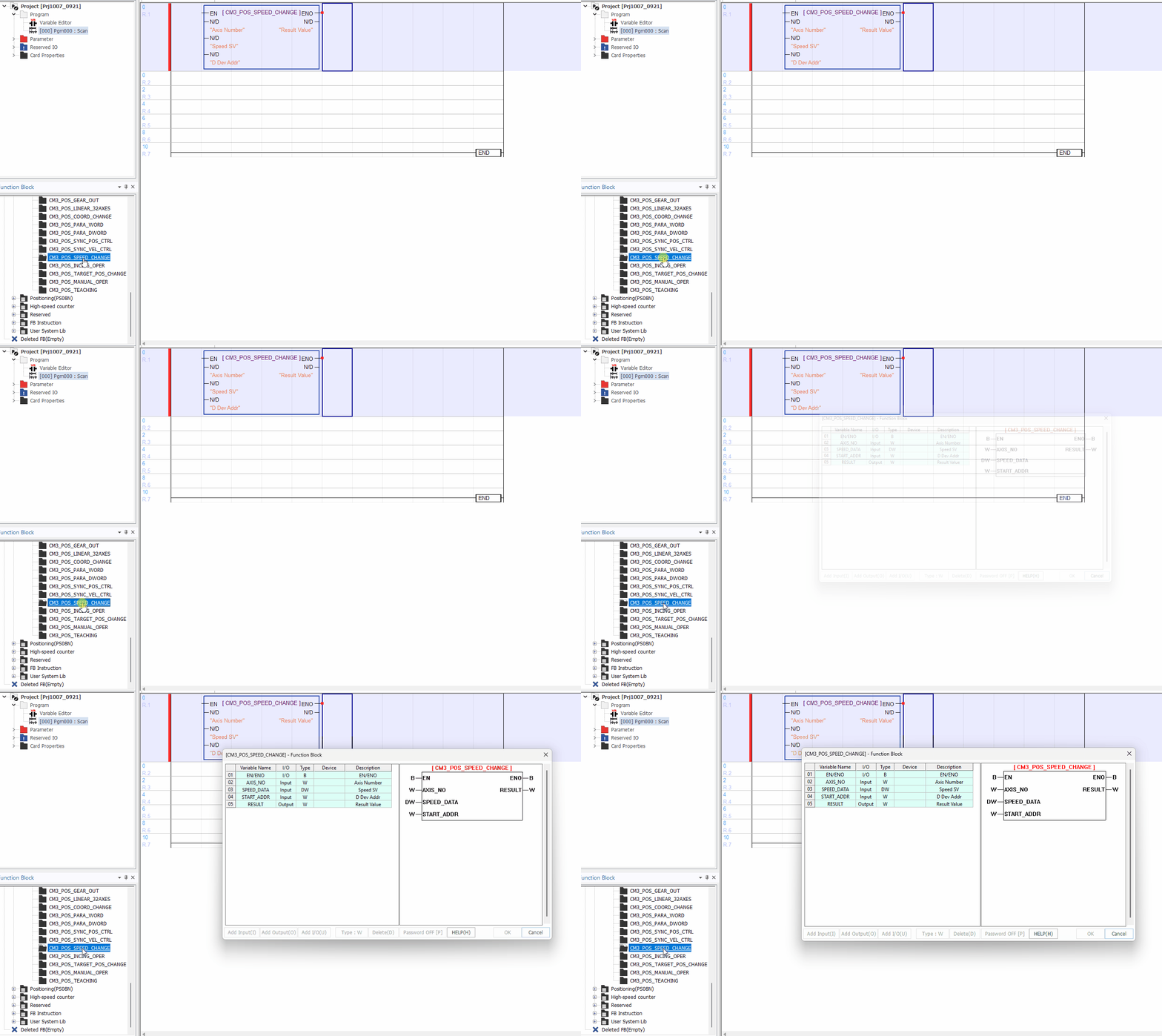
- Double-clicking a function block will display its properties and requirements:
9. Message Window
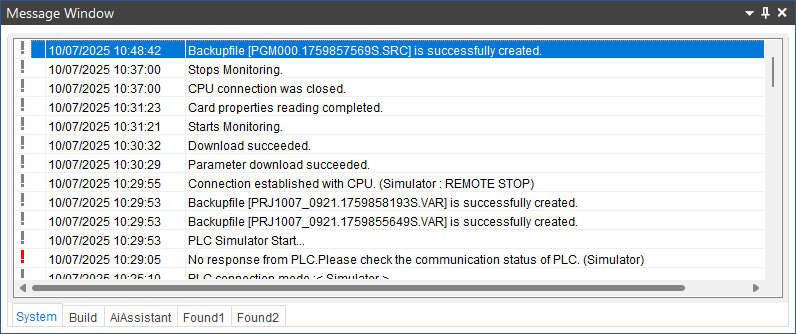
- The message window displays the results for compiling, downloading, and searching in a list.
10. Variable Editor
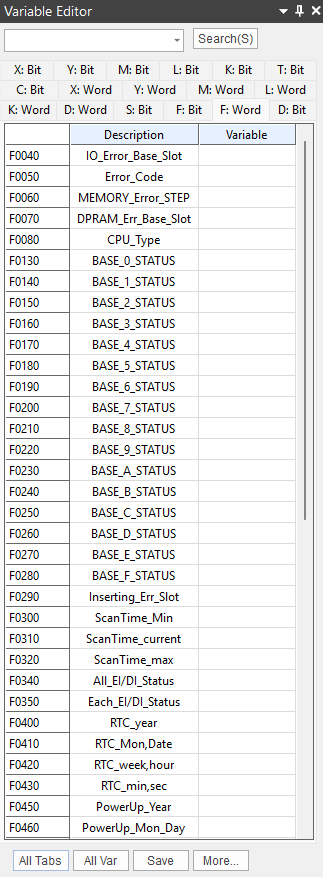
- The variable editor window allows data registers to have a variable name and description attached to them.
- The WORD and Bit version of a data register can be changed.
Additional Configuration
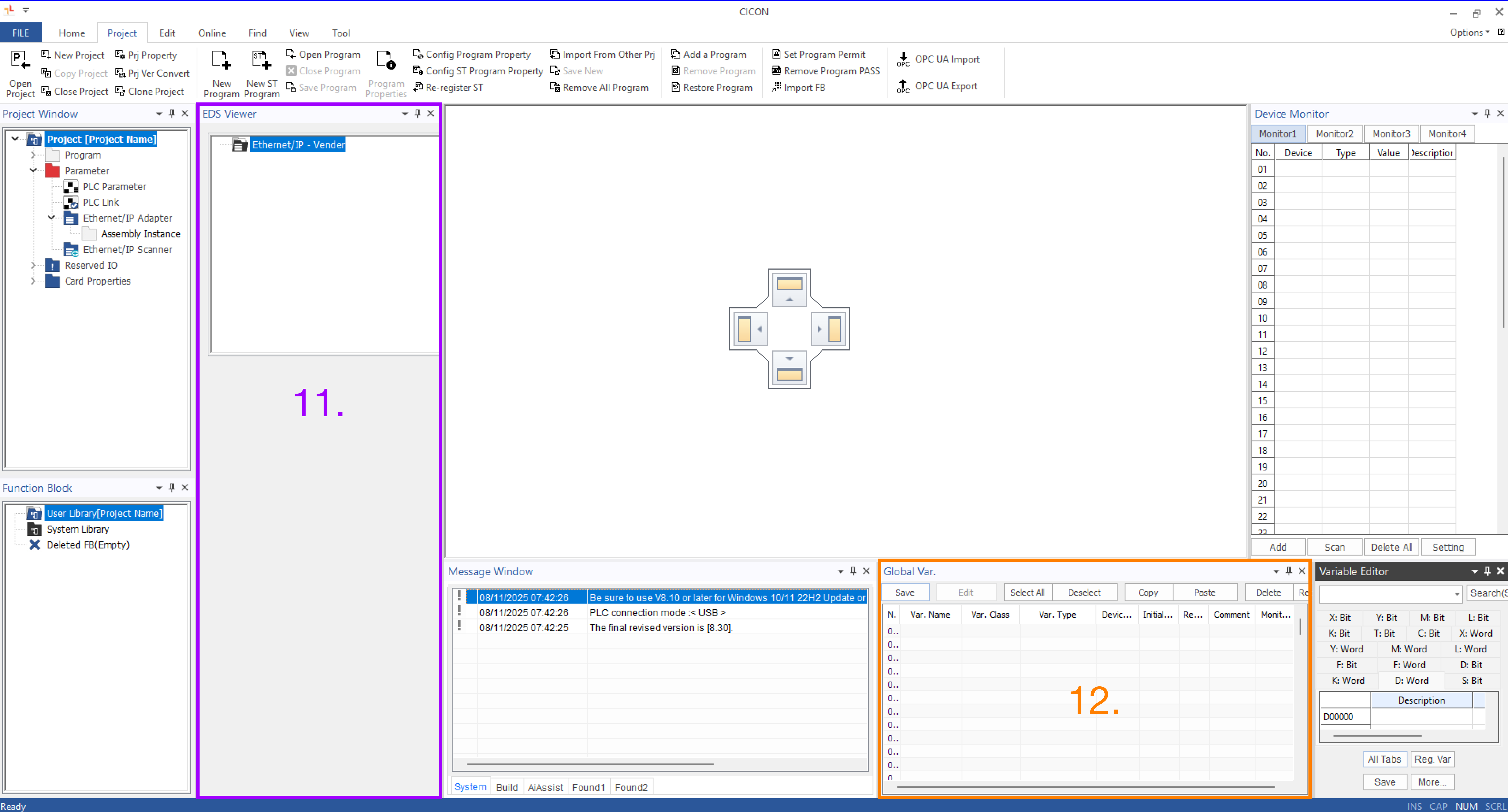
- The CICON software has the following screen components for additional configuration:
11. EDS Viewer

- The EDS Viewer displays the EDS files added to the project.
12. Global Variable
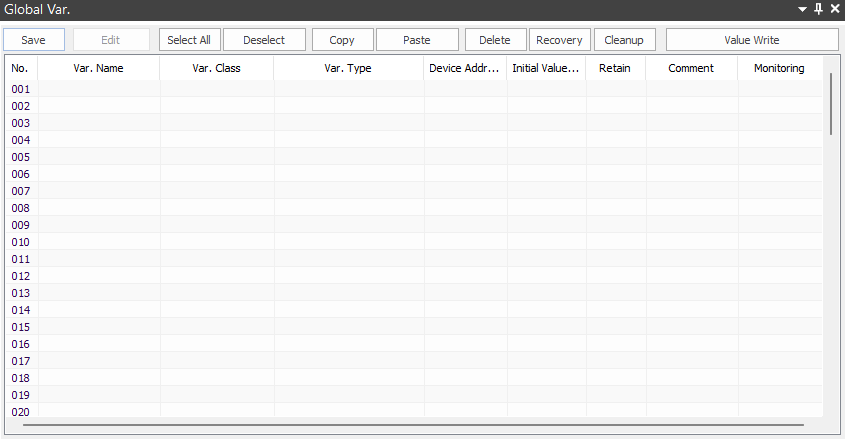
- The Global Variable window displays all global variables within the project. Individual parameters can be edited.