Variable Editor
Variable Editor

- Towards the top-right of CICON, left-click the Options drop-down. Enable Var.Doc Window(V). This will dock the Variable Editor to the display if it is not already enabled.

- Optionally, in the Project Window, left-click to expand Program and double left-click Variable Editor.

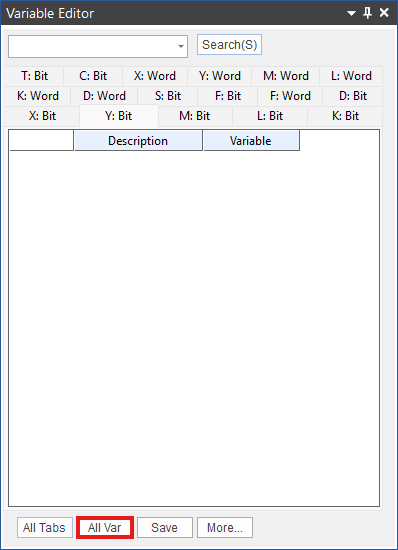
- To enable Description and Variable editing, left-click Split and left-click All Var.
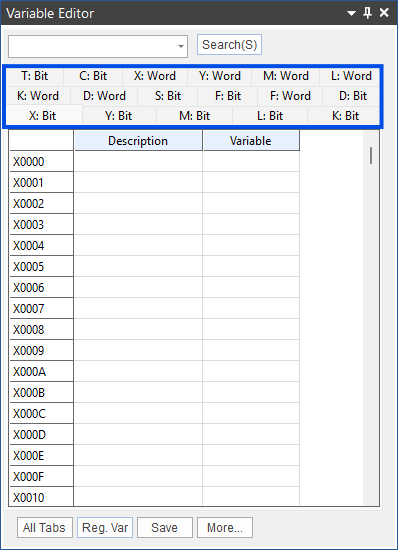
- Left-click on the BIT or WORD data register type.
- IMPORTANT: The F BITs and F WORDs are used for internal relay flags. DO NOT EDIT THESE.
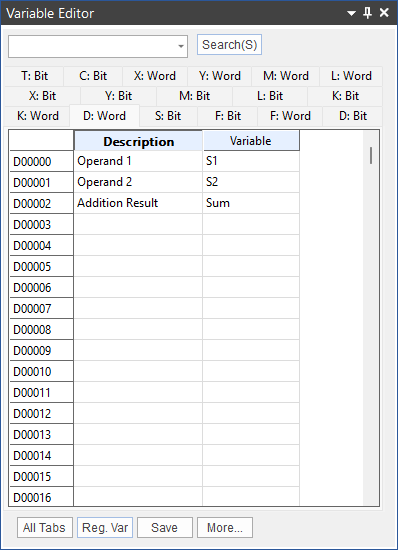
- Provide a Description and/or Variable for the data registers.
Using Variables
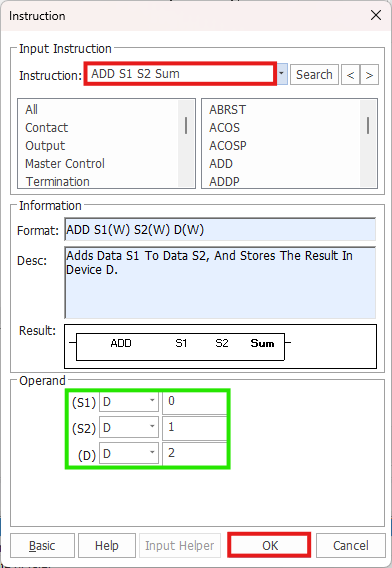
This portion of the example uses a Scan program for demonstration.
- Insert an instruction into the ladder logic. This example uses the ADD instruction for basic addition.
- For the operands, S1 and S2, the variable names, S1 and S2, can be substituted for the data registers, D0 and D1.
- For the operand, D, the variable name, Sum, can be substituted for the data register, D2.
- Under the operand section, the corresponding data registers will appear for confirmation.
- When finished, left-click OK.
Variable Editor Expanded
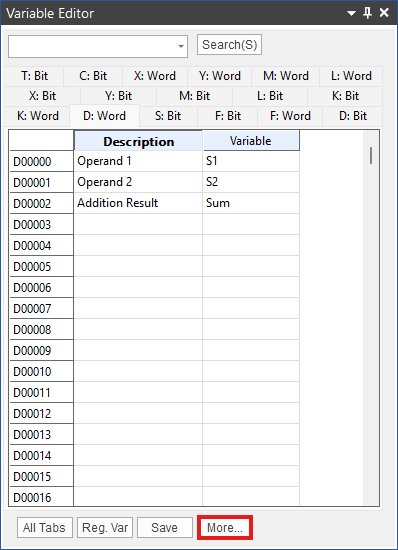
- To expand the functions of the variable editor, left-click More....
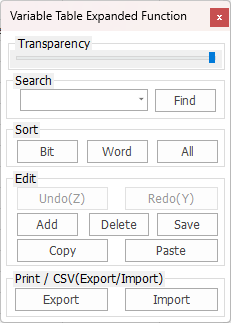
- The Find function will search for a keyword in the search bar.
- This will navigate to the first occurrence of the variable if it is found.
- The Sort section will sort data registers by BIT, WORD, or both.
- The Edit section will edit descriptions and variables.
- The Export/Import section:
- Import existing variables and descriptions from other projects (.csv format)
- Export existing variables and descriptions from the current project (.csv format)
Displaying Descriptions and Variables
Data Register Only

This example excludes descriptions and variables.

- To display only data registers, left-click Edit and left-click Device Only.
Variable Name Only

This example excludes descriptions.

- To display only the variable name, left-click View and left-click Device + Var.
Description Only

This example excludes variables.

- To display only the description, left-click View and left-click Device + Comt.