PLC Password
PLC Password
CICON provides the ability to password-protect PLCs.
Remember Password
If the password is lost, the project cannot be recovered.
Set Password

Ensure the PLC is connected to the computer beforehand.

- Left-click Online and left-click PLC Password.

-
In the Password Setup window, input the password in the New and Confirm box.
- These passwords must match.
- The password must be between 8 and 14 characters.
- These passwords must match.
-
Left-click OK when finished.

- If the password violates any of the above conditions, the warning box appears.
Remove Password

-
To remove the PLC password, open the Password Setup window.
-
Input the password to remove in the Old box.
-
Leave the New and Confirm boxes blank and left-click OK.

- If the password to remove is incorrect, the warning box appears.
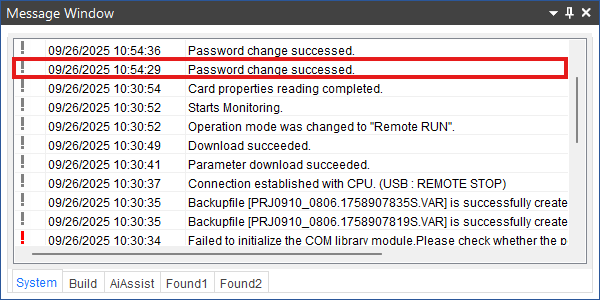
- If the password change was successful, the message will appear in the Message Window.