Project Password
Project Password
A password can be set on to the project itself.
Remember Password
If the password is lost, the project cannot be recovered.
New Project
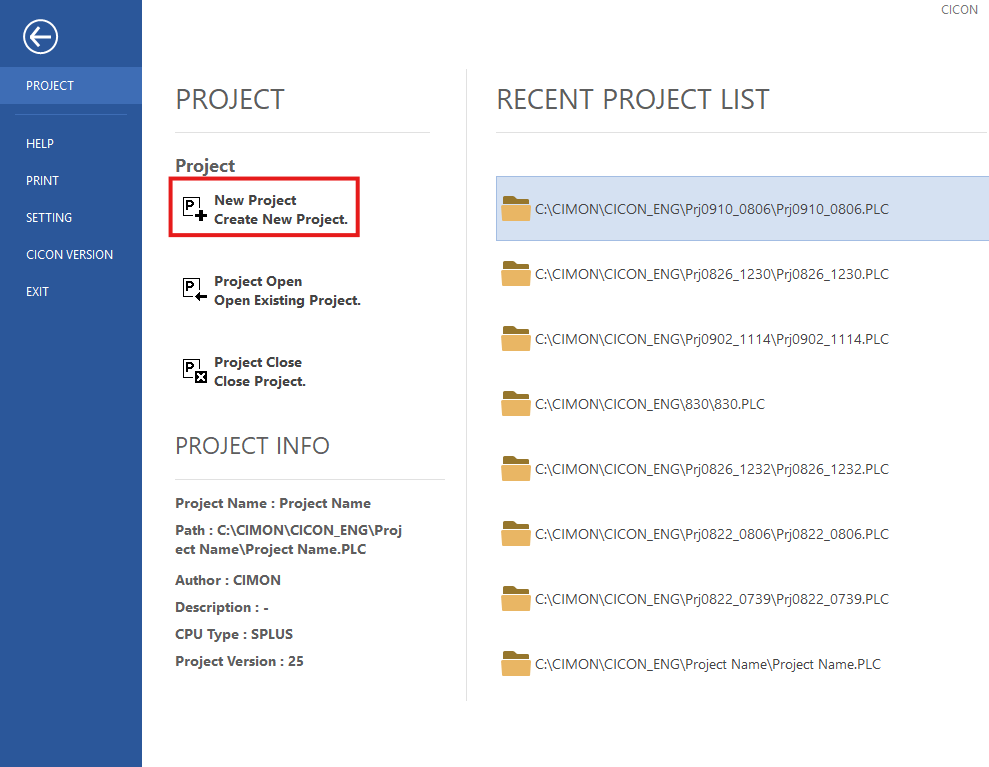
- To add a password to a new project, left-click New Project.
Existing Project

- To add a password to an existing project, left-click Project and left-click Prj Property.
Set Project Password
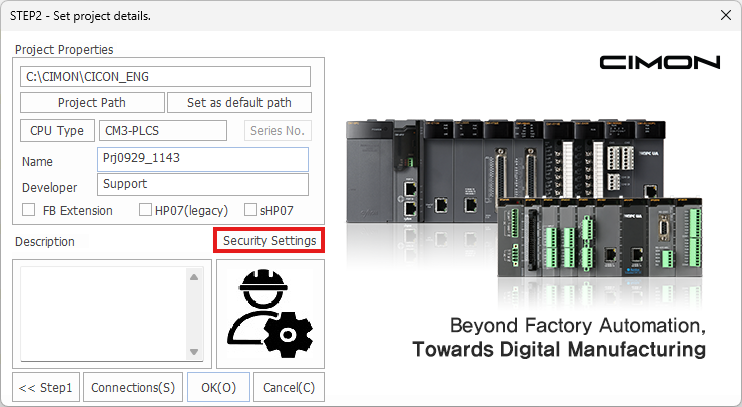
- Left-click Security Settings.

- Enter the password into the New and Confirm fields. Ensure Authority is set to Password Mode. Left-click OK.
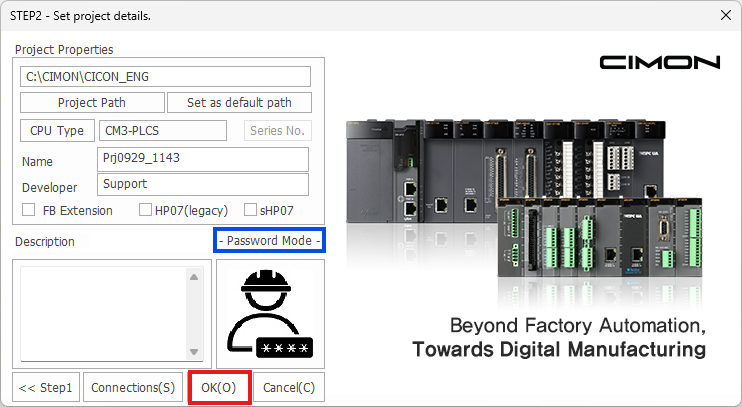
- The project details will now display Password Mode. Left-click OK to continue.
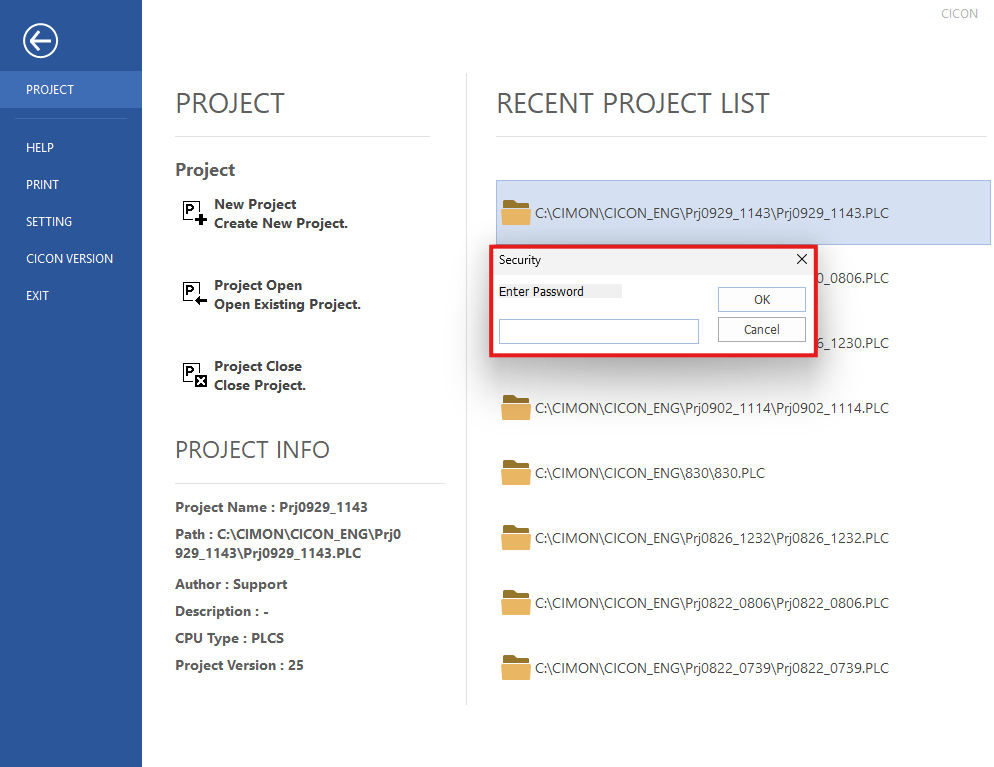
- After trying to open the project, a password is required.
Remove Project Password
- To remove the project password, left-click Project and left-click Prj Property.
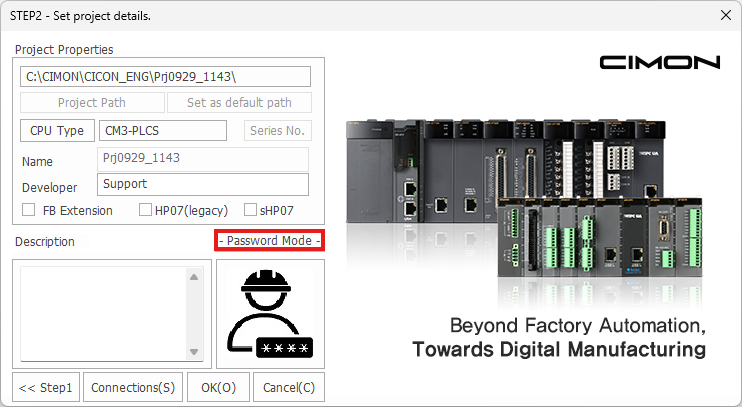
- Left-click Password Mode.

- Enter the password and left-click OK.
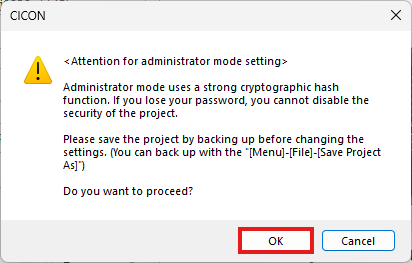
- Acknowledge the warning message. Left-click OK when finished.

- Left-click P/W Change.

- Acknowledge the warning message. Left-click OK when finished.

- Leave the New and Confirm fields blank. Left-click OK.
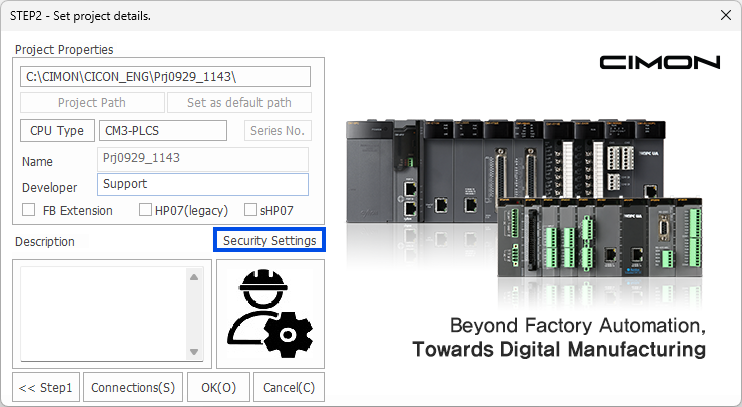
- The project details will display Security Settings instead of Password Mode.