Find & Replace
Find & Replace
The Find and Replace tool will find contents in the ladder diagram program and replace the found contents with something to replace.
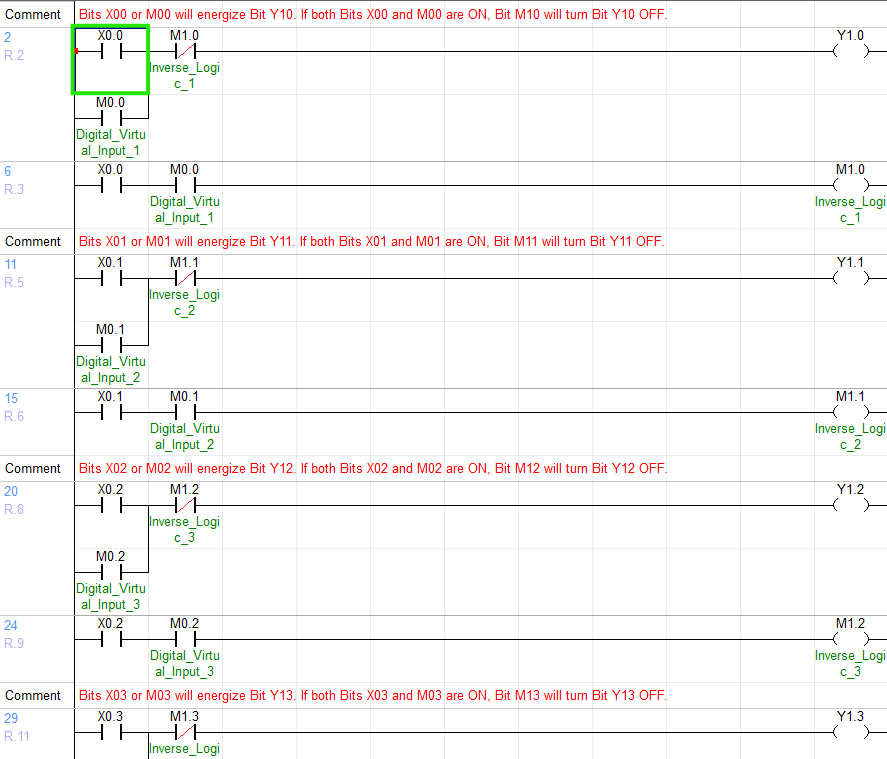
- Left-click the rung to start the search.
- This will be where the search function begins searching from.

- Left-click Find, and left-click Find and Replace or type CTRL + F on the keyboard.
Find

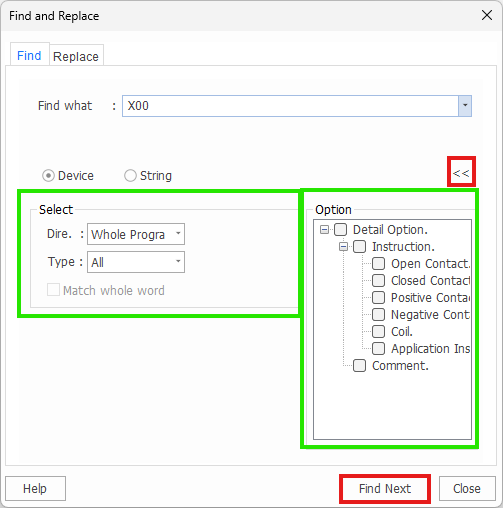
- Left-click the Find tab. Select Device to search for data registers. Select String to search for strings. Input the data register or string to find in the Find what window.
-
Left-click the >> button to expand or narrow the search function.
- Dire. is the direction to search:
- Up searches the ladder above the starting rung.
- Down searches the ladder below the starting rung.
- Whole Program searches the ladder above and below the starting rung.
- Type is the data register data type (if selected):
- All searches for both WORDs and BITs.
- WORD searches for only WORD data registers.
- BIT searches for only BIT data registers.
- The Operation tab narrows the search to a contact, coil, instruction, or comment type.
- Dire. is the direction to search:
-
Left-click Find Next to search for the next occurrence of the data register or string.
Replace

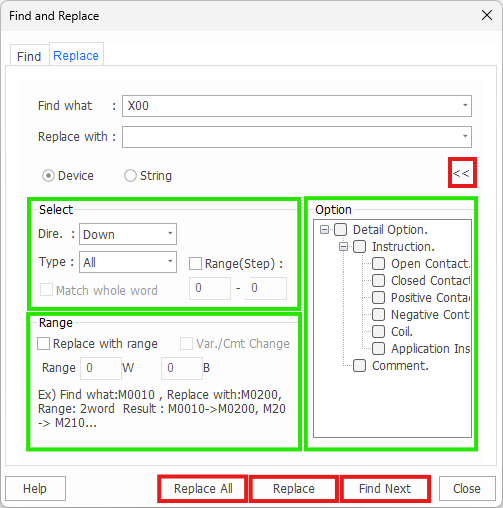
- Left-click the Replace tab. Select Device to search for data registers. Select String to search for strings. Input the data register or string to be replaced in the Find what window. Input the data register or string to replace the current data register or string with in the Replace with window.
-
Left-click the >> button to expand or narrow the search function.
- The Select tab:
- Dire. is the direction to search:
- Up searches the ladder above the starting rung.
- Down searches the ladder below the starting rung.
- Type is the data register data type (if selected):
- All searches for both WORDs and BITs.
- WORD searches for only WORD data registers.
- BIT searches for only BIT data registers.
- Range(Step) is the step range to replace the Find what data register or string.

- The Step is the number above the rung number (i.e.: 0 above R.1).
- Dire. is the direction to search:
- The Range tab:
- Replace with range will replace consecutive WORDs or BITs specified by the range:
- This example will demonstrate Replace with range.

- The data registers in the ADD instruction are M30, M40, and M50.
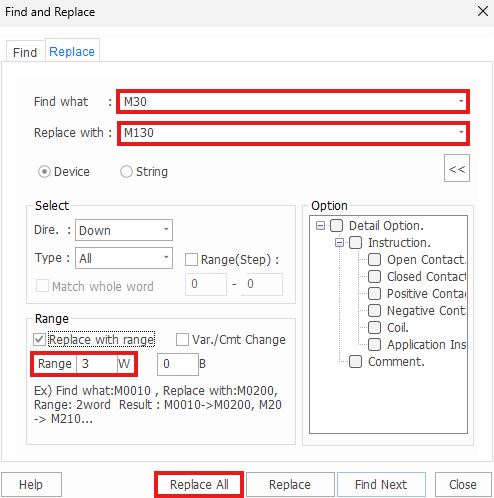
- The Find what data register is M30 and the Replace with data register is M130.
- The Replace with range for WORD is 3.

- The data registers in the ADD instruction are M30, M40, and M50.
- After left-clicking Replace All, the data registers in the ADD instruction are M130, M140, and M150.
- This example will demonstrate Replace with range.
- Var./Cmt Change will target the variable and description from the Variable Editor window.
- Replace with range will replace consecutive WORDs or BITs specified by the range:
- The Operation tab narrows the search to a contact, coil, instruction, or comment type.
- The Select tab:
-
Left-click:
- Replace All to replace all occurrences of the Find what data register or string.
- Replace to replace the current or first occurrence of the Find what data register or string.
- Find to navigate to the first occurrence of the Find what data register or string.
Find Previous

- To find the previous occurrence of a contact, coil, string, or instruction, left-click Find and left-click Prev.
- The previous find option will navigate UP the ladder.
Find Next

- To find the next occurrence of a contact, coil, string, or instruction, left-click Find and left-click Next.
- The next find option will navigate DOWN the ladder.
Find All

- Left-click Find, and left-click Find All or type CTRL + SHIFT + F on the keyboard.
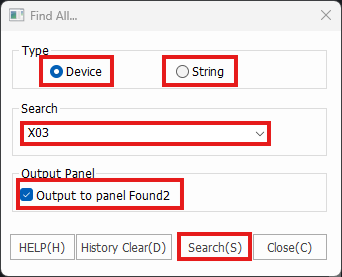
- Select Device to search for data registers. Select String to search for strings. In the Search window, input the data register or string to search for. Enable the Output to panel Found2. Left-click Search.

- In the Message Window, left-click Found2. This will display all occurrences of the data register or strings searched for.

-
Left-click on an occurrence of the data register or string in the Found2 window. Left-click Find Next > to highlight the next occurrence of the data register or string in the ladder diagram program.
-
Double left-click on an occurrence of the data register or string in the Found2 window to highlight the current occurrence of the data register or string in the ladder diagram program.
Go To Step

- To navigate to a specific step number, left-click Find and left-click Goto Step.

- Input the step number to navigate to in the ladder diagram program and left-click Go.
Go To Statement

- To navigate to a specific comment, left-click Find and left-click Goto Statement.
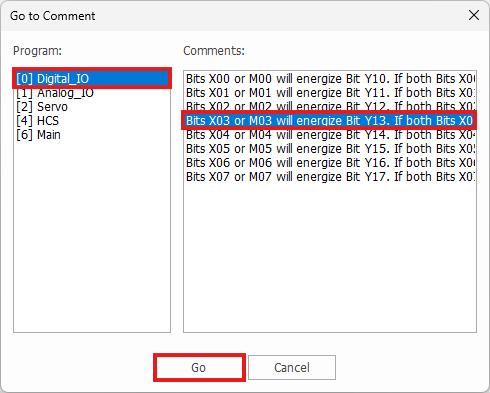
- Left-click the program, left-click the comment, and left-click Go to navigate to the comment in the ladder diagram program.