File Path Exercise
Exercise
Exercise: Using the File Path Object
Please follow the below exercise to understand File Path Object functionality.
Configuration
The following configuration is used to set up this exercise.
Tag Configuration
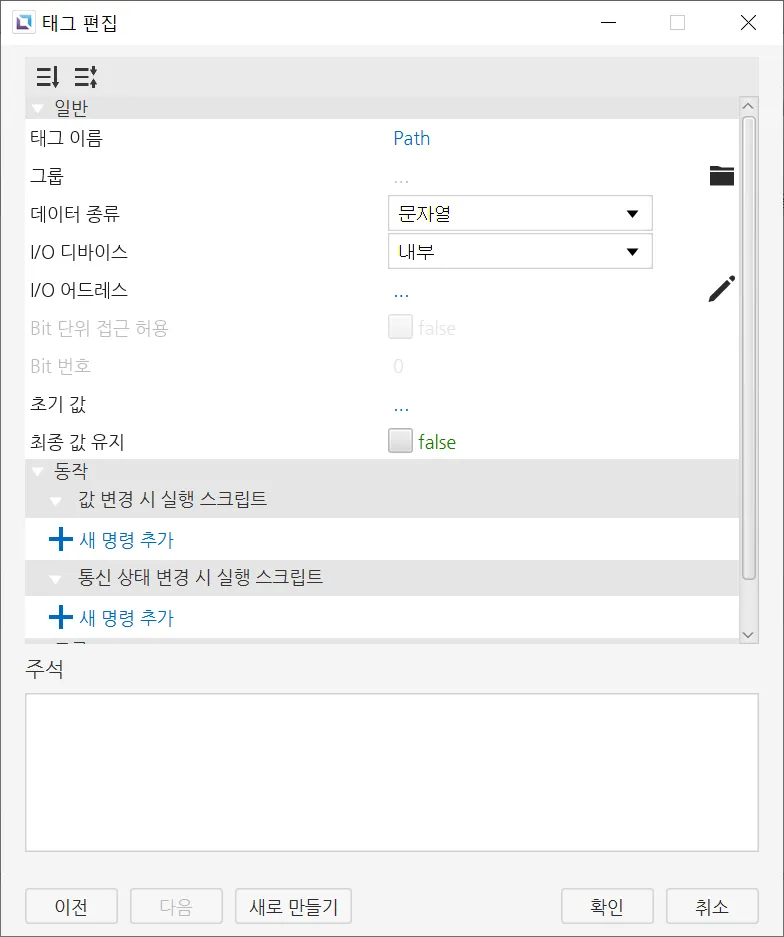
- Create the following tag:
- Path
- Data type: String
- Initial value: /run/media/sda1/sound 1.mp3
- Path
Script Configuration
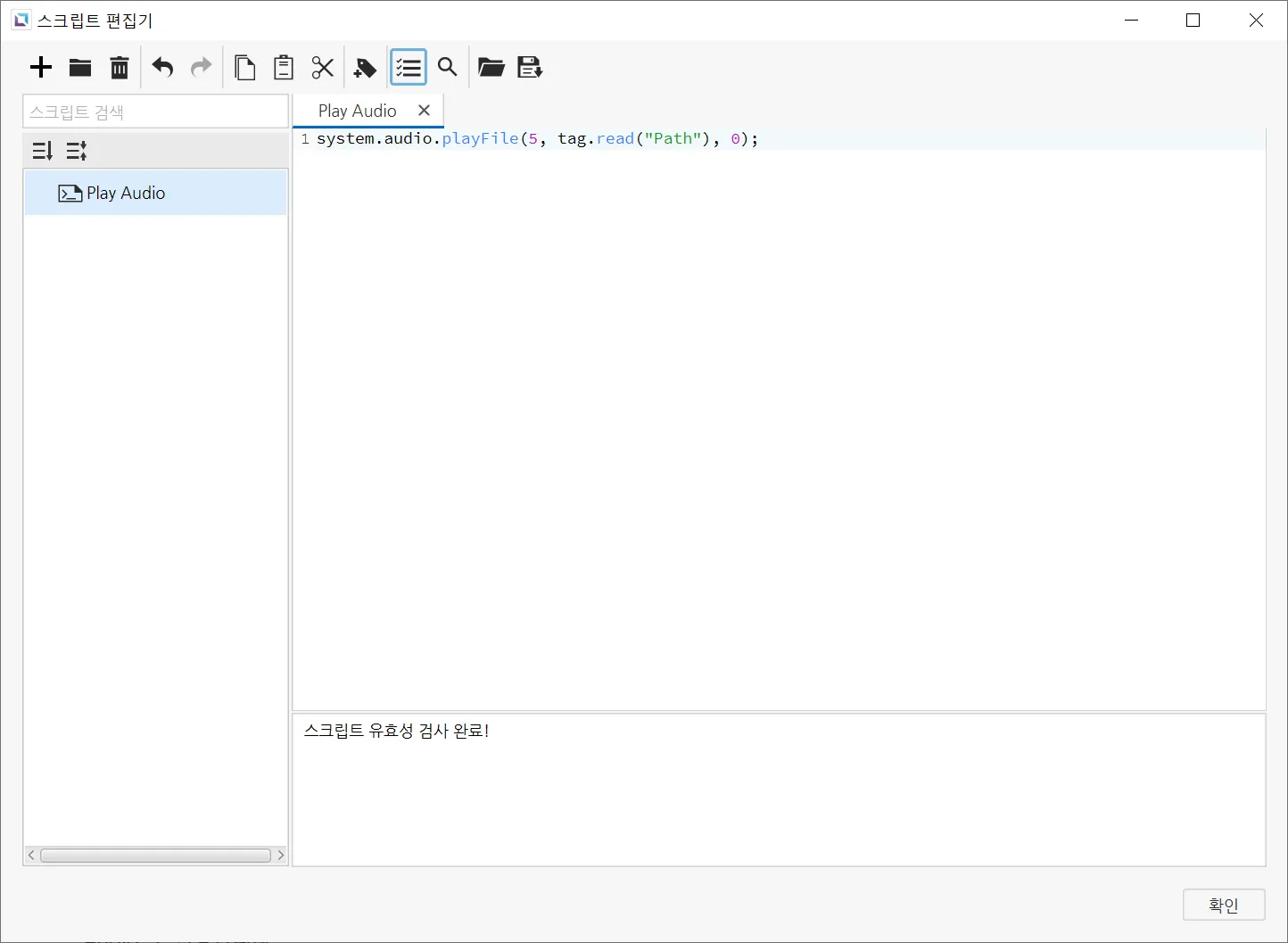
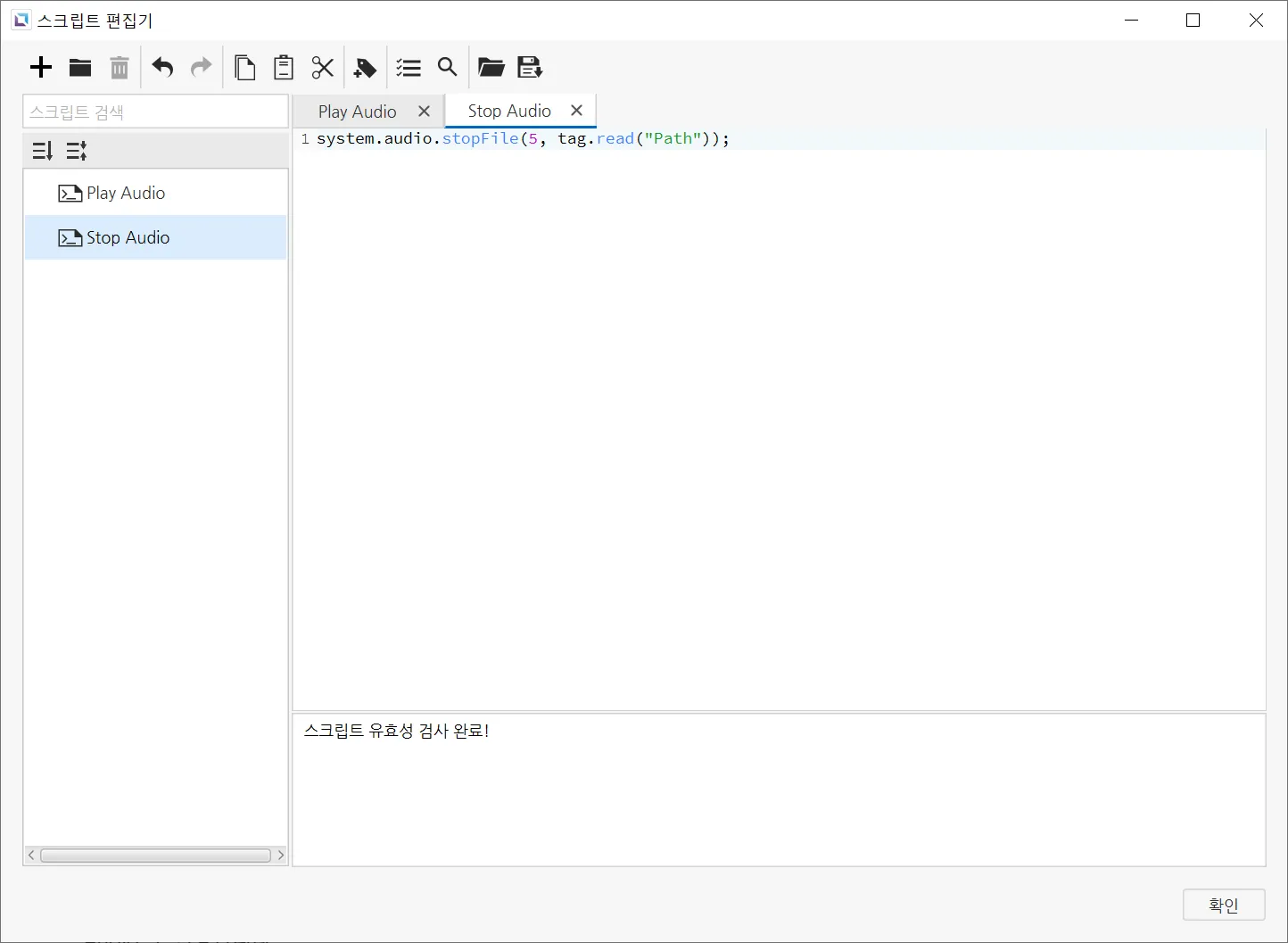
- Create the following scripts: 3. Play Audio - Running type: Manual 4. Stop Audio - Running type: Manual
-
Paste the following code into the Play Audio script
system.audio.playFile(5, tag.read("Path"), 0); -
Paste the following code into the Stop Audio script
system.audio.stopFile(5, tag.read("Path"));
Project Configuration
- Insert a file path object and two text displays on the screen. Change the text displays to say, "Play Audio" and "Stop Audio".
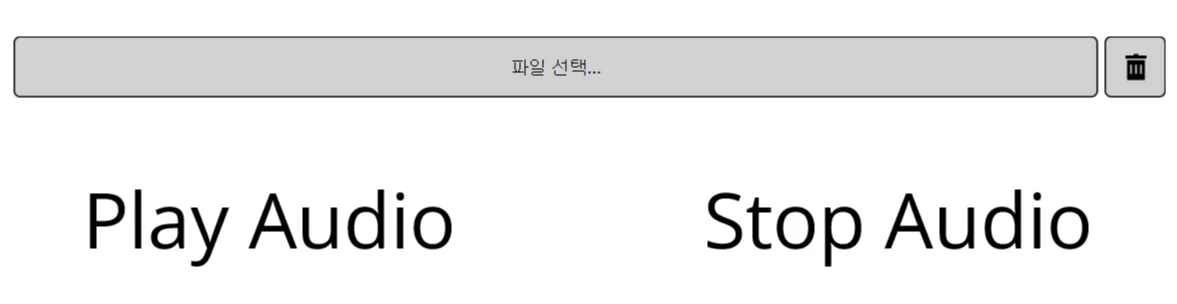
- Drag-and-drop the Path tag onto the file path object. This will change the file path property to the Path tag. Change the storage type to USB.
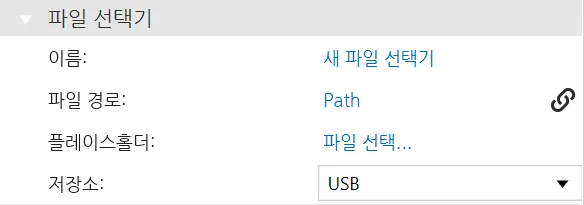
-
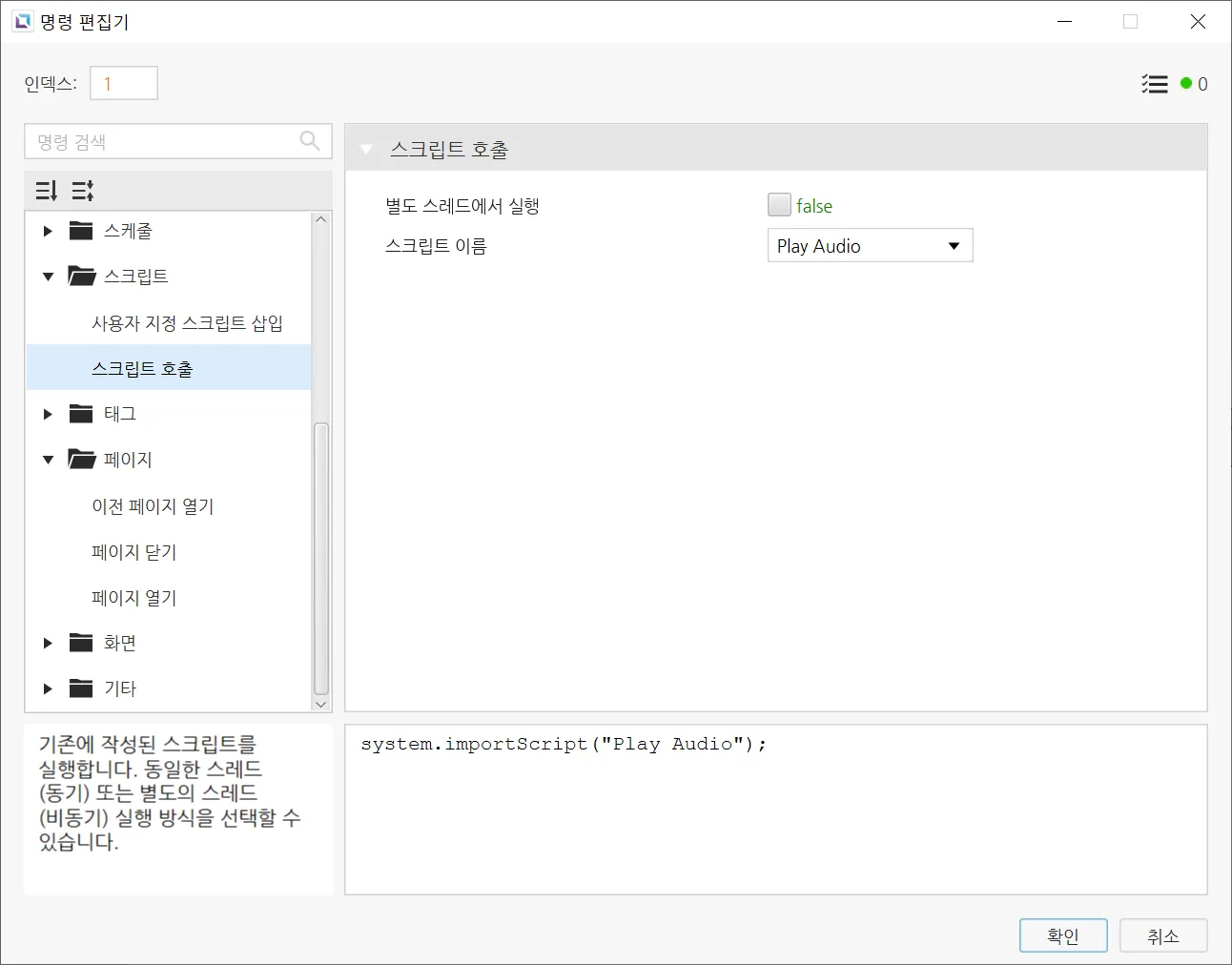
Click on the "Play Audio" text display to show its properties. Under Actions and On Press, select Add New Command. Select the Call Script command and set it to the Play Audio script.
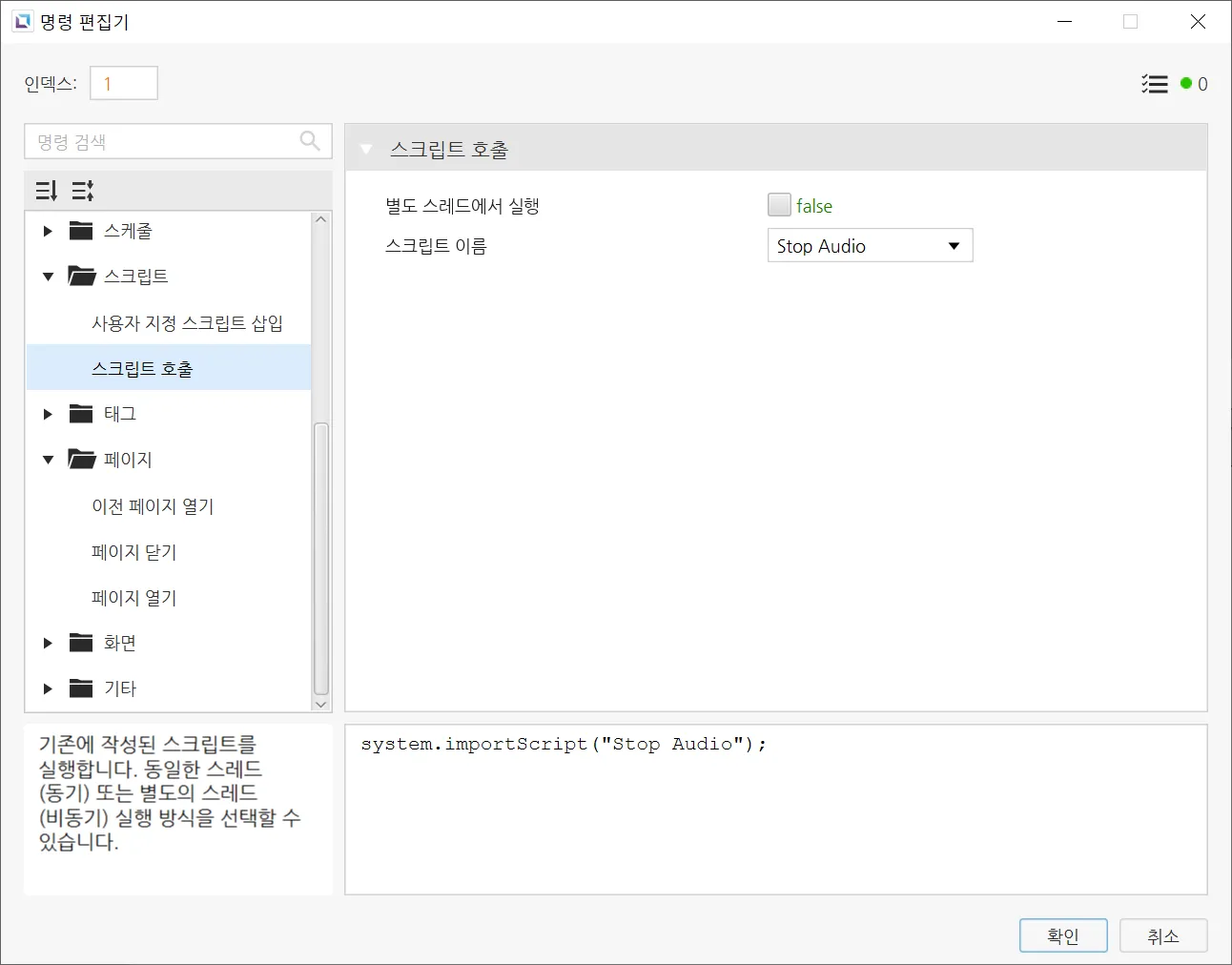
Click on the "Stop Audio" text display to show its properties. Under Actions and On Press, select Add New Command. Select the Call Script command and set it to the Stop Audio script.
USB Configuration
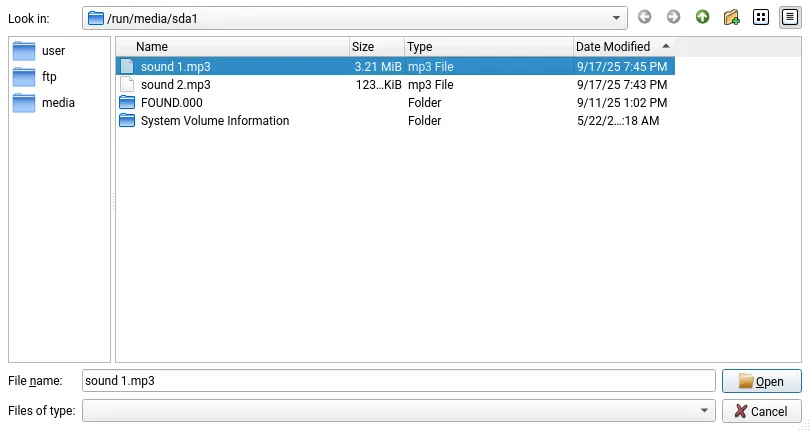
- Download two audio files to a USB drive. Plug the USB drive into the HMI
Project Deployment
- Download the project to the HMI. The file path object displays the current value of the Path tag.
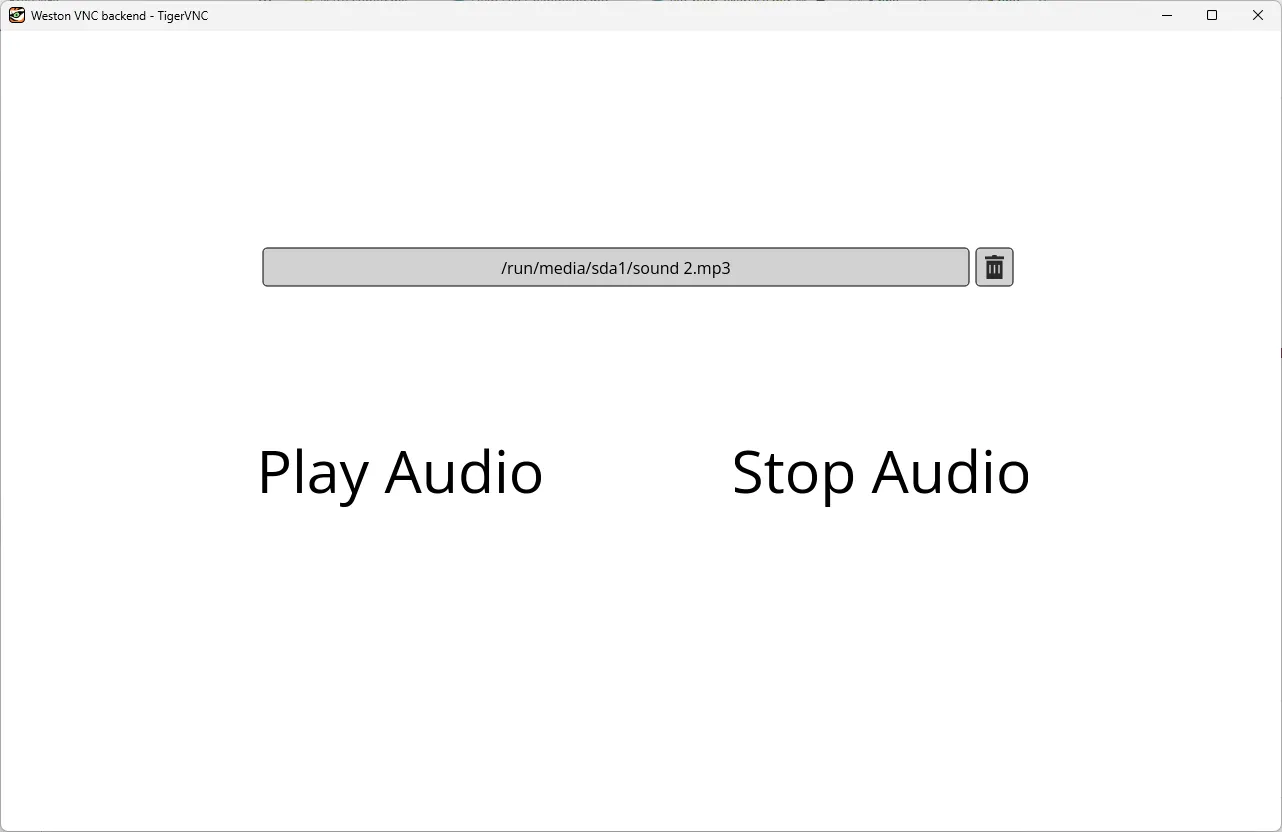
-
Press "Play Audio" to play the first audio file.
-
Press "Stop Audio" to stop playing the first audio file.
-
Press the file path object to open the file explorer.
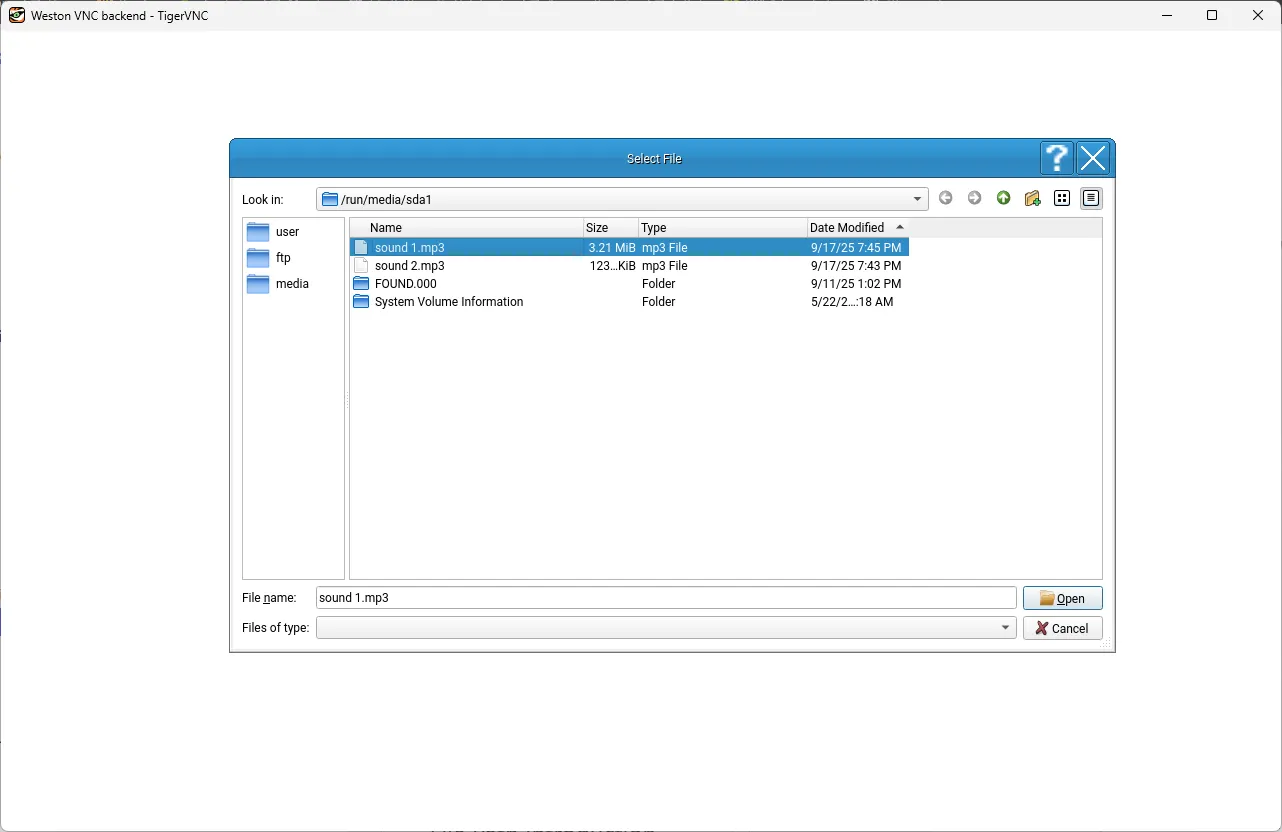
- Select sound 2.mp3 and press Open.
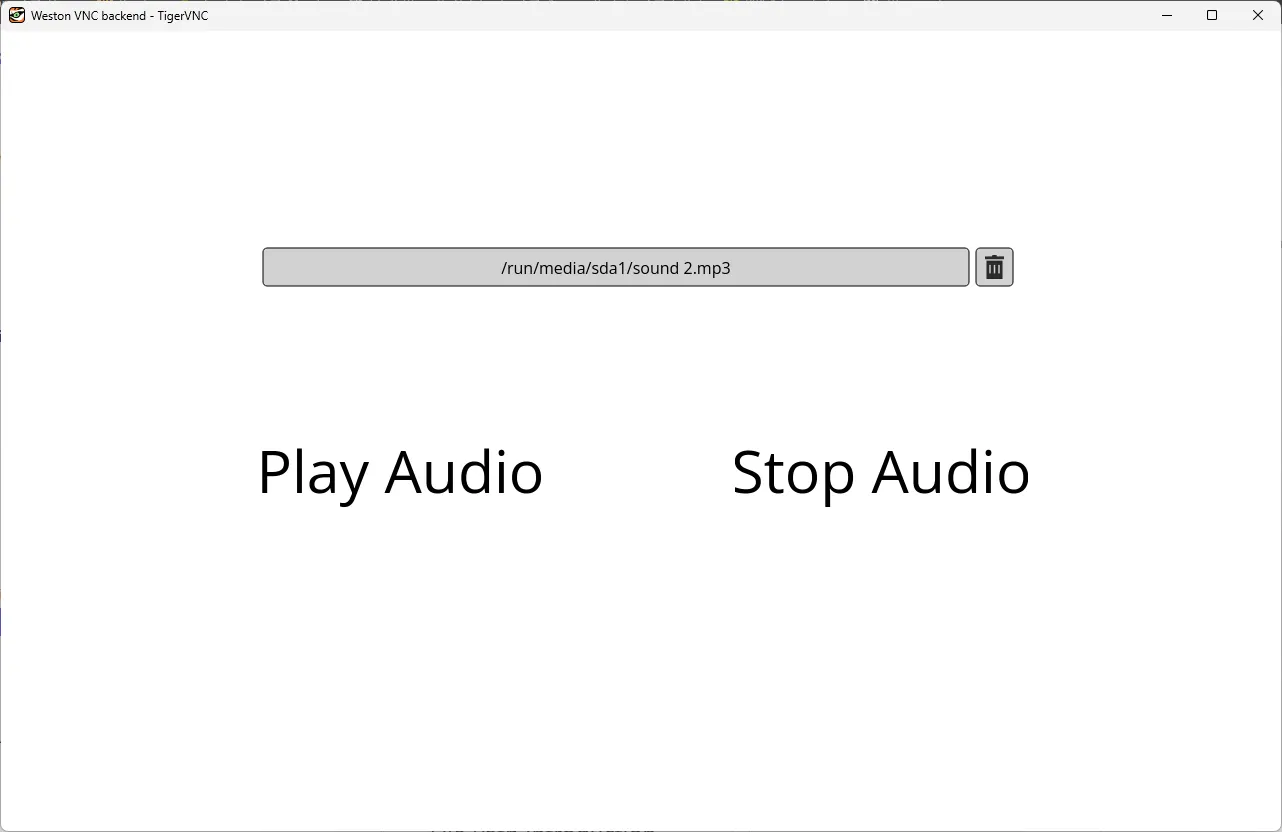
- The Path tag is now set to "/run/media/sda1/sound 2.mp3".
-
Press "Play Audio" to play the second audio file.
-
Press "Stop Audio" to stop playing the second audio file.