Alarm Summary
Alarm Summary Feature Description
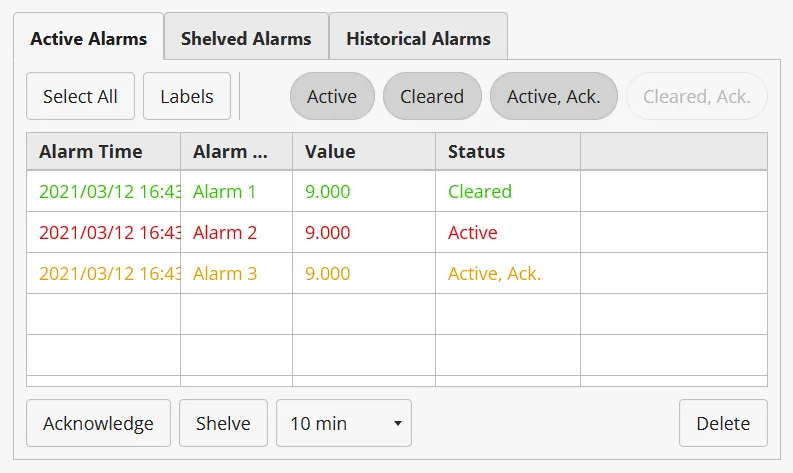
Section titled “Alarm Summary Feature Description”The Alarm Summary object lets users track and manage alarms in one tool. It can display times, names, values, and current statuses. Alarms can be filtered using group and level labels.
Alarms can be snoozed with the Shelving feature. Shelving alarms can also help declutter the Alarm Summary object’s Active Alarm tab.
Each Alarm Summary object has Basic Properties, Appearance, and Position options. This allows users to customize the content, look, and characteristics.
For in-depth descriptions of elements and design options, visit Alarm Summary Information.
Alarm Summary Designer Functionalities
Section titled “Alarm Summary Designer Functionalities”Click Insert > Alarm Summary, or the Insert Alarm Summary icon on the toolbar, and click and drag on the page to bring up the Alarm Summary object as shown below:
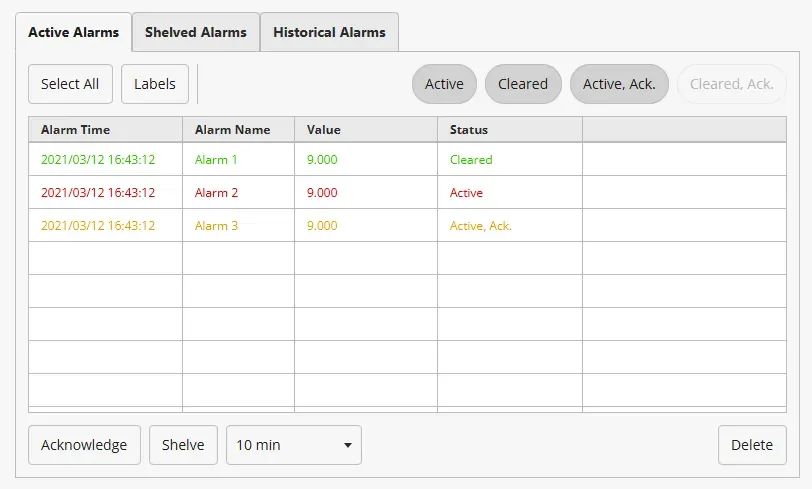
The Canvas Simulator can operate a project with an Alarm Summary object that displays up to 150 alarms reliably. Likewise, a physical Xpanel can reliably do the same with up to 1,000 alarms. 1
Properties
Section titled “Properties”The Alarm Summary object can be customized based on specified properties.
To ensure the property windows are enabled, click View > Properties.
Basic Properties
Section titled “Basic Properties”The Basic Properties section allows users to change the displayed content and formatting within the object. The object’s name will show up in place of Basic Properties, as pictured below:
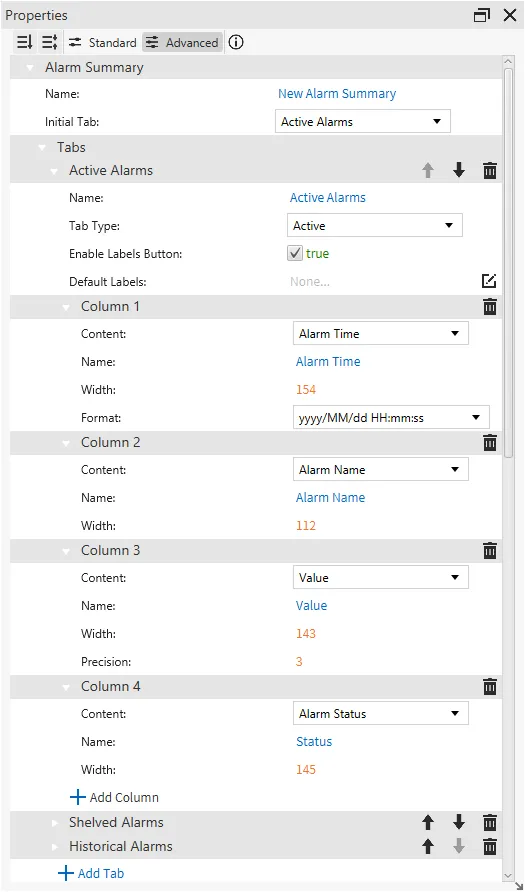
Alarm Summaries can include multiple customizable tabs. Each tab can be customized to display Active, Shelved, or Historical alarms. Each tab can also be organized by the Default Labels property, allowing for alarms configured by the labels to only appear on that tab.
Each column within each tab can be customized based on the following properties: content, name, width, format, precision, or description index.
Appearance
Section titled “Appearance”The Appearance section enables the use of colors and selections to alter visible characteristics.
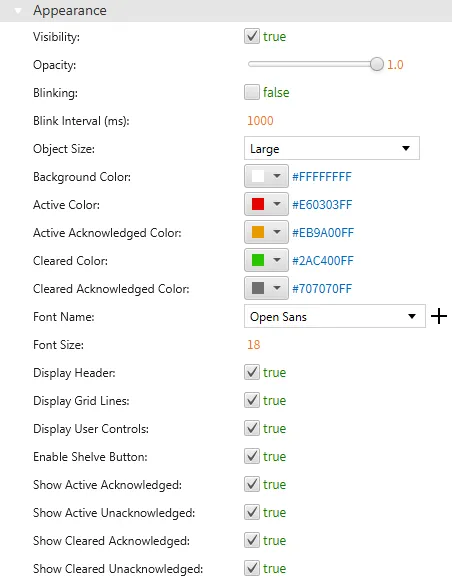
Additionally, the Object Size property will change the size of all columns, text, and buttons.
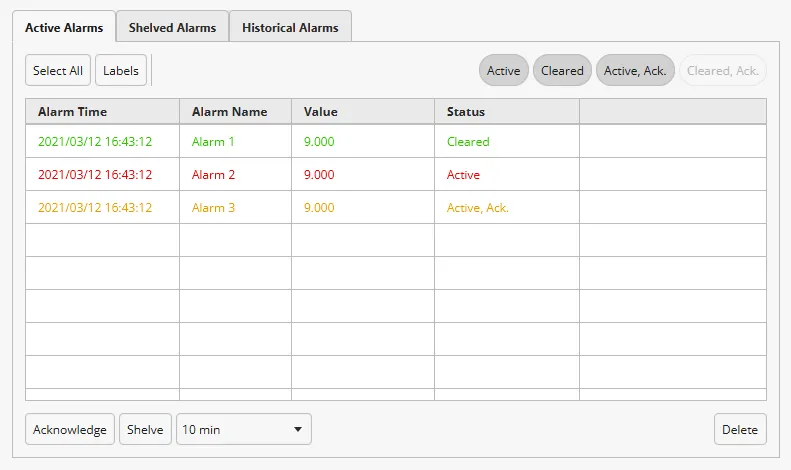
Position
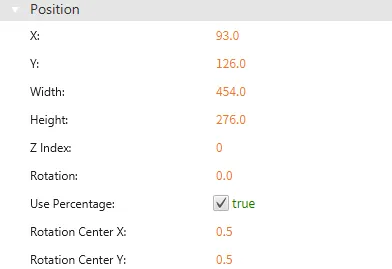
Section titled “Position”The Position section provides adjustable properties that reshape or move the object.
Alarm Summary Runtime Functionalities
Section titled “Alarm Summary Runtime Functionalities”Filtering
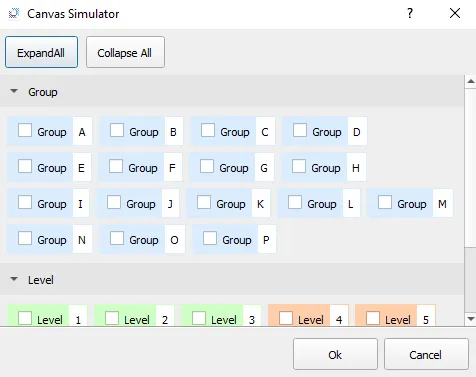
Section titled “Filtering”When running the program, the user can select the Label Filter option in the Alarm Summary to display the alarms with a specific label. One or multiple labels may be applied at once. All active, cleared, and acknowledged alarms with the selected labels will be displayed in the Active Alarm tab of the Alarm Summary. If an active alarm has more than one label, it will be displayed when any of its labels are selected. The same can be done in the historical tab with active, cleared, acknowledged, and shelved alarms.
Acknowledging
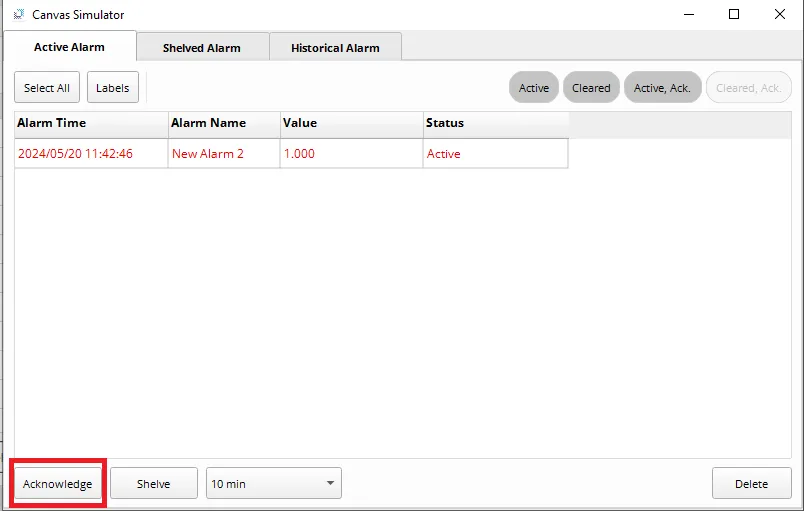
Section titled “Acknowledging”The user can acknowledge alarms to confirm they have been seen and trigger Acknowledge actions. If a cleared alarm is acknowledged, it will move from Active Alarm to Historical Alarm. Otherwise, any alarm will stay on the page until deleted. Users can check or uncheck the boxes for Active, Cleared, Active, Ack., and Cleared, Ack to show or hide certain statuses.
Shelving
Section titled “Shelving”The user can shelve alarms to temporarily hide them from the Active Alarm tab. Shelving is similar to snoozing an alarm. An alarm is shelved for the specified time interval. After the interval, the alarm will unshelve and reappear in the Active Alarm tab.
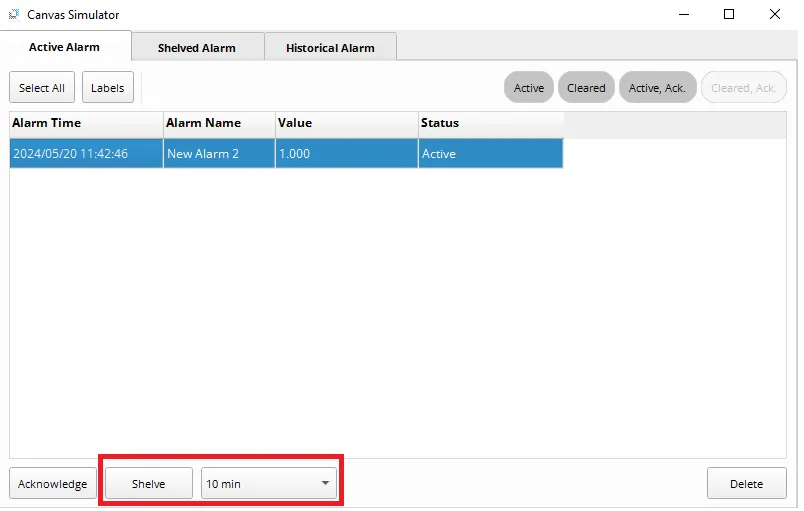
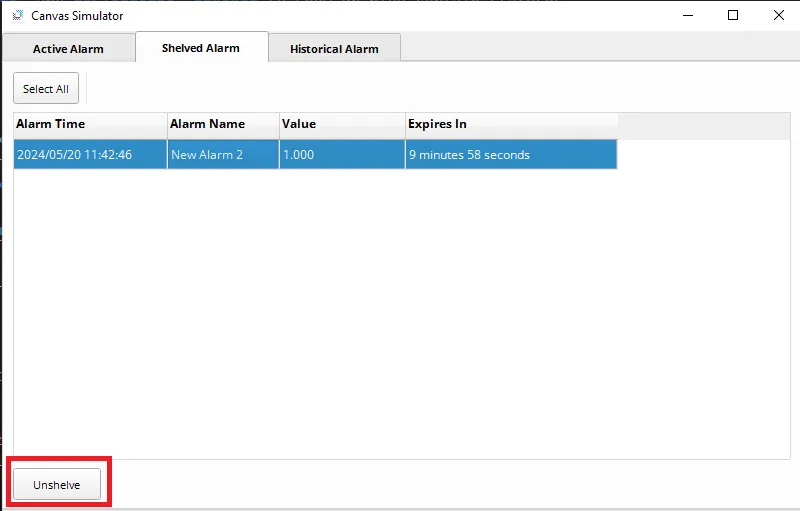
The user can bypass the set time interval by clicking the Unshelve button in the Shelved Alarm tab.
Historical
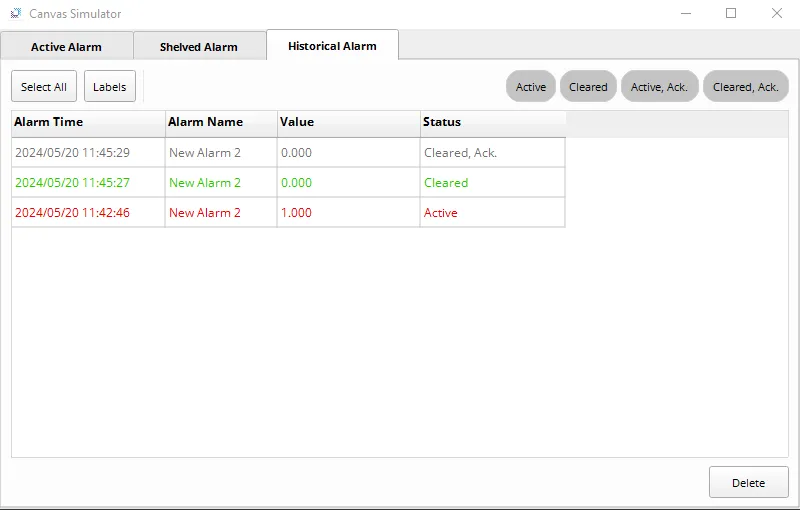
Section titled “Historical”The Historical Alarm tab creates a new record whenever an alarm status changes. The user can check previous alarms along with the statuses they were changed to, the time the statuses changed, and the value they had when they were changed.
The logged alarms can be filtered and deleted for better organization.
Additional Tabs
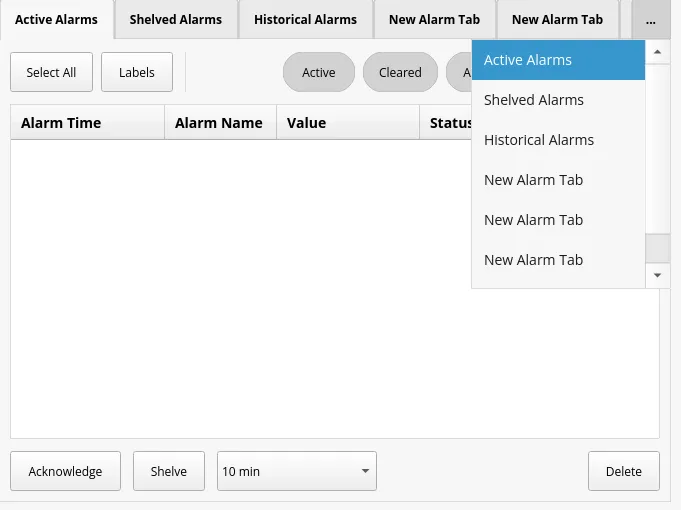
Section titled “Additional Tabs”If there are multiple tabs in the Alarm Summary object, they can easily be navigated to by clicking the ... icon in the tab list. This will display a drop-down of all tabs within the Alarm Summary.
Footnotes
Section titled “Footnotes”-
The operating speeds of both the Canvas Simulator and a physical Xpanel will depreciate with the creation of more alarms. ↩