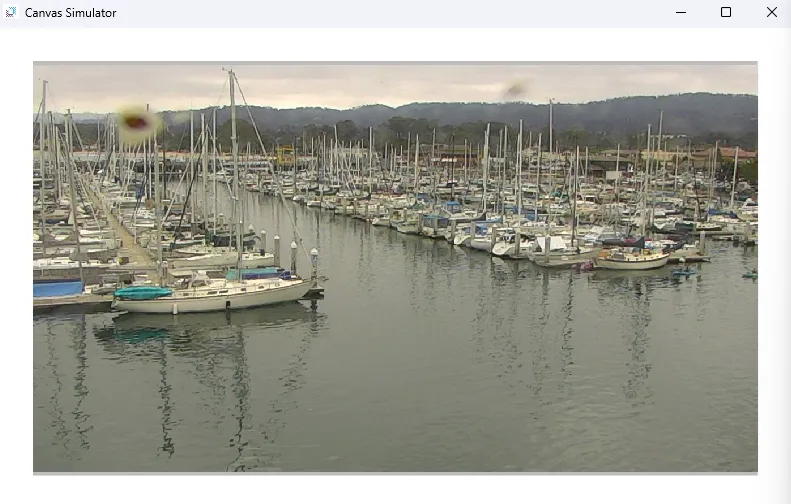
IP Camera Exercise
Exercise
Section titled “Exercise”Exercise: IP Camera Live Stream
Please follow the below exercise to understand IP camera streams.
Configuration
Section titled “Configuration”The following configuration is used to set up this exercise.
Project Configuration
Section titled “Project Configuration”-
Insert the IP Camera Stream Object
- Open your Cavnas project and go to the page where the camera feed will be displayed.
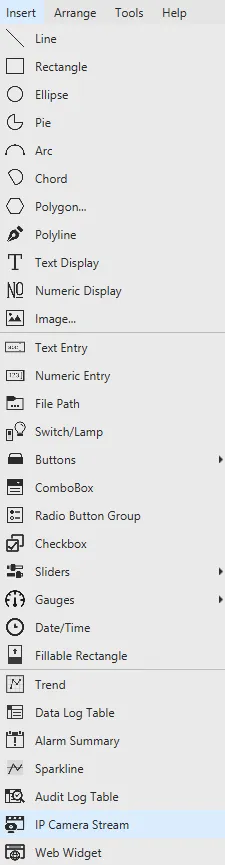
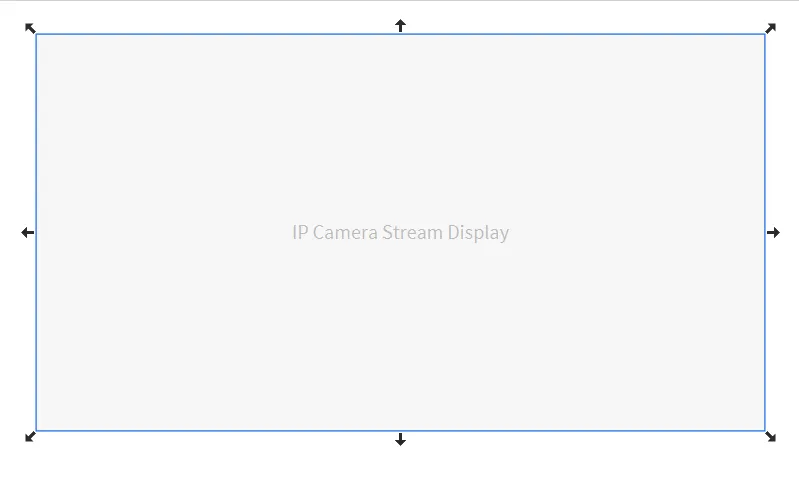
- From Insert > IP Camera Stream, drag the IP Camera Stream object onto the page.
IP Camera Stream Configuration
Section titled “IP Camera Stream Configuration”-
Configure Basic Properties
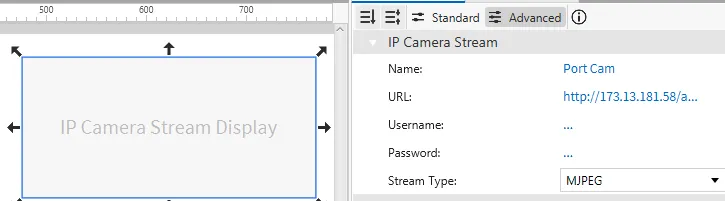
- Give the object a descriptive name, such as "Port Cam".
- Enter the camera’s URL in the format (e.g., http://173.13.181.58/axis-cgi/mjpg/video.cgi).
- If authentication is required, provide the Username and Password.
- Choose the correct Stream Type from the dropdown menu, such as MJPEG.
-
Adjust Appearance and Position
- In the Appearance tab, configure options like Visibility and Opacity.
- In the Position tab, define the X, Y coordinates, Width, and Height to control where and how the camera feed is displayed on the screen.
Project Deployment
Section titled “Project Deployment”-
Click Tools > Launch Online Simulator to launch the Canvas Online Simulator.
-
Navigate to the page with the IP camera object to confirm the live video feed is displayed correctly.