Dial Introduction
Dial Feature Description
Section titled “Dial Feature Description”Canvas offers the dial object. The dial is a visual, rotational control that users can turn directly to select a numerical value. As the user adjusts the dial's position, the object immediately registers the corresponding numerical value and writes it directly to an assigned tag.
Dial Designer Functionalities
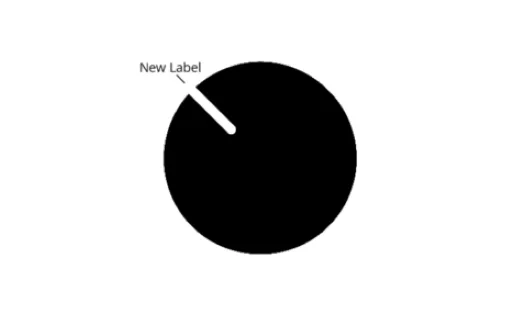
Section titled “Dial Designer Functionalities”Click Insert > Dial, or the Insert Dial icon on the toolbar, and click and drag on the page to bring up the dial object as shown below:
Dial Properties
Section titled “Dial Properties”The Dial object can be customized based on specific properties.
To ensure the property windows are enabled, click View > Properties.
Basic Properties
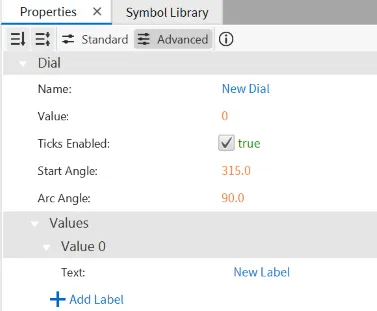
Section titled “Basic Properties”The Basic Properties section allows users to configure the object's Name, set its initial Value, toggle whether Ticks Enabled are visible, define the dial's Start Angle and Arc Angle, and manage the available Values (index) and their corresponding text labels.
Appearance
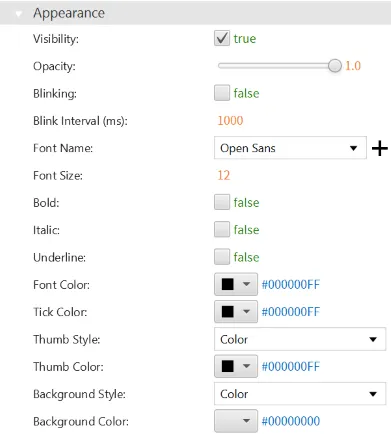
Section titled “Appearance”The Appearance section provides controls for customizing the visual style and look of the dial object.
Position
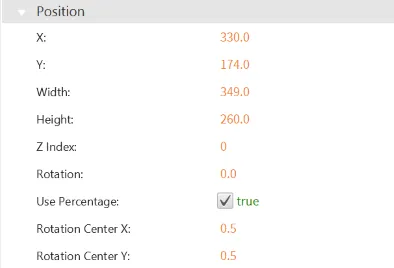
Section titled “Position”The Position section offers adjustable properties that control the size, shape, and location of the dial object.
Actions
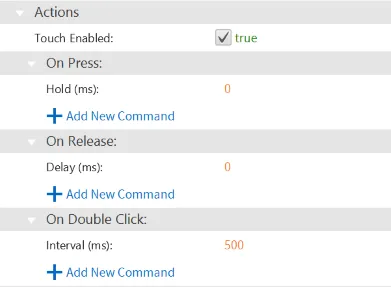
Section titled “Actions”The Actions section controls the interactive behavior of the Dial object. When the object is pressed, released, or double-clicked, a script or command is executed, and this specific behavior is configured under the On Press, On Release, or On Double click sections of the Actions tab.
Permissions
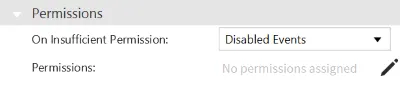
Section titled “Permissions”The Permissions section manages how the dial object behaves when a user has insufficient permissions and controls the specific permissions assigned to the object.
Permissions can be assigned to the dial object through the Identity and Access Management feature.