Display Object Exercise
Exercise
Section titled “Exercise”Exercise: Using Text Objects
Please follow the below exercise to understand Text and Numeric displays.
Configuration
Section titled “Configuration”The following configuration is used to set up this exercise.
Tag Configuration
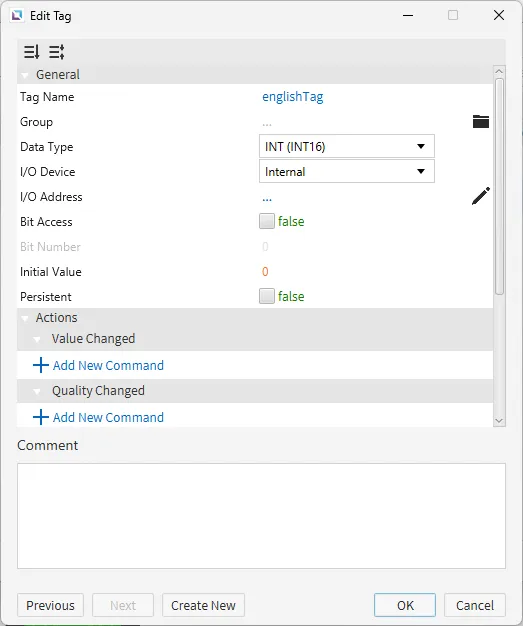
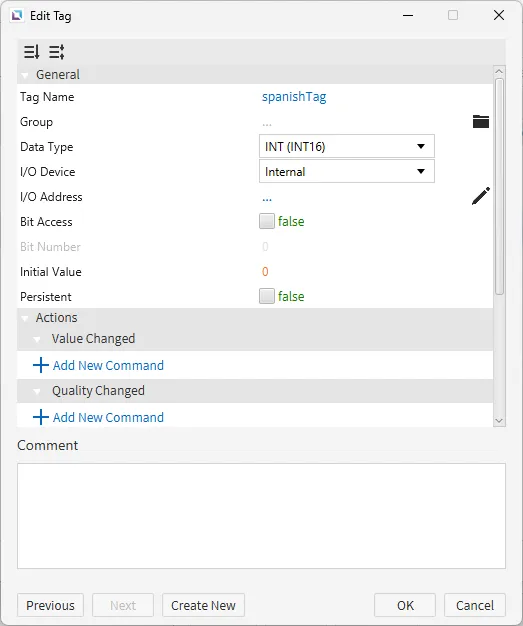
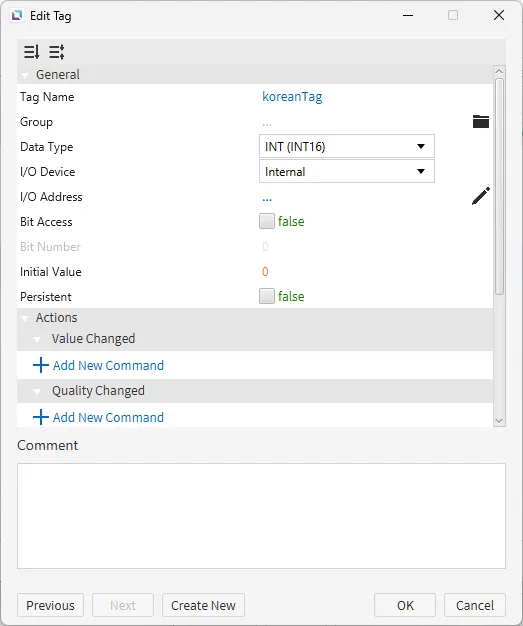
Section titled “Tag Configuration”- Create the following tags:
- englishTag
- Data type: INT (INT16)
- Initial value: 0
- spanishTag
- Data type: INT (INT16)
- Initial value: 0
- koreanTag
- Data type: INT (INT16)
- Initial value: 0
- englishTag
Project Configuration 1
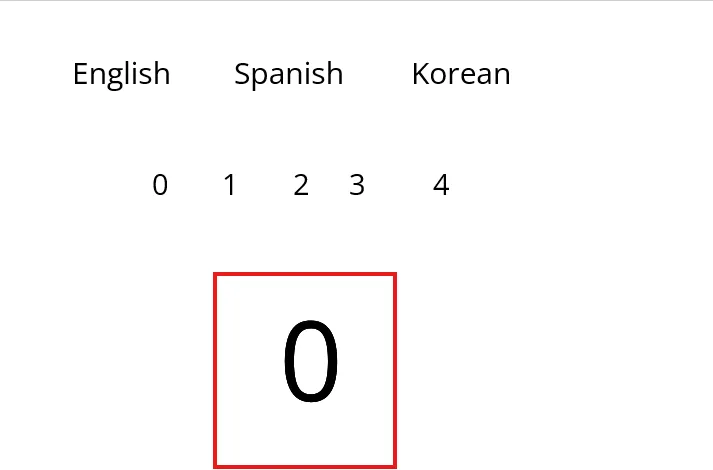
Section titled “Project Configuration 1”- Create eight text displays and three numeric displays.
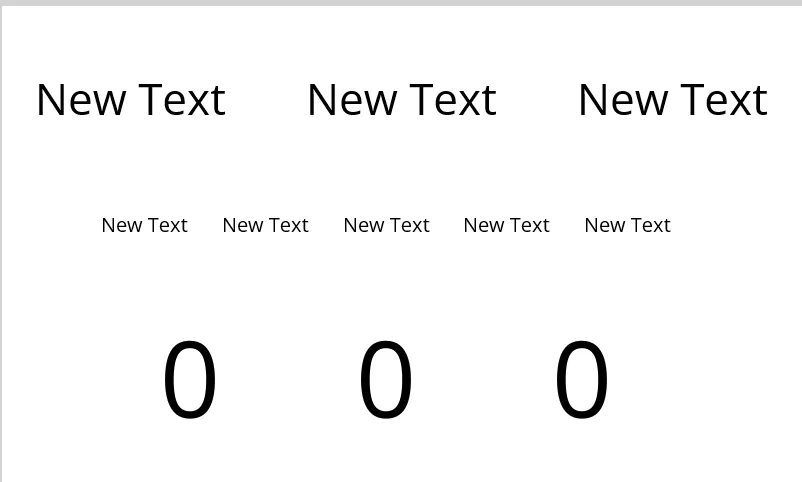
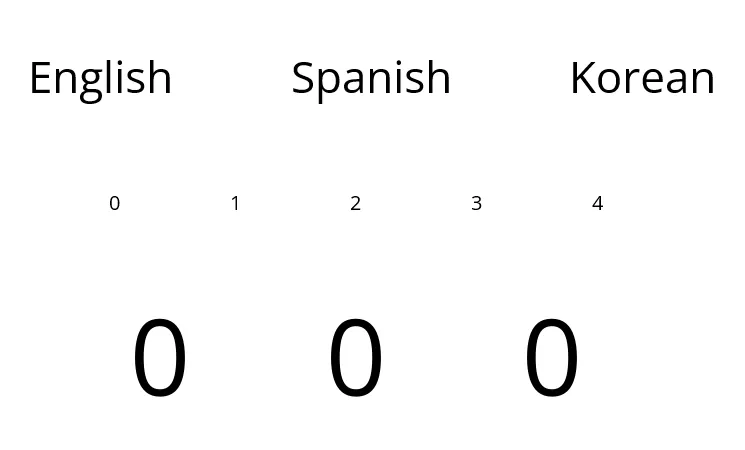
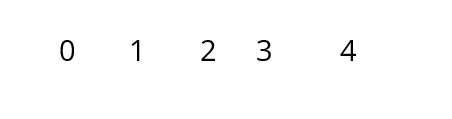
- Name the top three text displays "English", "Spanish", and "Korean". Name the middle text displays "0", "1", "2", "3", and "4".
String Table Configuration
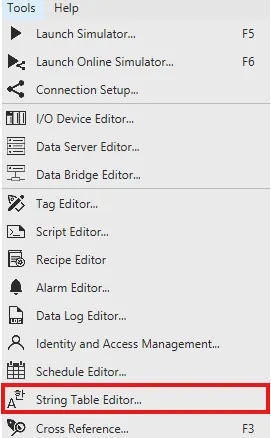
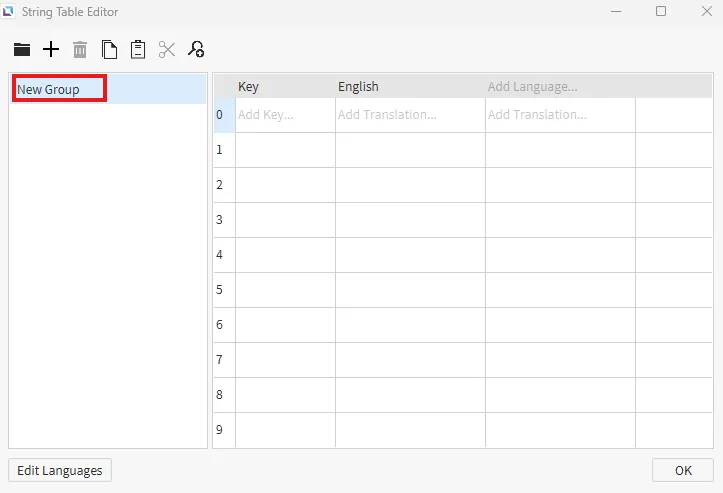
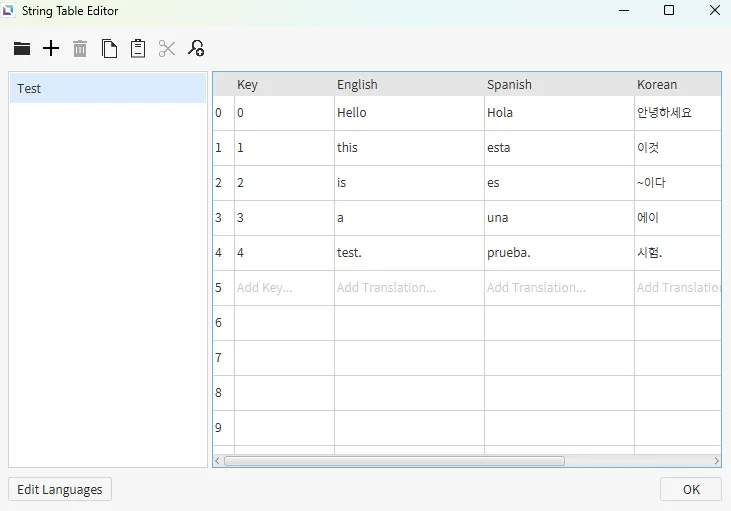
Section titled “String Table Configuration”- Open the String Table Editor. Change the name of the group from "New Group" to "Test" and copy the table provided in the screenshot.
Project Configuration 2
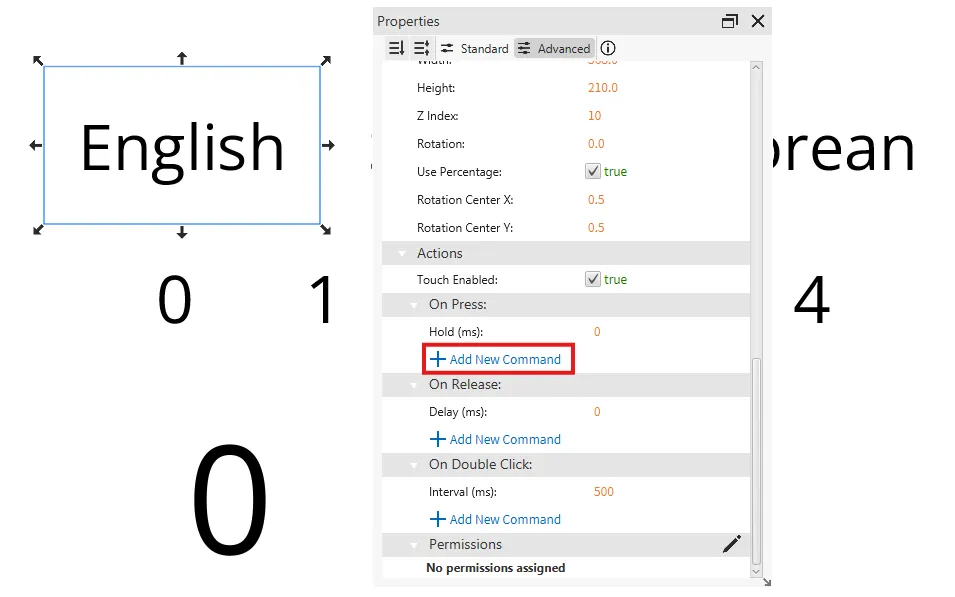
Section titled “Project Configuration 2”- Select one of the text displays and go to the Actions property and select On Press.
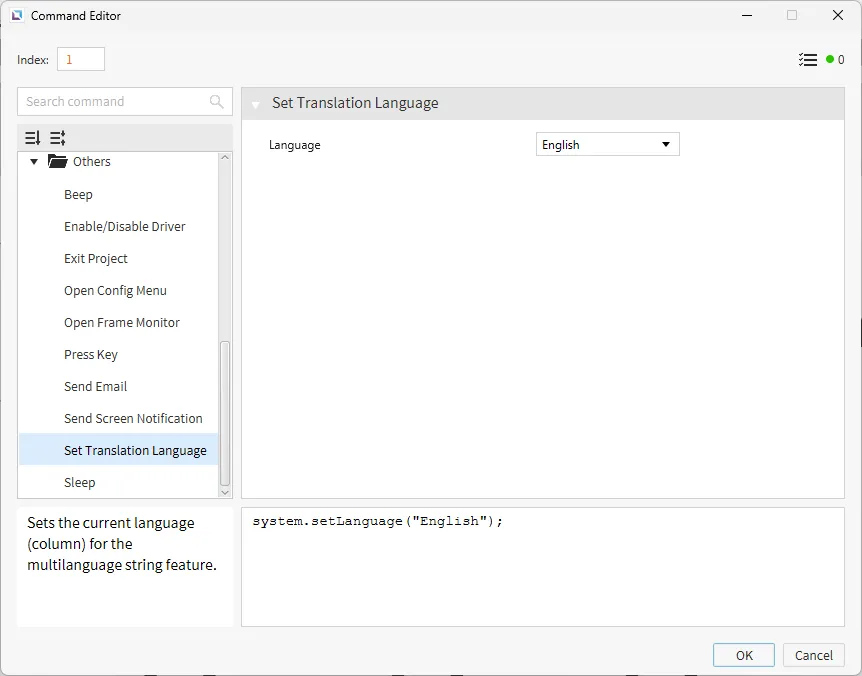
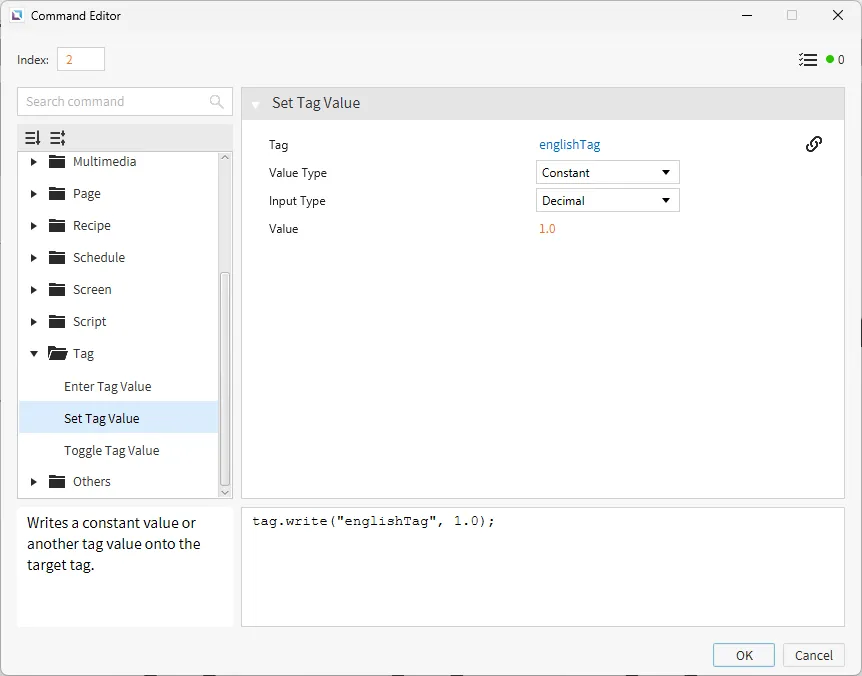
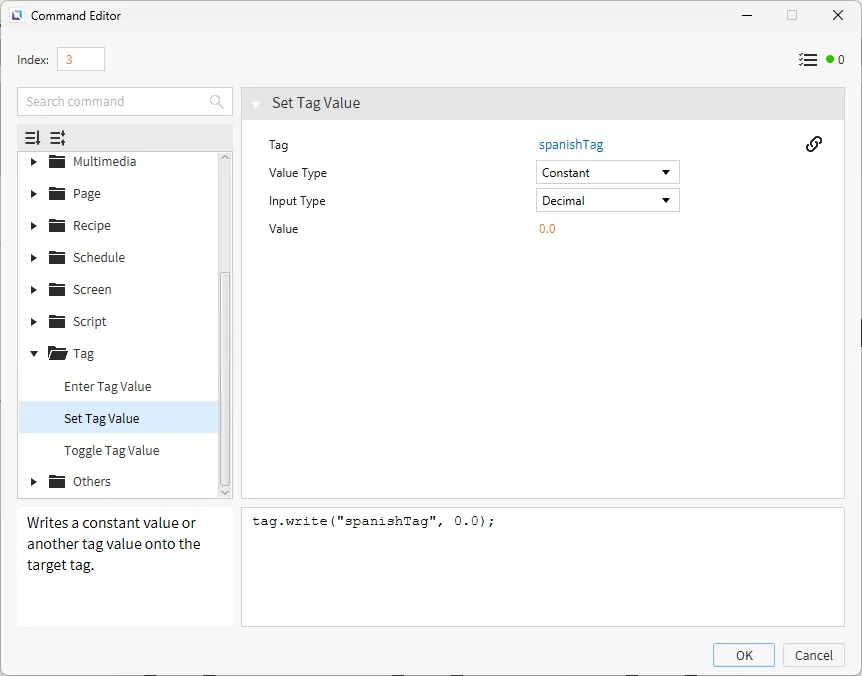
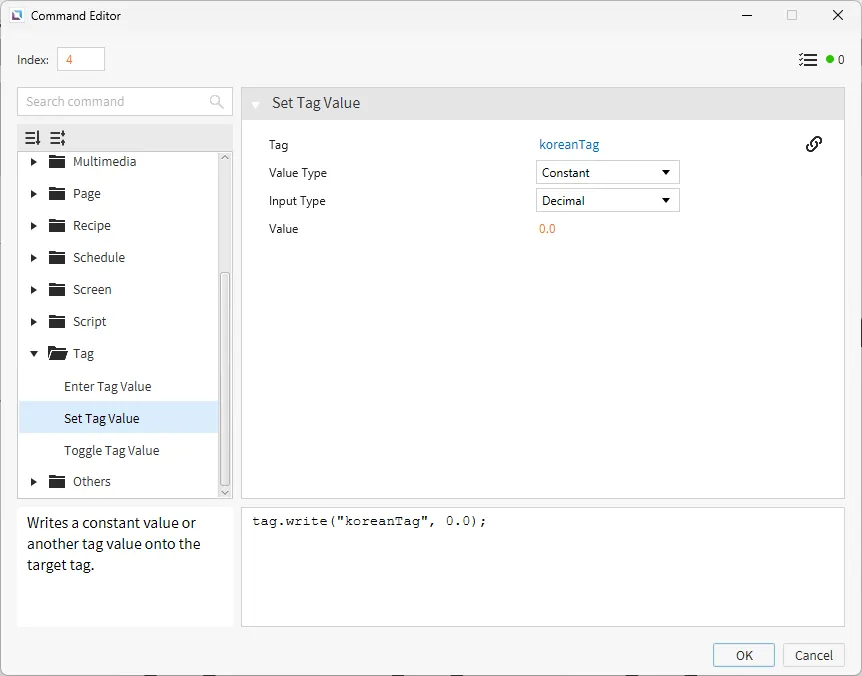
- Do the same steps for the remaining languages, adjusting the value to 2 and 3 respective to the language, i.e., Spanish will have the value of 2, and Korean will have a value of 3.
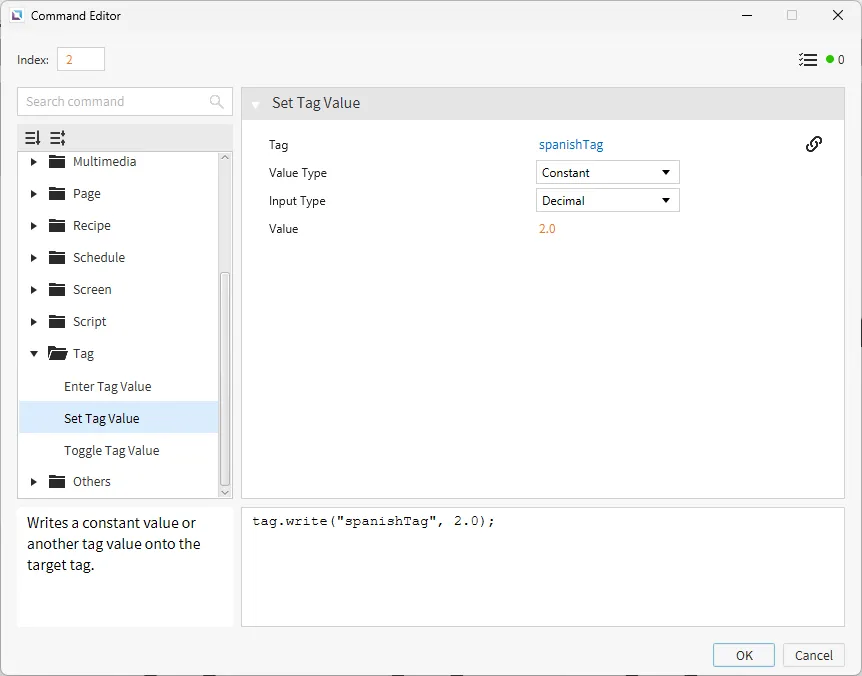
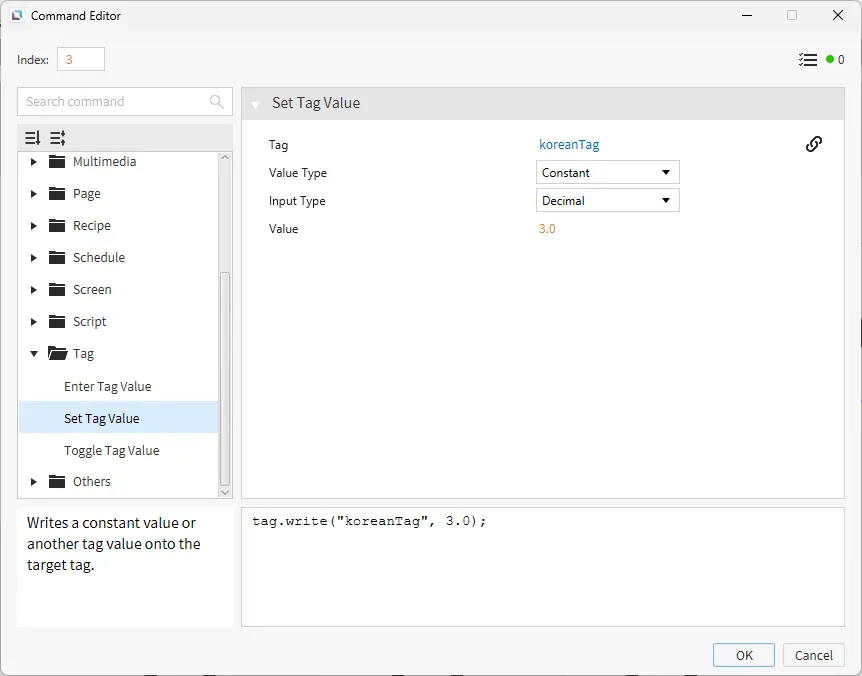
Project Configuration 3
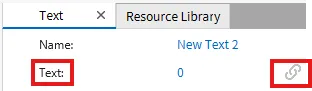
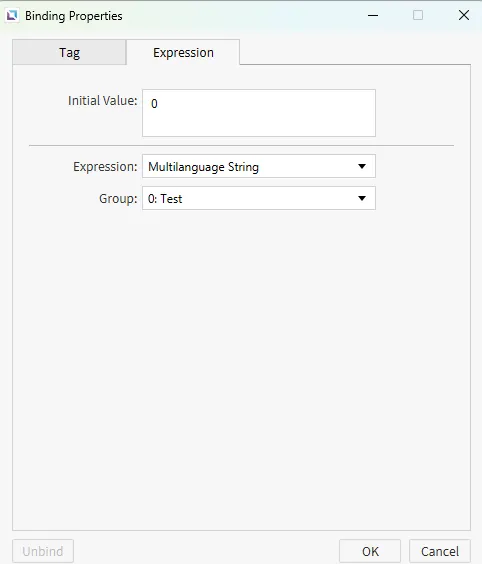
Section titled “Project Configuration 3”- Next, select one of the text displays that we labeled "0-4" on the far right pane, where it shows text. Hover over that, and a chain link should appear. Click the chain link and select the tab that says Expressions. The initial value should already correspond to the correct Key ID within the String Table Editor. Set each of the displays (0-4) as follows, and confirm the initial value matches their number in the screenshot below.
Project Configuration 4
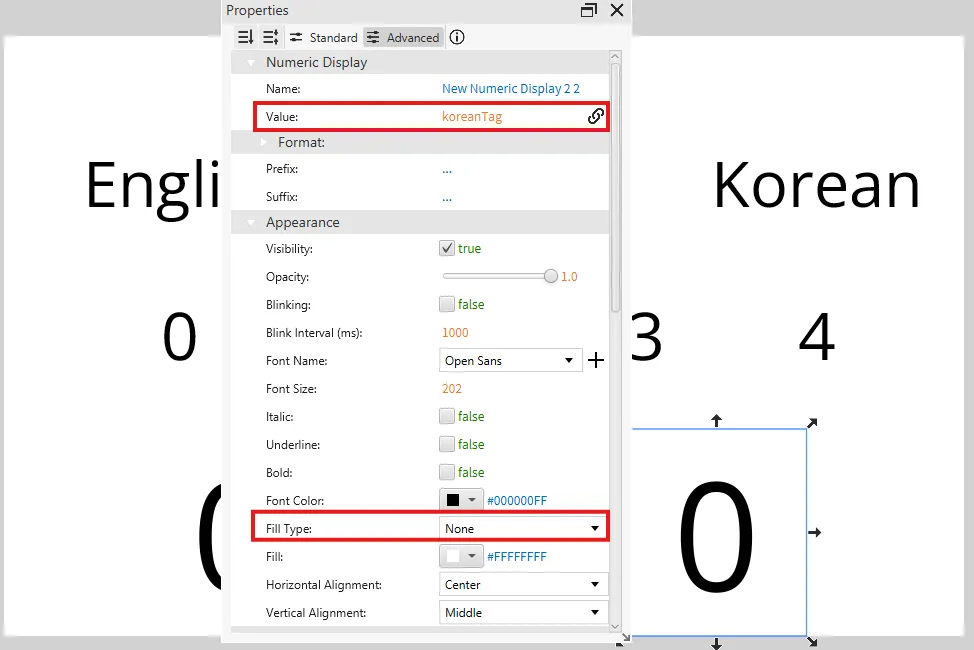
Section titled “Project Configuration 4”- Tag each of the three numeric displays with one of the language tags we created earlier. One display will receive the englishTag, another with the spanishTag, and the last with the koreanTag. Change the fill type to none under appearances on all of the displays. Lastly put all the displays on top of each other.
Project Deployment
Section titled “Project Deployment”-

Click Tools > Launch Simulator to launch the Canvas Simulator.
-
The end result of this project is to have a translation from English, to Spanish, to Korean when those languages are pressed/clicked. Each language is also tied to its own number.