Date/Time Exercise
Exercise
Section titled “Exercise”Exercise: Production Batch Timestamping
Please follow the exercise below to understand Date/Time functionality.
Configuration
Section titled “Configuration”The following configuration is used to set up this exercise.
Tag Configuration
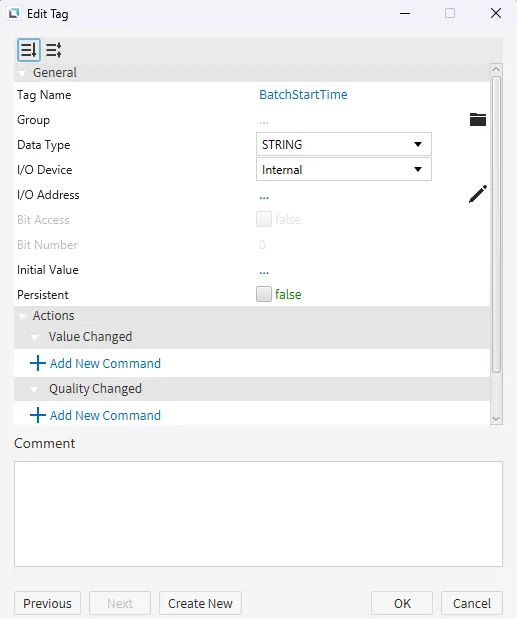
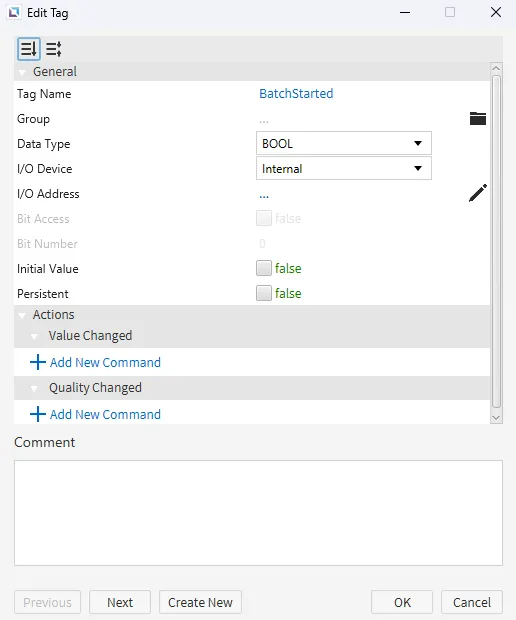
Section titled “Tag Configuration”- Create the following tags:
- BatchStartTime
- Data type: STRING
- Initial value: (leave blank)
- BatchStarted
- Data type: BOOL
- Initial value: 0
- BatchStartTime
Script Configuration
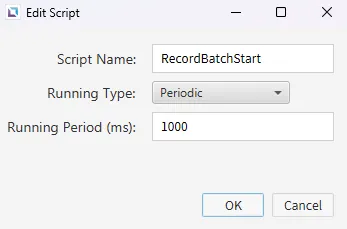
Section titled “Script Configuration”- Create the following script:
- RecordBatchStart
- Running type: Periodic (e.g., 1000 ms)
- RecordBatchStart
// Check if the batch has just been startedif (tag.read("BatchStarted") == 1) {
    // Get current timestamp in milliseconds    var current = Date.now();
    // Convert timestamp into a readable date string    var dateObj = new Date(current);    var formatted =        dateObj.getFullYear() + "/" +        ("0" + (dateObj.getMonth() + 1)).slice(-2) + "/" +        ("0" + dateObj.getDate()).slice(-2) + " " +        ("0" + dateObj.getHours()).slice(-2) + ":" +        ("0" + dateObj.getMinutes()).slice(-2) + ":" +        ("0" + dateObj.getSeconds()).slice(-2);
    // Write the formatted date/time to the BatchStartTime tag    tag.write("BatchStartTime", formatted);
    // Reset trigger to prevent repeating    tag.write("BatchStarted", 0);}
This script is used to capture the system time when a batch begins. The script uses built-in date commands available.
Project Configuration
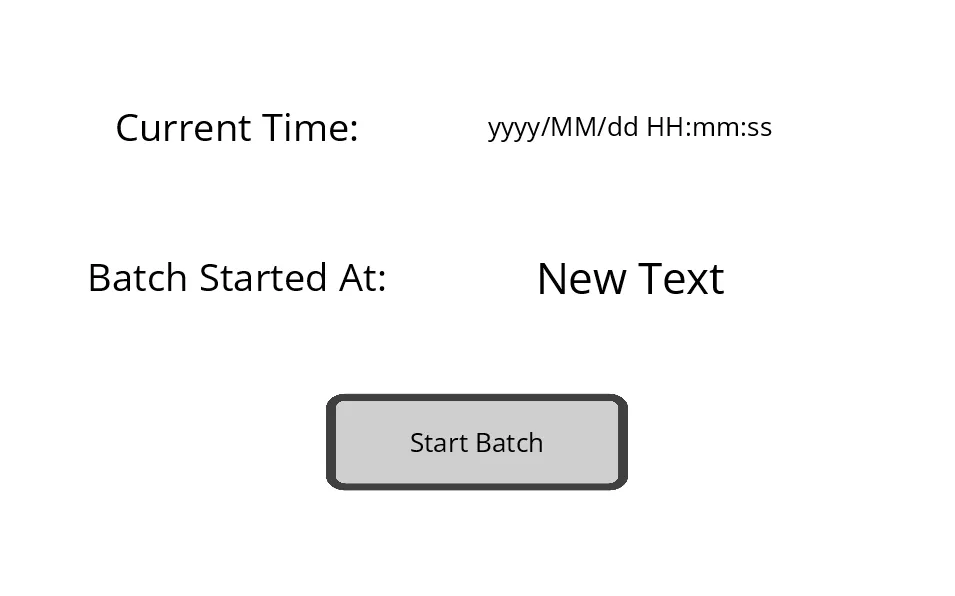
Section titled “Project Configuration”- Configure the project to match the layout shown in the image. It should include a date/time object, three text displays, and a Momentary Button.
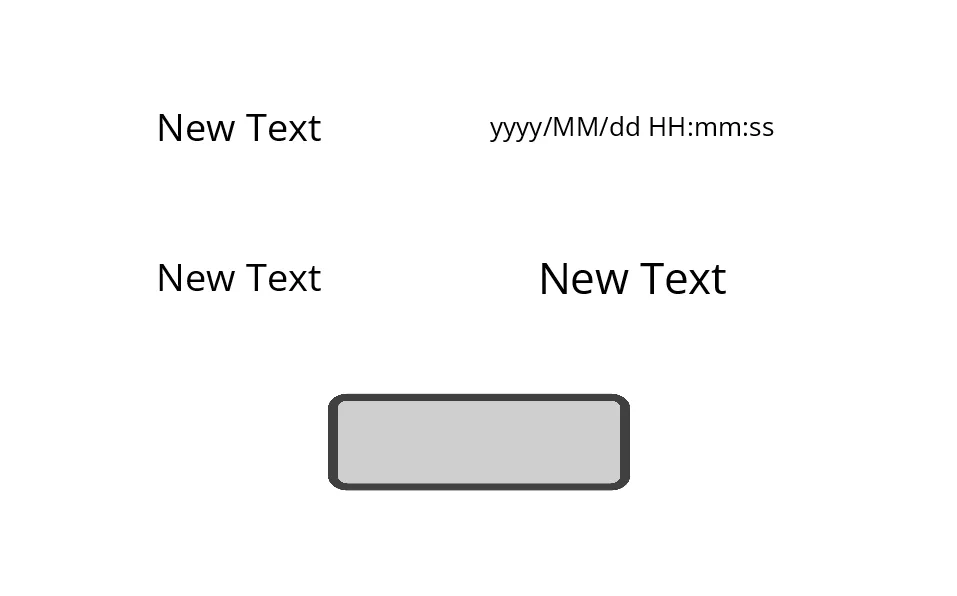
- Label the text displays as "Current Time:" and "Batch Started At:", and rename the Momentary Button to "Start Batch".
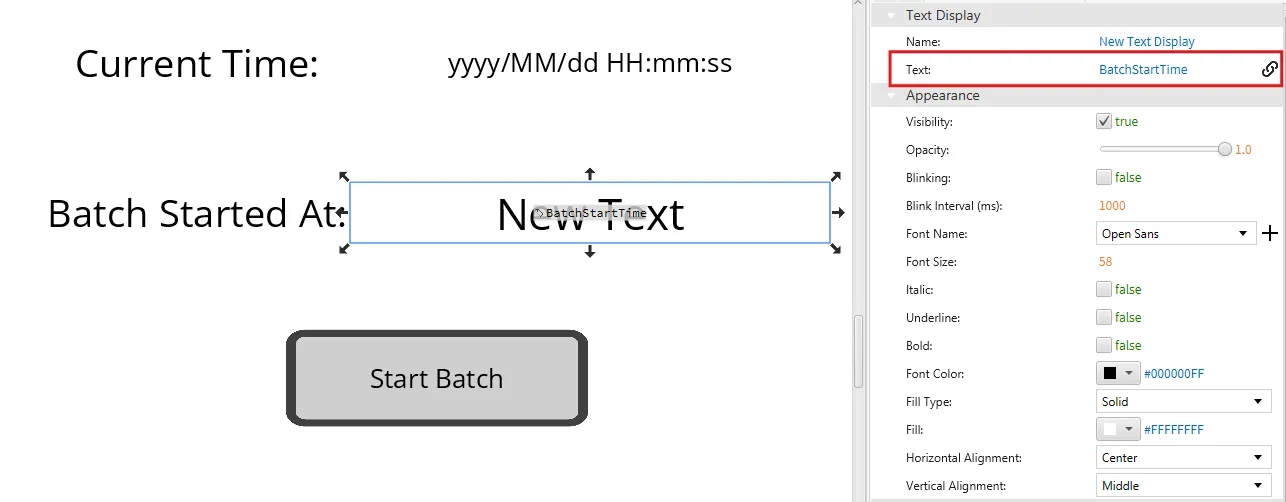
- Drag the BatchStartTime tag onto the new text display in the second row.
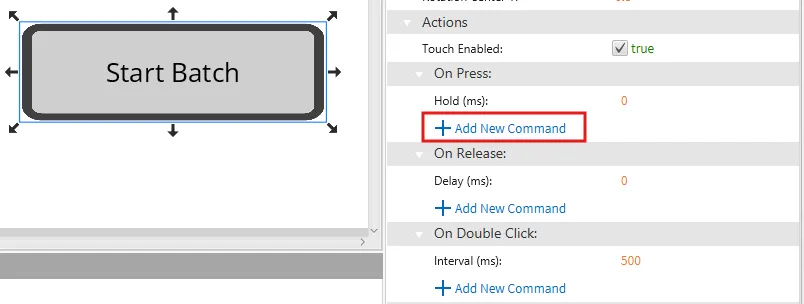
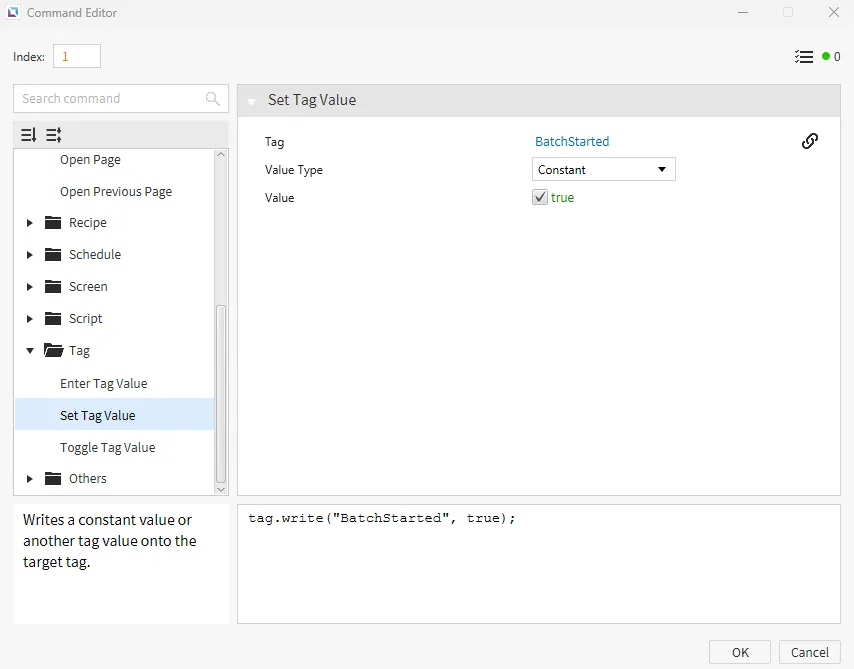
- For the Momentary Button, go to On Press > Tag > Set Tag Value and assign the BatchStarted tag with a value of 1. This will trigger the script to capture the current time.
Project Deployment
Section titled “Project Deployment”-
Click Tools > Launch Simulator to start the Canvas Simulator.
-
Press the Start Batch button.
-
The BatchStartTime string will update with the exact timestamp, while the Date/Time object continues displaying the live system time.
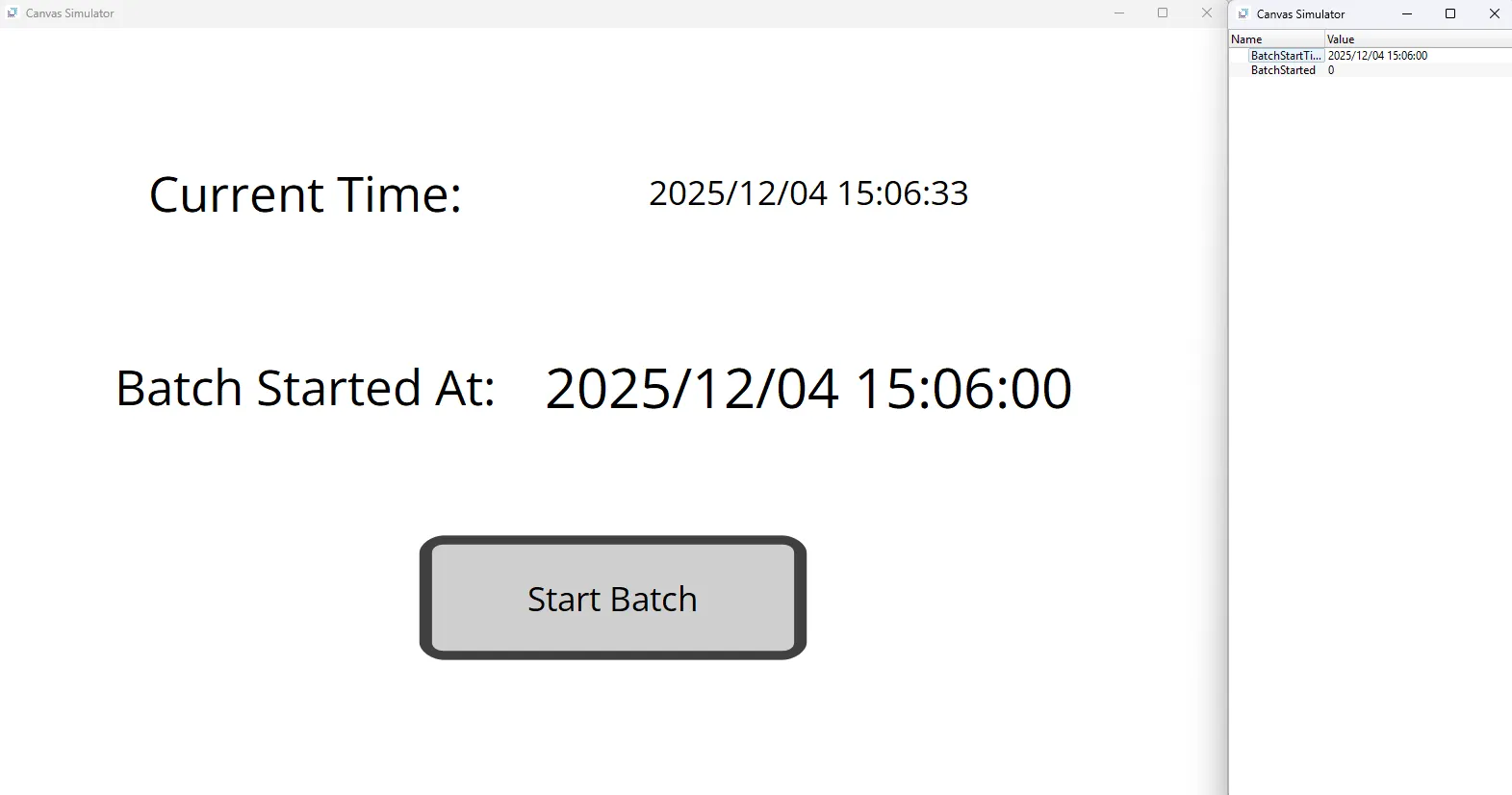
- Each time the operator starts a new batch, the timestamp updates accordingly.