Data Logging Exercise
Exercise
Section titled “Exercise”Exercise: Using the Data Log Table
Please follow the below exercise to understand Data Logging functionality.
Configuration
Section titled “Configuration”The following configuration is used to set up this exercise.
Data Logger Model Configuration 1
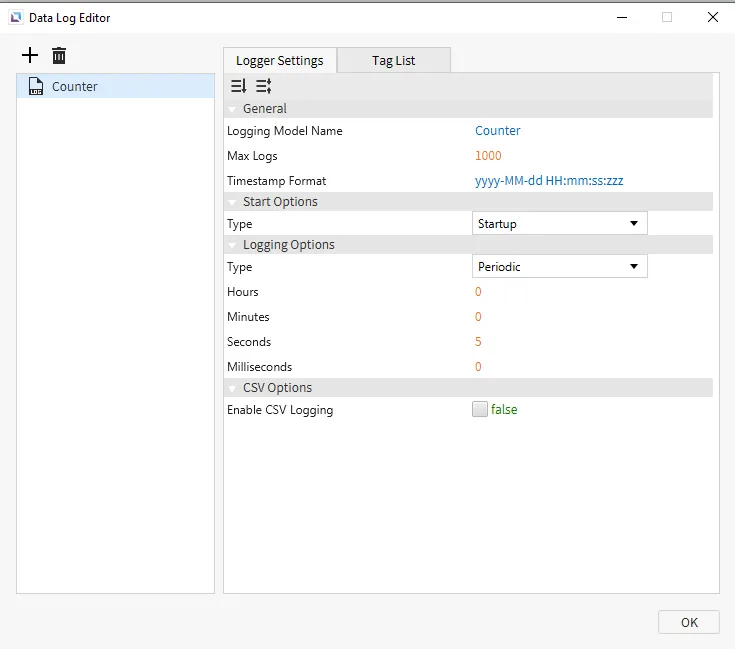
Section titled “Data Logger Model Configuration 1”- Create the following data logger model under Tools > Data Log Editor:
- Counter
- Logging Options: Periodic
- Hours: 0
- Minutes: 0
- Seconds: 5
- Milliseconds: 0
- Logging Options: Periodic
- Counter
Data Log Table Configuration
Section titled “Data Log Table Configuration”-
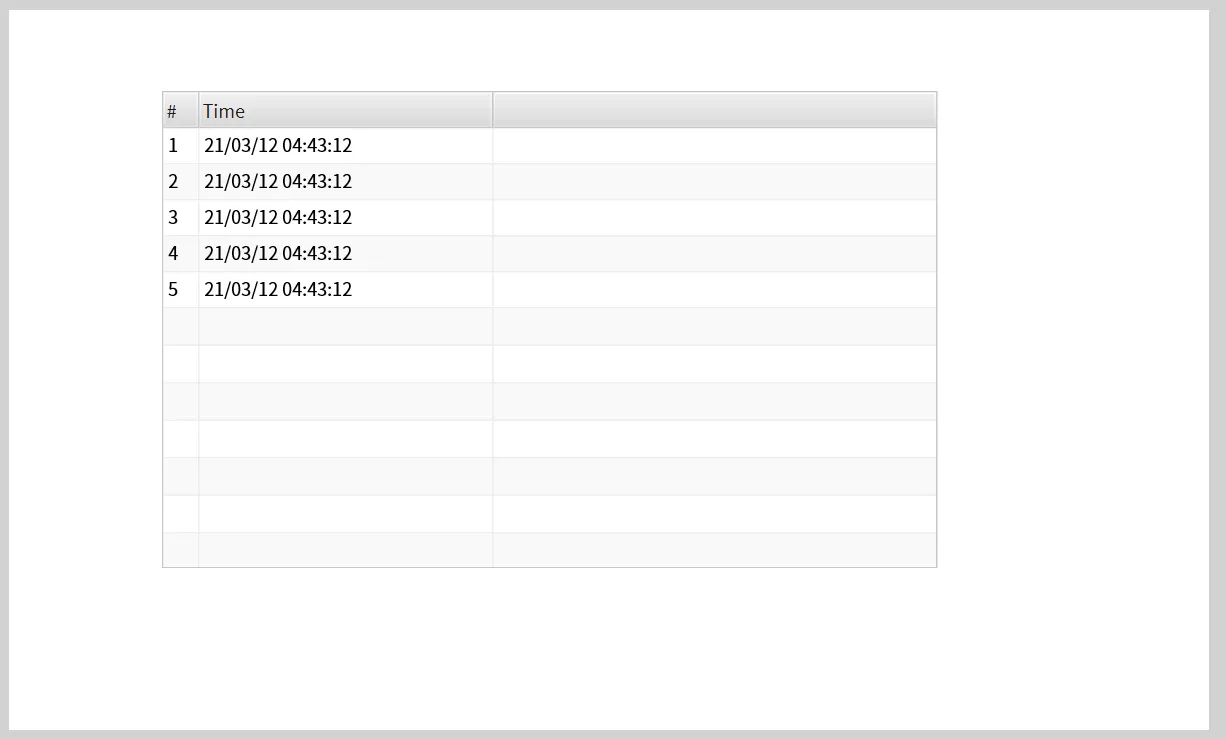
Go to Insert > Data Log Table or click the Insert Data Log Table icon on the toolbar.
Click and drag the Data Log Table to resize it.
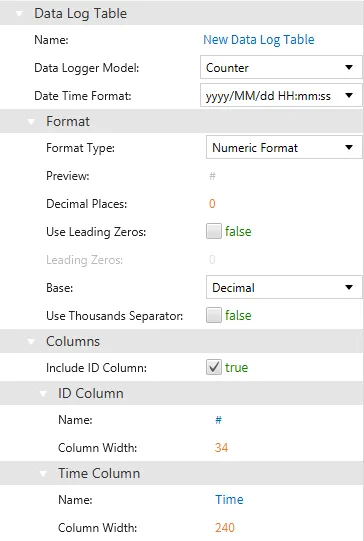
Once the table is created, click it and set the data logger model to Counter.
Tag Configuration
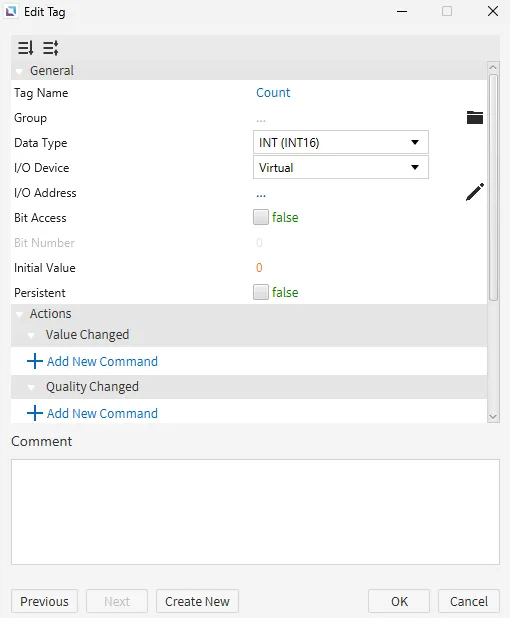
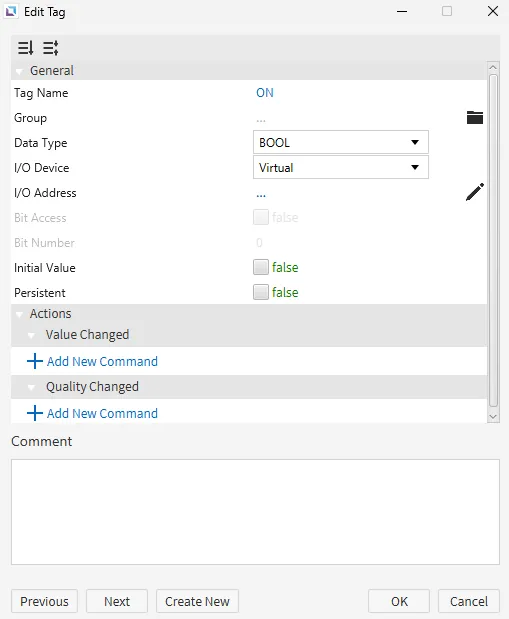
Section titled “Tag Configuration”- Create the following tags:
- Count
- Data type: INT (INT16)
- Initial value: 0
- ON
- Data type: BOOL
- Initial value: false
- Count
Data Logger Model Configuration 2
Section titled “Data Logger Model Configuration 2”-
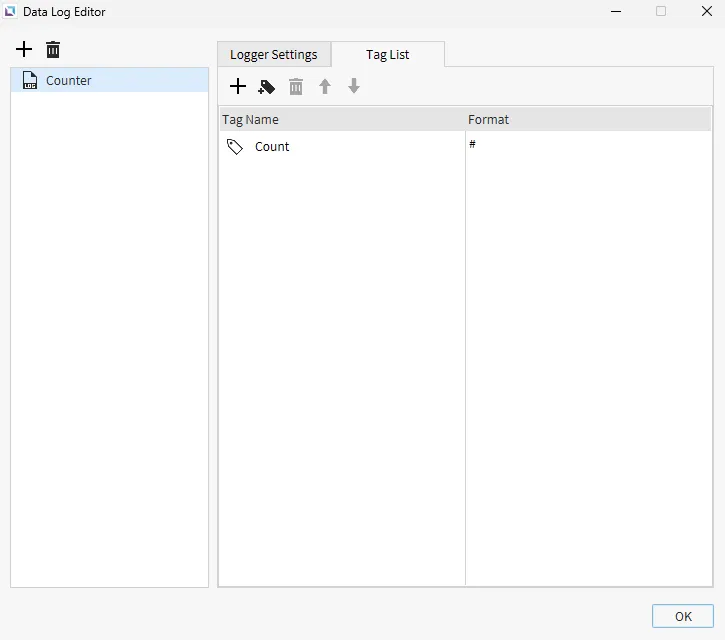
Open the existing data logger model under Tools > Data Log Editor.
Navigate to the Tag List tab.
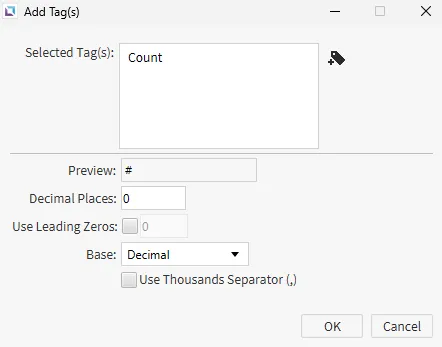
Click the Add Tag icon and select the ON tag.
Project Configuration
Section titled “Project Configuration”-
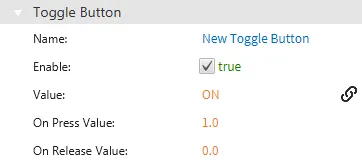
On the Canvas project page, create a Toggle Button object.
Once placed, click and hold the ON tag and drag it to the Toggle Button to bind it. Or, manually bind the ON tag to the Toggle Button's Value property.

Script Configuration
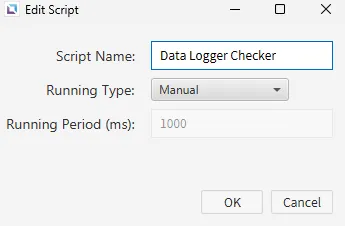
Section titled “Script Configuration”- Create the following script under Tools > Script Editor
- Data Logger Checker
- Running type: Manual
- Data Logger Checker
Paste the following into the script:
thread.msleep(100); // Waits for Toggle Button tag to updatewhile (tag.read("ON")) { // While Toggle Button tag is on (1) tag.write("Count", tag.read("Count") + 1); // add 1 to count thread.msleep(5000); // Waits 5 seconds for Count tag to update}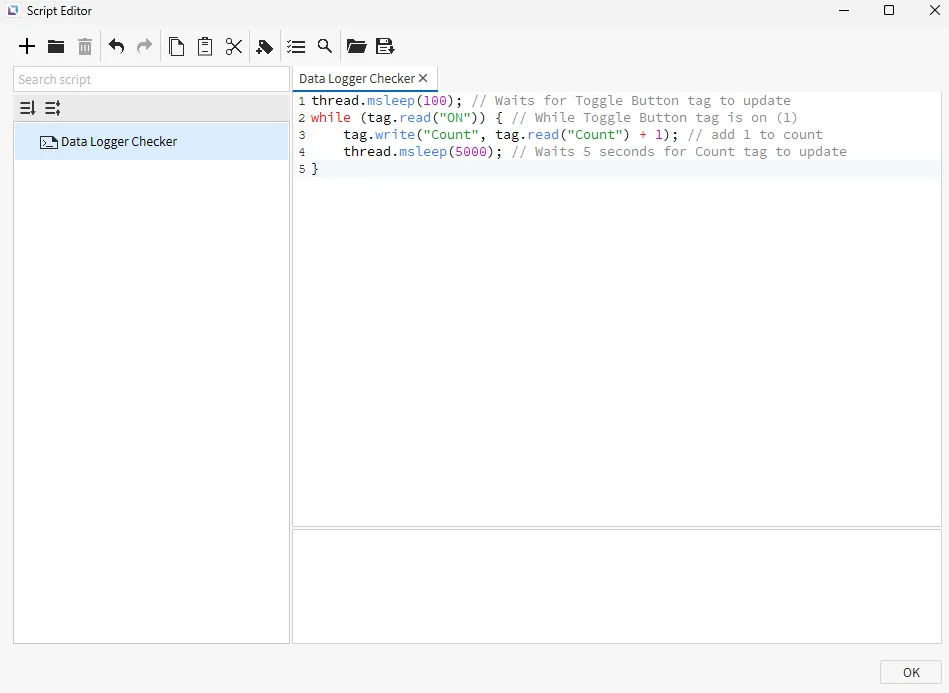
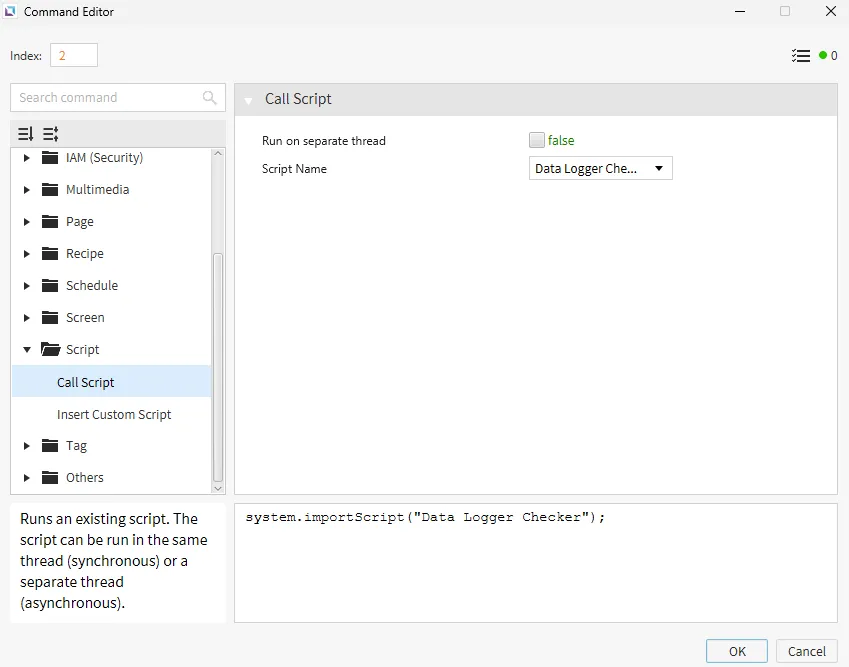
- On the Canvas page, click on the Toggle Button. Create a new On Press command under the Actions section. Add the Call Script command with the script type set to Data Logger Checker.
Project Deployment
Section titled “Project Deployment”- Click Tools > Launch Simulator to launch the Canvas Simulator.
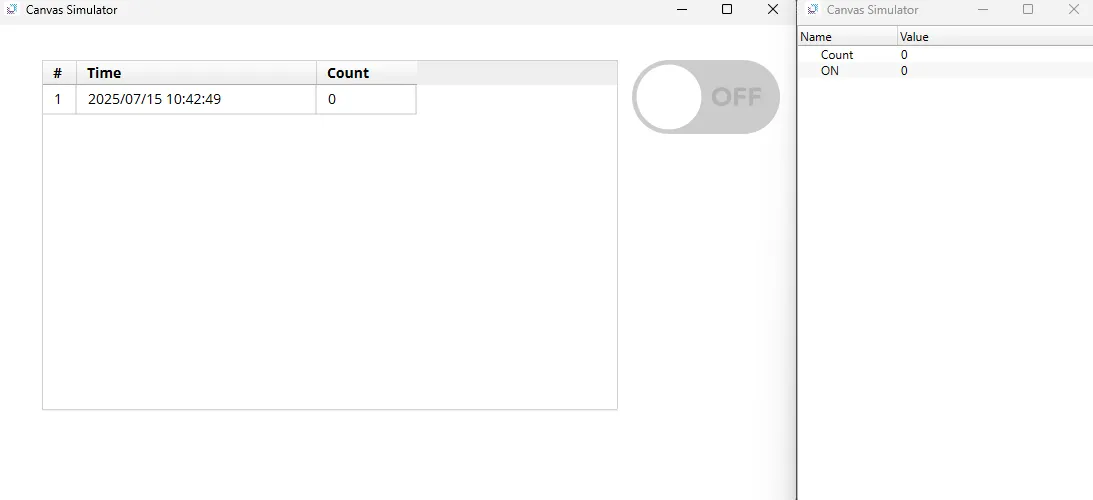
-
Click the toggle button to toggle it on.
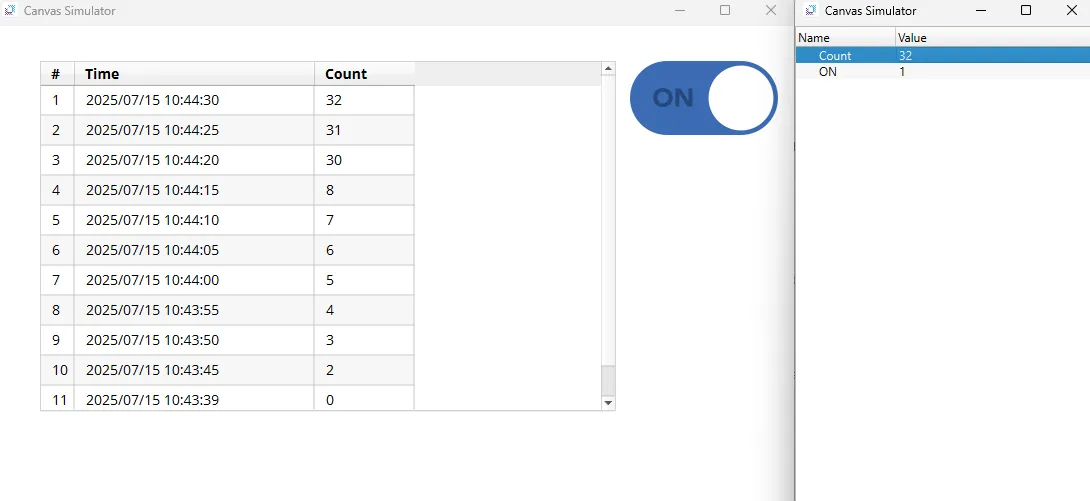
The Count tag will update every 5 seconds when the toggle button turns on.
The data log table will also reflect any changes made to the Count tag every 5 seconds.
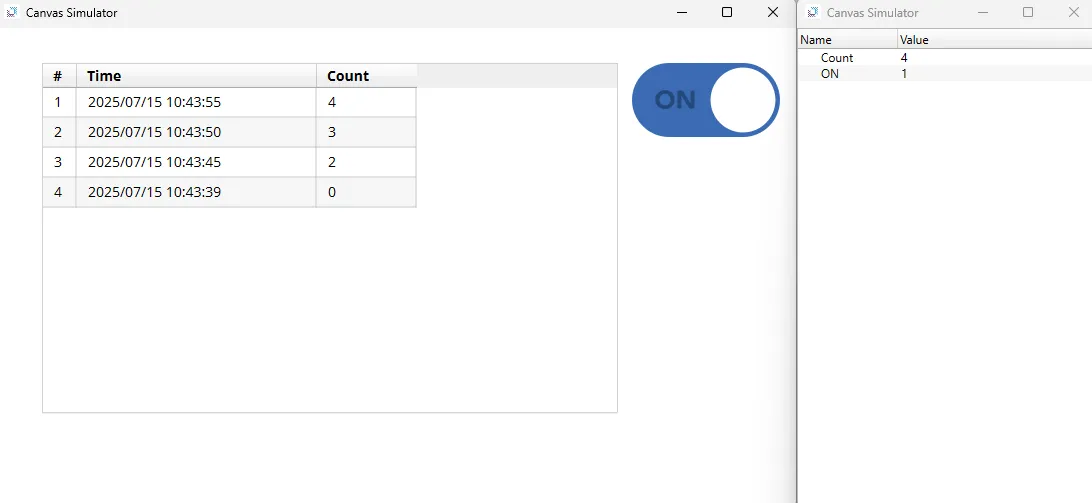
-
Try changing the value of the Count tag.
Notice how the number will be correctly reflected in the following data log entry when you update the tag value.