Script Editor Exercise
Exercise
Section titled “Exercise”Exercise: Making a Game with Script Editor
Please follow the below exercise to understand Scripting functionality.
Configuration
Section titled “Configuration”The following configuration is used to set up this exercise.
Tag Configuration
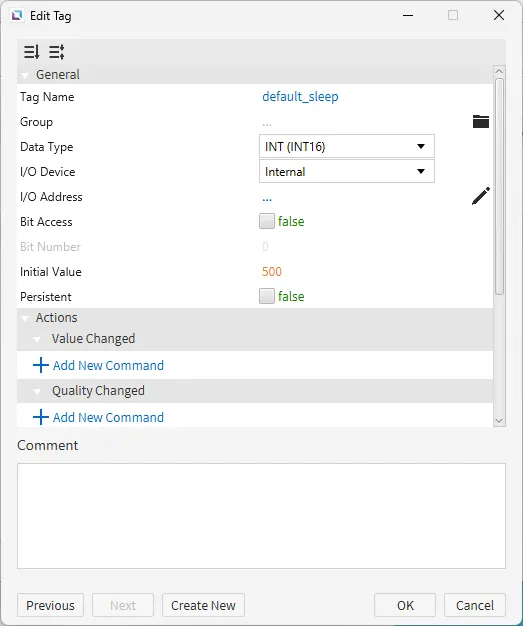
Section titled “Tag Configuration”- Create the following tags:
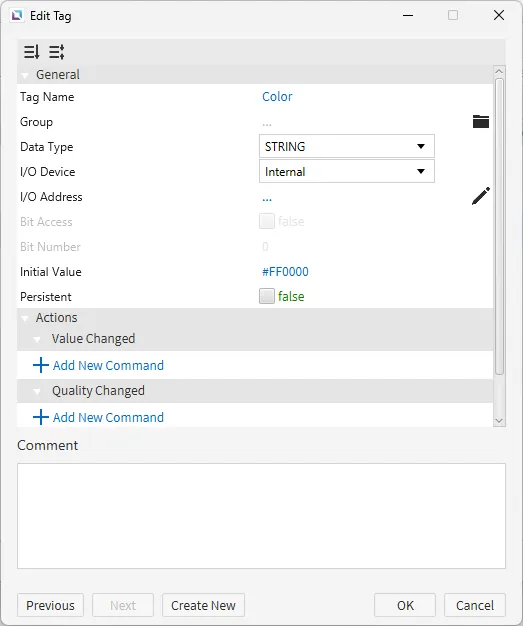
- Color
- Data type: STRING
- Initial value: #FF000
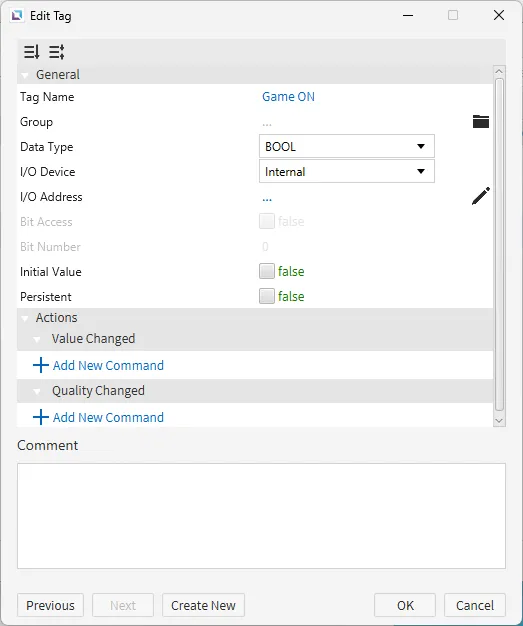
- Game ON
- Data type: BOOL
- Initial value: false
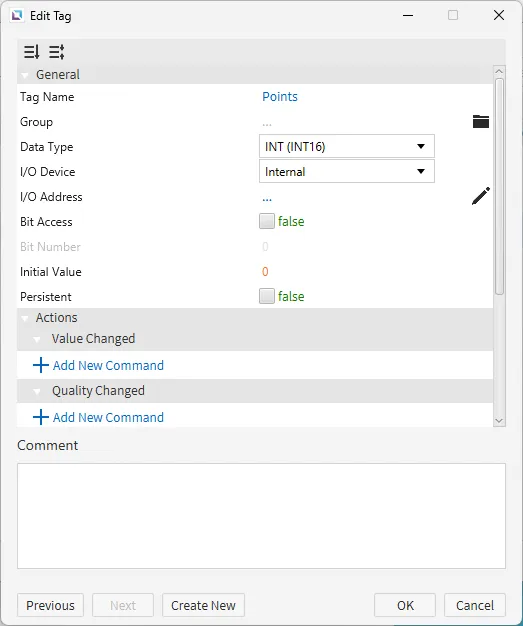
- Points
- Data type: INT (INT16)
- Initial value: 0
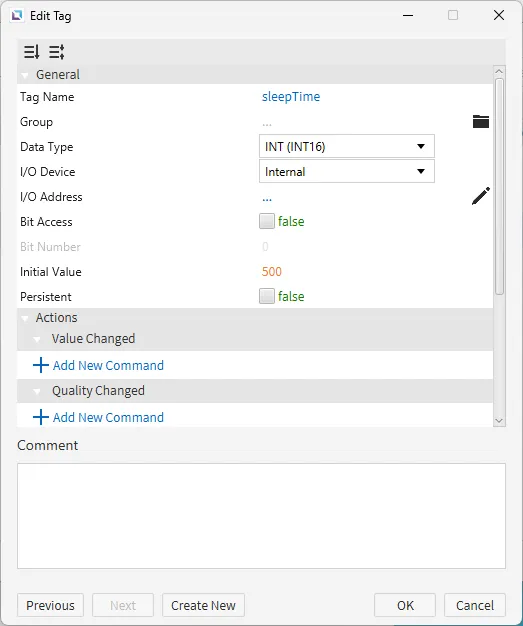
- sleepTime
- Data type: INT (INT16)
- Initial value: 500
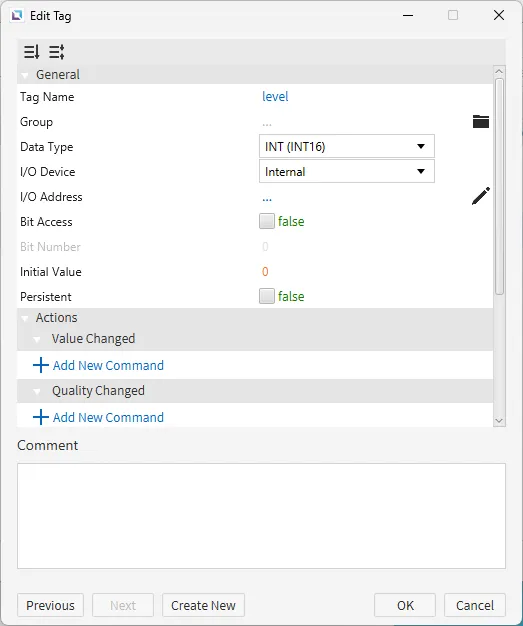
- level
- Data type: INT (INT16)
- Initial value: 0
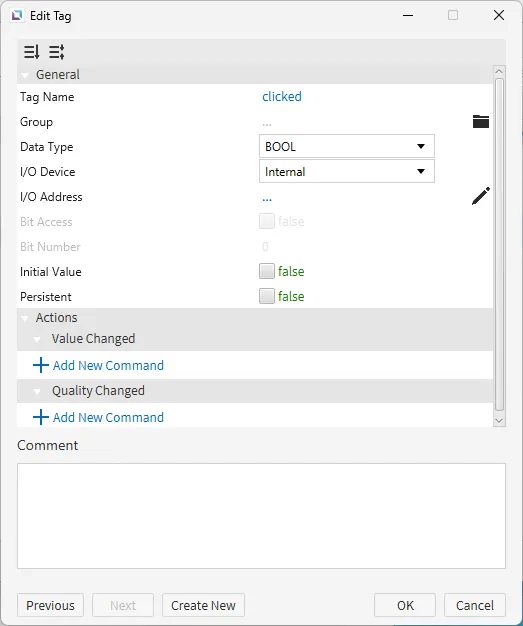
- clicked
- Data type: BOOL
- Initial value: false
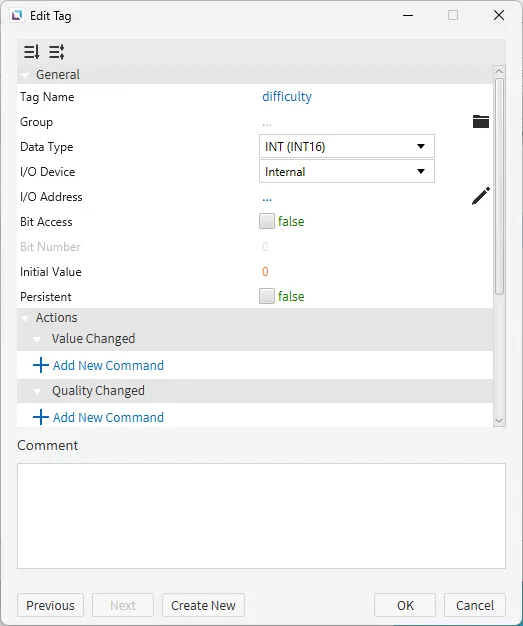
- difficulty
- Data type: INT (INT16)
- Initial value: 0
- default_sleep
- Data type: INT (INT16)
- Initial value: 500
- Color
Page Configuration
Section titled “Page Configuration”- Select the page and rename it to “Main Menu.” Under Appearances, select the background color to #000000.
Project Configuration 1
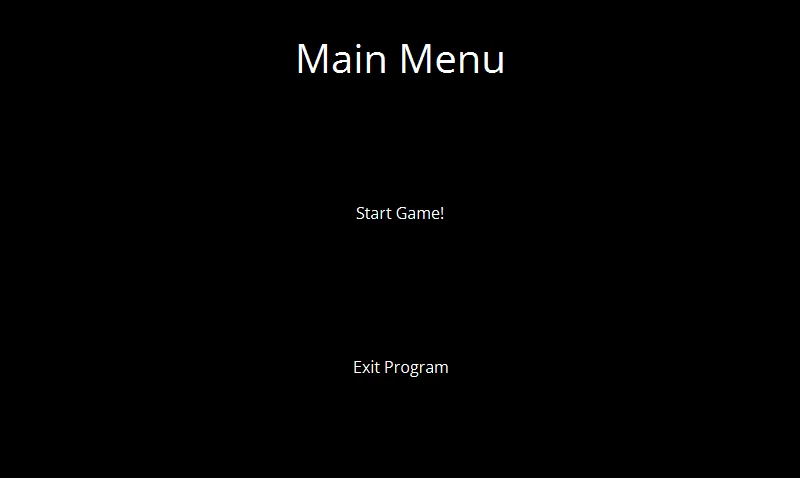
Section titled “Project Configuration 1”- Create three text displays.
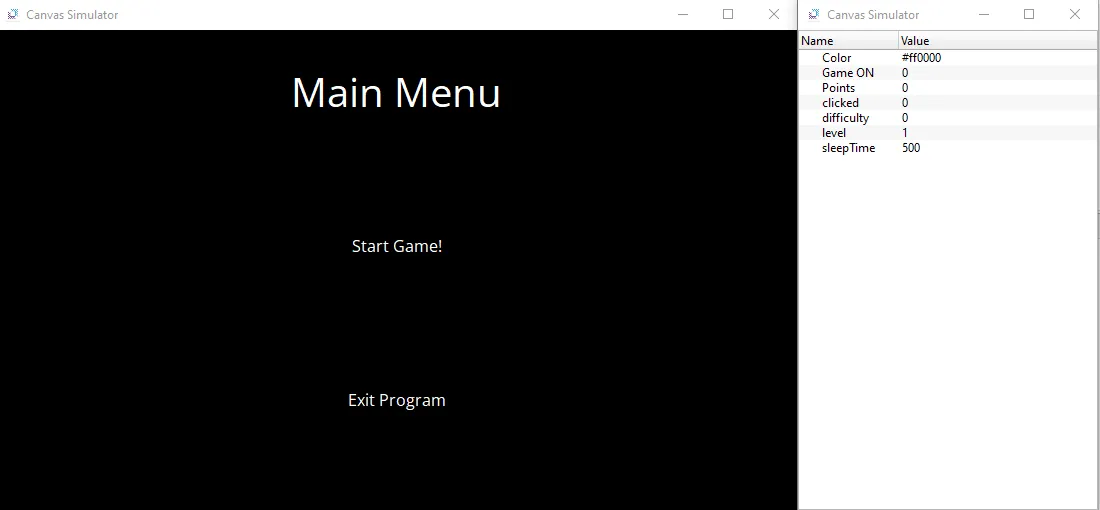
The first one will say, “Main Menu”. Under Appearances, set the font color to #FFFFFF and font size to 30.
The second one will say, “Start Game!”. Under Appearances, set the font color to #FFFFFF.
The final one will say, “Exit Program”. Under Appearances, set the font color to #FFFFFF.
Set these on the screen evenly spaced apart in the middle going down the screen.
-
Create two new pages. One will be named “Gameplay”. The second will be named “Selection”. Set the background color of both pages to #000000.
-
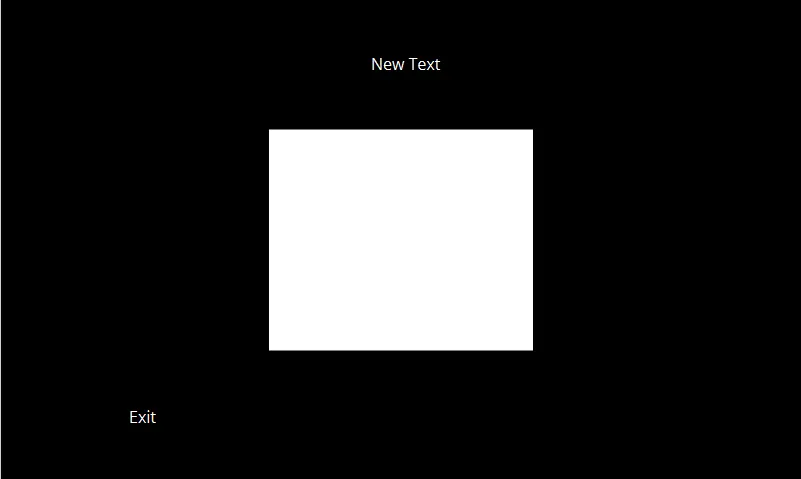
On the Gameplay Page, create two text displays and one rectangle.
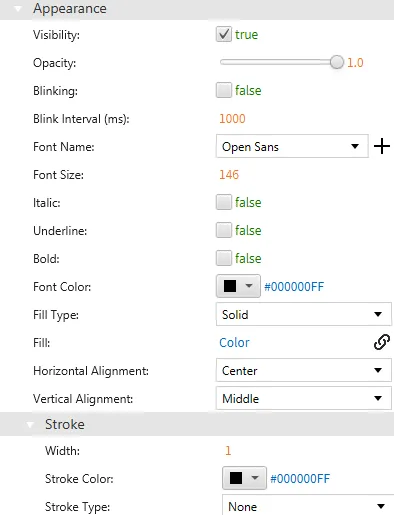
Drag one text display into the top center of the page. Under Appearances, set the font color to #FFFFFF.
Move the rectangle to the center of the screen. Drag-and-drop the Color tag onto the fill property.
Drag-and-drop the Points tag onto the text display.
The last text display will be placed on the bottom left of the screen. Change the text to “Exit”. Under Appearances, set the font color to #FFFFFF.

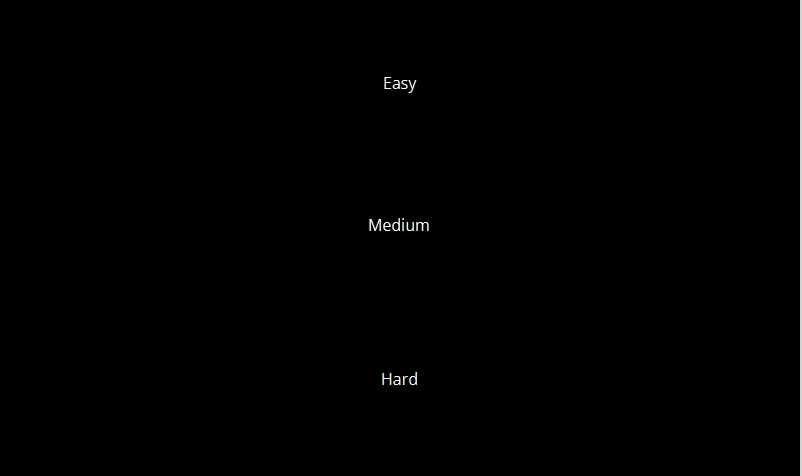
- On the "Selection" page, create three text displays.
The first will say, “Easy”. The second will say, “Medium”. The third will say, “Hard”. Place them on the screen and spread them out. Under Appearances, set the font color to #FFFFFF.
Script Configuration
Section titled “Script Configuration”- Create the following script and paste the below script:
- Gameplay
- Running type: Manual
- Gameplay
while(tag.read("Game ON")){ var currPoint = tag.read("Points"); // saves the current points var chance = Math.floor( Math.random() * (100 - 1 + 1)) + 1; // random num generator tag.write("clicked", 0); // resets click status thread.msleep(100); if(chance > 50){ // 50/50 chance of being green or red tag.write("Color", "#00FF00"); } else{ tag.write("Color", "#FF0000"); } thread.msleep(tag.read("sleepTime")); if(tag.read("Points") > currPoint){ // if the user gets a point tag.write("level", tag.read("Points") + 1); // increases the level thread.msleep(100); if(tag.read("sleepTime") > 250) // as long as sleep is not below 250 ms tag.write("sleepTime", tag.read("default_sleep") - (tag.read("Points") * 20)); // reduce it by 20 for every point thread.msleep(100); }}- Create the following script and paste the below script:
- Exit Game
- Running type: Manual
- Exit Game
system.exit(); // will just quit the game- Create the following script and paste the below script:
- Start Game
- Running type: Manual
- Start Game
page.open("Selection"); // opens the difficulty selection screen- Create the following script and paste the below script:
- Point
- Running type: Manual
- Point
while(!tag.read("clicked")){ // while user has not clicked tag.write("clicked", 1); // will set that the user has clicked if(tag.read("Color") == "#FF0000") { tag.write("Points", tag.read("Points") - 1); // lose a point if red } if(tag.read("Color") == "#00FF00") { tag.write("Points", tag.read("Points") + 1); // gain a point if green thread.msleep(100); tag.write("Color", "#FF0000"); // change color to red. }}- Create the following script and paste the below script:
- Difficulty
- Running type: Manual
- Difficulty
switch(tag.read("difficulty")){ case 1: tag.write("sleepTime", 1500); tag.write("default_sleep", 1500); page.open("Gameplay"); tag.write("Game ON", 1); thread.msleep(100); system.runScript("Gameplay"); break; case 2: tag.write("sleepTime", 1000); tag.write("default_sleep", 1000); page.open("Gameplay"); tag.write("Game ON", 1); thread.msleep(100); system.runScript("Gameplay"); break; case 3: tag.write("sleepTime", 500); tag.write("default_sleep", 500); page.open("Gameplay"); tag.write("Game ON", 1); thread.msleep(100); system.runScript("Gameplay"); break;}- Create the following script and paste the below script:
- Hard_Selection
- Running type: Manual
- Hard_Selection
tag.write("difficulty", 3); //difficulty set to hardthread.msleep(100);system.runScript("Difficulty");- Create the following script and paste the below script:
- Med_Selection
- Running type: Manual
- Med_Selection
tag.write("difficulty", 2);// difficulty set to mediumthread.msleep(100);system.runScript("Difficulty");- Create the following script and paste the below script:
- Easy_Selection
- Running type: Manual
- Easy_Selection
tag.write("difficulty", 1); //difficulty set to easythread.msleep(100);system.runScript("Difficulty");- Create the following script and paste the below script:
- Return to Main Menu
- Running type: Manual
- Return to Main Menu
page.open("Main Menu");thread.msleep(100);tag.write("Game ON", 0);thread.msleep(100);tag.write("Points", 0);tag.write("level", 1);thread.msleep(100);Project Configuration 2
Section titled “Project Configuration 2”-
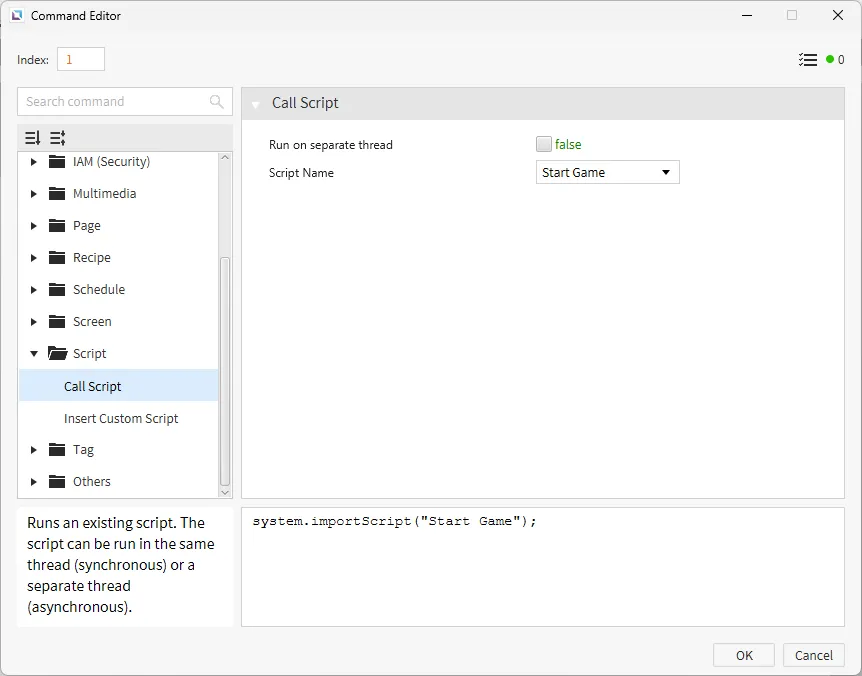
On the "Main Menu" page, in the text display with “Start Game”, under the Actions properties, select On Press. Click Add New Command and use the Call Script command, calling the Start Game script.
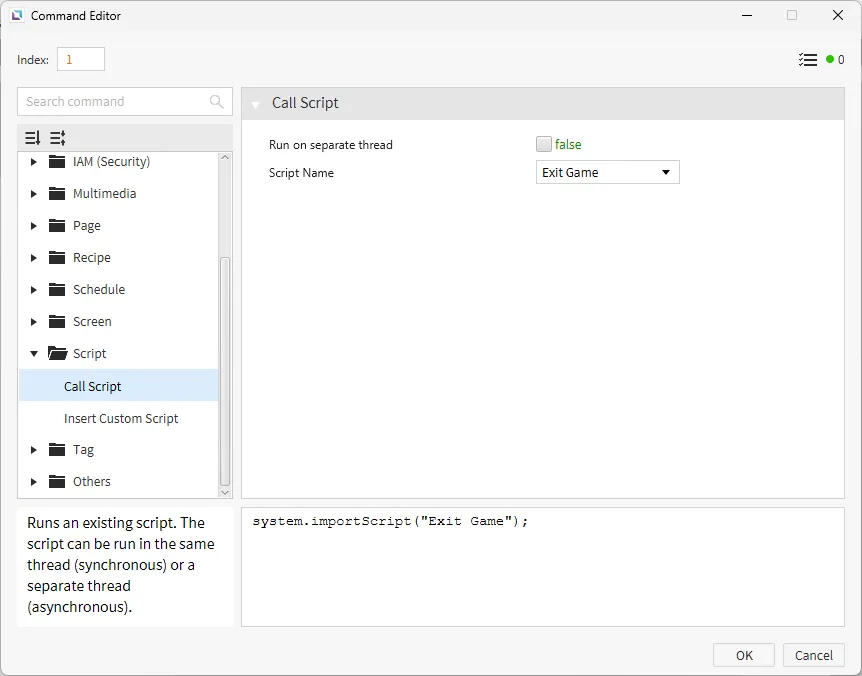
For the text display with “Exit Program”, under the Actions properties, select On Press. Click Add New Command and use the Call Script command, calling the Exit Game script.
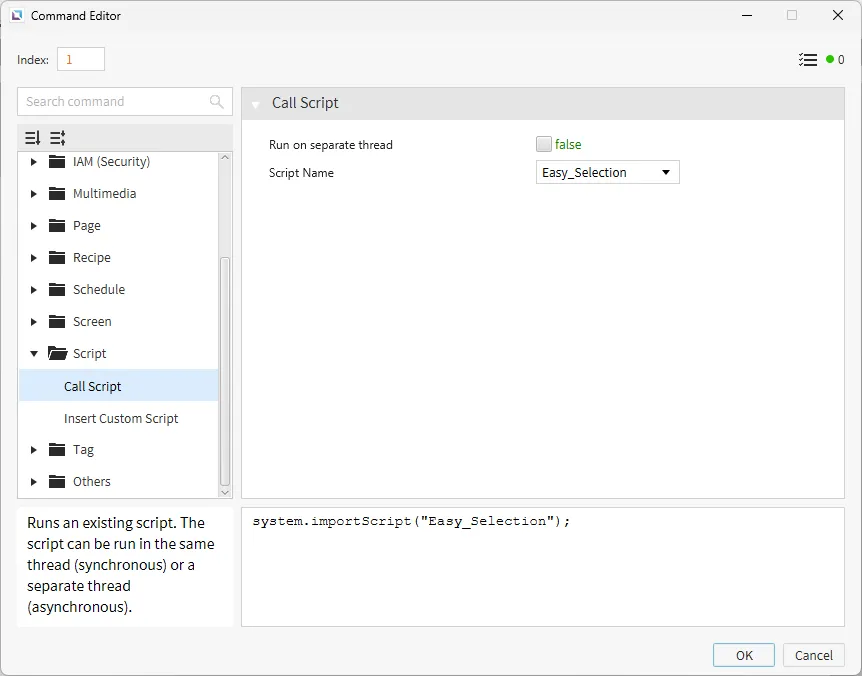
Now, on the "Selection" page, select the text display that says, “Easy”. under the Actions properties, select On Press. Click Add New Command and use the Call Script command, calling the Easy_Selection script.
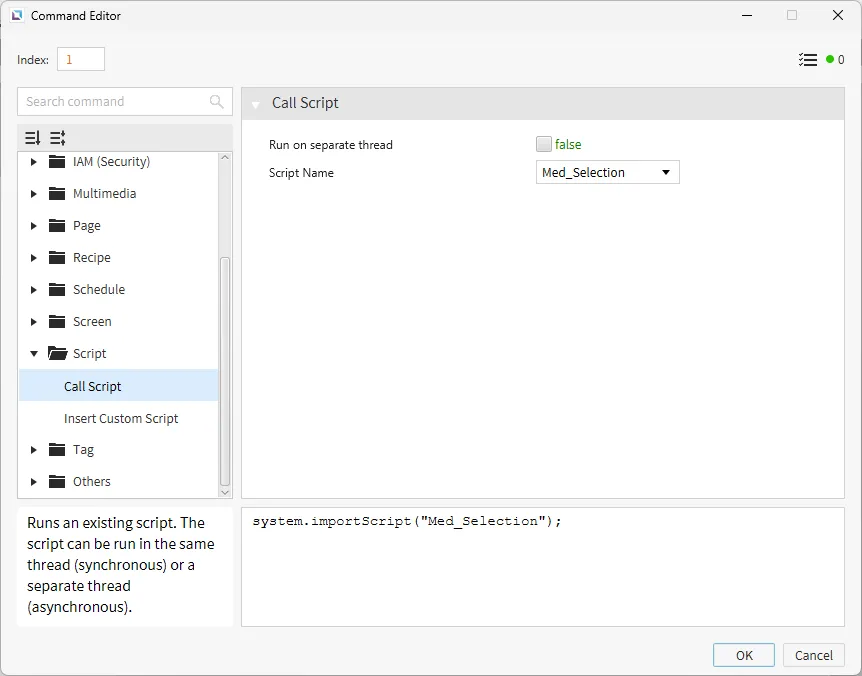
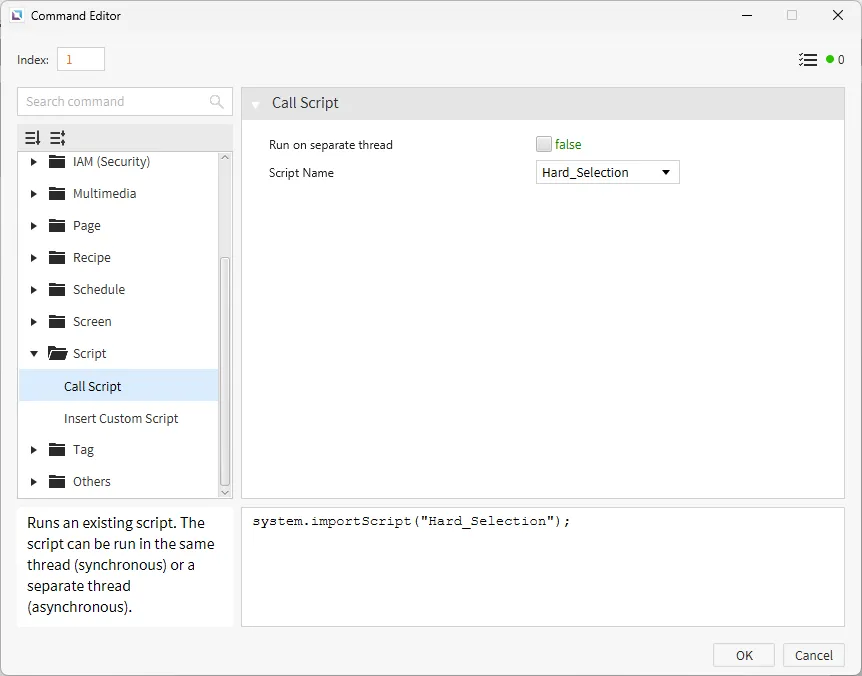
For each difficulty, put the respective script. For medium, bind the Med_Selection script. For hard, bind the Hard_Selection script.
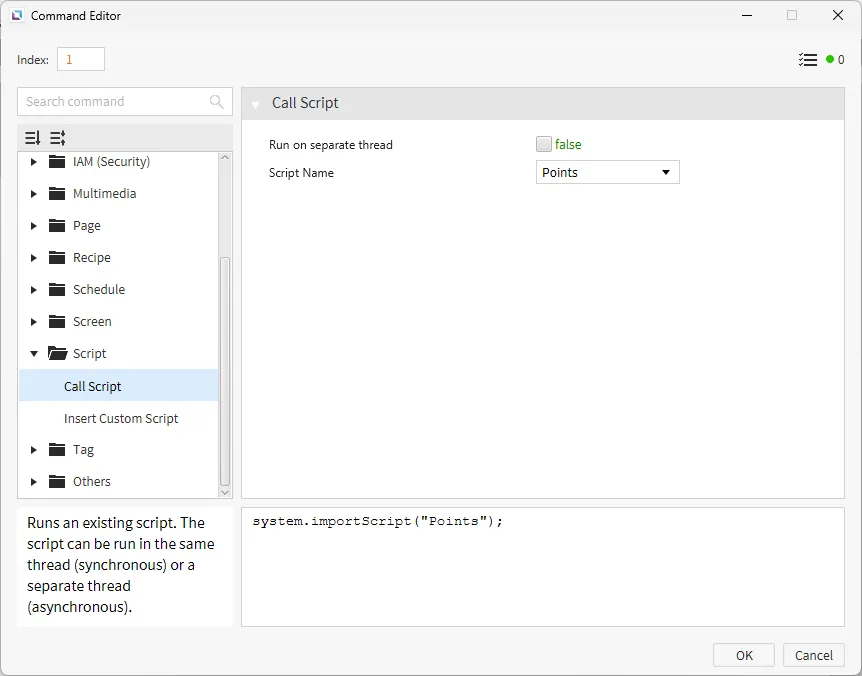
Finally, on the "Gameplay" page, select the rectangle. under the Actions properties, select On Press. Click Add New Command and use the Call Script command, calling the Points script.
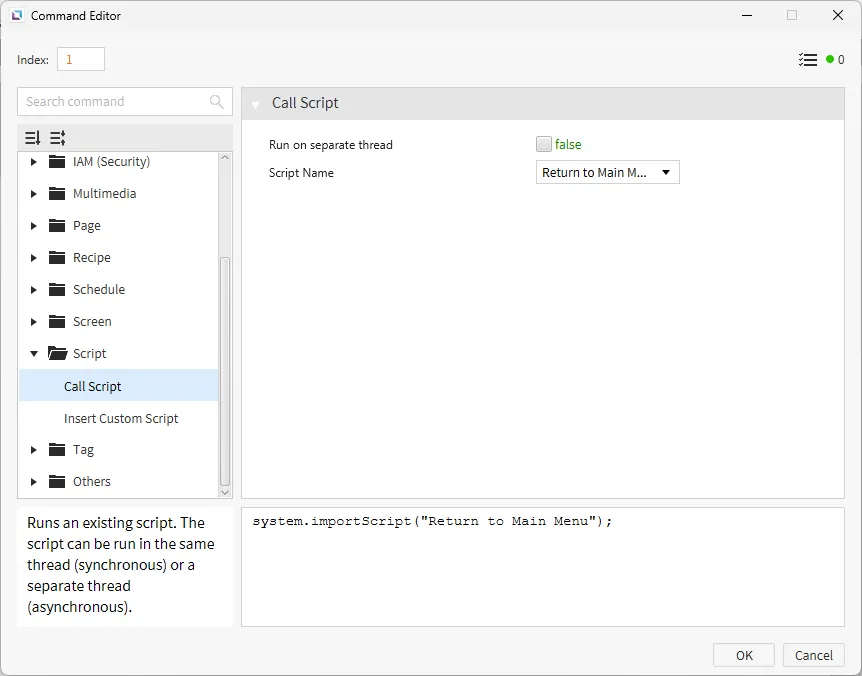
For the "Exit" text display, under the Actions properties, select On Press. Click Add New Command and use the Call Script command, calling the Return to Main Menu script.
Project Deployment
Section titled “Project Deployment”- Click Tools > Launch Simulator to launch the Canvas Simulator.
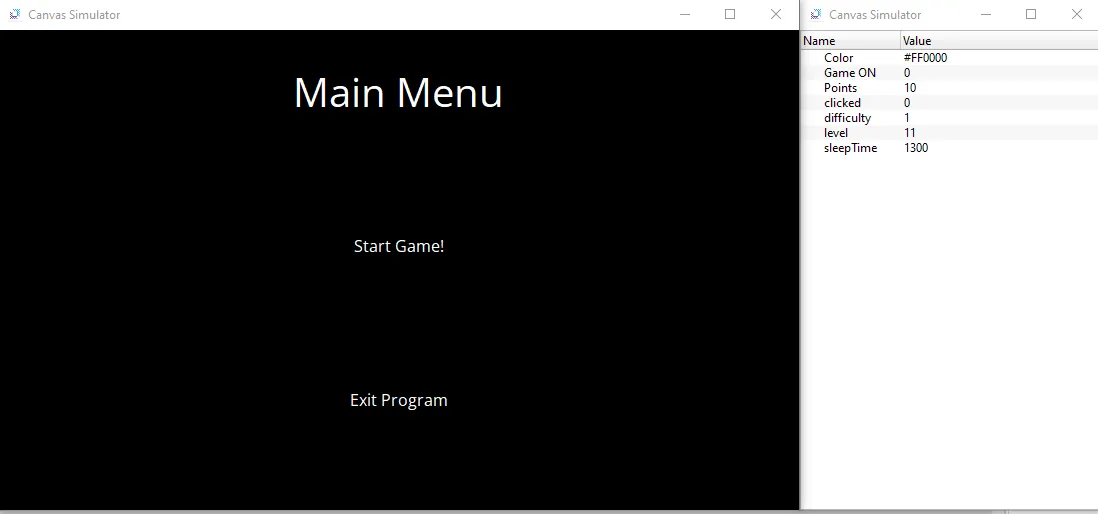
- Click on "Start Game!". This will open up the difficulty selection screen. Select any difficulty. This will then open up the gameplay screen.
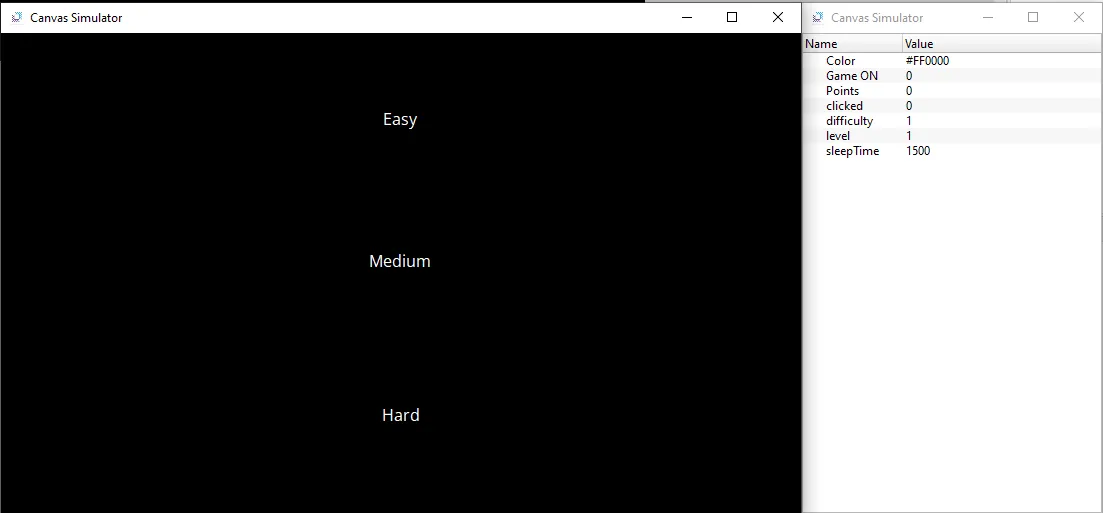
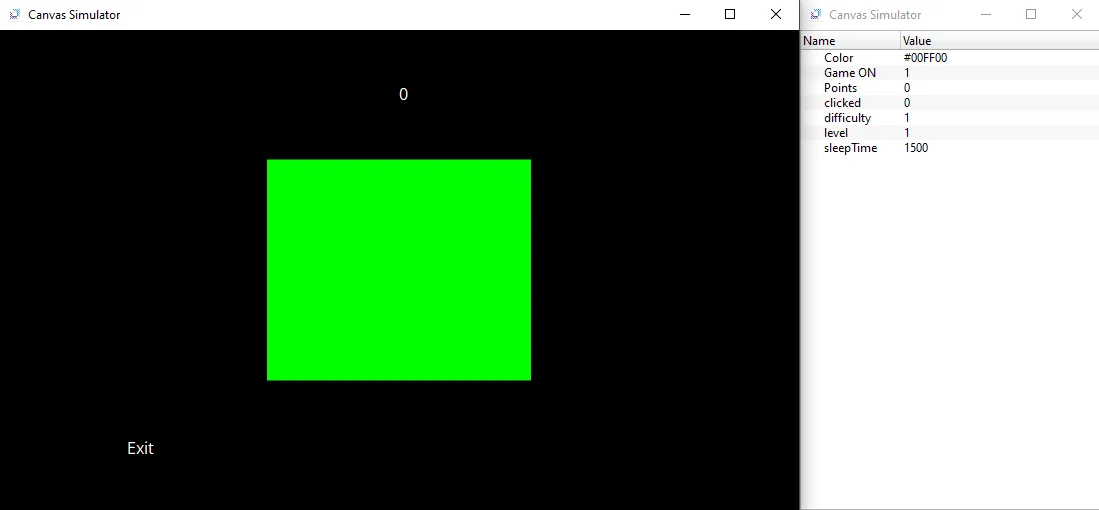
- Click on the box when it turns green. The text at the top should increment the number of times you click the box. This will also cause the level to increase and the sleepTime tag to decrease. Click exit whenever the user is ready to move on.
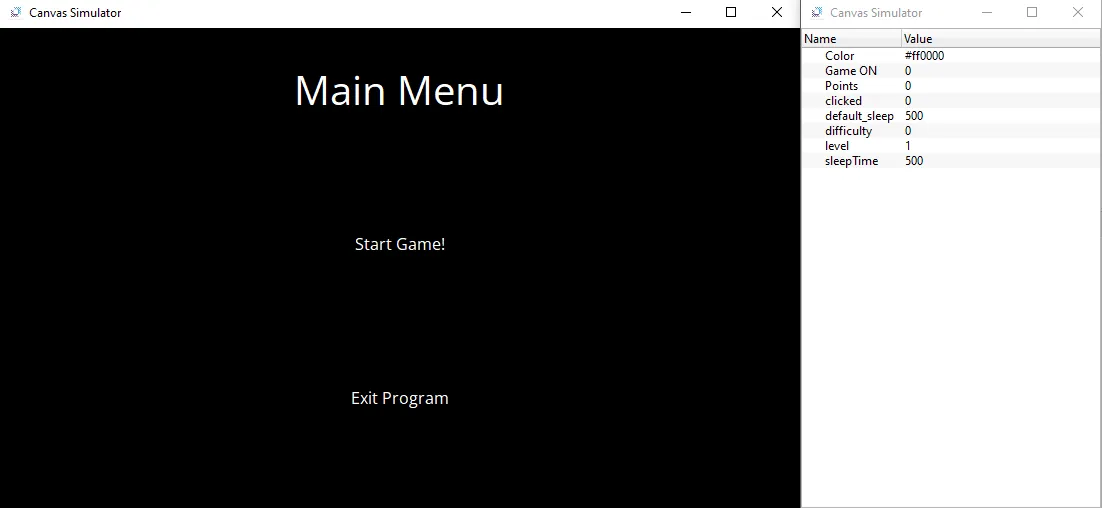
- Click on “Start Game” again, and click a new difficulty. Once done with playing the game, click the “Exit Game” text to exit fully.