Settings
Settings
Section titled “Settings”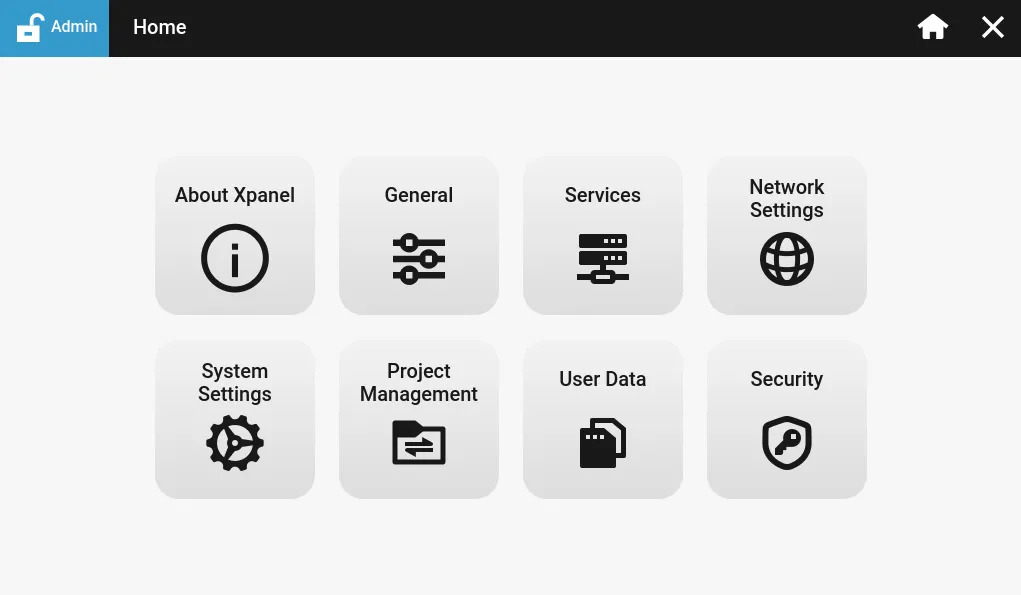
The settings menu allows users to view information about their Xpanel, change internal settings, and manage projects.
About Xpanel
Section titled “About Xpanel”About Xpanel displays information about the physical device.
Device
Section titled “Device”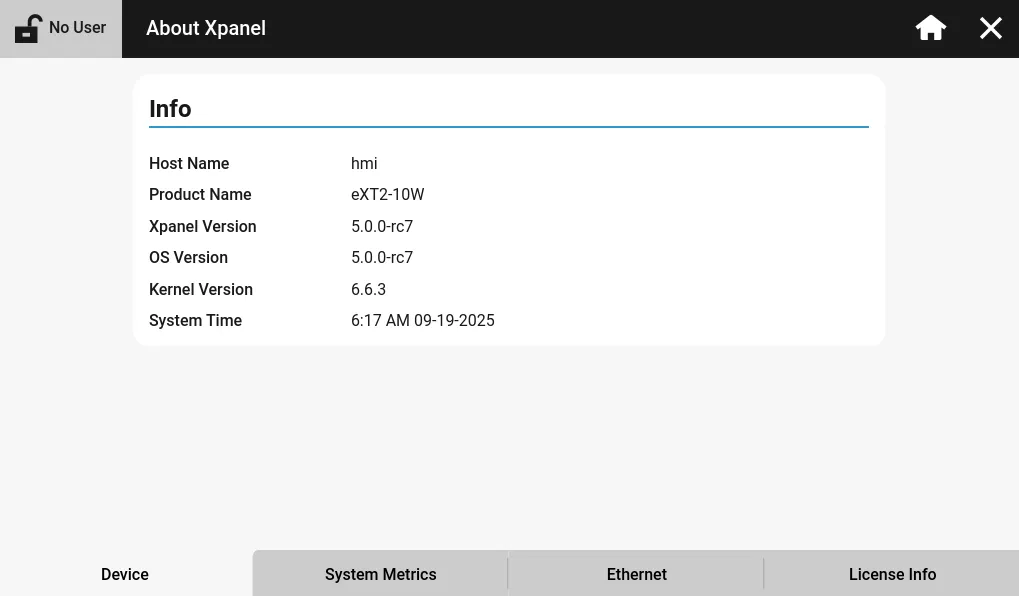
The Device tab displays the information, including the hostname, product name, Xpanel version, operating system version, kernel version, and system time.
The hostname is the name of the HMI as it appears on the network.
System Metrics
Section titled “System Metrics”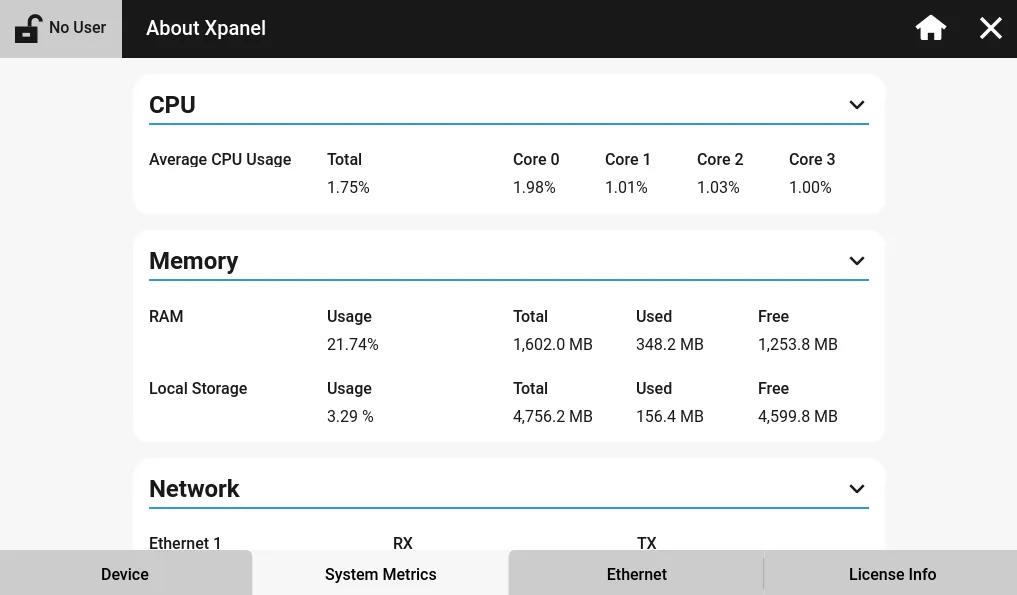
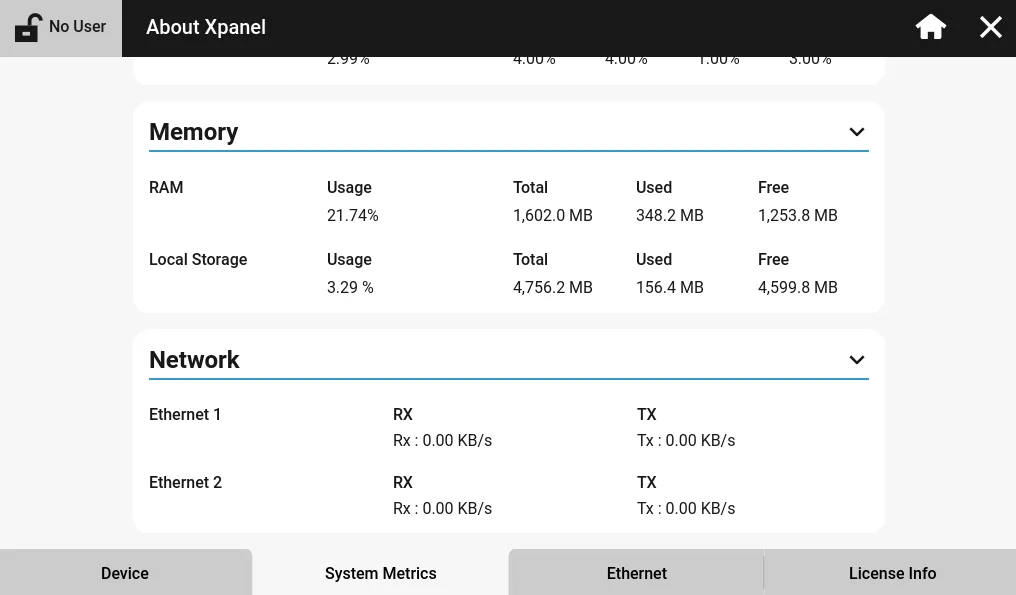
The System Metrics tab displays information about the hardware components of the Xpanel. This includes CPU usage, RAM usage, local storage usage, and network transmission speed.
Ethernet
Section titled “Ethernet”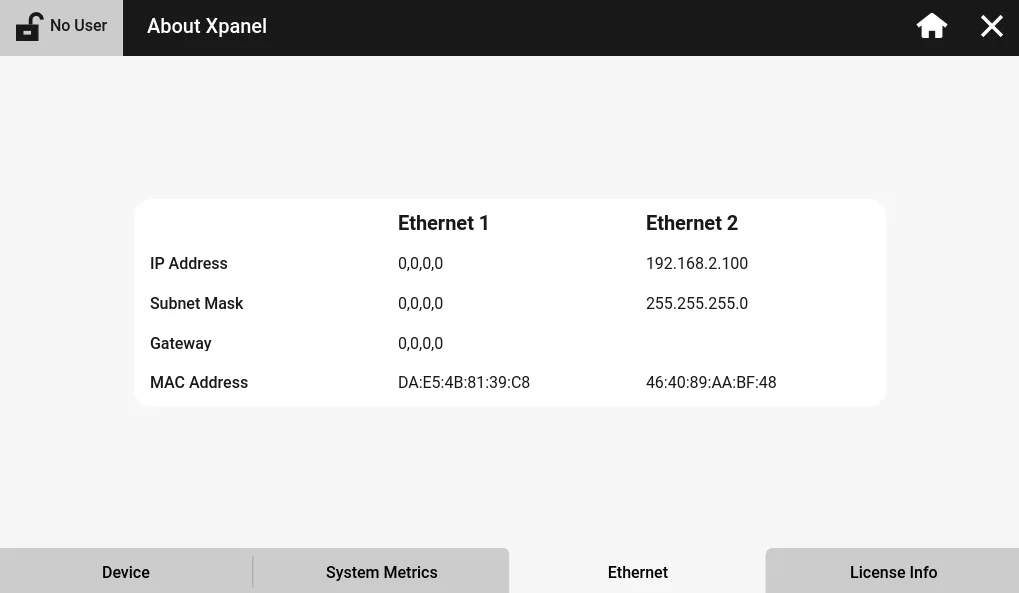
The Ethernet tab displays the configured IP address, subnet mask, gateway, and MAC address for all available Ethernet ports.
License Info
Section titled “License Info”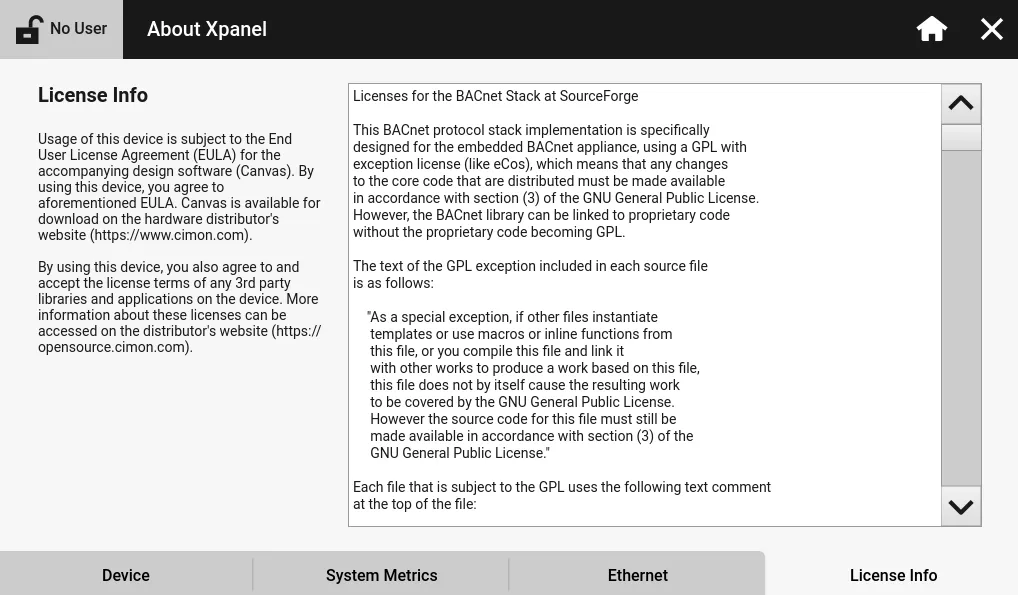
The License Info tab displays licensing information and the End User License Agreement (EULA) for Canvas.
General
Section titled “General”General allows users to change the physical appearance of their Xpanel.
Language
Section titled “Language”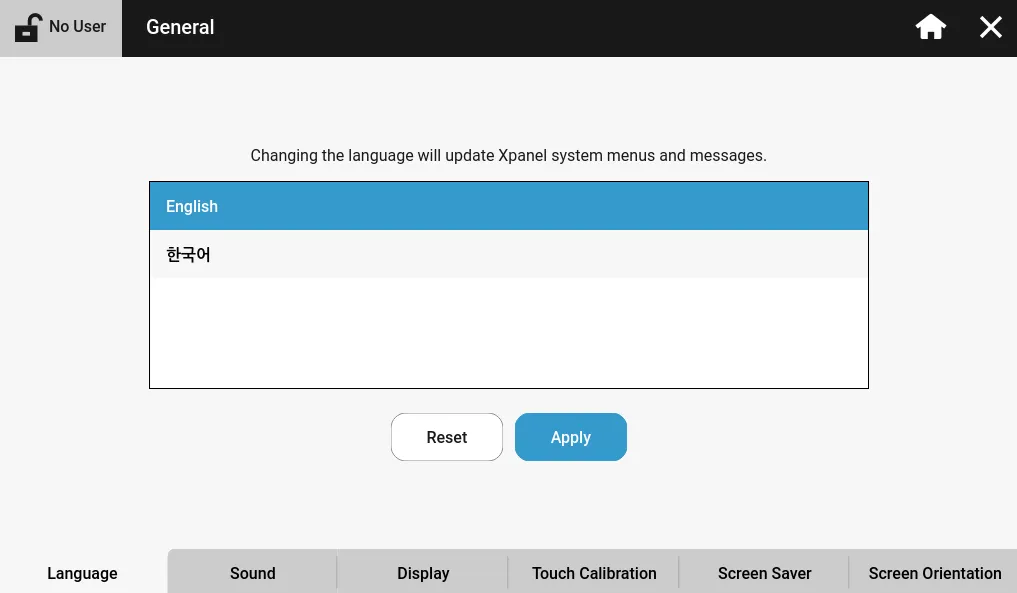
The Language tab allows users to change their default language between English and Korean.
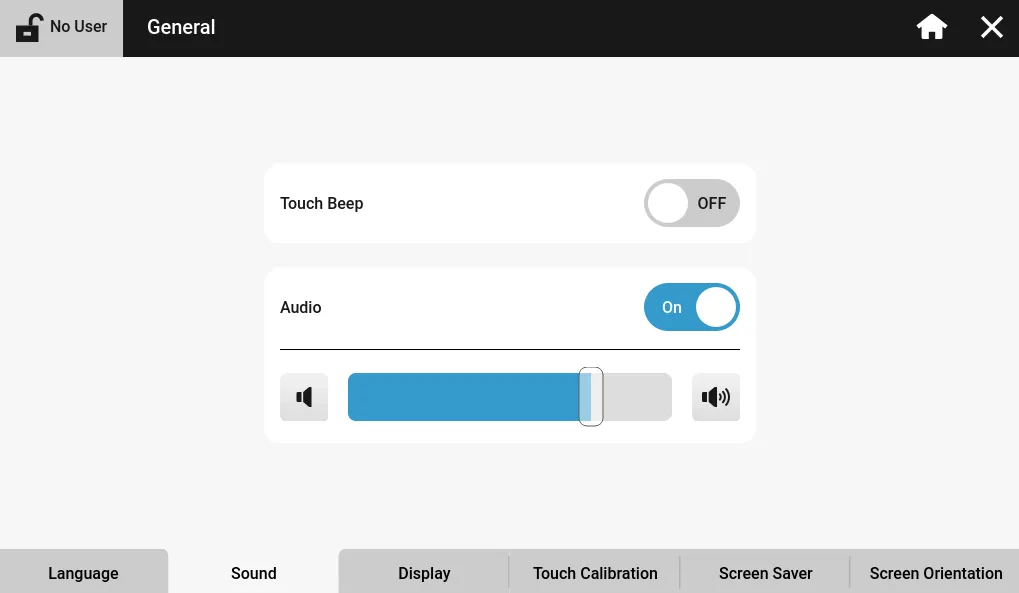
The Sound tab controls the sound output volume, touch beep noise, and volume level for the Xpanel.
Display
Section titled “Display”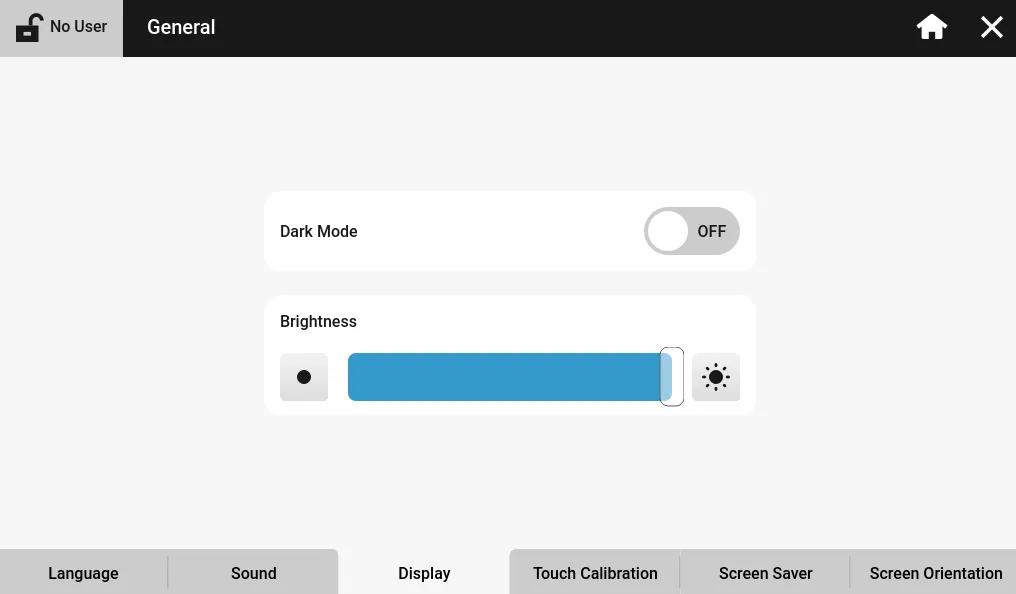
The Display tab allows users to change the brightness of the HMI screen and change the default view to dark mode.
Touch Calibration
Section titled “Touch Calibration”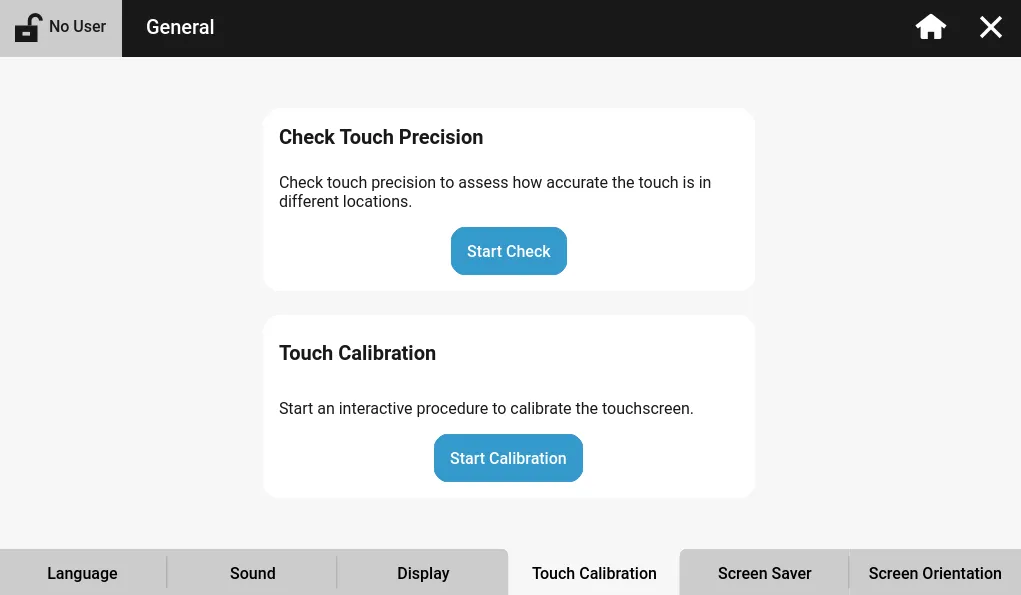
The Touch Calibration tab is used to calculate if touch actions on the physical screen are accurate. If not, the user can start the touch calibration process to reset the current touch calibration.
Screen Saver
Section titled “Screen Saver”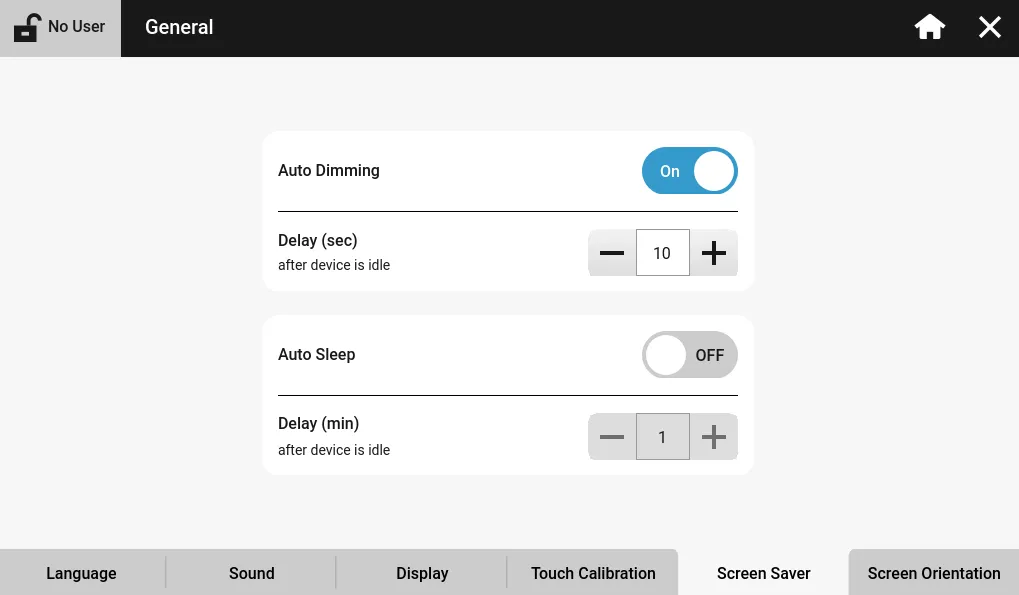
The Screen Saver tab allows the user to control the Xpanel's dimming and sleep mode functionality.
Screen Orientation
Section titled “Screen Orientation”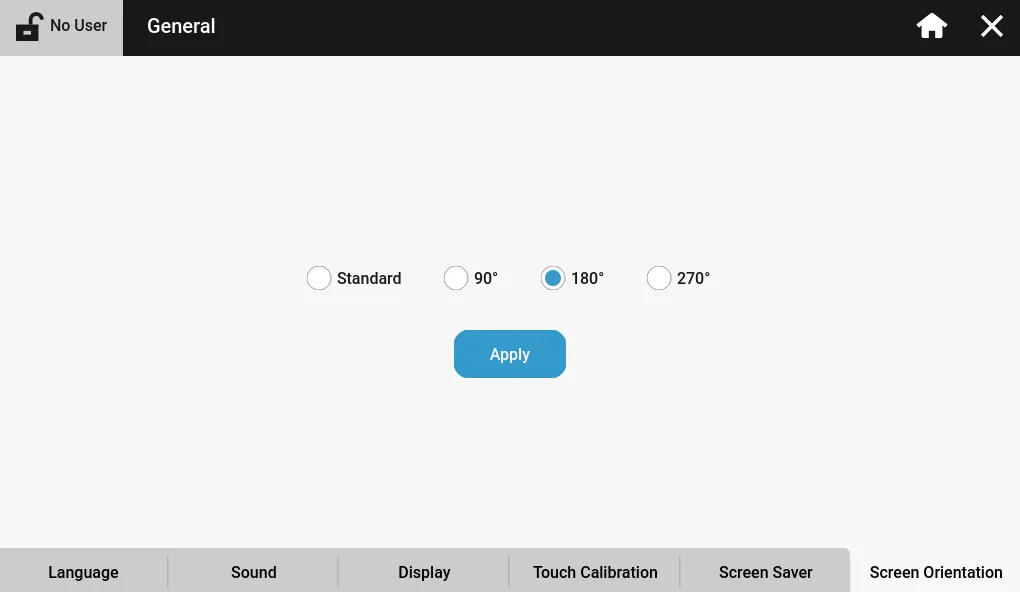
The Screen Orientation tab allows users to set the display orientation for the HMI screen. For landscape, use Standard or 180°. For portrait, use 90° or 270°.
Services
Section titled “Services”Services allow users to enable or disable RDP/VNC and enable, disable, and configure FTP.
RDP/VNC Server Setup
Section titled “RDP/VNC Server Setup”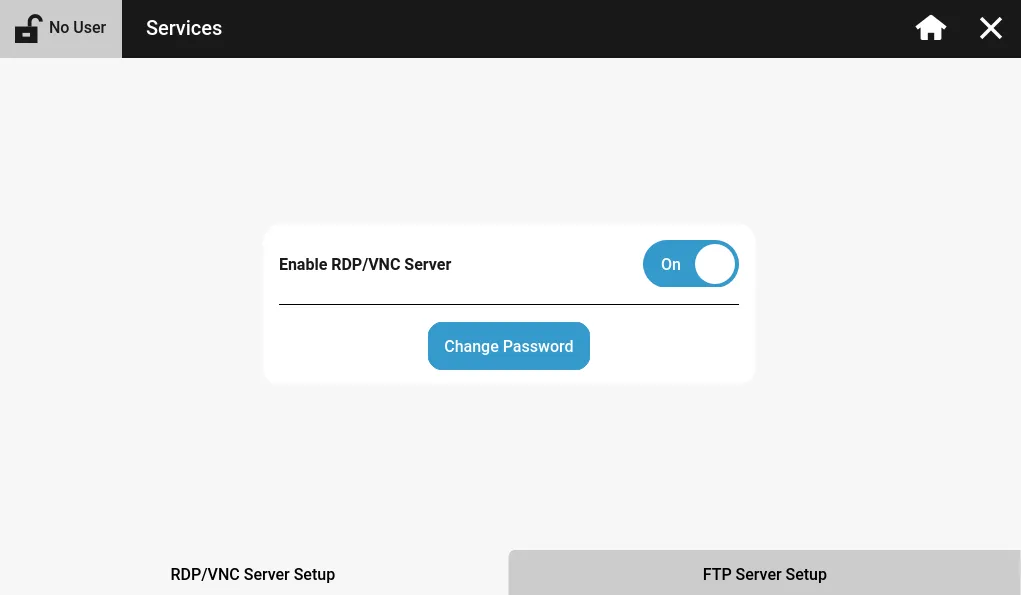
The RDP/VNC Server Setup tab enables or disables RDP (eXT series) and VNC (eXT2 series). The password for the services can be configured as well.
FTP Server Setup
Section titled “FTP Server Setup”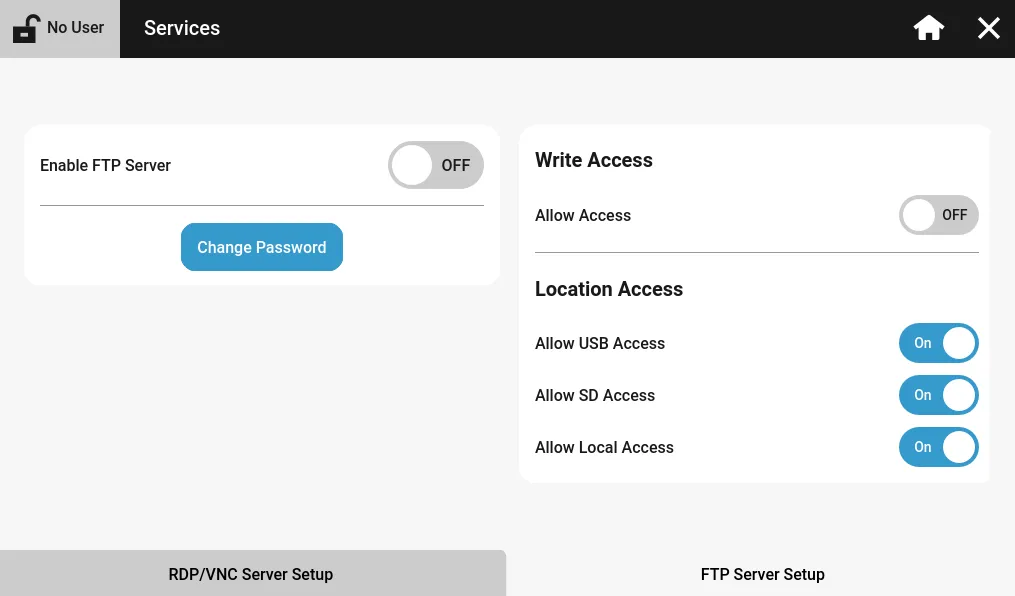
The FTP Server Setup controls configuration for the Xpanel's FTP server. The server can be enabled or disabled, and the password can be changed. Additionally, write and location access can be controlled.
Network Settings
Section titled “Network Settings”Network Settings allows users to configure IP settings and the hostname of the Xpanel.
Name Server
Section titled “Name Server”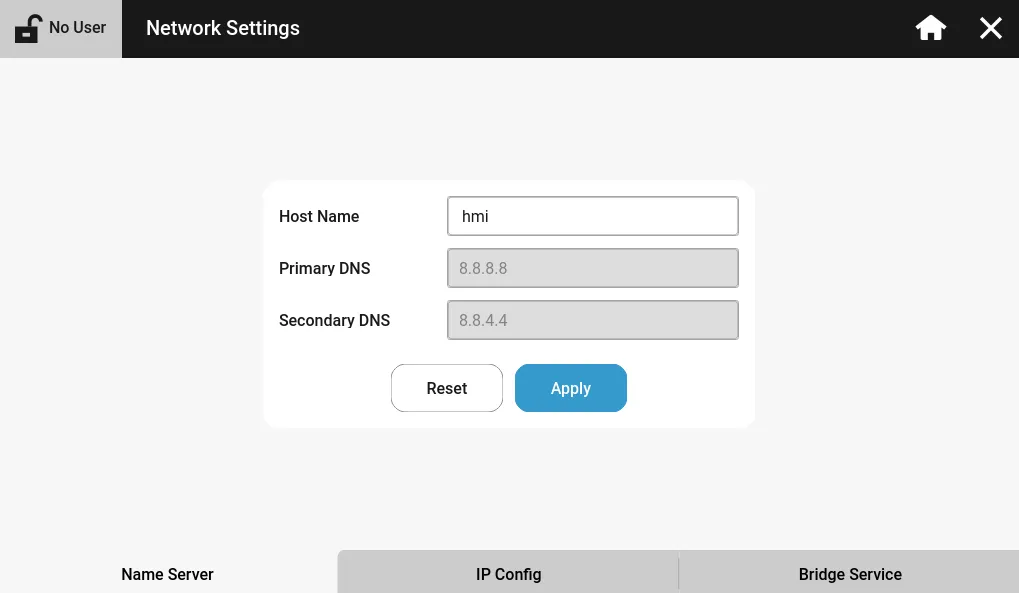
The Name Server tab specifies the hostname of the HMI as it appears on the network. It also allows configuration for the primary and secondary DNS servers.
IP Config
Section titled “IP Config”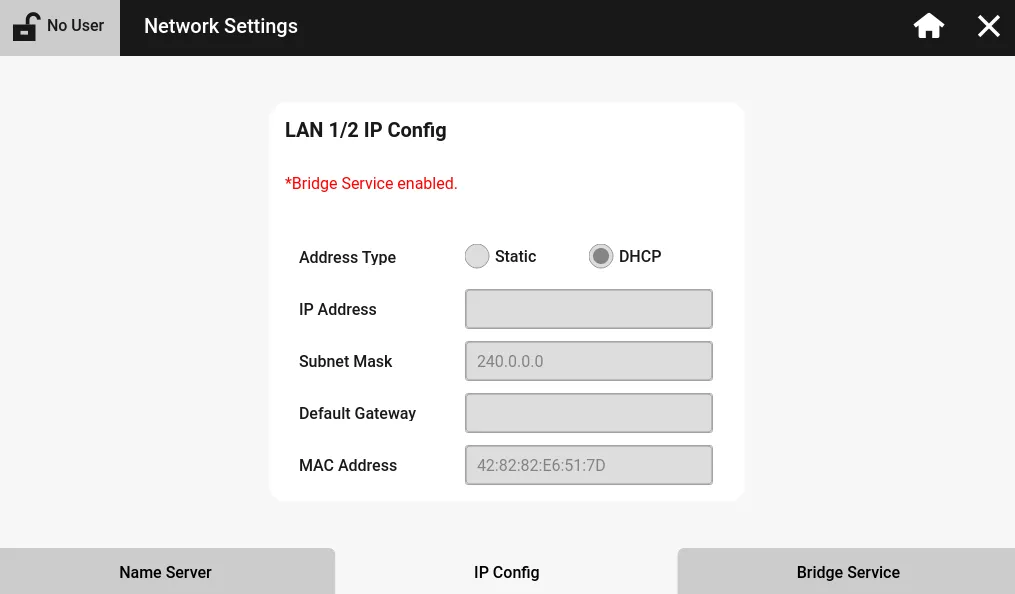
The IP Config tab allows users to configure the IP address, subnet mask, and default gateway for each Ethernet port on the Xpanel. The options can only be configured if the Address Type is set to Static. If the ports are set to DHCP, the Ethernet ports will be given an IP address by the network's DHCP.
If the Xpanel has two Ethernet ports and the Bridge Service setting is enabled, only one port can be configured.
Bridge Service
Section titled “Bridge Service”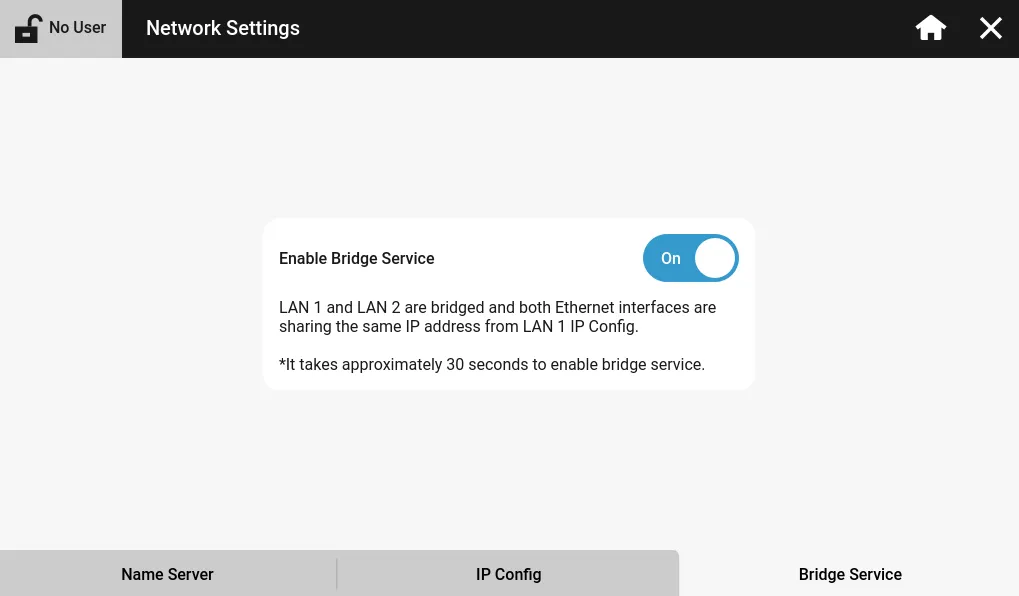
The Bridge Service tab enables or disables bridging between both Ethernet ports (if applicable). The LAN 2 Ethernet port will share the same IP address as the LAN 1 Ethernet port.
System Settings
Section titled “System Settings”System Settings allows users to control system time, conduct device updates, enable/disable the watchdog timer, delay the project runtime, or reset and recover the Xpanel.
System Time
Section titled “System Time”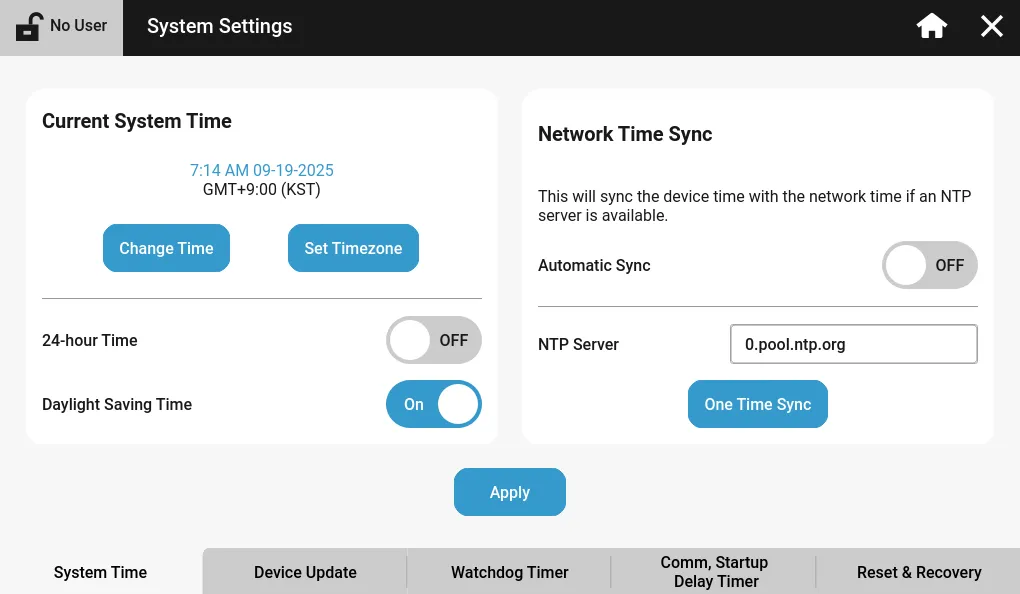
The System Time tab allows for configuration of the internal Xpanel time. The time can be changed manually or by syncing with an NTP server.
The Date/Time object pulls the time from the Xpanel's time.
Device Update
Section titled “Device Update”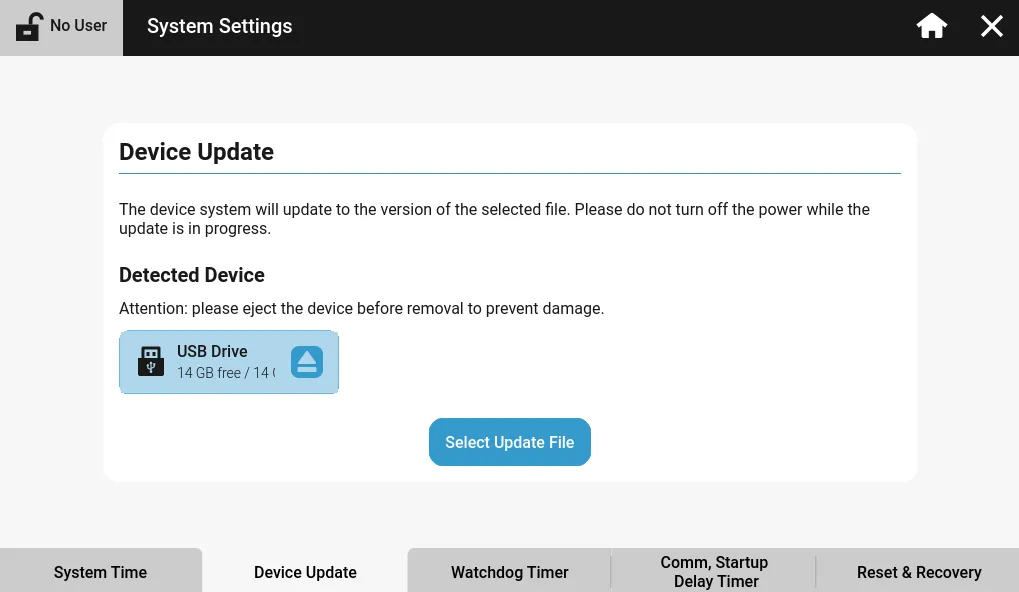
The Device Update tab allows users to conduct software or application upgrades/downgrades for the Xpanel.
Refer to the Update Device section on how to upgrade/downgrade the Xpanel.
Watchdog Timer
Section titled “Watchdog Timer”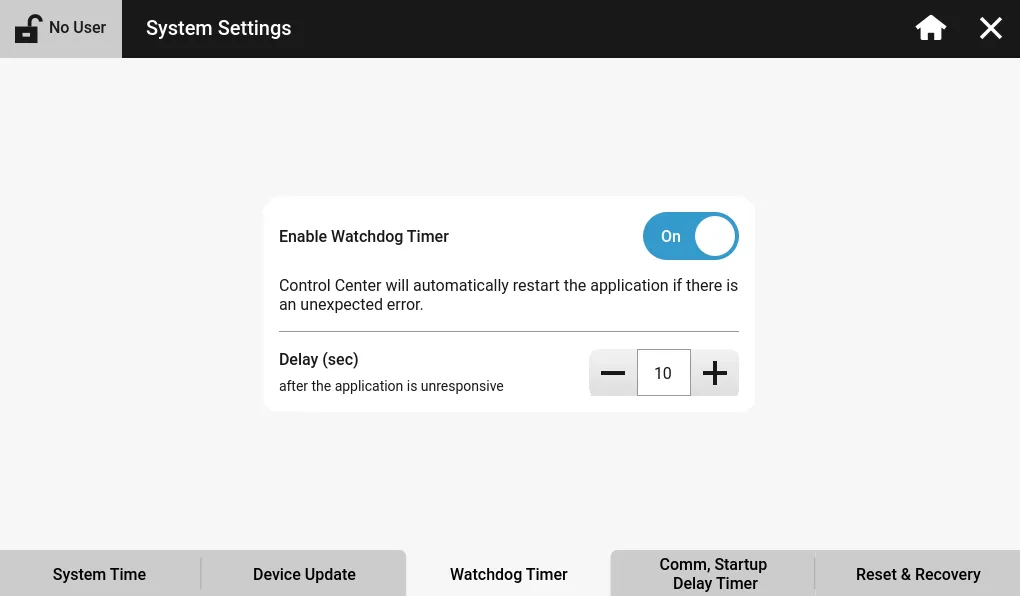
The Watchdog Timer tab configures the internal watchdog timer on the HMI. Users can enable or disable the watchdog timer, and specify the number of seconds before the project should restart.
Comm, Startup Delay Timer
Section titled “Comm, Startup Delay Timer”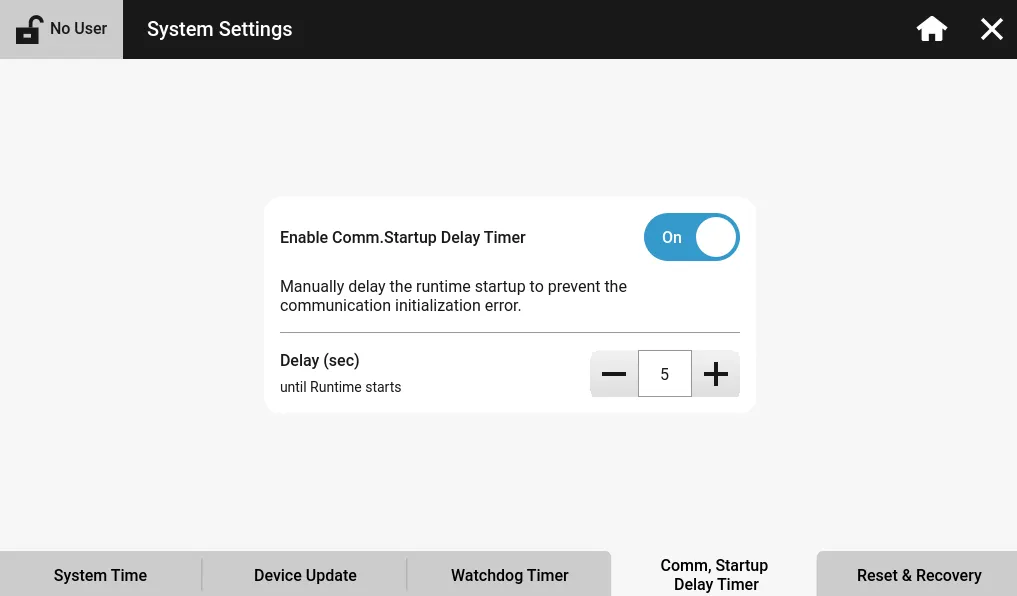
The Comm, Startup Delay Timer tab delays the project runtime for a specified number of seconds. This allows I/O devices to properly retrieve their values before tags try to read them.
Reset & Recovery
Section titled “Reset & Recovery”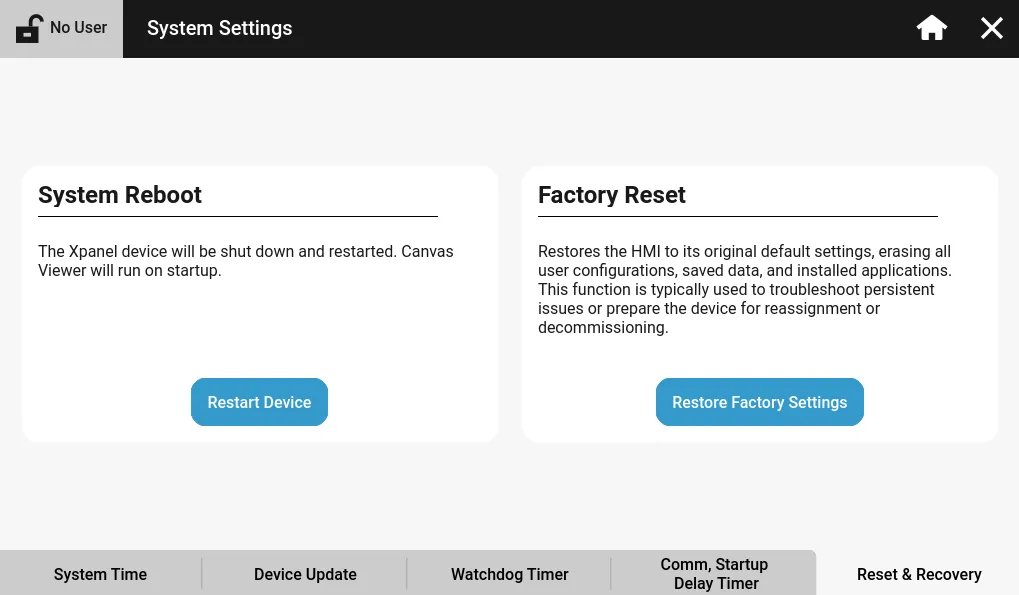
The Reset & Recovery tab allows users to reboot their HMI without having to power cycle it. Additionally, it allows users to factory reset their Xpanel for troubleshooting issues or decommissioning.
Project Management
Section titled “Project Management”Project Management allows users to upload a project to the Xpanel, download a project from the Xpanel, or manually restart the project.
Project Transfer
Section titled “Project Transfer”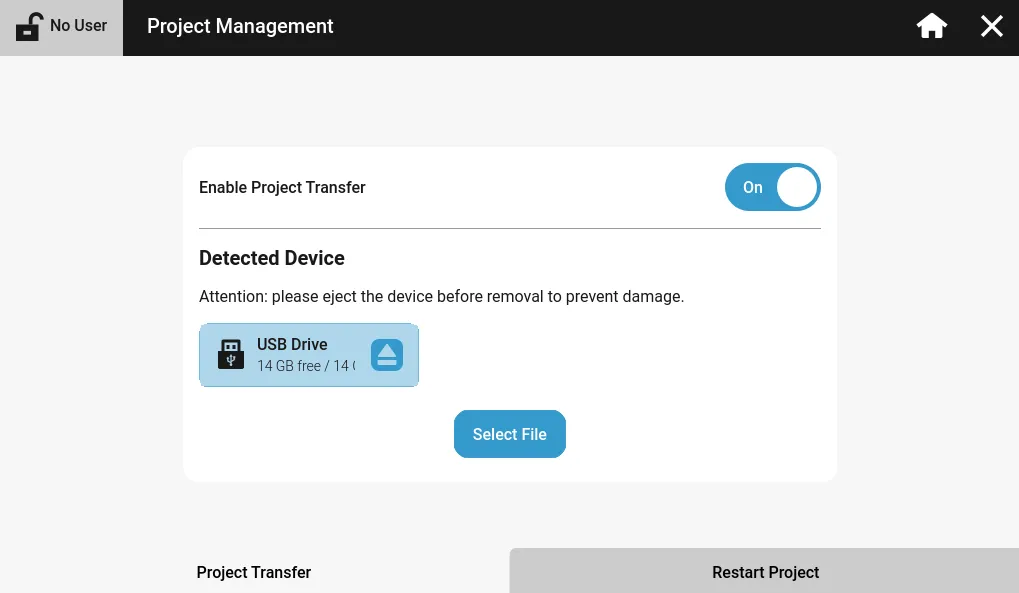
The Project Transfer tab allows users to enable/disable project transfer between the Xpanel. If this setting is disabled, it prevents projects from being downloaded to the Xpanel and prevents the project, currently on the Xpanel, from being uploaded to the computer or physical storage device, such as a USB or SD card.
Restart Project
Section titled “Restart Project”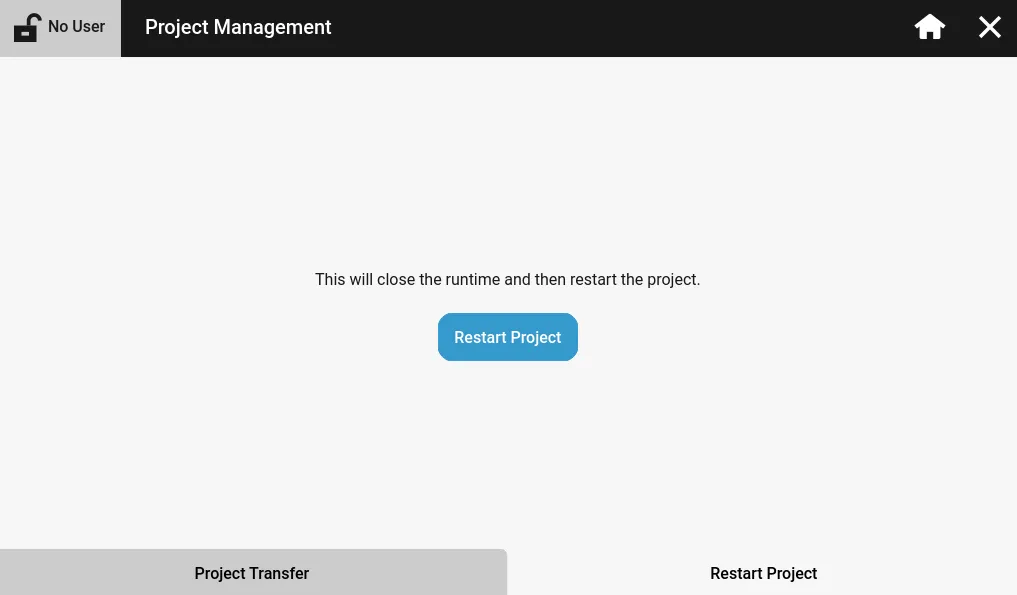
The Restart Project tab restarts the currently downloaded project on the Xpanel. This is as if the Xpanel powers on for the first time, or the project is downloaded for the first time.
User Data
Section titled “User Data”User Data allows users to delete specific project data to free up space or remove old project data.
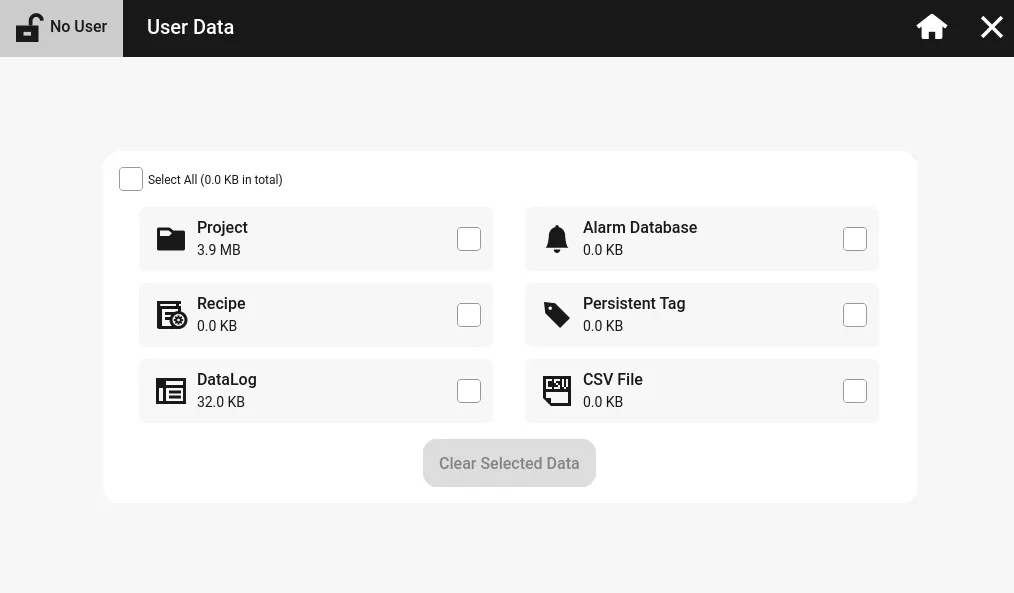
Users can select to delete the project, recipes, data logs, alarms, persistent tags, and CSV files.
If deleted, these options cannot be restored.
Security
Section titled “Security”Security allows users to add, edit, or delete identity and access management users and accounts.
User Management
Section titled “User Management”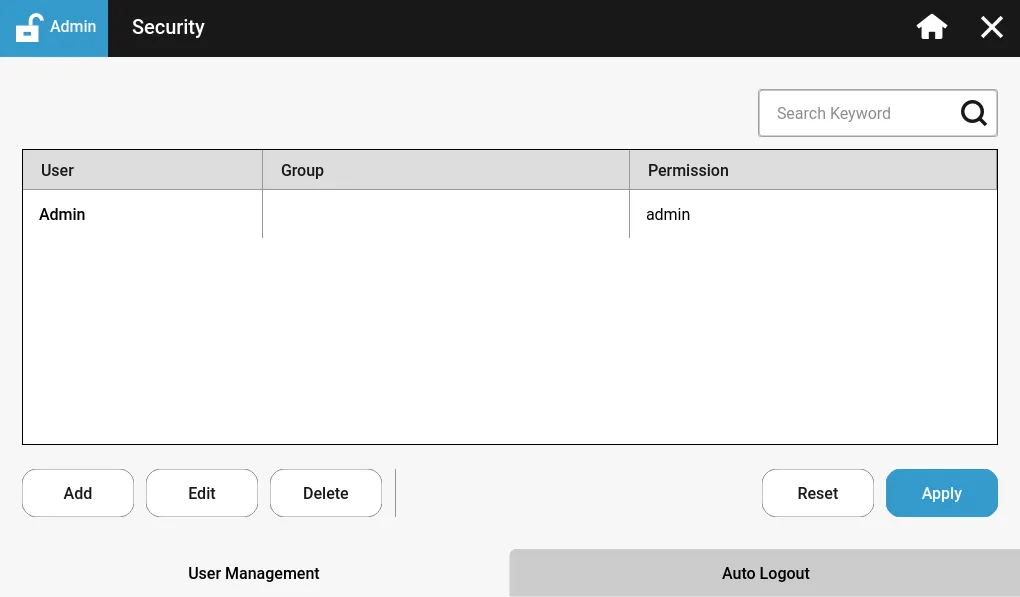
The User Management tab is an option for the logged in user to configure identity and access management users and accounts. Accounts can be added, edited, or deleted.
Auto Logout
Section titled “Auto Logout”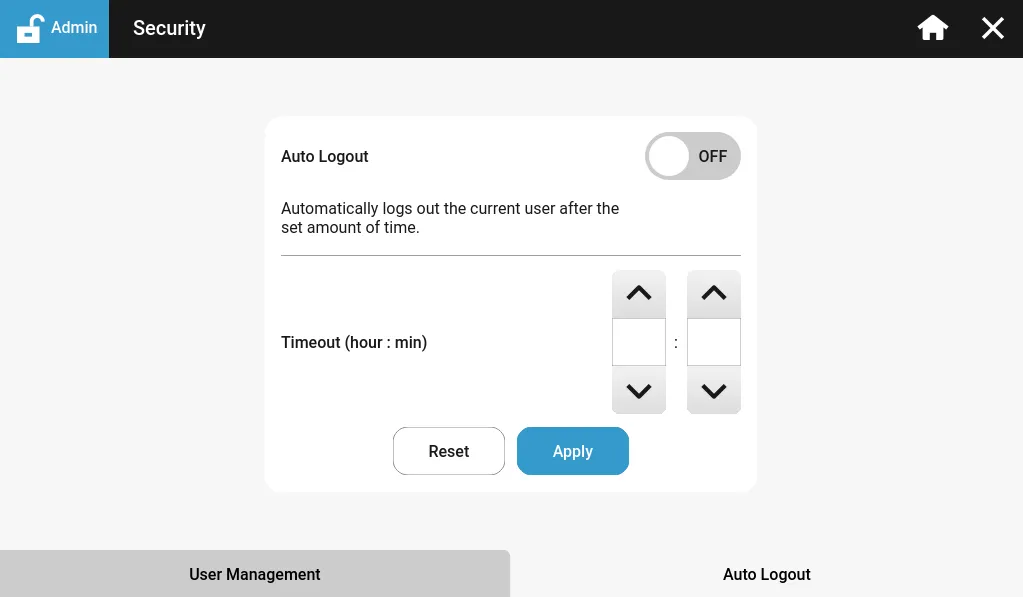
The Auto Logout tab configures an automatic timeout for logged in users if enabled. Once the ellapsed time is reach, the currently logged in user is logged out.