Data Logging Introduction
Data Log Feature Description
Section titled “Data Log Feature Description”Data logging is one of the historical features of Canvas. This property allows users to track digital and analog tag data and save a log file of this data or display it with a data log table object. The data is collected in real-time at specified intervals and in data blocks that the user configures.
The generated log file can be converted into a CSV file and stored externally1.
Data Log Designer Functionalities
Section titled “Data Log Designer Functionalities”The following functionalities can be configured in the Canvas software.
Data Log Editor
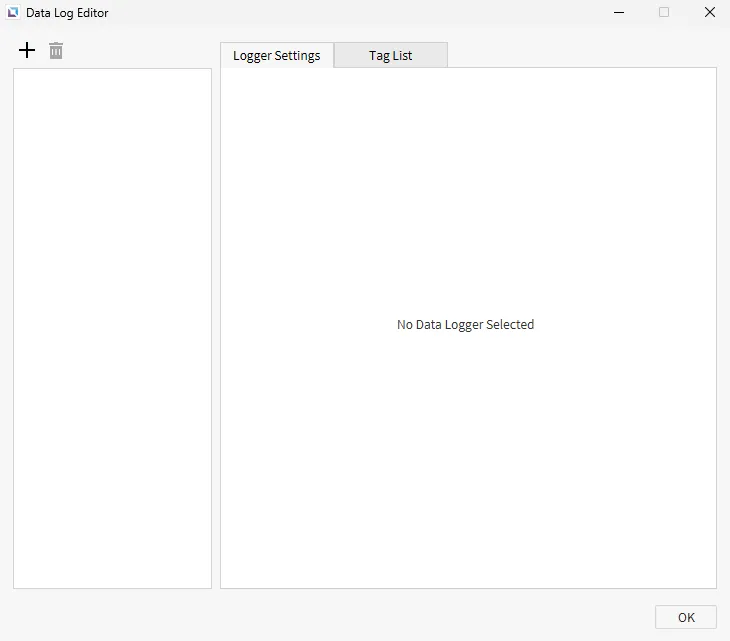
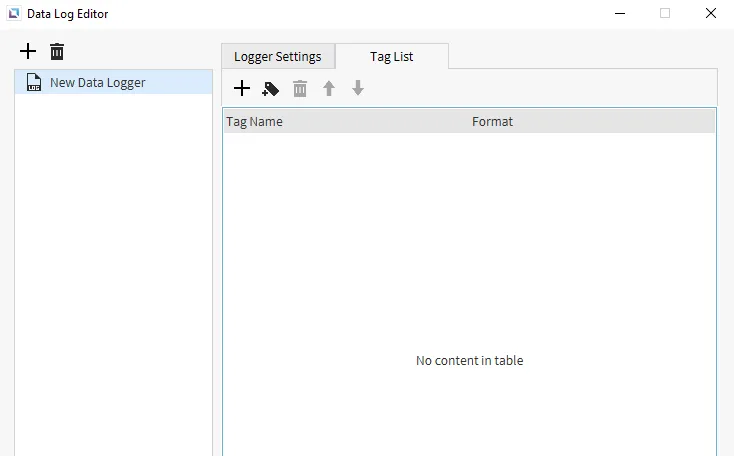
Section titled “Data Log Editor”To open the Data Log Editor window, click Tools > Data Log Editor. This window contains the Logger Settings and Tag List tabs. This is where users can create new data logging models, add tags, and edit existing models.
Logger Settings
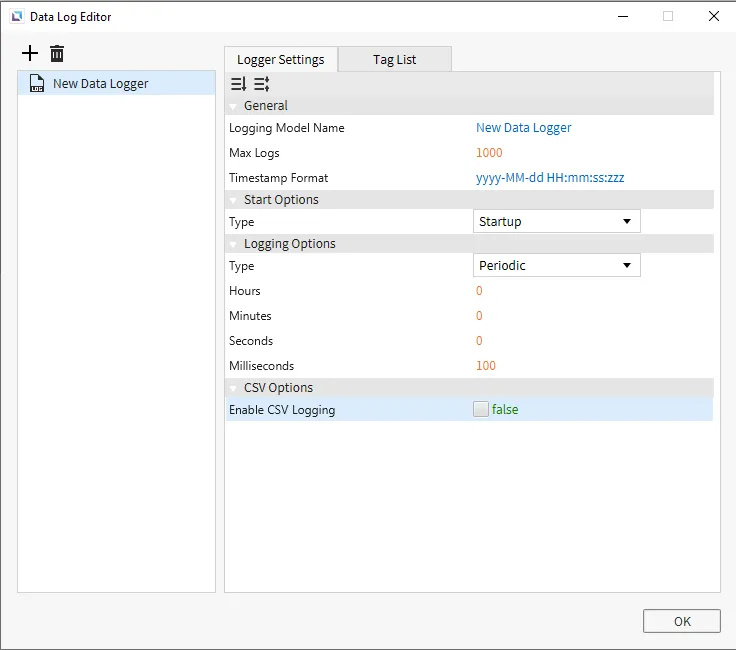
Section titled “Logger Settings”The logger settings tab allows users to create and name new data logging models, set the date and time format, declare when to begin logging data, and set the data logging interval.
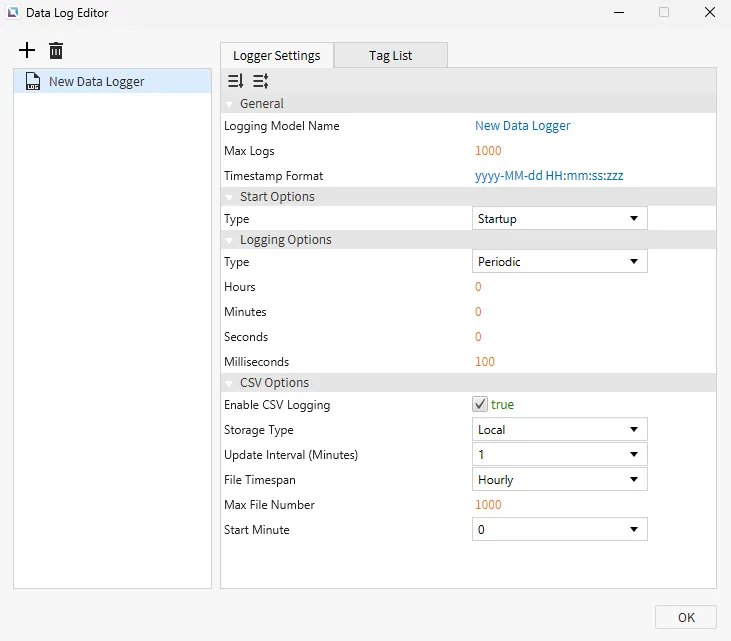
The data log feature includes CSV logging. This can be enabled or disabled for each data log model. If enabled, the storage type, update interval, how far back the file will track, maximum number of files, and start time can be set.
Tag List
Section titled “Tag List”The tag list tab allows the user to add tags that will be data logged.
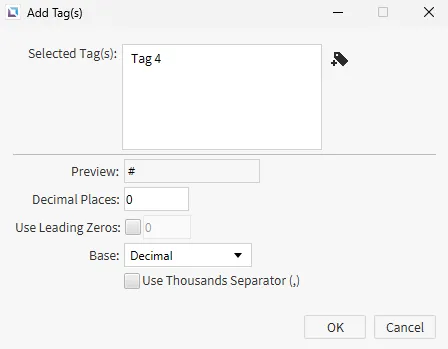
The data logging format for each tag can be specified when adding the tag to the model.
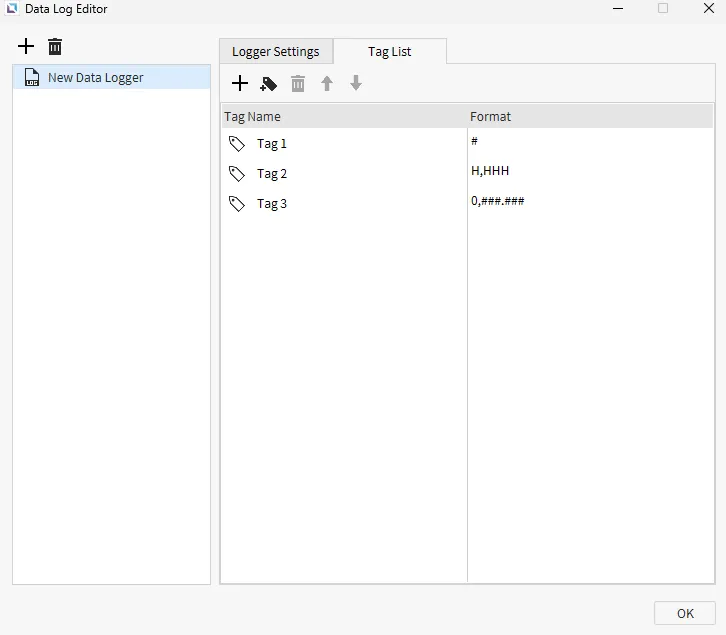
Once added, the tags to be logged will appear.
Data Log Table
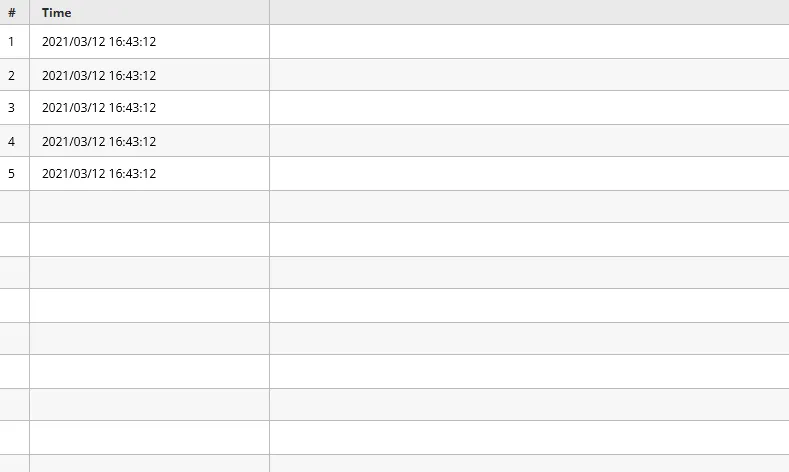
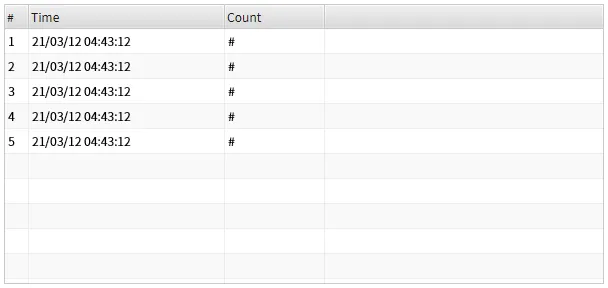
Section titled “Data Log Table”Click Insert > Data Log Table, or the Insert Data Log Table on the toolbar, to insert a data log table. Once selected, click and drag to the desired size. The data log table will look like the image below:
Properties
Section titled “Properties”The Data Log Table object can be customized based on specific properties.
To ensure the property windows are enabled, click View > Properties.
Basic Properties
Section titled “Basic Properties”The Basic Properties section allows users to change the displayed content and formatting within the object. The object’s name will show up in place of Basic Properties.
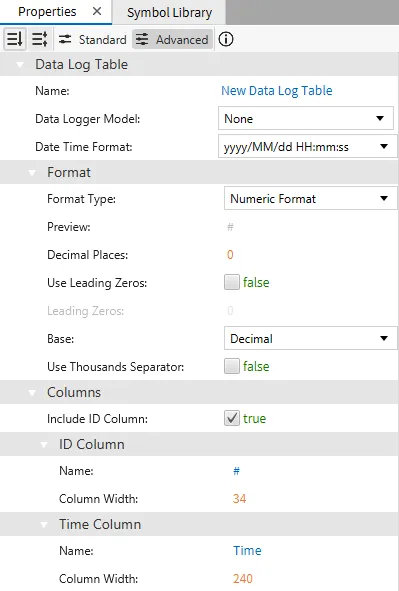
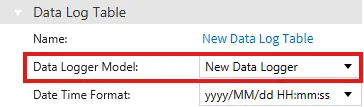
The data log model created in the Data Log Editor must be set under the data logger model property.
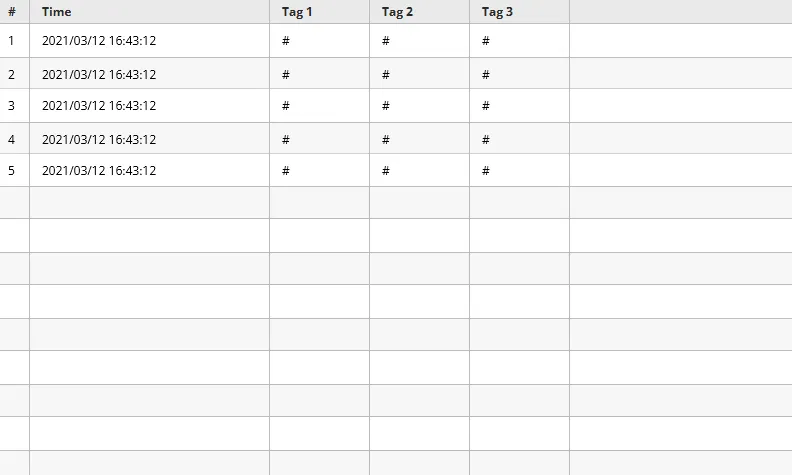
Once the model has been selected, the data log table preview will display the tags to data log:
Appearance
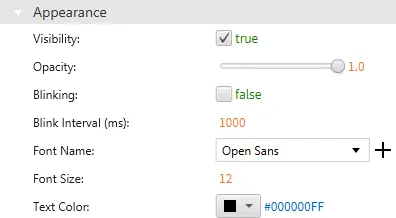
Section titled “Appearance”The Appearance section enables colors and selections to alter visible characteristics.
Position
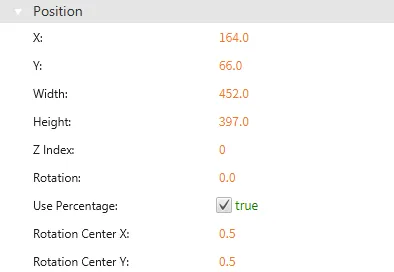
Section titled “Position”The Position section provides adjustable properties that reshape or move the object.
Data Log Runtime Functionalities
Section titled “Data Log Runtime Functionalities”Historical
Section titled “Historical”While the program is running, the Data Log Table will continue to record data. This allows for a historical viewing of old data. Users can scroll through the history of the Data Log Table. Up to 5,000 rows will be stored.
Each tag that is logged will create a new column. The Time column will always be available as a default column.
CSV Generation
Section titled “CSV Generation”The Data Log Table can be exported to a CSV for record keeping. The CSV file can be stored using a USB, SD card, File Transfer Protocol (FTP), or local memory on the Xpanel.1
A CSV file can be generated by using the Save Data Log CSV command function.
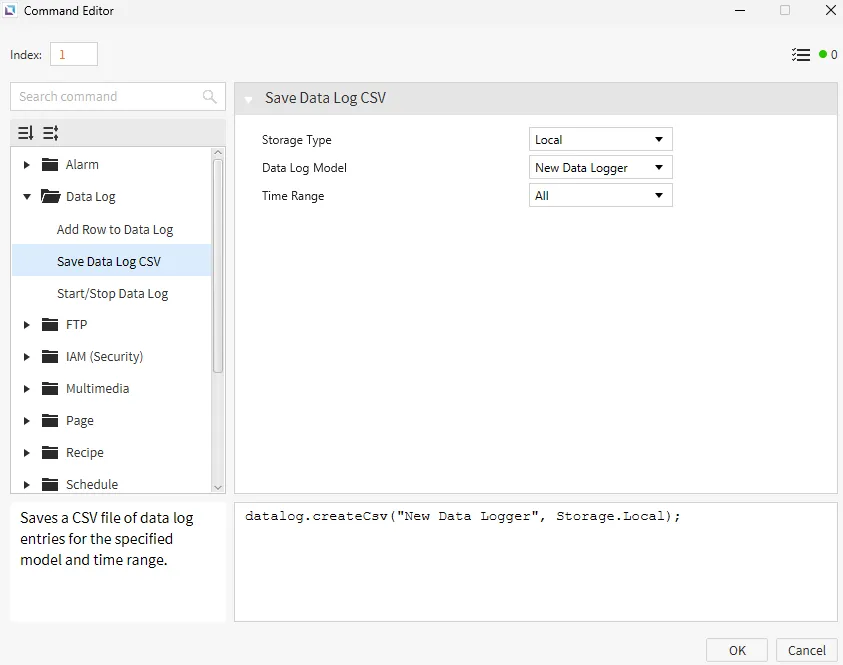
Additionally, a CSV file can be generated using the datalog.createCsv() or datalog.createCsvForRange() scripts.
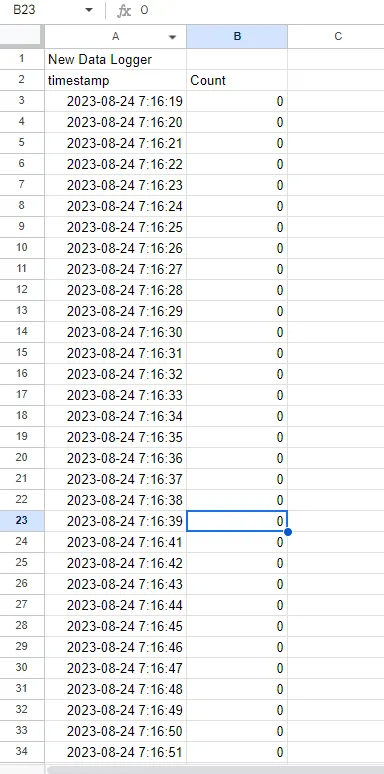
An example of what the CSV file would look like after generation is shown below: