Device Security
Xpanel Security
Section titled “Xpanel Security”The Xpanel comes built with security features, allowing users to confidently secure their devices. This guide will demonstrate the configuration process and different options for Xpanel security.
Security vs. No Security
Section titled “Security vs. No Security”It is simple to differentiate between an Xpanel with or without security options enabled. After entering the settings menu using the long-press method and selecting Settings, the settings menu will look different.
-
If no security settings are enabled, the menu will look like this:
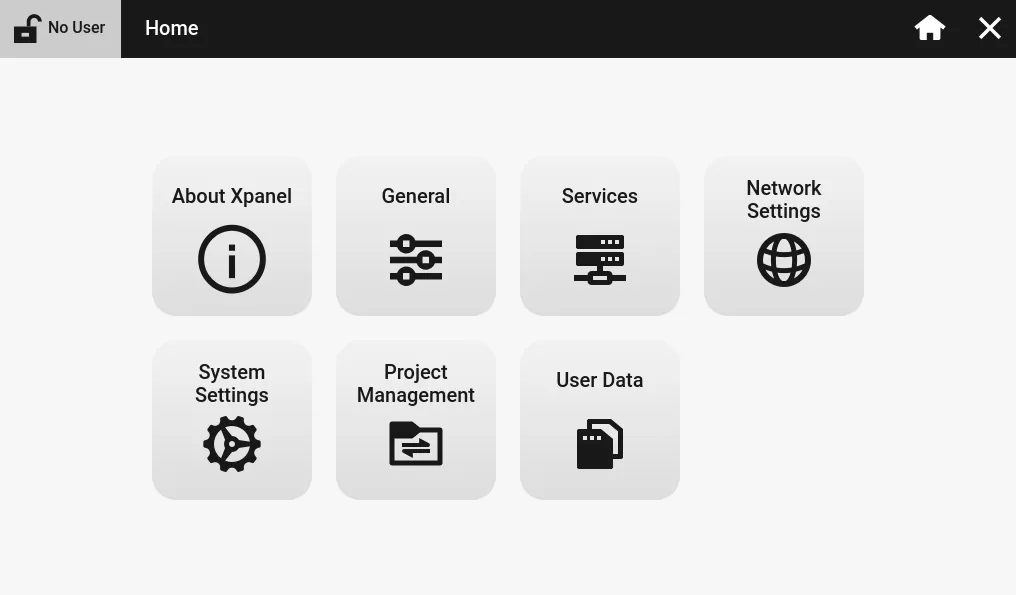
- Notice: in the top-left corner, No User is displayed with an unlocked icon.
-
If security settings are enabled, the menu will look like this:
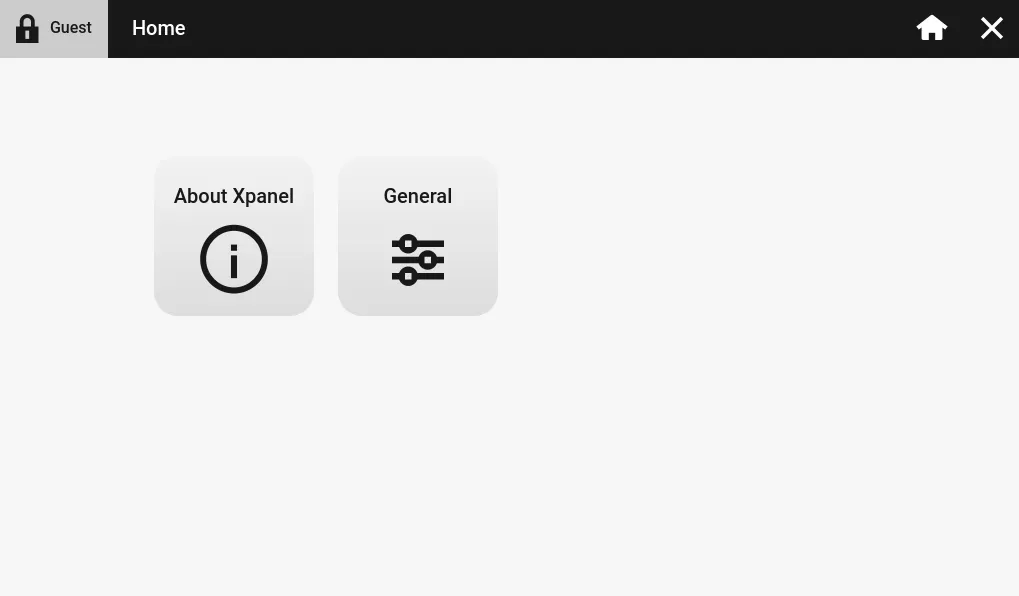
- Notice: in the top-left corner, Guest is displayed with a locked icon.
The difference between the two images is the amount of information that a user can control for the physical Xpanel settings. If security is disabled, the user can change settings, including IP address, screen orientation, project management, etc. If security settings are enabled, users are limited to the amount of changes they can make to the Xpanel settings, including language, sound, and touch calibration.
Enabling Security Settings
Section titled “Enabling Security Settings”Security settings are controlled at the project level. In the Canvas project, open the Project Properties by navigating to File > Project Properties.
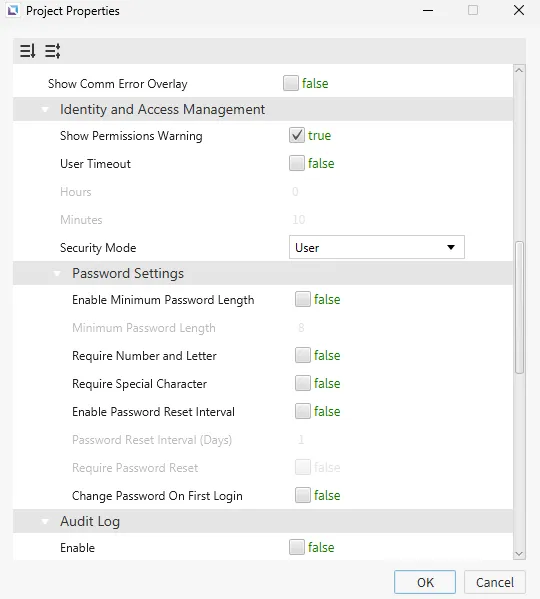
Under the Identity and Access Management section, the Security Mode setting has three different options: User, Password, and Tag.
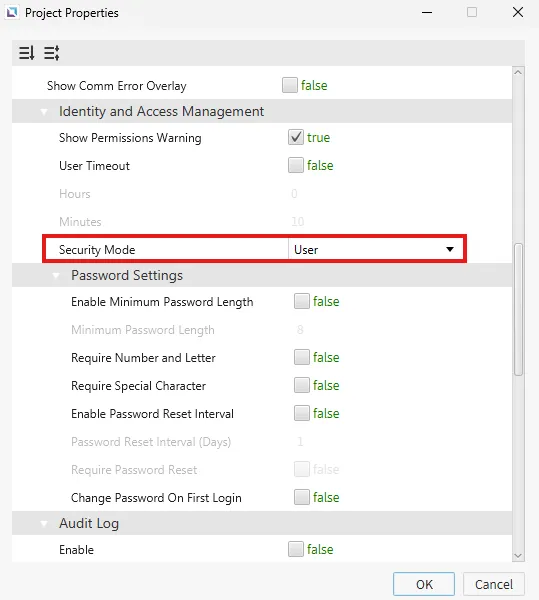
The User security mode uses the identity and access management features built into Canvas.
-
To use the User security mode, in the identity and access management tool, create a new user.
-
Select a permission. Notice: selecting different permissions for each account/group will give the user different permissions
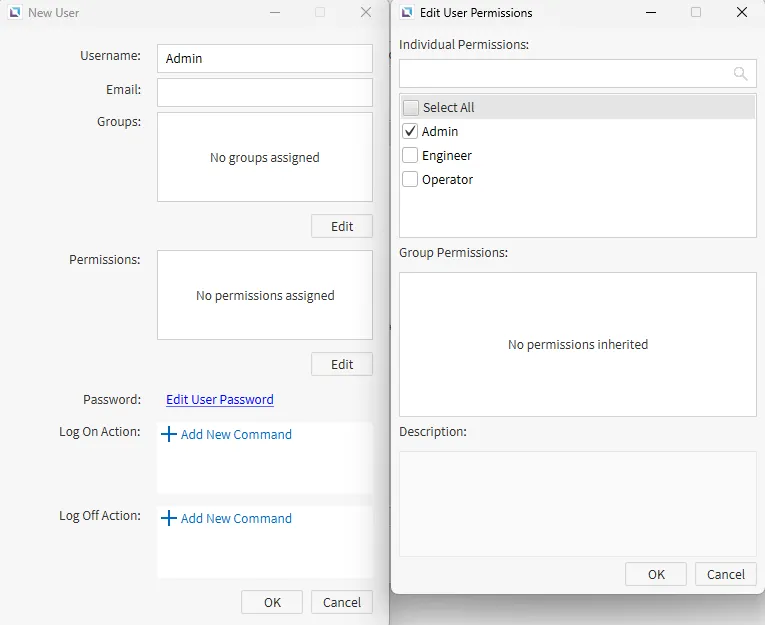
-
Download the project to the Xpanel.
-
In the settings menu, click the Guest icon in the top-left.
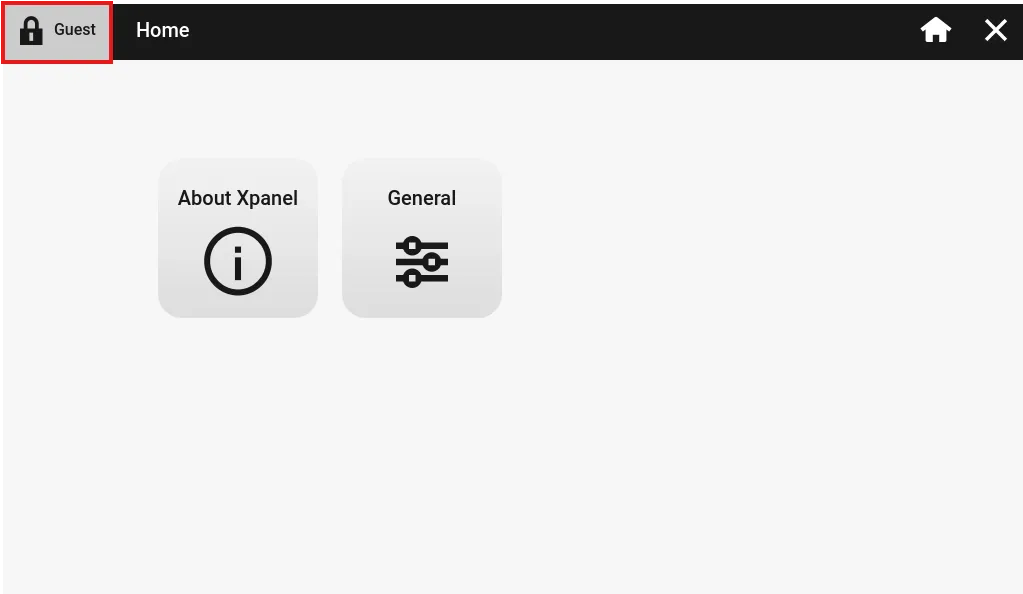
- Enter the account user name and password to log in.
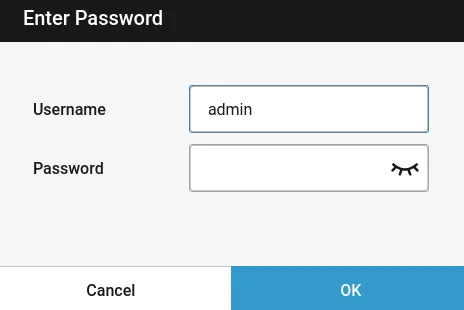
- The Security option will appear (if permissions allow for it), and the user will appear in the top-left with the unlocked icon. Notice: this account is using the Admin permission.
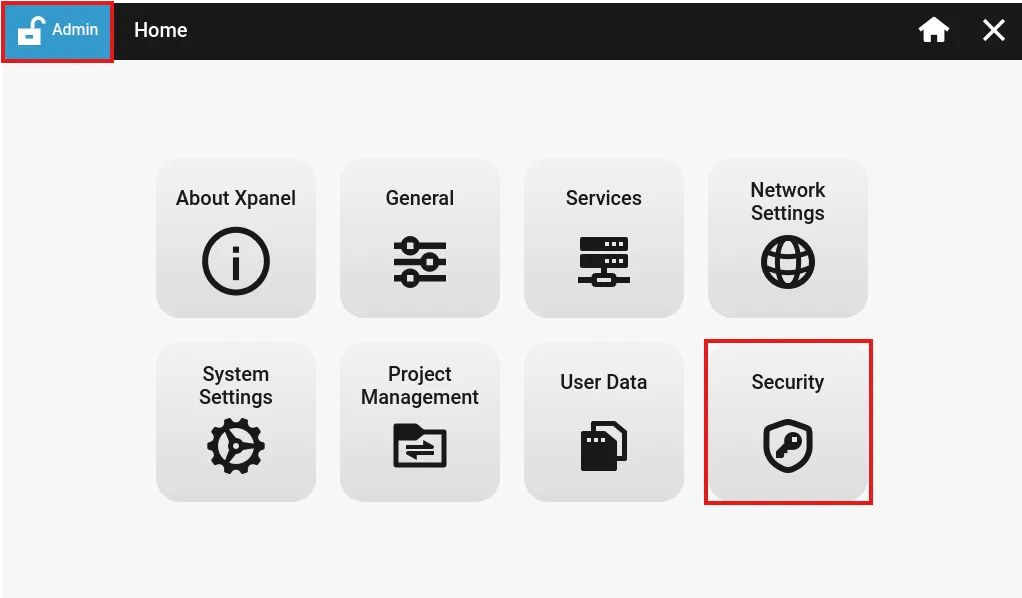
Password
Section titled “Password”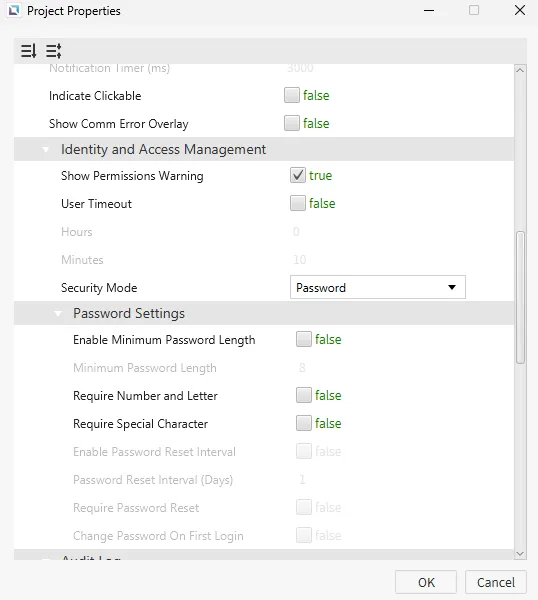
The Password security mode is similar to the User mode. However, a user ID is not required.
-
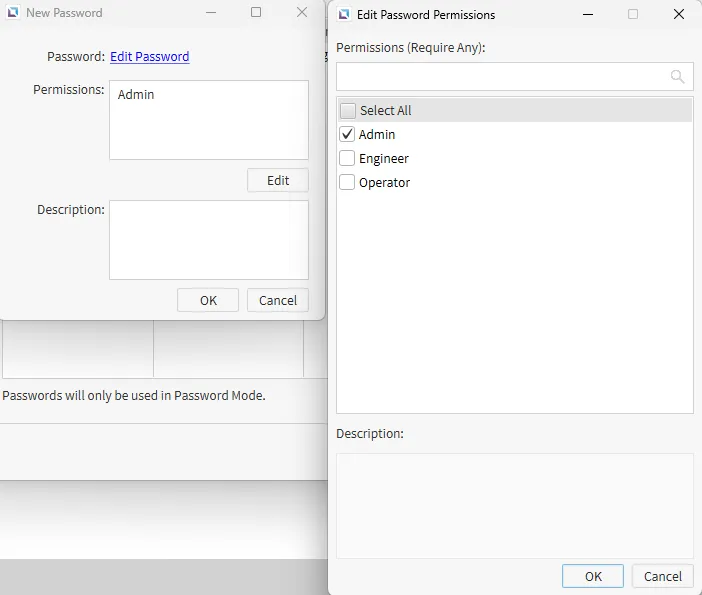
To use the Password security mode, in the identity and access management tool, select the Password Mode Passwords tab.
-
Create a list of passwords and select a permission for each password. Notice: selecting different permissions for each account/group will give the user different permissions
-
Download the project to the Xpanel.
-
In the settings menu, click the Guest icon in the top-left.
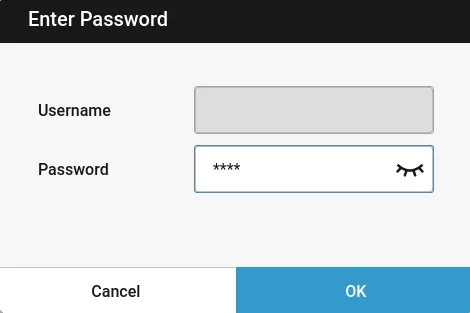
- Enter the password. Notice: a username is not required.
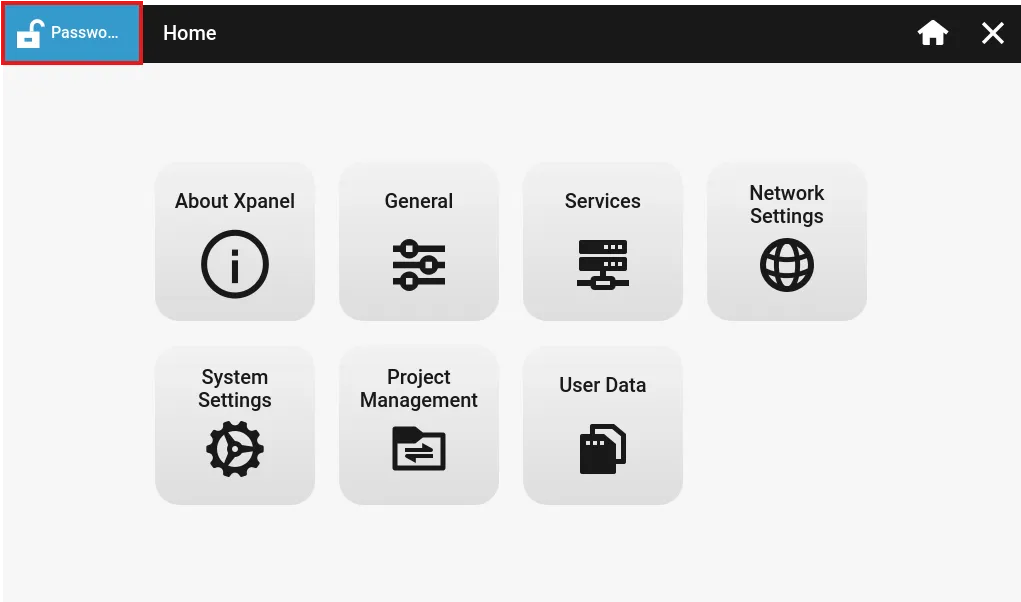
- The user at the top-left will appear as Password with the unlocked icon. Notice: this account is using the Engineer permission.
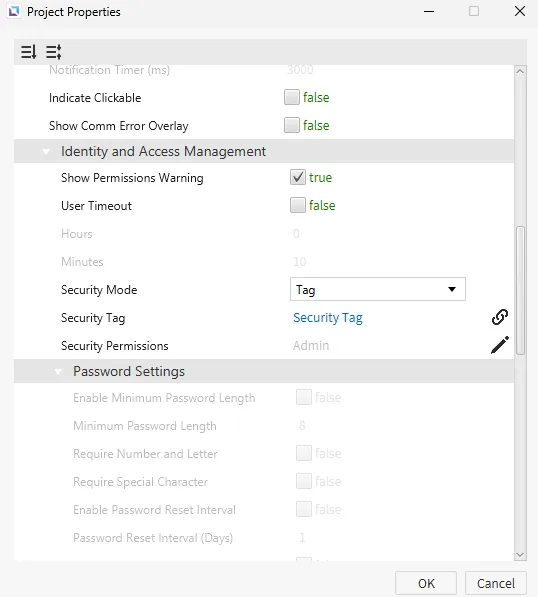
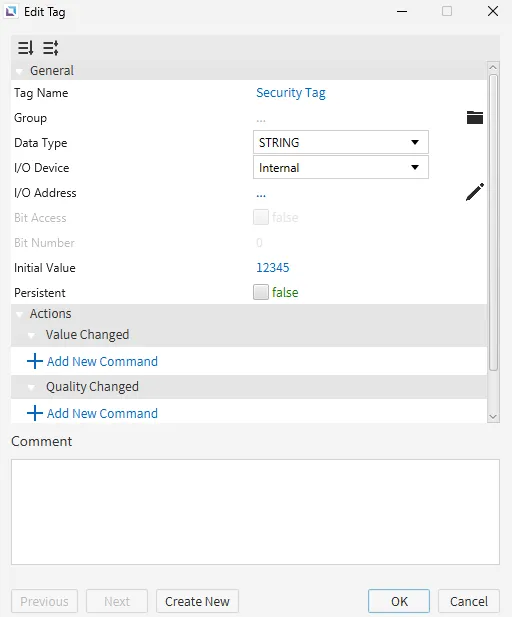
The Tag security mode is similar to the Password mode. However, instead of multiple passwords, the Tag security mode only uses one password, specified by a STRING tag.
It is important to assign proper permissions before using the Tag security mode.
-
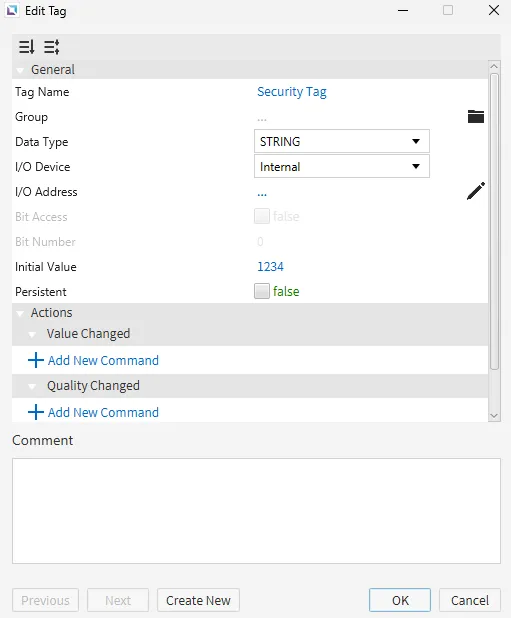
To use the Tag security mode, create a new STRING tag.
-
The Initial Value field will be the password used for the security mode if the value of the tag has no changes made.
-
Download the project to the Xpanel.
-
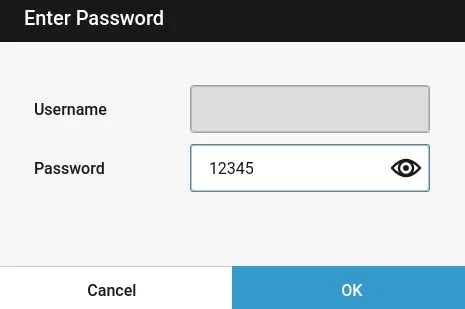
In the settings menu, click the Guest icon in the top-left.
- Enter the password. Notice: a username is not required.
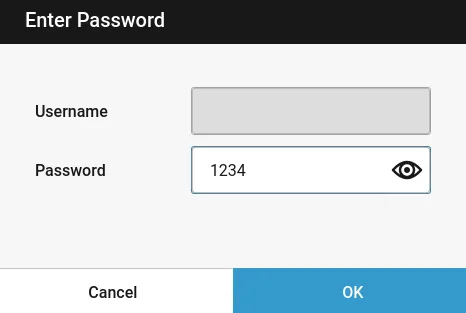
- The user at the top-left will appear as Security with the unlocked icon. Notice: this account is using the Admin permission.
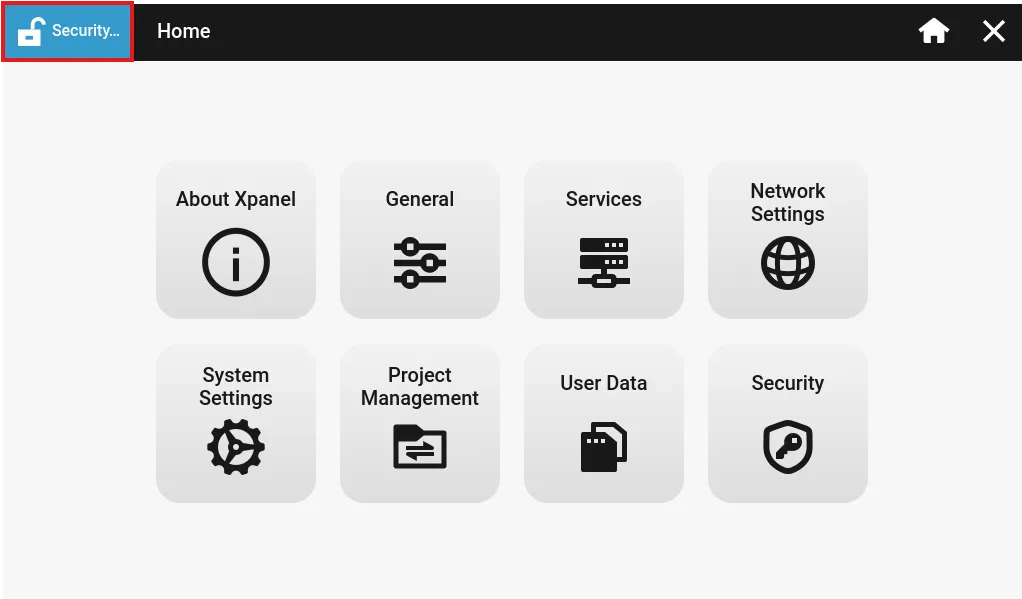
- If the value of the security tag changes, the password will be updated to use the new value.
Log Out
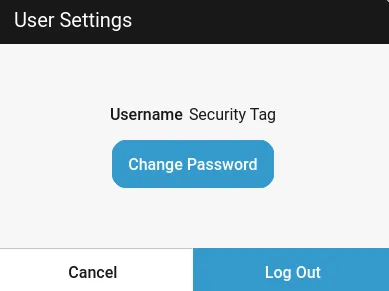
Section titled “Log Out”To log out of an account, click the user displayed at the top-left.
Click log out.
Permissions
Section titled “Permissions”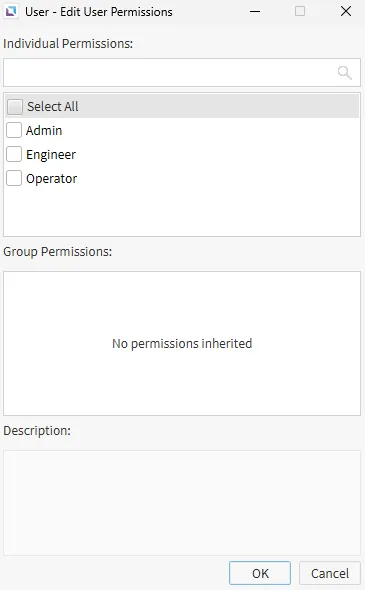
Canvas includes three different default permissions in the identity and access management tool: Admin, Engineer, and Operator.
If a user logs in with an account or uses a password utilizing the default permissions, the following behaviors are expected:
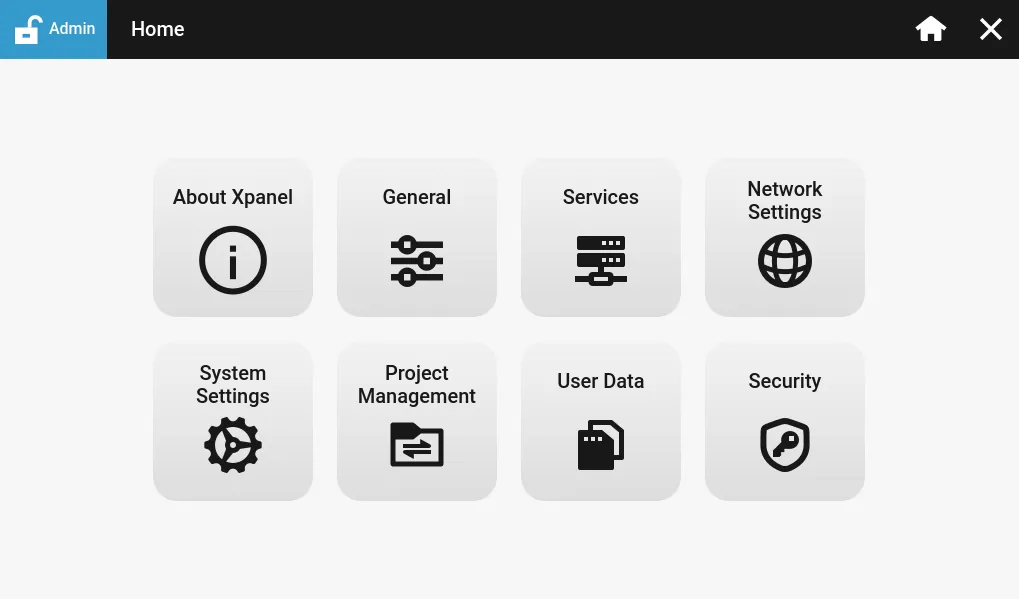
The Admin permission gives the user full control over the settings of the Xpanel for configuration purposes. It also allows the logged in user to control the security settings.
Engineer
Section titled “Engineer”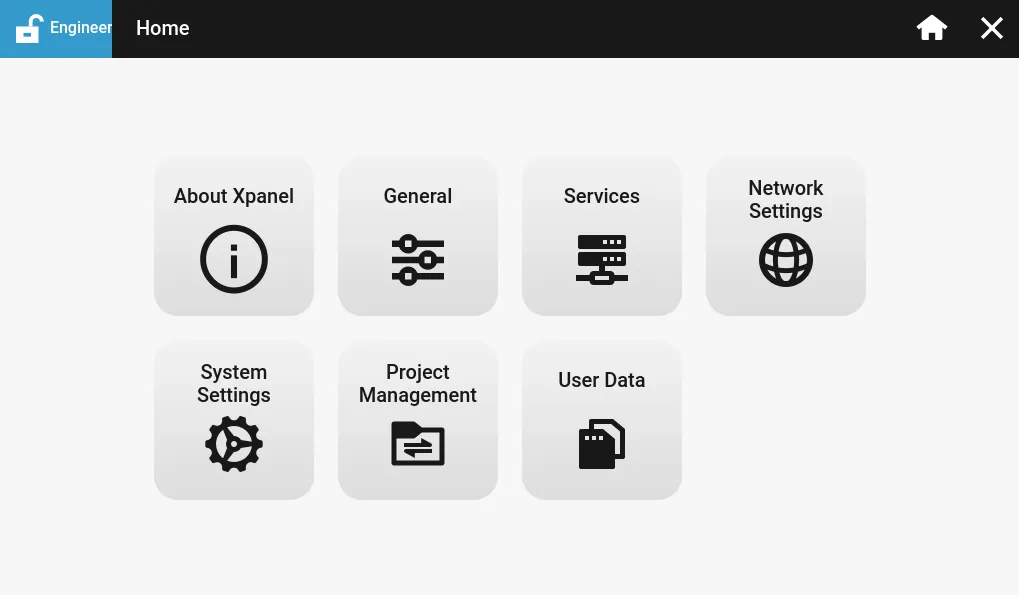
The Engineer permission gives the user control over the settings of the Xpanel for configuration purposes.
Operator
Section titled “Operator”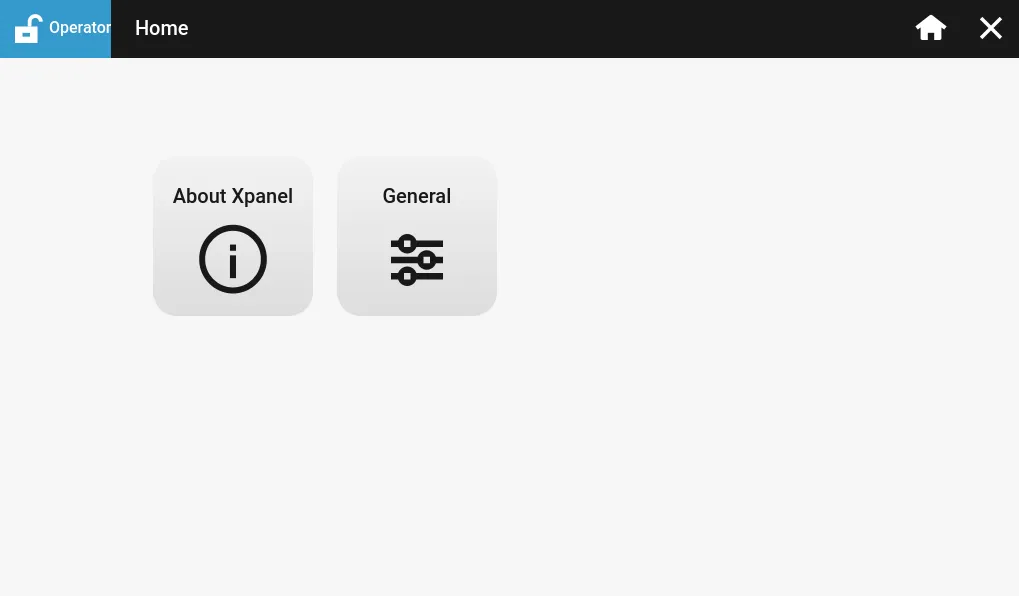
The Operator permission prevents the user from accessing the settings menu. If the user logs into the Operator permission account/password while the settings menu is open, the will only be able to view basic information about the Xpanel.