Date/Time Introduction
Date/Time Feature Description
Section titled “Date/Time Feature Description”Canvas includes a Date/Time object for displaying system date and time values. Users can select different date and time formats in the object properties, including date only, time only, or combined formats.
Date/Time Designer Functionalities
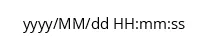
Section titled “Date/Time Designer Functionalities”To insert a Date/Time object, go to Insert > Date/Time, or click the Insert Date/Time icon from the toolbar. Click and drag anywhere on the screen to place the Date/Time object, as shown below:
Properties
Section titled “Properties”The Date/Time object includes multiple properties that allow full customization of its behavior and appearance.
To access the Property Window, click View > Properties.
Basic Properties
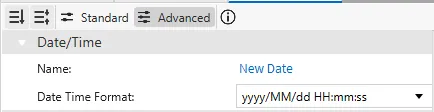
Section titled “Basic Properties”The Basic Properties allows users to rename the object and configure the Date/Time format that will be displayed.
Appearance
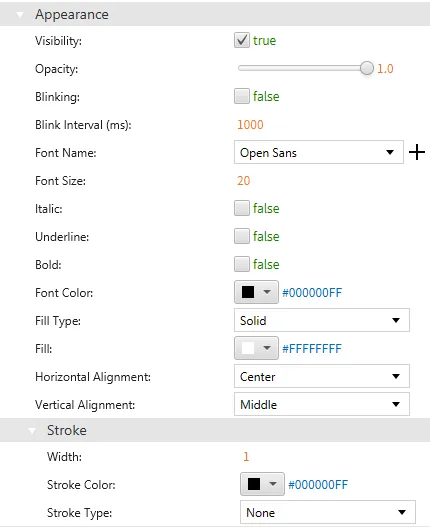
Section titled “Appearance”The Appearance section lets users adjust the object’s visible characteristics, including color.
Position
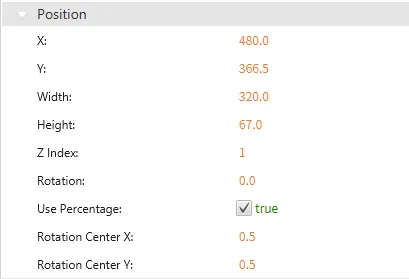
Section titled “Position”The Position section provides adjustable properties that reshape or move the date/time object.
Actions
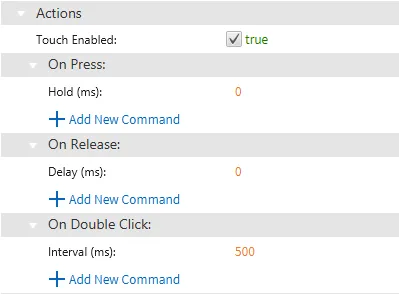
Section titled “Actions”If the date/time object is pressed, released, or double-clicked, the object runs a script or command. This is controlled under the On Press, On Release, or On Double click section of the Actions tab.
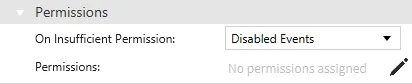
Permissions
Section titled “Permissions”Permissions can be assigned to the date/time object to allow the correct users to interact with them.