Project Basics Information
Project Basics Tables
Startup Screen
| Item | Description |
|---|---|
| Create New Project | Opens the New Project window to assign settings for a new project. |
| Open Project Files | Opens a file explorer window to select a ".cnvs" file to open a project. |
| Offline Help | Opens the Canvas Offline Helpfile in a new browser tab. |
| Online Help | Opens the Canvas Online Helpfile in a new browser tab. |
| About Canvas | Opens the About Canvas window that displays the currently installed Canvas version. |
 Grid View Grid View | Changes the Recent Projects display to show projects in a grid format. |
 List View List View | Changes the Recent Projects display to show projects in a list format. |
New Project
| Item | Description |
|---|---|
| Project Name | Assigns a name to the user's project. The project name and the file name are not required to match, and changing the project name will not automatically update the filename. |
| Save Location | Assigns a location to save the user's project. The project file will be saved in the ".cnvs" format. The default path is C:\Users\User. This changes to the most recent location a project was created at after the first project. |
| Screen Size | Users can decide the project file type according to the dimension of each Xpanel model. The options below display the model selections along with their widths and heights. |
| Screen Size - eXT04, eXT07, nXT07 | 800x480 |
| Screen Size - eXT2-07 | 1024x600 |
| Screen Size - eXT10-H, eXT12-H, eXT15, eXT2-10, eXT2-12, eXT2-15 | 1024x768 |
| Screen Size - eXT2-10W, eXT2-12W | 1280x800 |
| Screen Size - eXT2-15W | 1920x1080 |
| Screen Size - Custom | User Selection |
| W | Allows the user to determine their custom project-page pixel width. A default selection will be made when selecting any screen size besides custom. |
| H | Allows the user to determine their custom project-page pixel length. A default selection will be made when selecting any screen size besides custom. |
| Landscape | Swaps the entered W (width) and H (height). If a preset Screen Size is selected, landscape will provide a horizontal orientation. |
| Portrait | Swaps the entered W (width) and H (height). If a preset Screen Size is selected, portrait will provide a vertical orientation. |
| Password - Checkbox | When the box is checked, the user can set up a password for the project. Password requirements: 1.The password is case-sensitive. 2. Alphanumeric characters, special characters, and spaces may be used. 3. The password must contain at least 8 characters. 4. The password is displayed as "****" while typing. The visibility may be toggled by clicking the icon to the right of the field. The password selected cannot be retrieved if forgotten. |
| Password - Recovery Email | Assigns a recovery email that CIMON will reference to begin a recovery process. If access to the recovery email is lost, CIMON will not continue the recovery process with any other email. |
| Password - New Password | Enter a new password for the project. |
| Password - Re-Enter Password | Re-enter the project password to confirm. |
| OK | Closes the New Project window and creates a project with the entered information. |
| Cancel | Closes the New Project window and discards the entered information. |
Project Properties
| Item | Description |
|---|---|
 Expand All Expand All | Shows all dropdown content within the Project Properties window. |
 Collapse All Collapse All | Hides all dropdown content within the Project Properties window. |
| Name | Assigns a name to the user’s project. |
| Recovery Email | Assigns a recovery email to the user's project. If a password removal is requested, the project will be sent to this email. |
| Project Password | Opens a project password window to assign or edit the user’s password for the project. |
| Starting Page | Assigns the first page shown when the project is loaded. |
| Screen Size | Displays the preset or Custom selection for the project’s screen size. |
| Screen Orientation | Displays the selection between landscape and portrait. If a preset screen size is selected, landscape will provide a horizontal orientation, and portrait will provide a vertical orientation. |
| Default Page Width | Displays the width that new pages will be created with. This matches the W (width) field in the New Project and Convert Project Size windows. |
| Default Page Height | Displays the height that new pages will be created with. This matches the H (height) field in the New Project and Convert Project Size windows. |
| Default Background Color | Assigns a default color for backgrounds of created pages. |
| Default Backgrounds | Assigns up to three default pages to be backgrounds of created pages. |
| Default Overlays | Assigns up to three default pages to be overlays of created pages. |
| Preload Pages | Assigns pages to preload at project startup to reduce load time to get to the assigned pages. |
| Enable Alarm Banner by Default | Allows the alarm banner to appear on all pages. |
| Beep on Touch | Controls whether an Xpanel will audibly beep when touched during runtime. |
| Enable Notifications | Controls whether notifications will be shown. |
| Indicate Clickable | Controls whether clickable objects indicate that they are clickable when hovered over. |
| Show Comm Error Overlay | Controls whether the red X over communication errors will be shown. |
| Show Permissions Warning | Controls whether permission warnings will be shown. |
| User Timeout | Controls whether a logged-in user will be logged out after the designated hours and minutes of inactivity. |
| Hours | Assigns a duration in hours to be added to minutes, which, when the length of inactivity exceeds the time, logs the current user out. |
| Minutes | Assigns a duration in minutes to be added to hours, which, when the length of inactivity exceeds the time, logs the current user out. |
| Security Mode - User | Restricts permissions based on the settings defined by Identity and Access Management within Canvas. |
| Security Mode - Password | Restricts permissions based on the settings defined by the Identity and Access Management feature. |
| Security Mode - Tag | Restricts permissions based on a singular password defined by the Security Tag. |
| Security Tag | The tag to use when setting the security mode to Tag. |
| Security Permissions | The permissions to assign when setting the security mode to Tag. |
| Enable Minimum Password Length | Controls whether users have a minimum password length and that the user can change the Minimum Password Length (1-16) field to a value 1-16. |
| Minimum Password Length (1-16) | Assigns a minimum length for User passwords. The default minimum length is 8. |
| Require Number And Letter | Controls whether User passwords require at least one number and letter to be included. |
| Require Special Character | Controls whether User passwords require at least one special character to be included. |
| Enable Password Reset Interval | Controls whether the user can change the Password Reset Interval (Days 1-9999) field to a value 1-9999 and check the Require Password Reset field. |
| Password Reset Interval (Days 1-9999) | Assigns a duration in days which, when surpassed, a User requires a password reset. The default minimum length is 1. |
| Require Password Reset | Controls whether a User requires a password reset after the designated amount of days. |
| Change Password On First Login | Controls whether a User is prompted to change their password on the first login. |
| Enable | Controls whether Audit Logging is enabled or disabled. |
| Database Type | Assigns a type of database to be used when audit logging. The database types are Maria DB, MySQL, PostgreSQL, and SQLite. Any database other than SQLite will store data using an external SQL database which must be set up and configured outside of Canvas. This will require a valid connection between the Xpanel and the SQL server. A database named “audit_event_database” must be on the SQL server. |
| Retention Time (Days) | Assigns a duration in days to retain audit logging information. The default length is 180. |
| Server | Assigns a server to the project’s SMTP properties. |
| Server Port Number | Assigns a server port number to the project’s SMTP properties. The default port number is 25. |
| Require Authentication | Controls whether the project’s Email/SMTP function requires a Username and Password. |
| Username | Assigns a username to attempt with the given password to log into the assigned server. |
| Password | Assigns a password to attempt with the given username to log into the assigned server. |
| Encryption | Assigns an encryption type for SMTP. The Encryption types are SSL, TLS, and None. |
| Use Device Hostname | Controls whether emails will be sent with the assigned name or the name of the current device. |
| Sender Name | Assigns a name to be displayed when sending emails. The assigned name will only display when Use Device Hostname is unchecked. |
| Sender Email Address | Assigns an email address to send emails with. |
| Send Test Email | Opens a test email window that uses the assigned email configuration to send a message to a specified email and included CC’s. The message will be automatically populated with a default Canvas Test Email. |
| Base Page Current Number | The number of the current page the project is on. |
| Base Page Request Number | The index of the page to be opened. |
| Auto-Reset Request Number | Toggle to set the request value to -1 after use. |
| Popup Page Control Value | Enables the use of the Popup Page Request Number. |
| Popup Page Request Number | The index of the popup page to be opened. |
| Popup Page X Position | Assigns the X position to the Popup page when opened. |
| Popup Page Y Position | Assigns the Y position to the Popup page when opened. |
| Touch Sound | Assigns an audio file to play when touched instead of the default sound. |
Convert Project Size
| Item | Description |
|---|---|
| Screen Size | Users can decide the project file type according to the dimension of each Xpanel model. The options below display the model selections along with their widths and heights. |
| Screen Size - eXT04, eXT07, nXT07 | 800x480 |
| Screen Size - eXT2-07 | 1024x600 |
| Screen Size - eXT10-H, eXT12-H, eXT15, eXT2-12, eXT2-15, eXT2-10, eXT2-12, eXT2-15 | 1024x768 |
| Screen Size - eXT2-10W, eXT2-12W | 1280x800 |
| Screen Size - eXT2-15W | 1920x1080 |
| Screen Size - Custom | User Selection |
| W | Allows the user to determine their custom project-page pixel width. A default selection will be made when selecting any screen size besides custom. |
| H | Allows the user to determine their custom project-page pixel length. A default selection will be made when selecting any screen size besides custom. |
| Landscape | Swaps the entered W (width) and H (height). If a preset Screen Size is selected, landscape will provide a horizontal orientation. |
| Portrait | Swaps the entered W (width) and H (height). If a preset Screen Size is selected, portrait will provide a vertical orientation. |
| Resize objects | Controls whether objects will be resized to the newly assigned screen size. |
| Apply to pop-up pages | Controls whether the newly assigned screen size will apply to pop-up pages. |
| Maintain object aspect ratio | Controls whether objects will be anchored to a direction after screen size is changed. |
| Anchor | Assigns a direction for objects to anchor to when the Maintain object aspect ratio field is checked. The Anchor directions are Top Left, Center, and Bottom Right. |
| Backup | Controls whether a backup project will be made with the assigned name and path after screen size is changed. |
| Backup Name | Assigns a name to the user’s backup project. The project name and the file name are not required to match, and changing the project name will not automatically update the filename. |
| Backup Path | Assigns a location to save the user’s backup project. The project file will be saved in the “.cnvs” format. The default path is C:\Users\User. This changes to the most recent location a project was created at after the first project. |
Designer Settings
| Item | Description |
|---|---|
| Expand All | Shows all dropdown content within the Designer Settings window. |
| Collapse All | Hides all dropdown content within the Designer Settings window. |
| Default Save Location | Assigns a location to save the user’s project or backup project when a save location is asked for. The Default Save Location field will change to the most recent location a project was saved at. |
| Language | Assigns a language to be shown on all fields and names in Canvas. The supported languages are English, Korean, Spanish, Thai, and Portuguese. |
| Autosave | Controls whether the user’s project will automatically save every 5 minutes. If a blocking window is open, which forces the user to press OK or Cancel, the project will wait to save until no blocking windows are open. |
| Auto-Resize Font | Controls whether text objects will automatically resize font when resizing the object. |
| Theme | Assigns a display theme to Canvas. The supported themes are Light and Dark. |
| Allow system.execute | Controls whether system.execute(); commands can be used within the Simulator. |
| Show system.execute warning | Controls whether warnings will be shown when using system.execute(); commands within the Simulator. |
Properties
| Item | Description |
|---|---|
| Expand All | Shows all dropdown content within the Properties pane. |
| Collapse All | Hides all dropdown content within the Properties pane. |
 Standard View Standard View | Shows standard properties for an object. |
 Advanced View Advanced View | Shows standard and advanced properties for an object. |
 Show Description Show Description | Shows a property description if it is selected. |
Status Bar
| Item | Description |
|---|---|
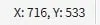 Cursor Coordinates Cursor Coordinates | Relays the information of the user’s cursor pixel location within the graphic page. |
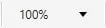 Magnification Magnification | Relays the information of the user’s currently selected magnification level. |
   Device Connection Status Device Connection Status | Relays whether the user is connected or disconnected from their selected device(s). Green is all connected, yellow is some disconnected, and red is no connection. |