Image Object Exercise
Exercise
Exercise: Importing an Image
Please follow the below exercise to understand image objects.
Configuration
The following configuration is used to set up this exercise.
Tag Configuration
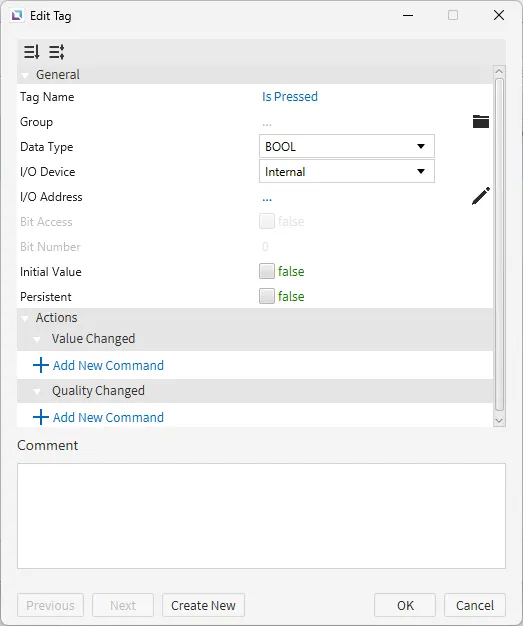
- Create the following tag:
- Is Pressed
- Data type: BOOL
- Initial value: false
- Is Pressed
Project Configuration
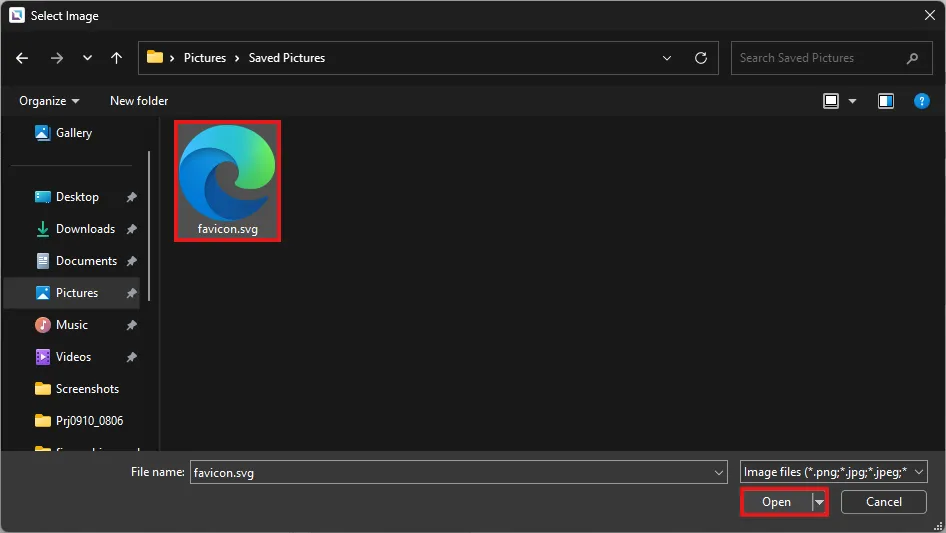
- In the menu bar, click Insert > Image. Or, on the toolbar, click the Insert Image icon. Navigate to the image location through the directories. Select the image and click Open.
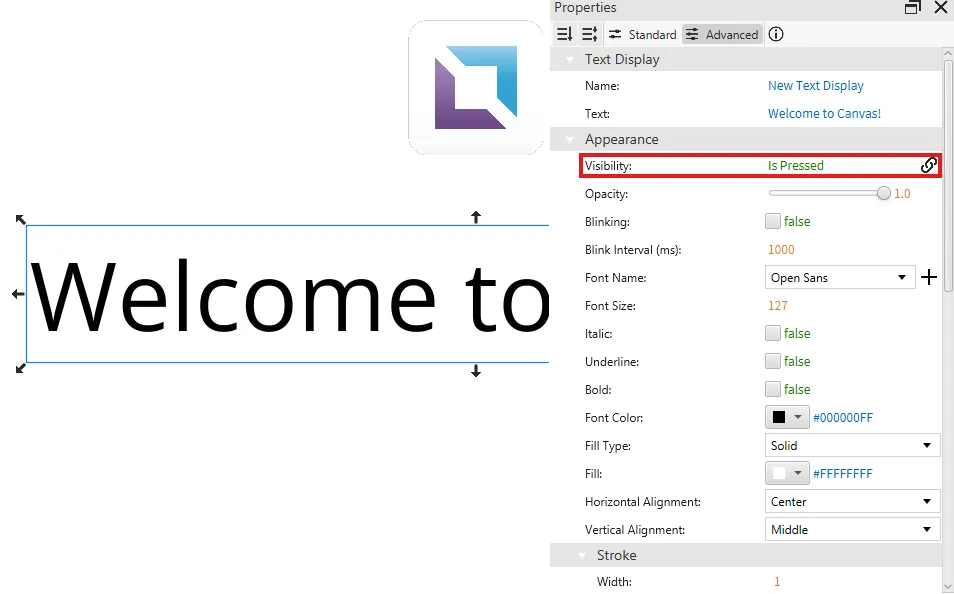
- In the menu bar, click Insert > Text Display. Or, on the toolbar, click the Insert Text Display icon. Label the text "Welcome to Canvas!".

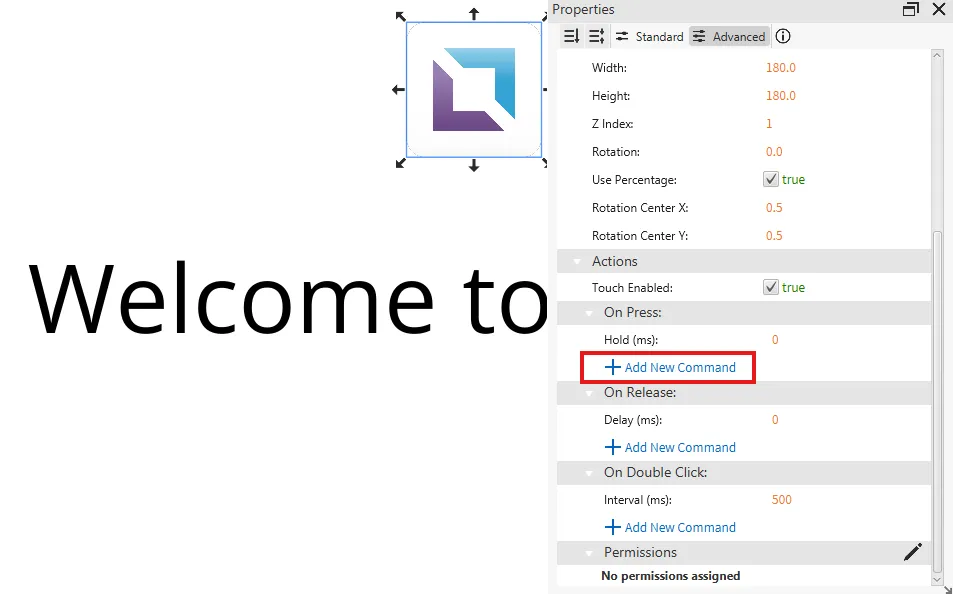
- Select the imported image to bring up its properties. Click Add New Command under Actions.
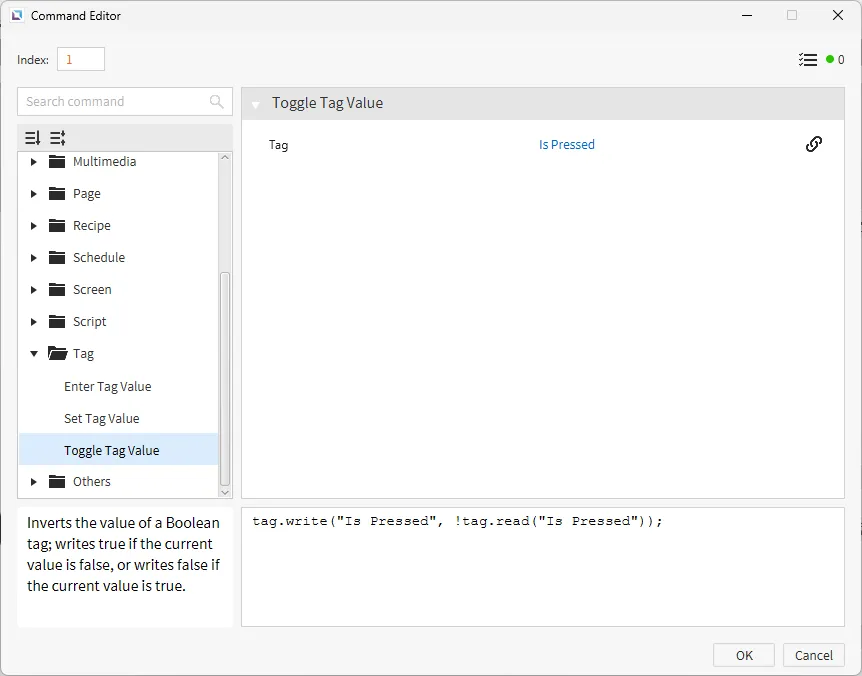
- Set the command to Toggle Tag Value and bind the Is Pressed tag to the command.
- Select the text display to bring up its properties. Bind the Is Pressed tag to the Visibility property.
Project Deployment
- Click Tools > Launch Simulator to launch the Canvas Simulator.
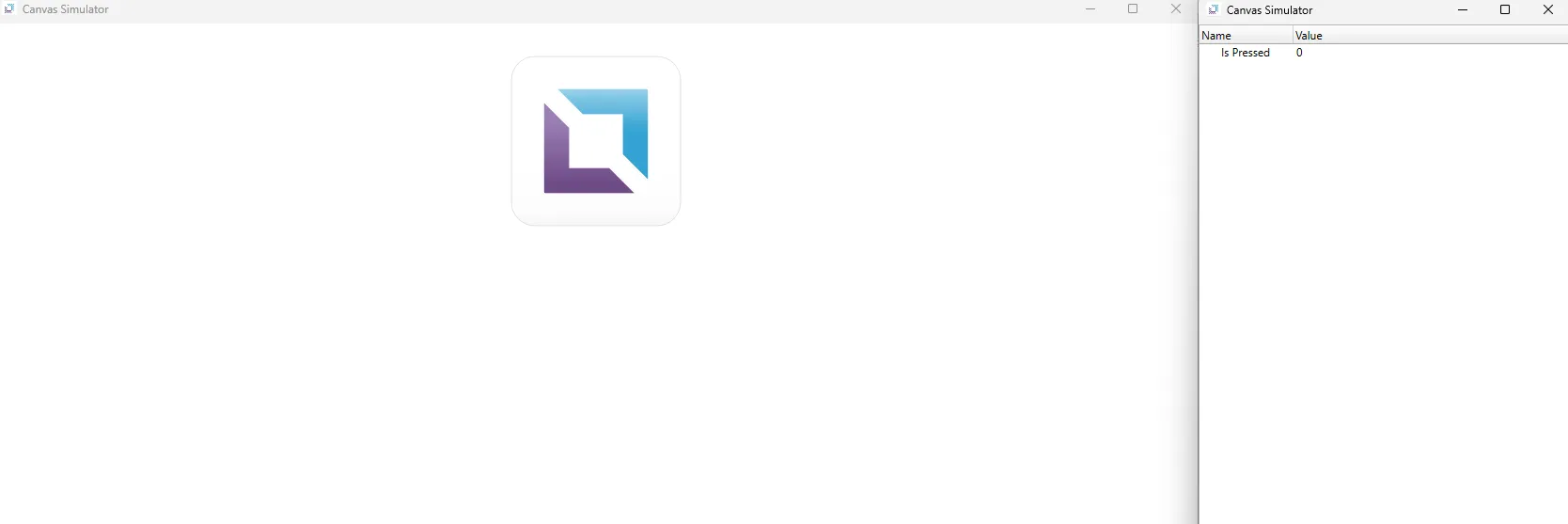
- Click the imported image to make the text display appear.
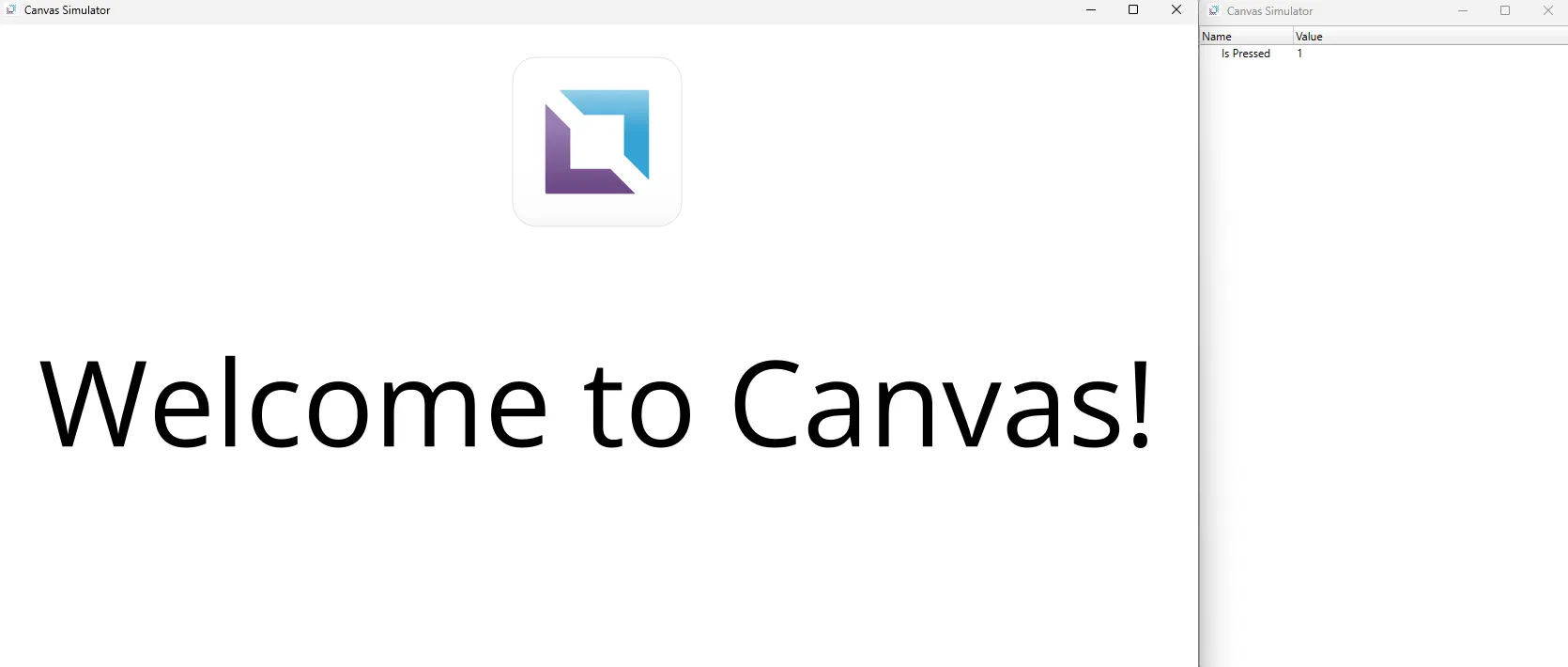
- Click the imported image to make the text display disappear.