Audit Log Introduction
Audit Log Feature Description
Audit logs keep track of user actions that occur during runtime. Any user activity, such as changing a tag value or logging in, will be tracked in the audit log. The audit log table shows all of the actions users take in the form of time, description, target, value, and user.
Audit Log Designer Functionalities
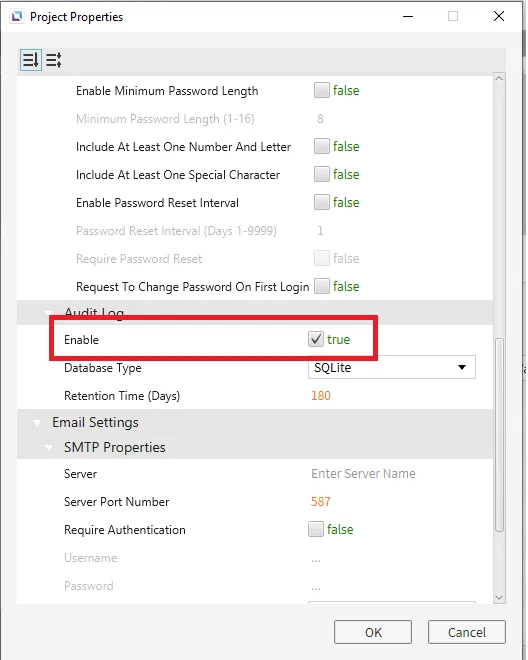
Users must first enable the audit logger in the Project Properties to set up the audit log table. To do this, go to File > Project Properties, scroll to Audit Log, and check Enable. 1
Audit Log Table
Click Insert > Audit Log Table, or the Insert Audit Log Table on the toolbar, to insert an audit log table. Once selected, click and drag to the desired size. The audit log table will look like the image below:
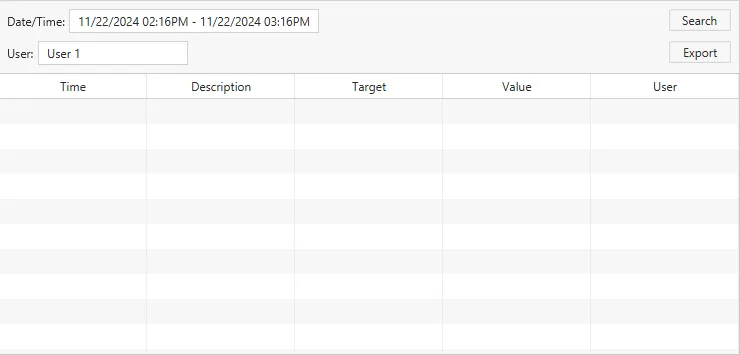
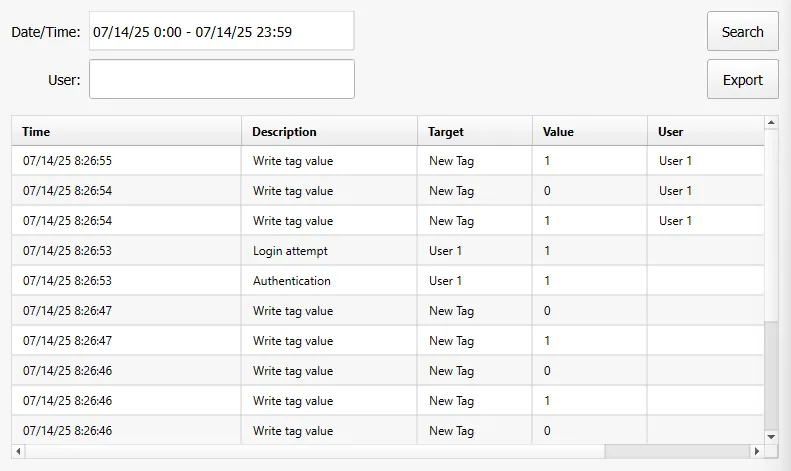
This page will show the time, description, target, value, and user who made the change when a user action causes a change in the program.
For a full list of logged actions, please refer to the logged actions appendix page.
Properties
The Audit Log Table object can be customized based on specific properties.
To ensure the property windows are enabled, click View > Properties.
Basic Properties
The object's name will show up in place of Basic Properties, as pictured below:

Appearance
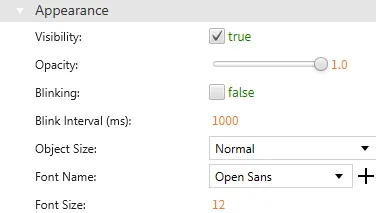
The Appearance section can alter visible characteristics, font type and size, and the object size.
Position
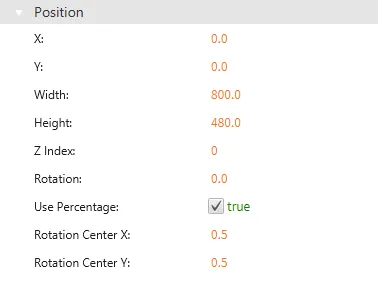
The Position section provides adjustable properties that reshape or move the object.
Audit Log Runtime Functionalities
Audit log tables can display logged actions and export data to a CSV file.
Search
To update the audit log, users must click on the Search button. Once the Search button is clicked, it will show all actions since the project started.
User Search
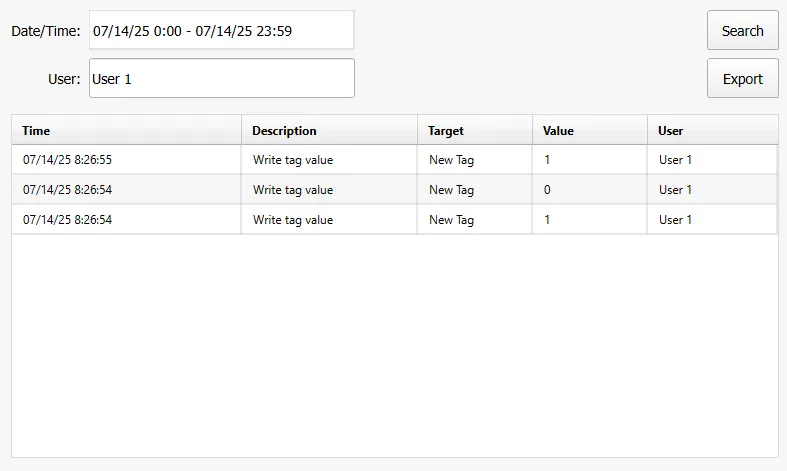
Users can also search for a specific user and only show actions that occurred when a particular user was signed in.
CSV Generation
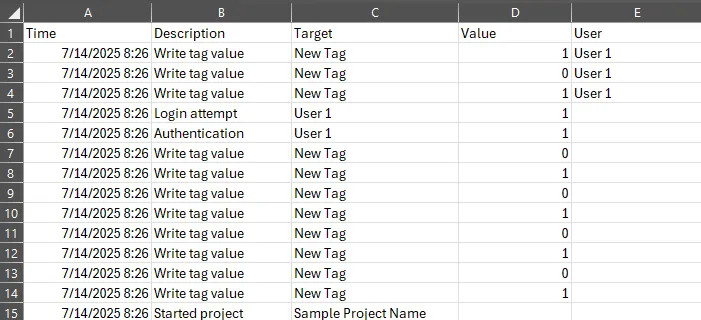
Users can also click Export to export the audit log table as a CSV. The most recent results after pressing Search will be exported.

Footnotes
-
Any database, other than SQLite, will store data using an external SQL database. This must be set up and configured outside of Canvas. This will require a valid connection between the Xpanel and the SQL server. A database named “audit_event_database” must be on the SQL server. ↩