Project Download/Upload
Project Download/Upload Description
Canvas enables seamless interaction with the HMI, allowing quick and secure upload and download of projects between your PC and the HMI. These features simplify deployment, updates, and backups, providing an efficient workflow for managing, editing, and maintaining your HMI projects.
Download/Upload Functionalities
To upload or download a project between your PC and an HMI, a connection must first be established. Open the Connection Setup window by selecting Tools > Connection Setup or clicking Open Connection Setup on the toolbar. In this window, you can configure the connection to the HMI using Ethernet, USB-A to USB mini-B, or USB-A to USB-C.
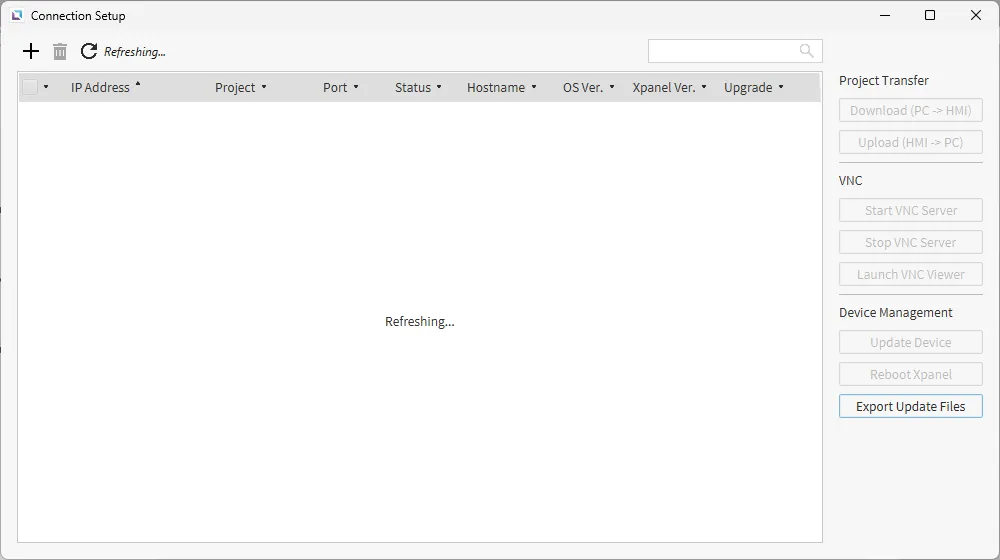
If the HMI is connected via Ethernet, it will appear with its respective IP address. If the HMI is connected via USB mini-B or USB-C, it will appear as a USB device[^1].
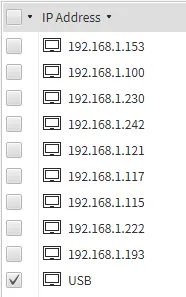
In order to transfer the project to runtime, within the Connection Setup page, select the HMI that will be used for the project. Once selected, the buttons on the right side of the page will become clickable.
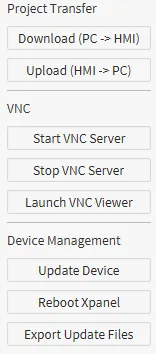
Click on the Download (PC → HMI) button. This will begin transferring the project to the HMI.
Click on the Upload (HMI → PC) button. This will begin transferring the project from the HMI to the computer.