Data Bridge Exercise
Exercise
Exercise: Setting up Data Bridge
Please follow the below exercise to understand Data Bridge functionality.
Understanding Data Bridge
Data Bridge in Canvas allows two or more PLCs to communicate through an HMI without them being directly connected to each other. This is useful when different PLC brands are used in a system, as they may not natively support direct communication. By using the HMI as a bridge, data can be exchanged between these devices, allowing seamless integration. In this exercise, a CIMON PLC and a Siemens S7 PLC will be connected using an Xpanel as the bridge, with Canvas managing the data transfer.
The process involves using two pre-configured PLCs in Canvas, creating the necessary data tags, setting up the Data Bridge function, and then visualizing the data transfer using on-screen objects in an HMI interface. This will all be tested using the Online Simulator.
Configuration
The following configuration is used to set up this exercise.
I/O Device Configuration
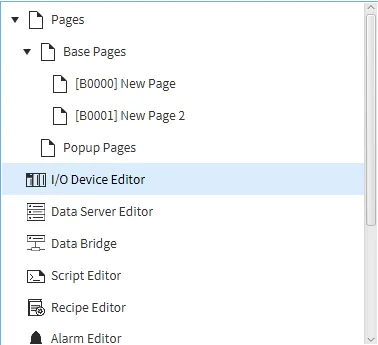
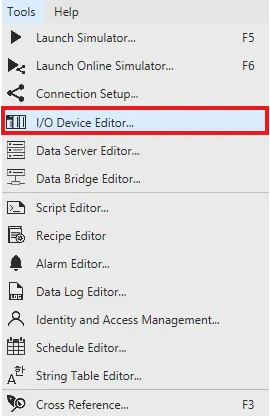
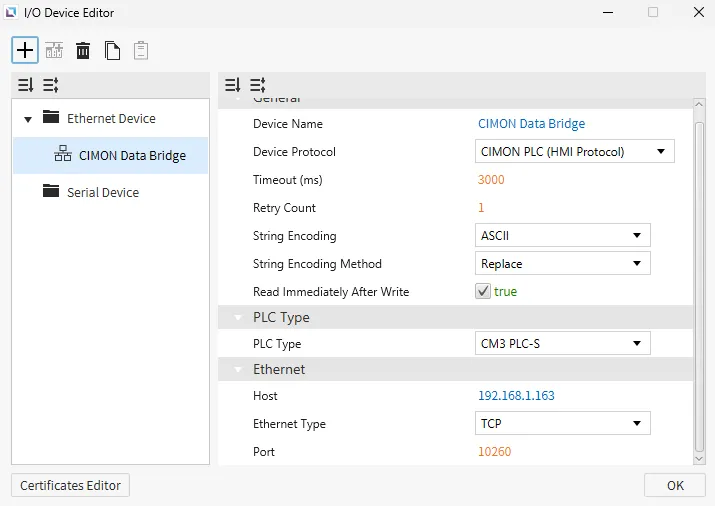
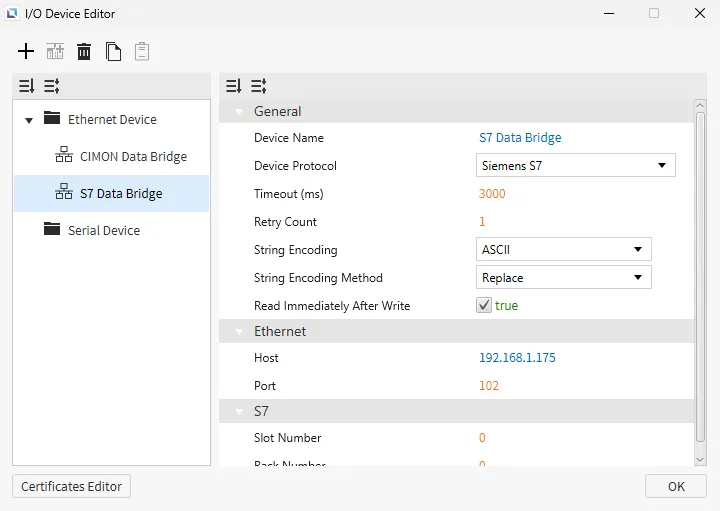
- To enable communication between the HMI and the PLCs, the devices must be registered in Canvas. Open the I/O Device Editor by selecting it from Tools > I/O Device Editor or click the Open I/O Device Editor icon on the toolbar.
- Create the following devices:
- CIMON Data Bridge
- Device type: Ethernet
- Protocol: CIMON PLC (HMI Protocol)
- IP: 192.168.1.163
- S7 Data Bridge
- Device type: Ethernet
- Protocol: Siemens S7
- IP: 192.168.1.175
- CIMON Data Bridge
Tag Configuration
Data tags act as variables that store values being transferred between devices. These tags will be assigned to each PLC so that data can be read from one and written to another.
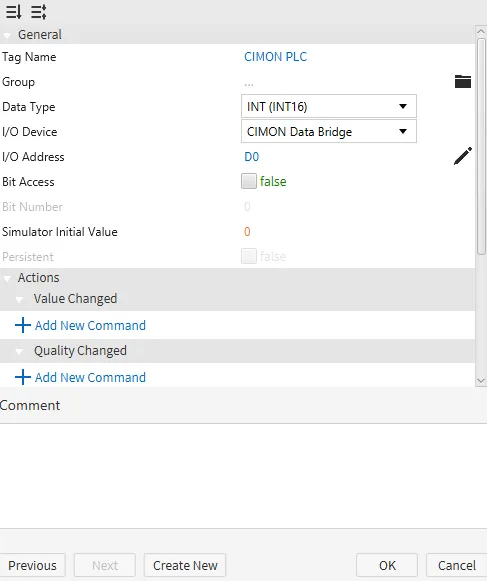
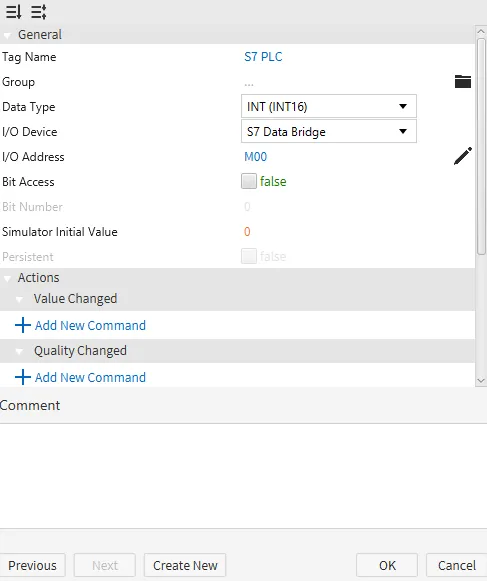
- Create the following tags:
- CIMON PLC
- Data type: INT (INT16)
- I/O device: CIMON Data Bridge
- I/O address: D0
- Simulator initial value: 0
- S7 PLC
- Data type: INT (INT16)
- I/O device: S7 Data Bridge
- I/O address: M00
- Simulator initial value: 0
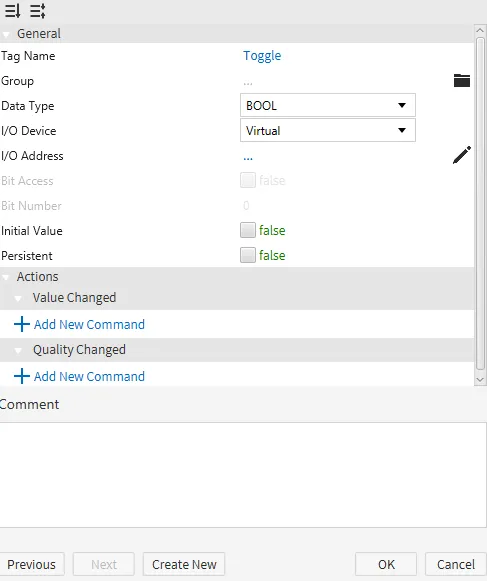
- Toggle
- Data type: BOOL
- I/O device: Internal
- Initial value: false
- CIMON PLC
Data Bridge Configuration
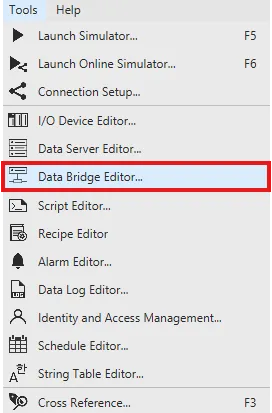
- Click Tools > Data Bridge Editor or click the Open Data Bridge Editor icon on the toolbar.
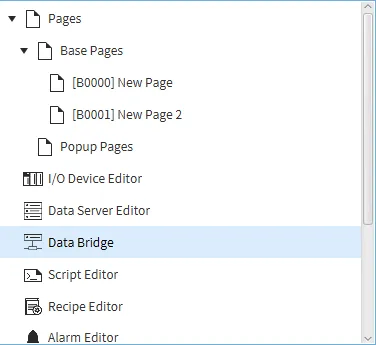
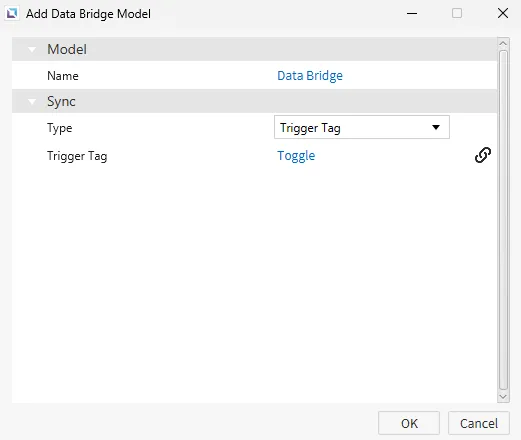
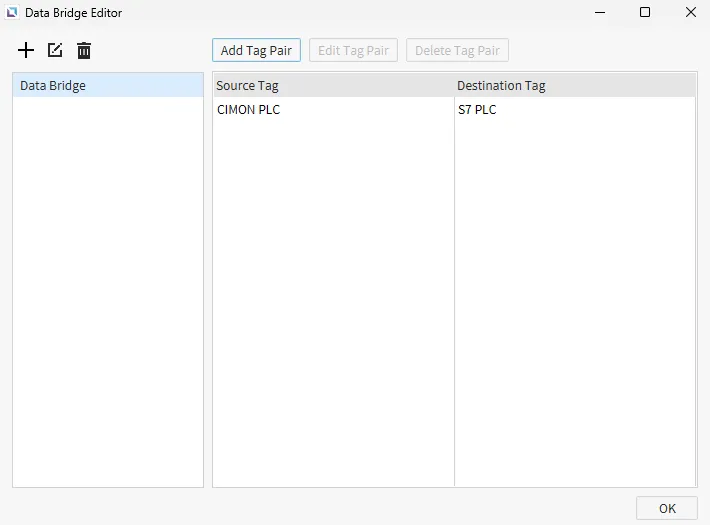
- Create the following data bridge model:
- Data Bridge
- Type: Trigger Tag
- Trigger Tag: Toggle
- Data Bridge
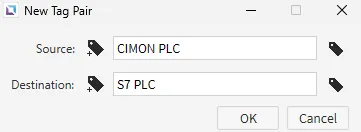
- Configure the following source and destination tags:
- Source: CIMON PLC
- Destination: S7 PLC
Project Configuration
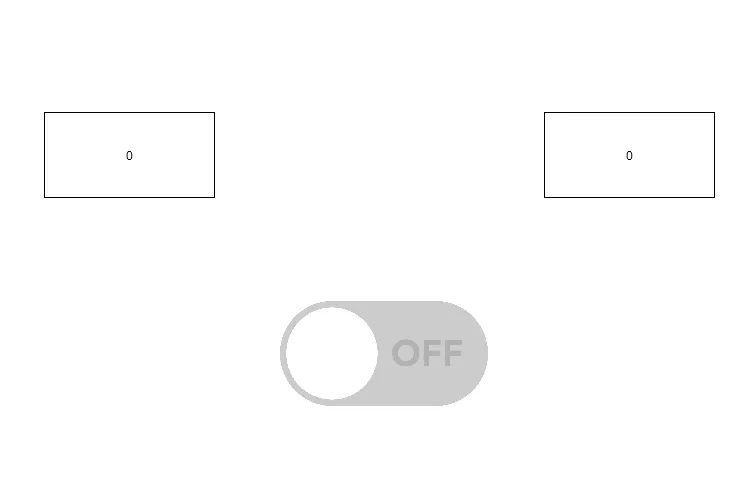
- Add two numeric display objects to the screen. On the left object, smart-bind the CIMON PLC tag. On the right object, smart-bind the S7 PLC tag. Below the two numeric display objects, insert a toggle button. Smart-bind the Toggle tag to the toggle button.
Project Deployment
-
Click Tools > Launch Simulator to launch the Canvas Simulator.
-
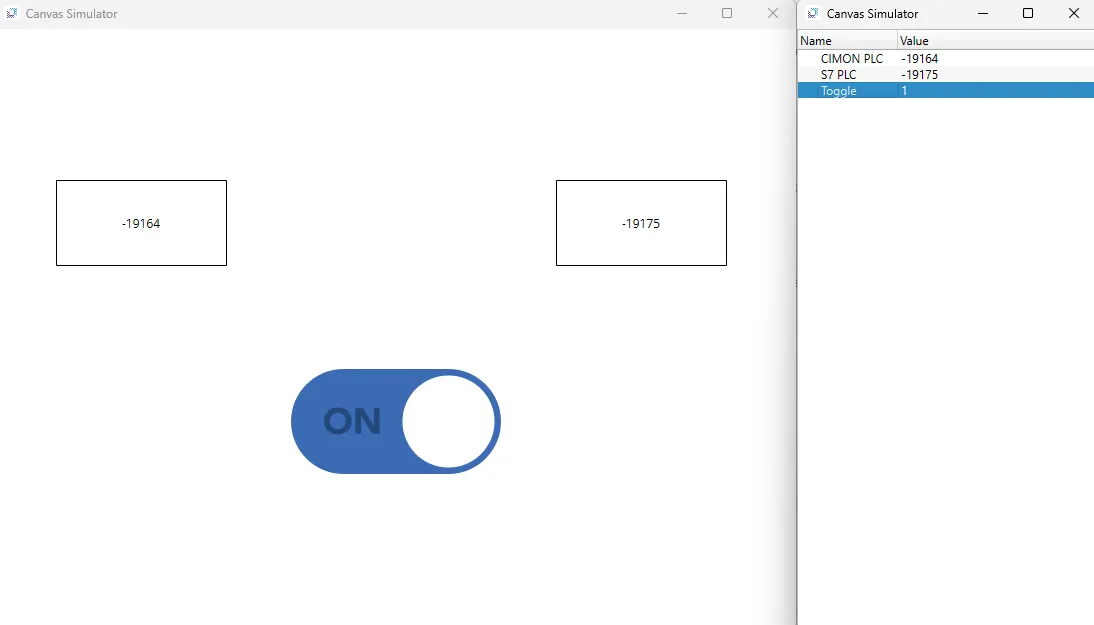
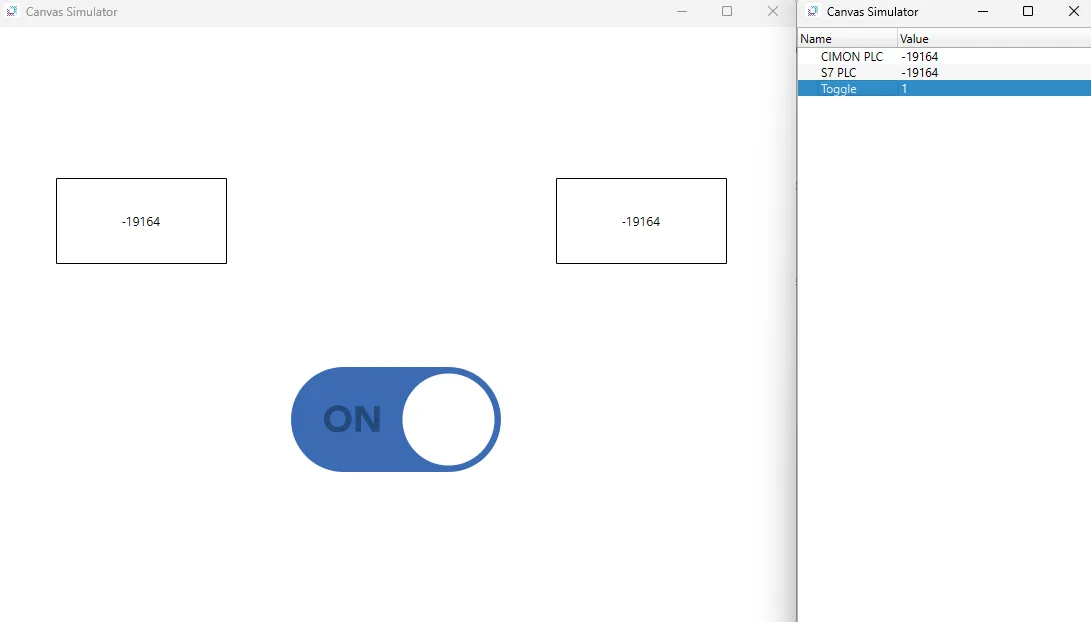
The CIMON PLC tag will update its value every second. The S7 PLC will NOT receive any updates until the toggle button is set to on.
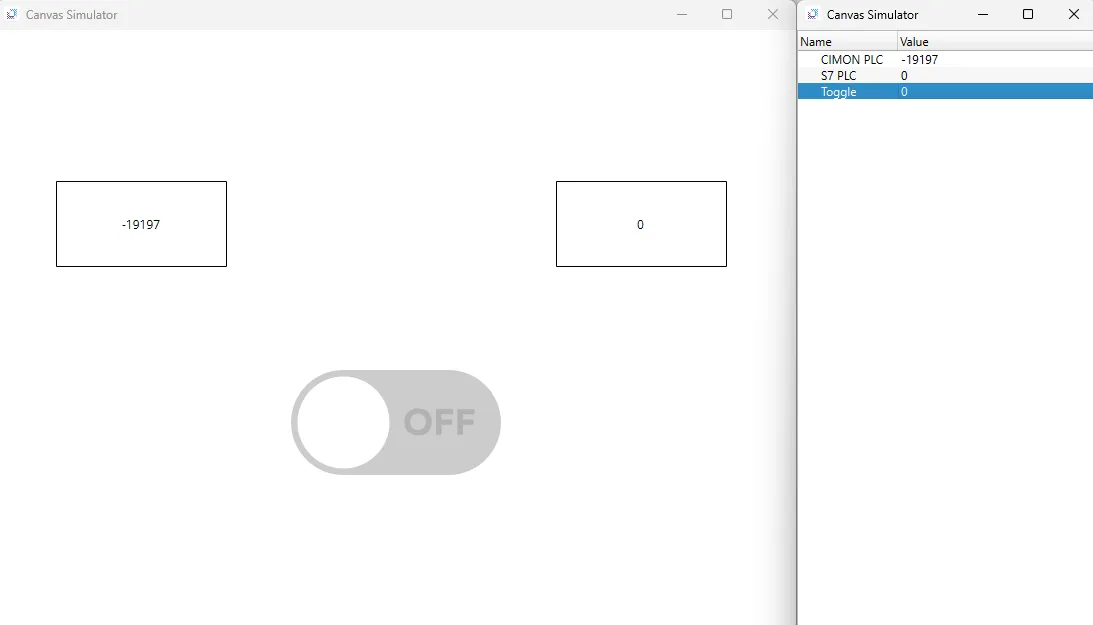
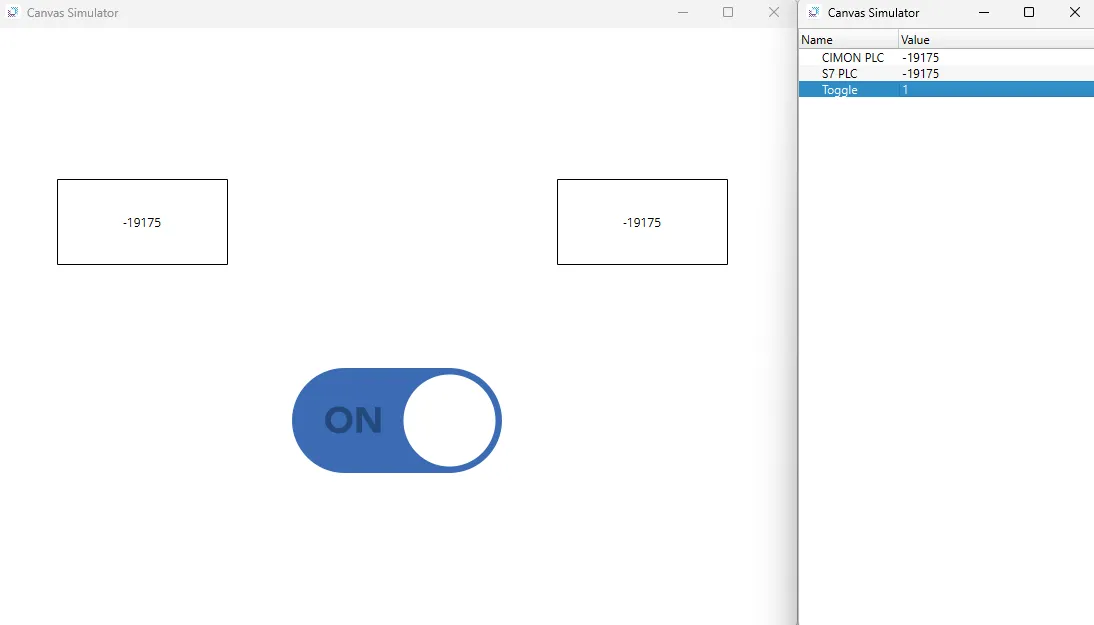
- The CIMON PLC will continue updating every second. However, the S7 PLC will not update until the toggle button is toggled off and on again.