Trend Exercise
Exercise
Exercise: Observing Data Change with a Trend
Please follow the below exercise to understand Trend functionality.
Configuration
The following configuration is used to set up this exercise.
Tag Configuration
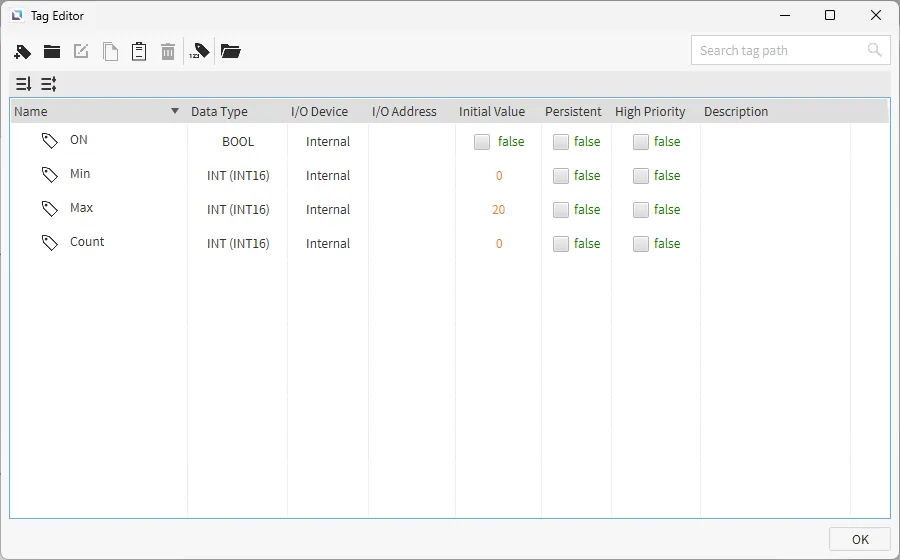
- Create the following tags:
- Count
- Data type: INT (INT16)
- Initial value: 0
- Max
- Data type: INT (INT16)
- Initial value: 20
- Min
- Data type: INT (INT16)
- Initial value: 0
- ON
- Data type: BOOL
- Initial value: false
- Count
Project Configuration 1
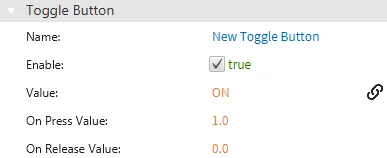
- Create a toggle button on the page. Drag-and-drop the ON tag onto the toggle button. The ON tag will now be bound to the value property of the toggle button.
Script Configuration
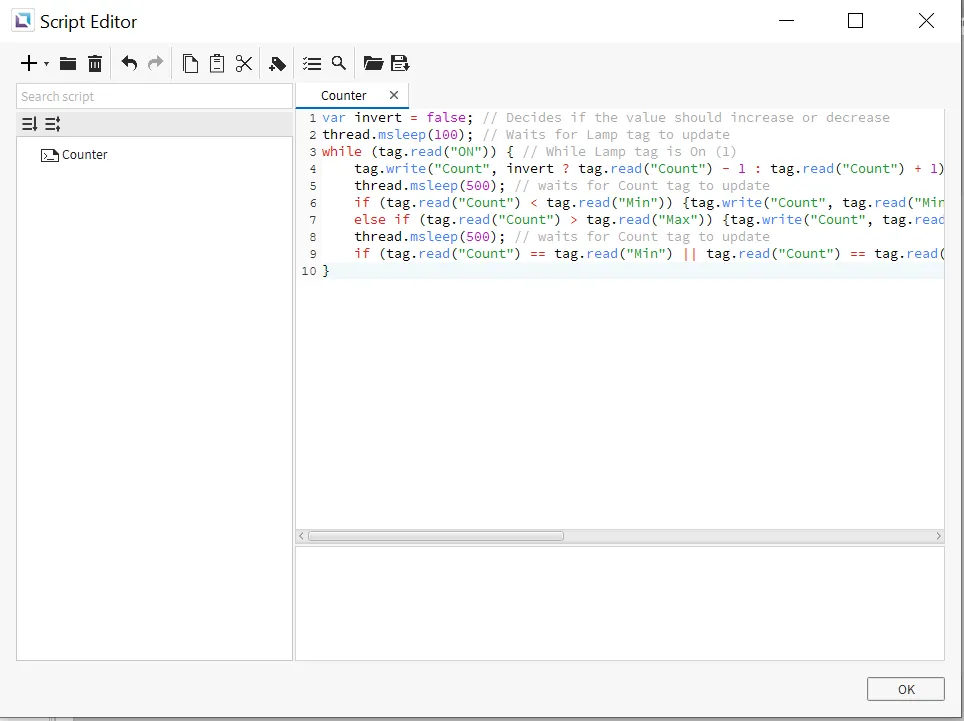
- Create the following script:
- Counter
- Running type: Manual
- Counter
var invert = false; // Decides if the value should increase or decrease
thread.msleep(100); // Waits for Lamp tag to update
while (tag.read("ON")) { // While Lamp tag is On (1)
  	tag.write("Count", invert ? tag.read("Count") - 1 : tag.read("Count") + 1); // If Invert is false, Add 1 to Count tag, if invert is true, Subtract 1 from Count tag
  	thread.msleep(500); // Waits for Count tag to update
    if (tag.read("Count") < tag.read("Min")) {tag.write("Count", tag.read("Min"))} // Assigns Min to Count if Count is less than Min
  	else if (tag.read("Count") > tag.read("Max")) {tag.write("Count", tag.read("Max"))} // Assigns Max to Count if Count is greater than Max
  	thread.msleep(500); // Waits for Count tag to update
  	if (tag.read("Count") == tag.read("Min") || tag.read("Count") == tag.read("Max")) {invert = !invert} // Inverses the invert var if Count has reached Max or Min.
}
Project Configuration 2
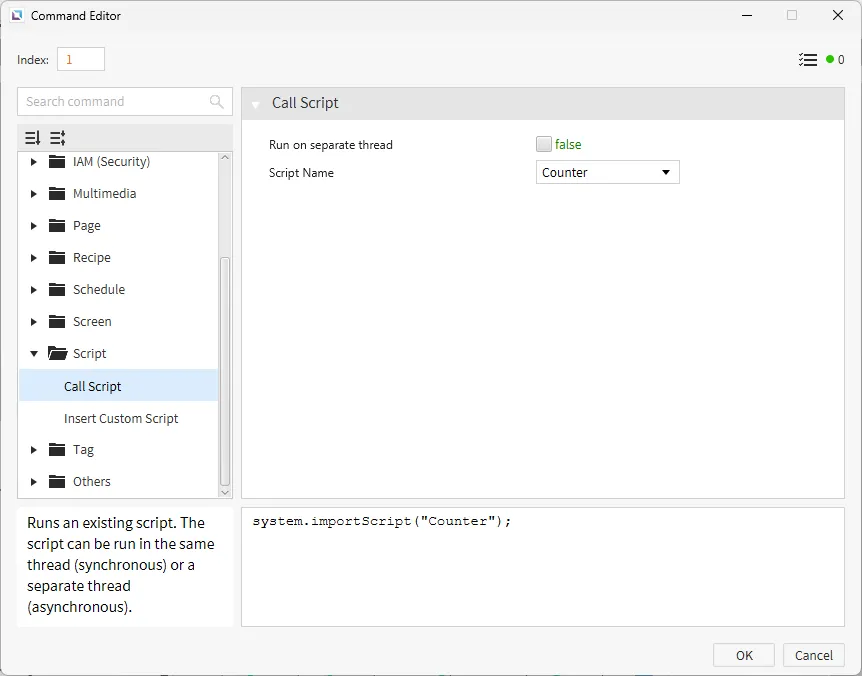
- Click on the toggle button to bring up the properties. Under the Actions properties, select Add New Command under On Press. Select the Call Script command and call the Counter script.
Trend Configuration
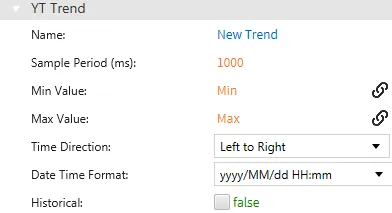
- Create a trend by going to Insert > Trend or left-click the Insert Trend icon on the toolbar. Then, click and drag on the screen to place the trend. In the Basic Properties tab, drag the Max tag to the max value property. Do the same with the Min tag to the min value property to bind them to the properties.
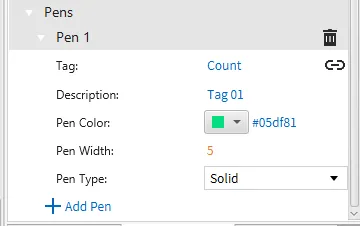
- Drag-and-drop the Count tag onto the trend. This will create a new pen in the Basic Properties of the trend. Go to Pen 1, and change the Pen Width to 5.
Project Deployment
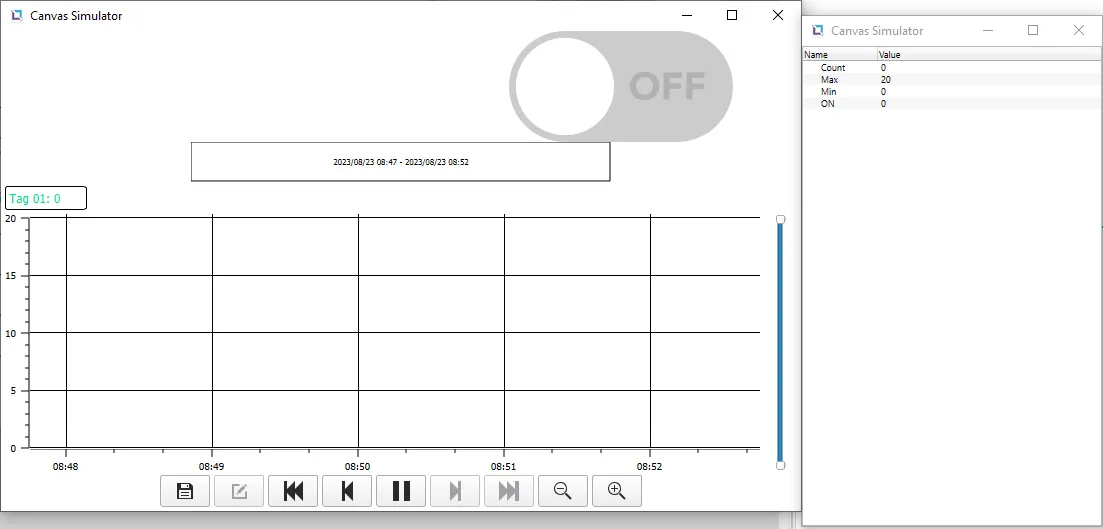
- Click Tools > Launch Simulator to launch the Canvas Simulator.
-
Click the toggle button to toggle it on. When the button turns on, the Count tag will update every second.
First, it starts at the minimum value of 0, increasing to the maximum, 20. Then once it reaches the maximum of 20, it will decrease back to the minimum of 0. This will repeat indefinitely or until the button is toggled off.
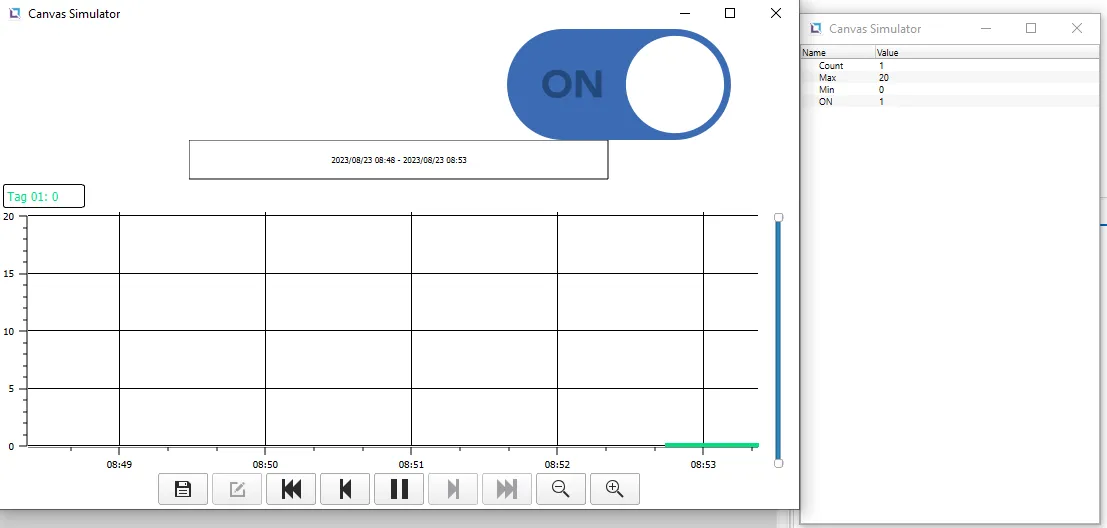
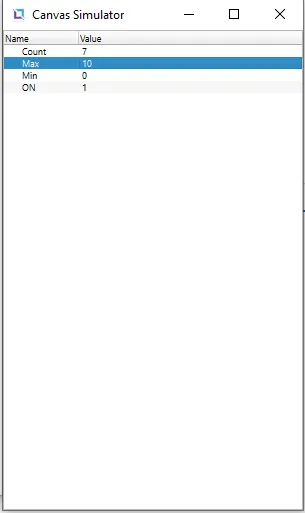
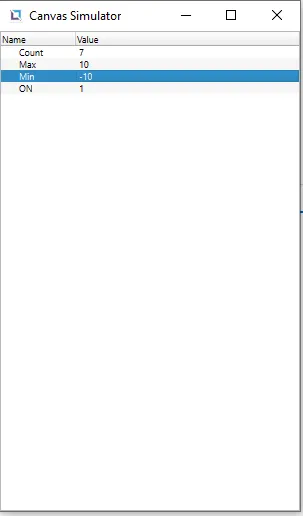
- After letting it run for a while, change the Max tag to 10 and the Min tag to -10. If the Count tag is outside the boundaries, it will jump to the closest boundary and continue the function as described in the step above.