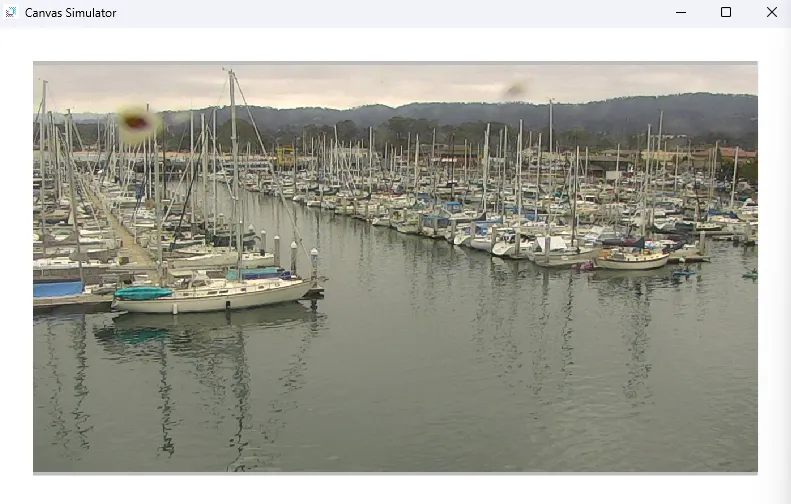
IP Camera Exercise
Exercise
Exercise: IP Camera Live Stream
Please follow the below exercise to understand IP camera streams.
Configuration
The following configuration is used to set up this exercise.
Project Configuration
-
Insert the IP Camera Stream Object
- Open your Cavnas project and go to the page where the camera feed will be displayed.
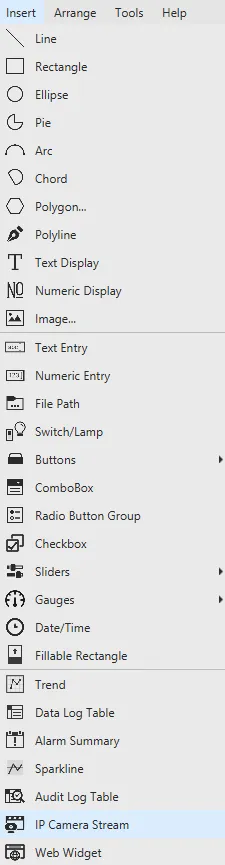
- From Insert > IP Camera Stream, drag the IP Camera Stream object onto the page.
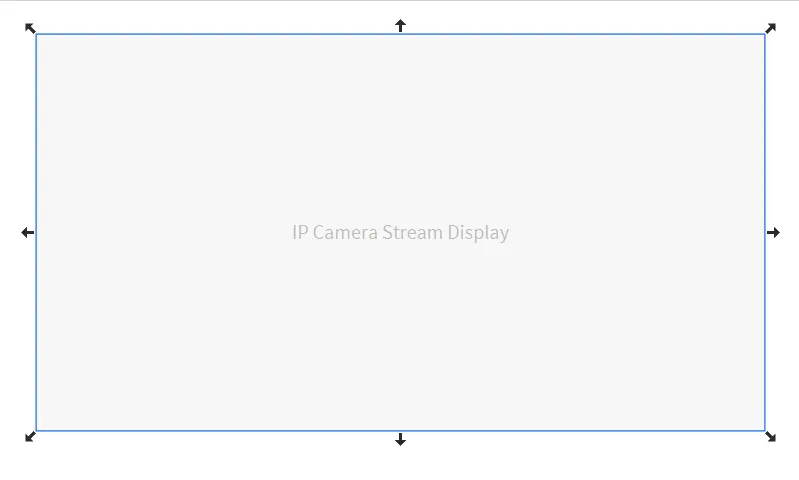
IP Camera Stream Configuration
-
Configure Basic Properties
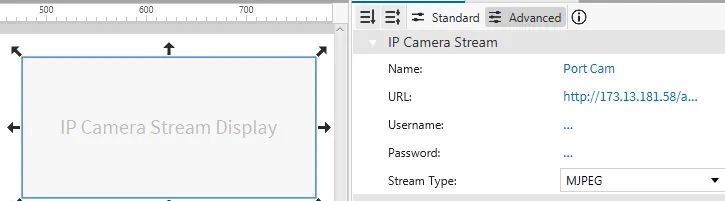
- Give the object a descriptive name, such as "Port Cam".
- Enter the camera’s URL in the format (e.g., http://173.13.181.58/axis-cgi/mjpg/video.cgi).
- If authentication is required, provide the Username and Password.
- Choose the correct Stream Type from the dropdown menu, such as MJPEG.
-
Adjust Appearance and Position
- In the Appearance tab, configure options like Visibility and Opacity.
- In the Position tab, define the X, Y coordinates, Width, and Height to control where and how the camera feed is displayed on the screen.
Project Deployment
-
Click Tools > Launch Online Simulator to launch the Canvas Online Simulator.
-
Navigate to the page with the IP camera object to confirm the live video feed is displayed correctly.