Sliders Exercise
Exercise
Exercise: Resizing and moving a circle with Sliders and a script
Please follow the below exercise to understand Sliders.
Configuration
The following configuration is used to set up this exercise.
Tag Configuration
- Create the following tags:
- Width - Data type: INT (INT16) - Initial value: 0
- Height - Data type: INT (INT16) - Initial value: 0
- X - Data type: INT (INT16) - Initial value: 0
- Y - Data type: INT (INT16) - Initial value: 0
- Go - Data type: BOOL - Initial value: false
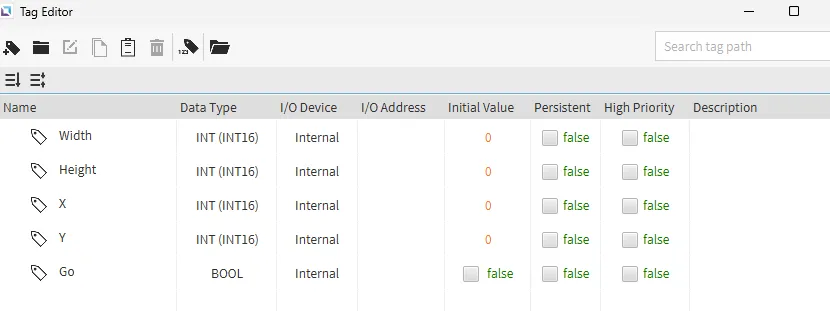
Project Configuration 1
- Create six text displays on the Canvas. Go to Insert > Text Display, or left-click the Insert Text Display icon, and click to place each text object.
- Place four text displays near where the sliders will be; you can leave the default text as “New Text” for now or later bind them to the tags.
- Place two text displays. Change the text to “Grow” under the size controls and “Move” under the position controls.

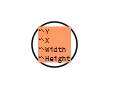
- Insert an ellipse and bind its size and position to the tags.
- Go to Insert > Ellipse, then click-and-drag to place the circle.
- With the ellipse selected, open properties. Bind the following fields to the matching tags by dragging the tag from the tag list onto the property or by choosing the tag in the property’s binding dialog:
- Width →
Width - Height →
Height - Center X (or X/Left) →
X - Center Y (or Y/Top) →
Y
- Width →
- Insert four Sliders and bind each one to a tag with the required ranges.
- Insert two Vertical Sliders and two Horizontal Sliders via Insert > Slider, selecting Vertical or Horizontal, and drag to place them.
- Bind each slider’s value to the tag by dragging the tag onto the slider, or select the tag in the slider’s value property.
- Set Min, Max, and Step for each slider below:
- Vertical Slider → Width — Min 0, Max 200, Step 1
- Horizontal Slider → Height — Min 0, Max 200, Step 1
- Vertical Slider → X — Min 0, Max 600, Step 1
- Horizontal Slider → Y — Min 0, Max 160, Step 1

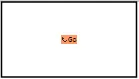
- Create a rectangle to simulate a go button.
- Insert > Rectangle and click-and-drag to place it.
- With the rectangle selected, open Actions. Under On Press, set Action to Add New Command and select Toggle Tag Value. Choose the Go tag created in Step 1.
Script Configuration
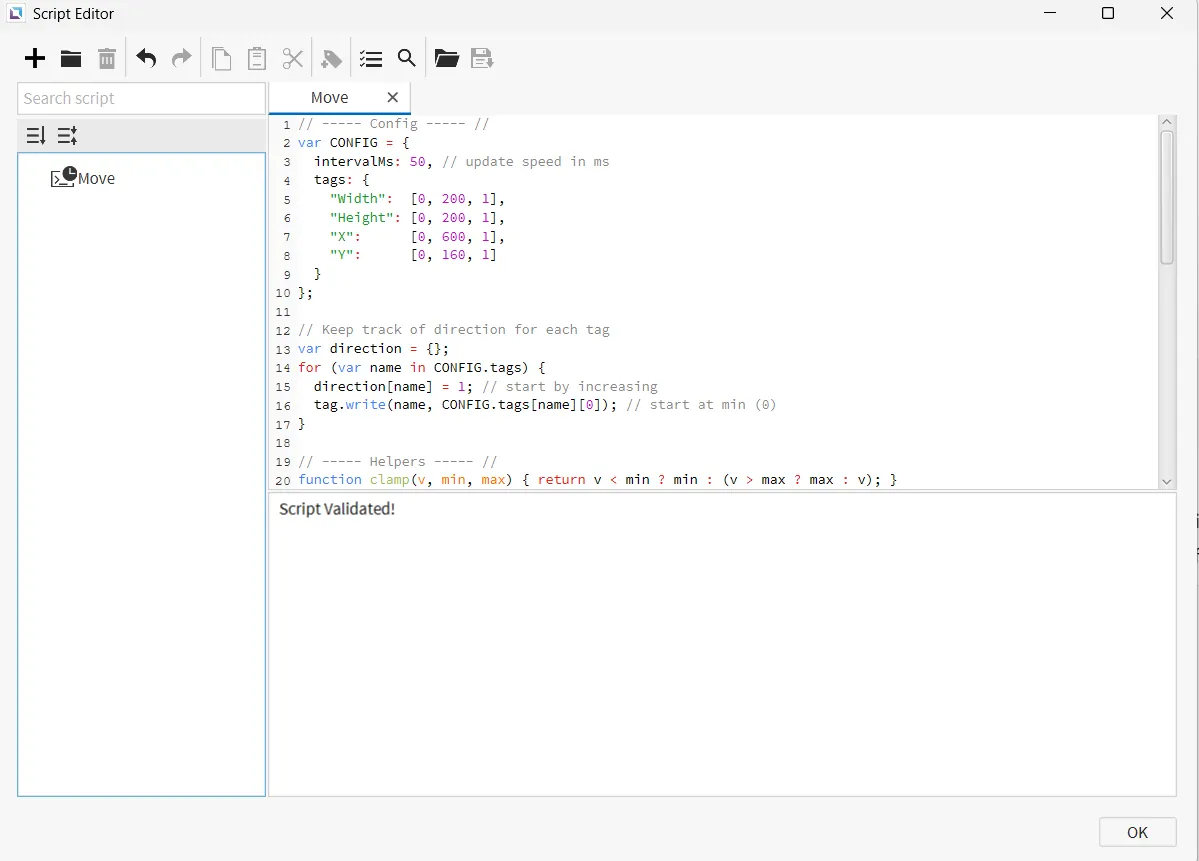
- Create the following script:
- Move - Running type: Periodic
// ----- Config ----- //
var CONFIG = {
  intervalMs: 10, // update speed in ms
  tags: {
    "Width":  [0, 200, 1],
    "Height": [0, 200, 1],
    "X":      [0, 600, 1],
    "Y":      [0, 160, 1]
  }
};

// Keep track of direction for each tag
var direction = {};
for (var name in CONFIG.tags) {
  direction[name] = 1; // start by increasing
  tag.write(name, CONFIG.tags[name][0]); // start at min (0)
}

// ----- Helpers ----- //
function clamp(v, min, max) { return v < min ? min : (v > max ? max : v); }

// ----- Main loop ----- //
while (1) {
  if (tag.read("Go")) {
    for (var t in CONFIG.tags) {
      var s = CONFIG.tags[t];
      var min = s[0], max = s[1], step = s[2];

      var current = tag.read(t);
      if (current === undefined || current === null || isNaN(current)) {
        current = min; // safety reset
      }

      var next = current + (step * direction[t]);

      // if we hit a boundary, flip direction
      if (next >= max) {
        next = max;
        direction[t] = -1;
      } else if (next <= min) {
        next = min;
        direction[t] = 1;
      }

      tag.write(t, clamp(next, min, max));
    }
  }
  thread.msleep(CONFIG.intervalMs);
}
Project Configuration 2
- Bind the Move script to the rectangle created in Step 5.
- Click the rectangle. In the object properties under Actions > On Press, add a new command. Under Script, select Call Script and select the Move script.
Project Deployment
-
Click Tools > Launch Simulator to launch the Canvas Simulator.
-
Manual control: Drag the sliders.
- Increasing Width and Height enlarges the circle (area labeled "Grow").
- Changing X and Y repositions the circle (area labeled "Move").
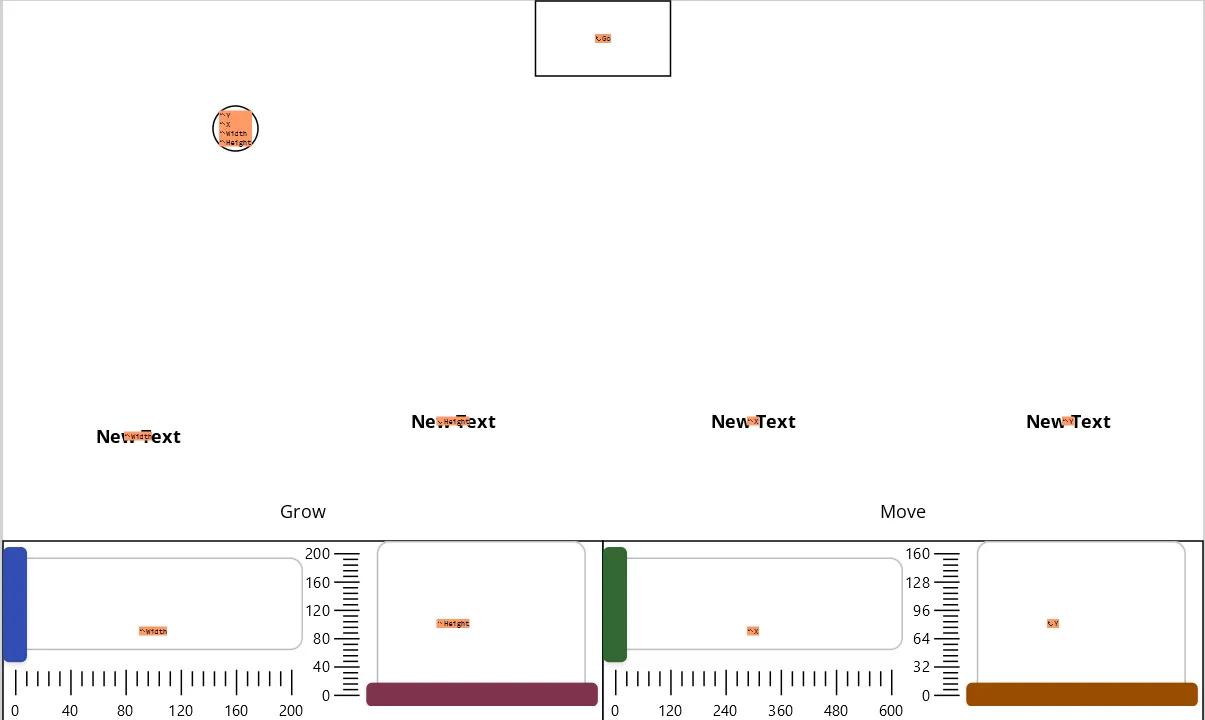
- Automatic animation: Click the rectangle button to toggle Go = True.
- While the Go tag is true, the Move script runs continuously.
- Each tag “ping-pongs” between its Min and Max with a step of 1 every 50ms.
- Click the rectangle again to toggle Go to false and stop the animation.