Sparkline Exercise
Exercise
Exercise: Using Sparkline
Please follow the below exercise to understand Sparkline functionality.
Configuration
The following configuration is used to set up this exercise.
Tag Configuration
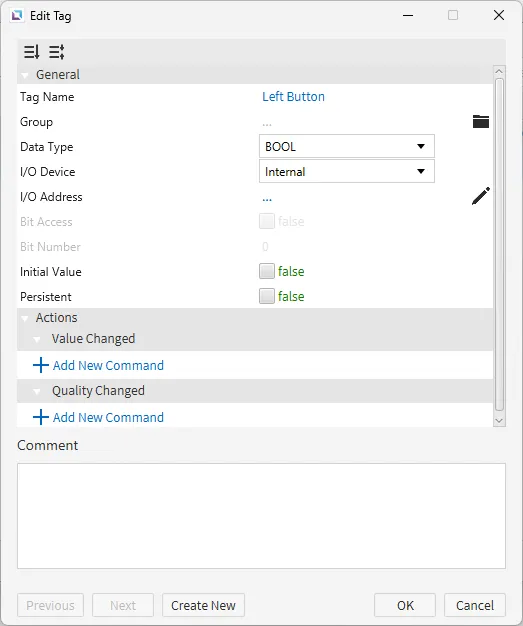
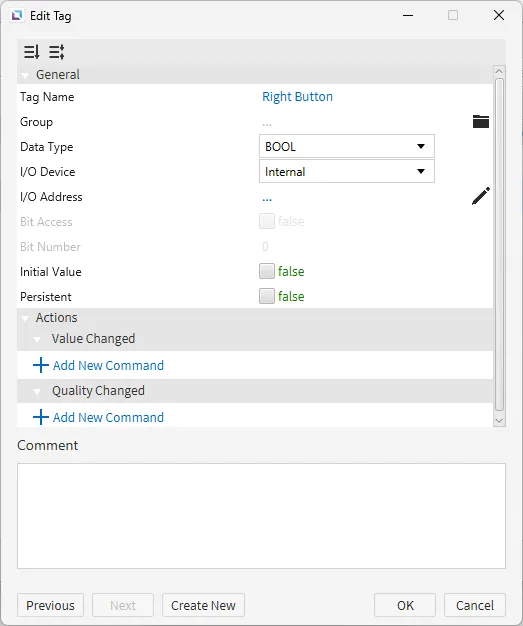
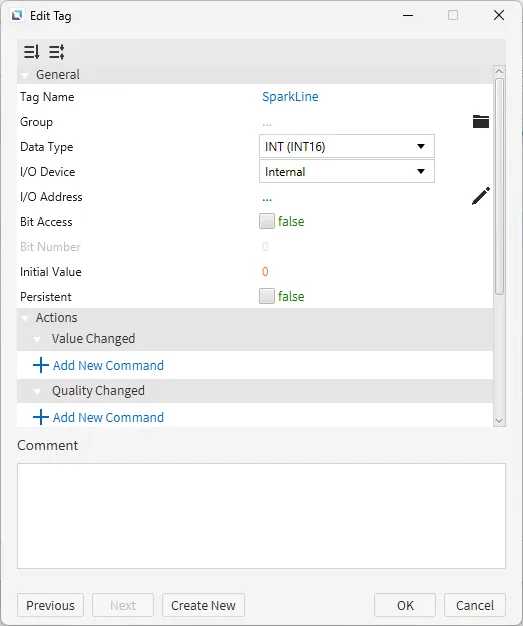
- Create the following tags:
- Left Button
- Data type: BOOL
- Initial value: false
- Right Button
- Data type: BOOL
- Initial value: false
- SparkLine
- Data type: INT (INT16)
- Initial value: 0
- Left Button
Script Configuration
-
Create the following scripts:
- Left Button
- Running type: Periodic
- Right Button
- Running type: Periodic
- Left Button
-
Paste the following code into the Right Button script:
while (1) {
	if (tag.read("Right Button")){
		tag.write("SparkLine", tag.read("SparkLine") + 1);
	}
	thread.msleep(50)
}- Paste the following code into the Left Button script:
while (1) {
	if (tag.read("Left Button")){
		tag.write("SparkLine", tag.read("SparkLine") - 1);
	}
	thread.msleep(50)
}- This code will be used for the objects in the next section. If either the left or right button are pressed and held down it will cause the Sparkline to move either up or down depending on which arrow is pressed.
Project Configuration

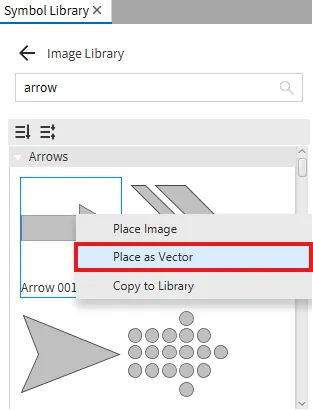
- Draw four objects on the screen: Sparkline graph, two vector arrows pointing left and right, and a numeric entry field.

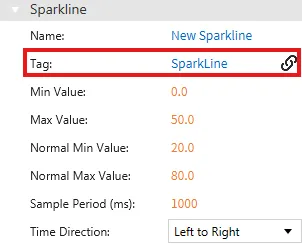
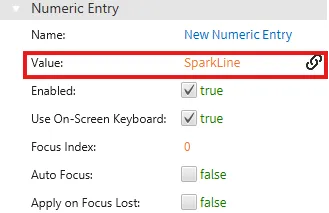
- Smart bind (drag-and-drop) the SparkLine tag to the sparkline graph and the numeric field.
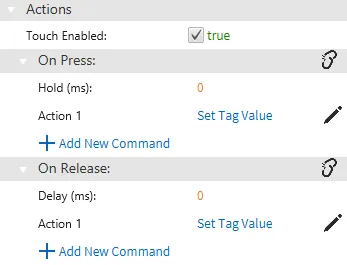
- For the left and right vector images, go to Actions, On Press, and select Add New Command.
-
Add a new command and select Set Tag Value.
- For the left vector image, bind the Left Button tag to the command.
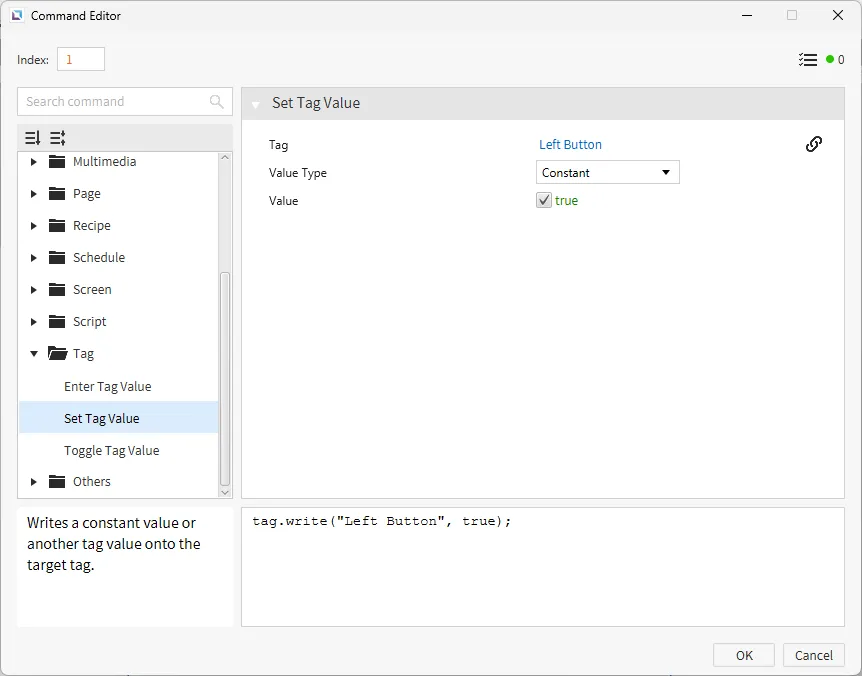
- For the right vector image, bind the Right Button tag to the command.
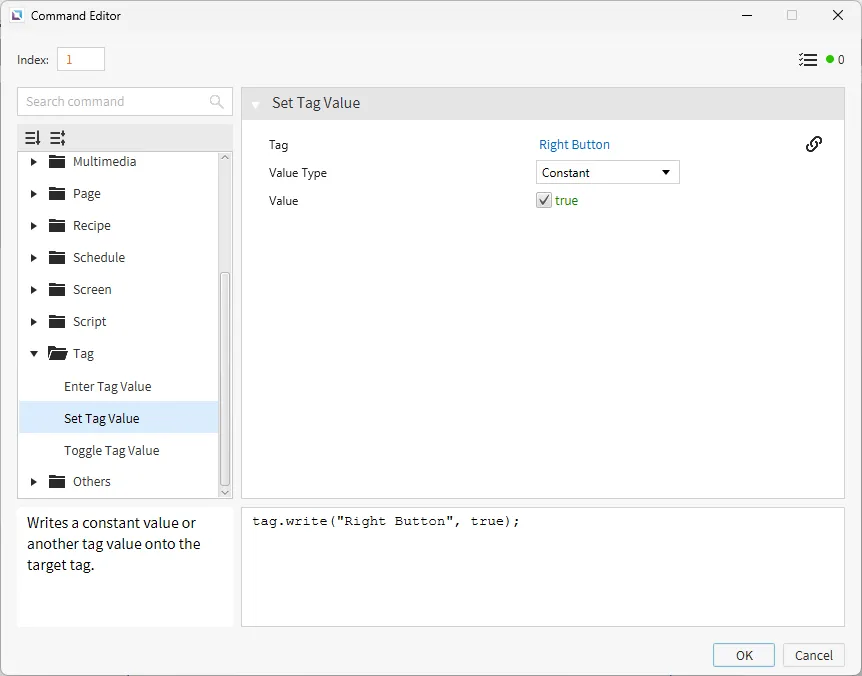
- For the left vector image, bind the Left Button tag to the command.
-
For the left and right vector images, go to Actions, On Release, and select Add New Command.
- For the left Vector Image, bind the Left Button tag to the command.
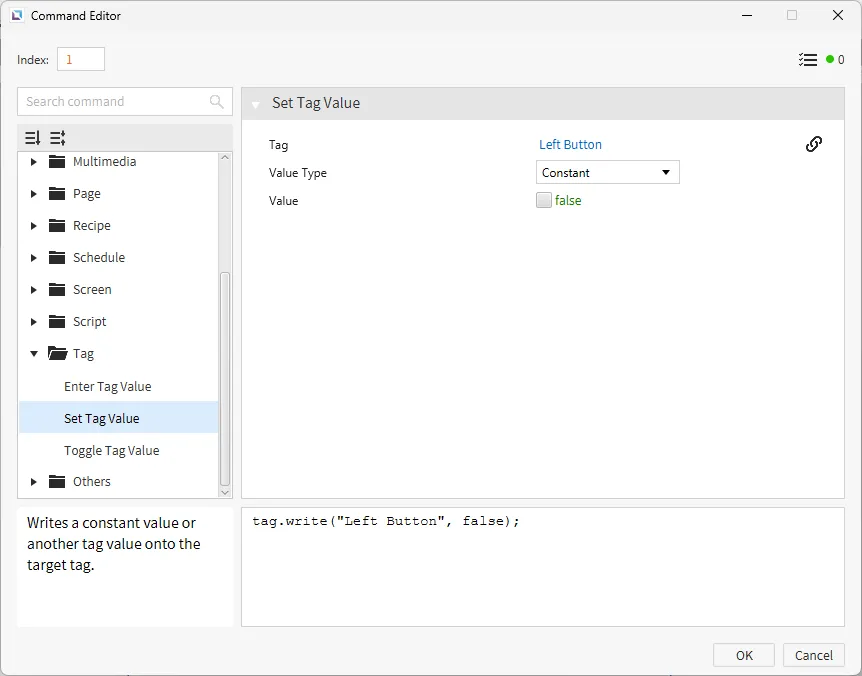
- For the right vector image, bind the Right Button tag to the command.
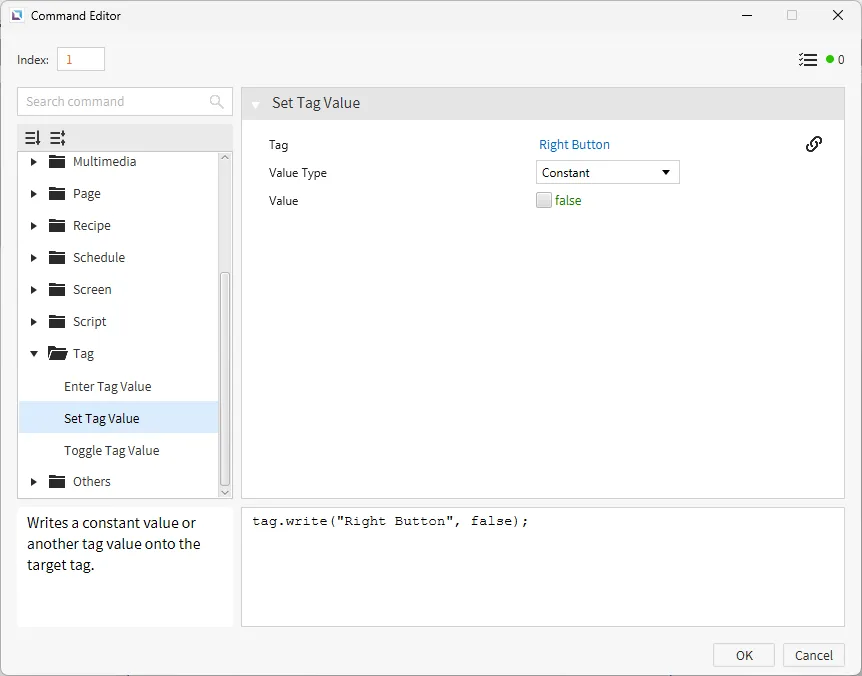
- For the left Vector Image, bind the Left Button tag to the command.
Project Deployment
-
Click Tools > Launch Simulator to launch the Canvas Simulator.
-
Press either the left or right arrow buttons to change the Sparkline value.