String Table Exercise
Exercise
Exercise: Making a Menu using the String Table
Please follow the below exercise to understand String Table functionality.
Configuration
The following configuration is used to set up this exercise.
String Table Configuration
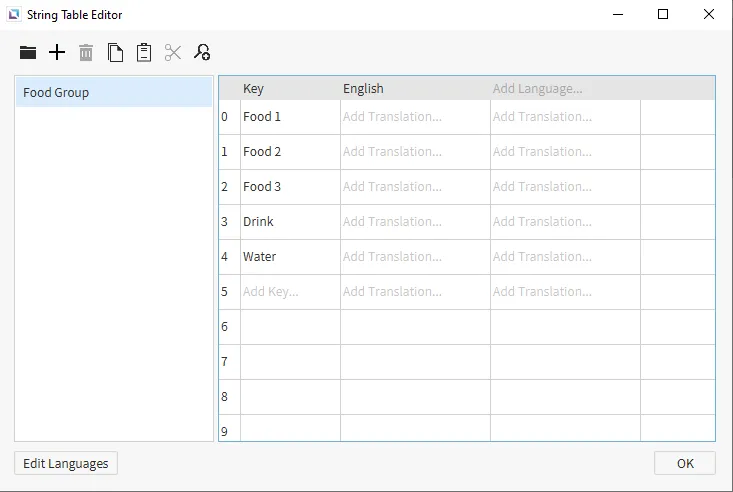
- Open the String Table Editor by clicking the Open String Table Editor icon on the toolbar or by clicking on Tools > String Table Editor. Create the following keys:
- Key 0
- Key: Food 1
- Key 1
- Key: Food 2
- Key 2
- Key: Food 3
- Key 3
- Key: Drink
- Key 4
- Key: Water
- Key 0
-
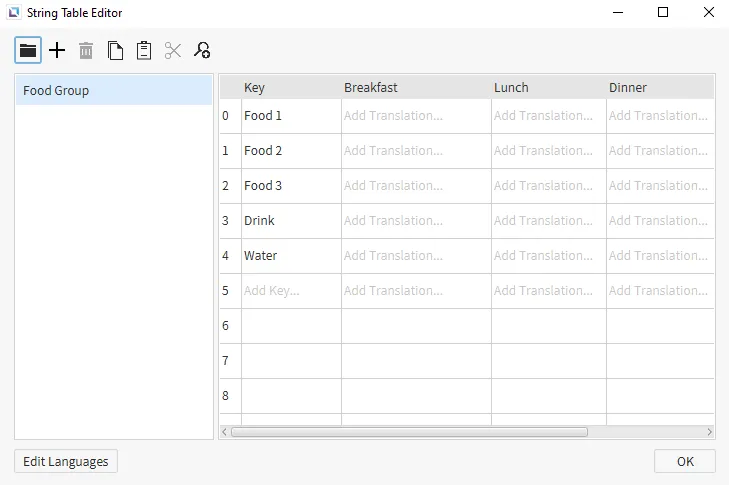
Click on Edit Languages. Once in the language editor, rename “English” to “Breakfast.”
After the renaming is done, click on the + icon twice to add two new languages. Change the second language name to “Lunch” and the third to “Dinner.”
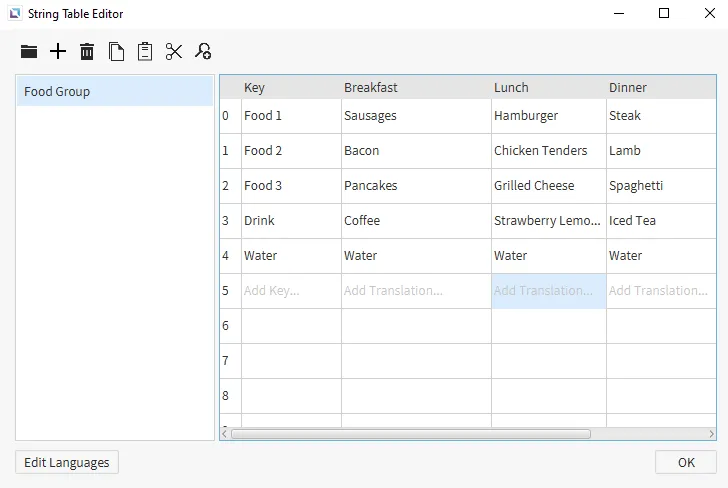
- Enter the following information into the table:
- Row 1 - Food 1
- Breakfast: Sausages
- Lunch: Hamburger
- Dinner: Steak
- Row 2 - Food 2
- Breakfast: Bacon
- Lunch: Chicken Tenders
- Dinner: Lamb
- Row 3 - Food 3
- Breakfast: Pancakes
- Lunch: Grilled Cheese
- Dinner: Spaghetti
- Row 4 - Drink
- Breakfast: Coffee
- Lunch: Strawberry Lemonade
- Dinner: Iced Tea
- Row 5 - Water
- Breakfast: Water
- Lunch: Water
- Dinner: Water
- Row 1 - Food 1
Project Configuration
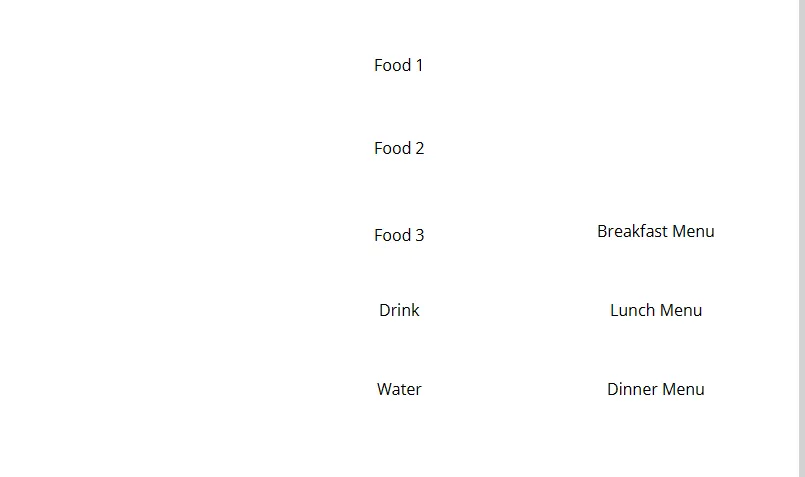
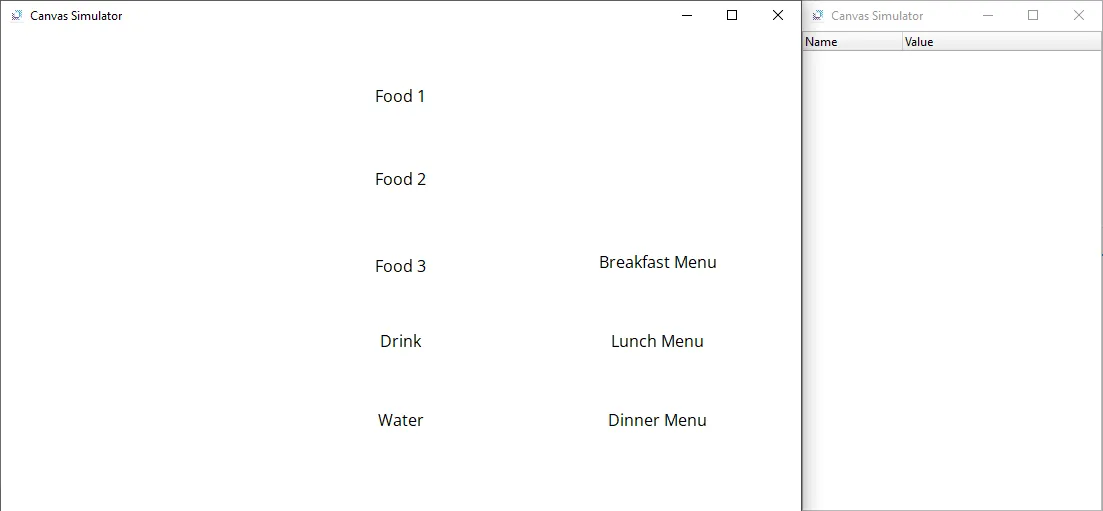
- Create eight text displays. For each text display, have the following text in a different text display: "Food 1", "Food 2", "Food 3", "Drink", "Water", "Breakfast Menu", "Lunch Menu", and "Dinner Menu".
-
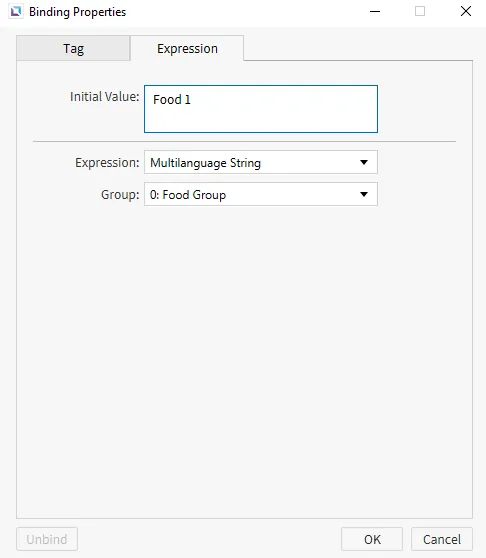
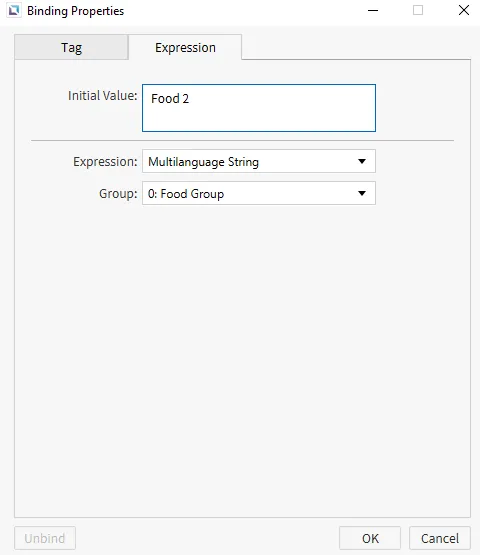
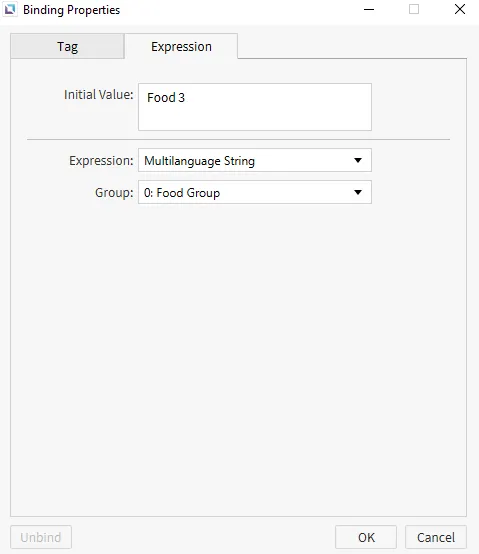
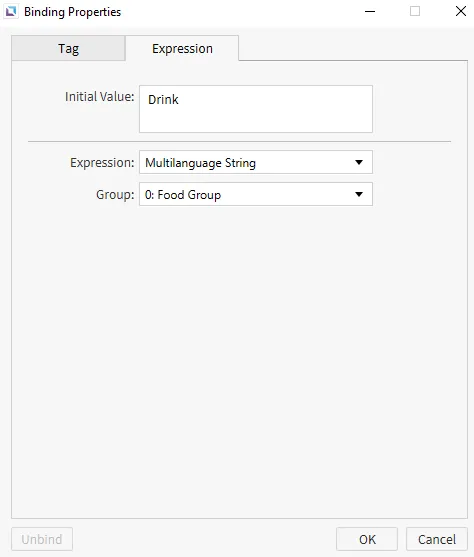
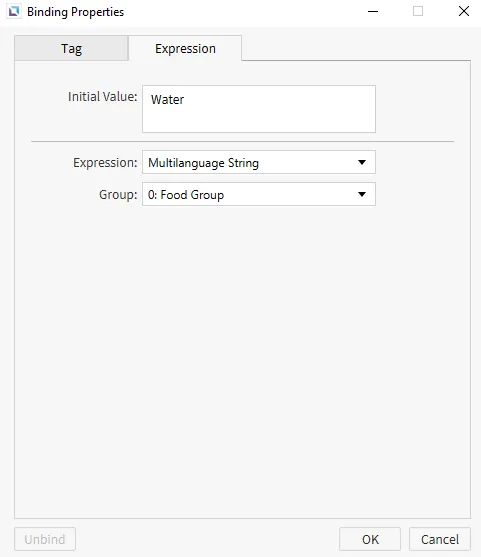
For the "Food 1", "Food 2", "Food 3", "Drink", and "Water" text displays, click the text property chain link icon. Select Expression and change the expression type to Multilanguage String.
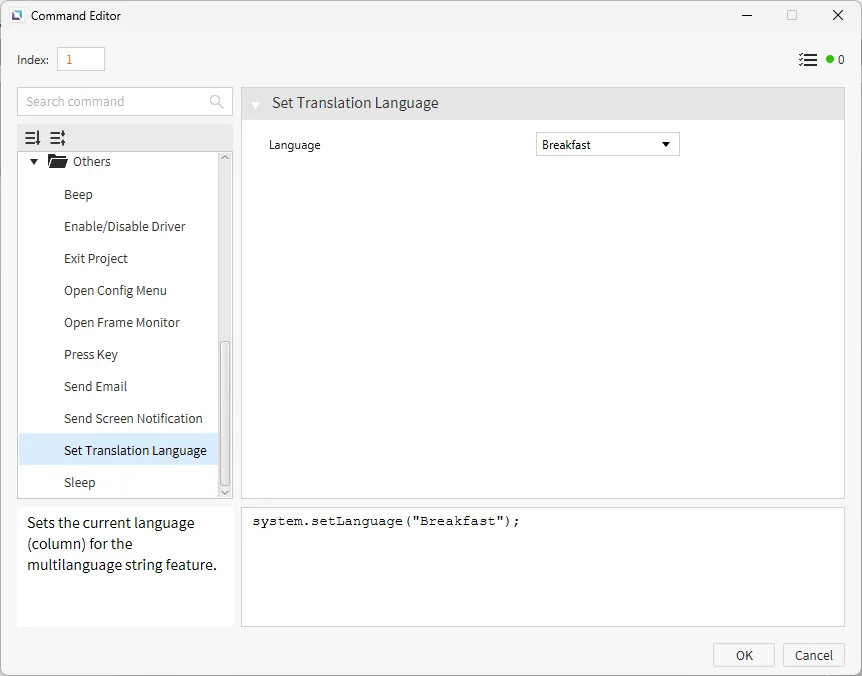
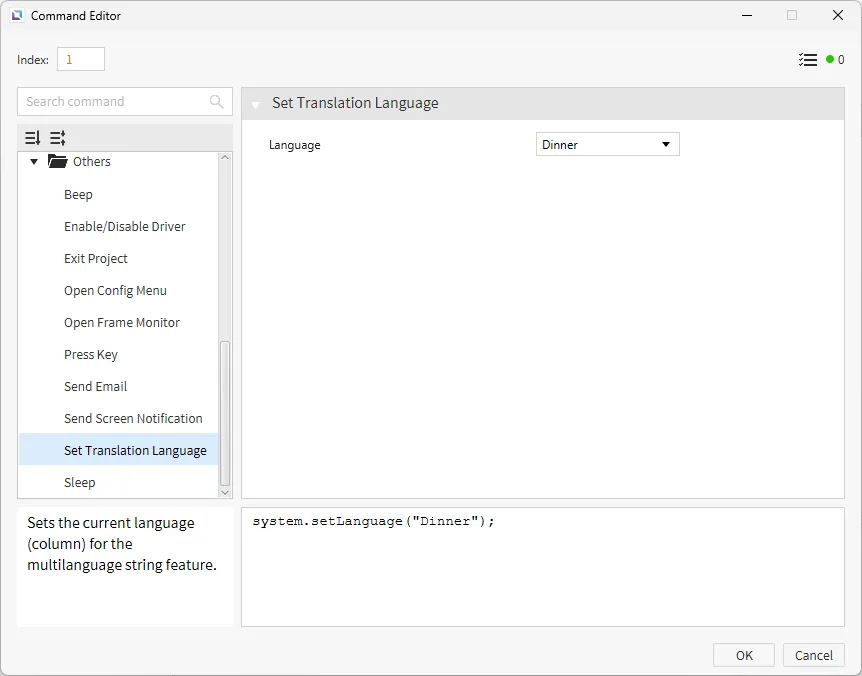
For the "Breakfast Menu" text display, under the Actions properties, select On Press. Select Add New Command. Select the Set Translation Language command and select Breakfast.
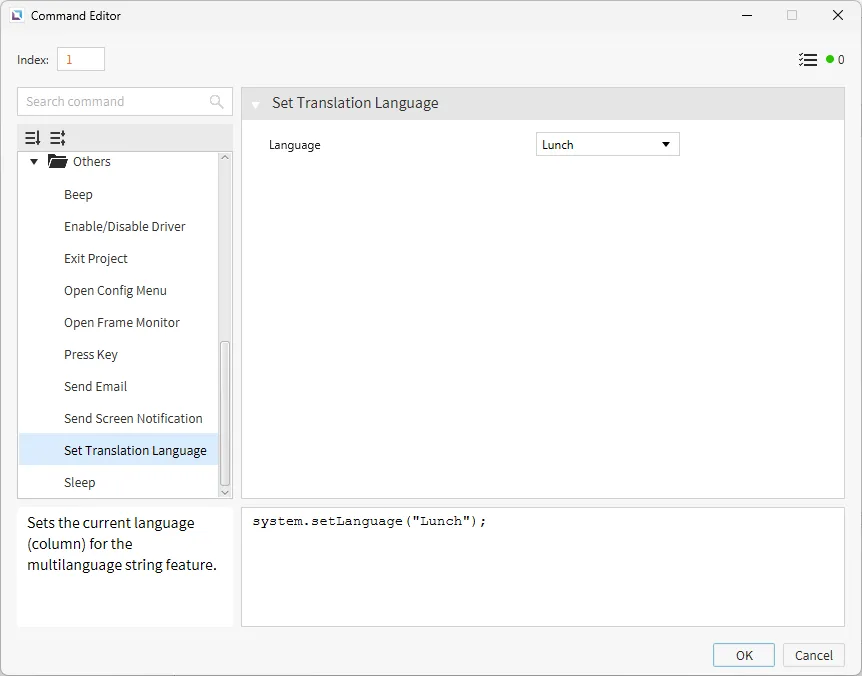
For the "Lunch Menu" text display, under the Actions properties, select On Press. Select Add New Command. Select the Set Translation Language command and select Lunch.
For the "Dinner Menu" text display, under the Actions properties, select On Press. Select Add New Command. Select the Set Translation Language command and select Dinner.
Ensure the initial value on the text is the same as the String Table Editor key. Otherwise, the translations will not function.
Project Deployment
- Click Tools > Launch Simulator to launch the Canvas Simulator.
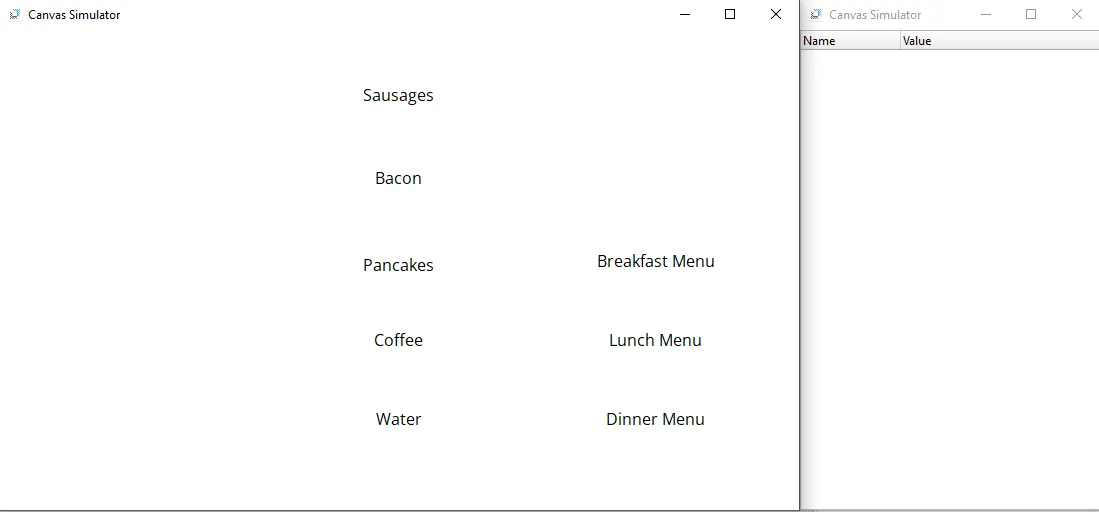
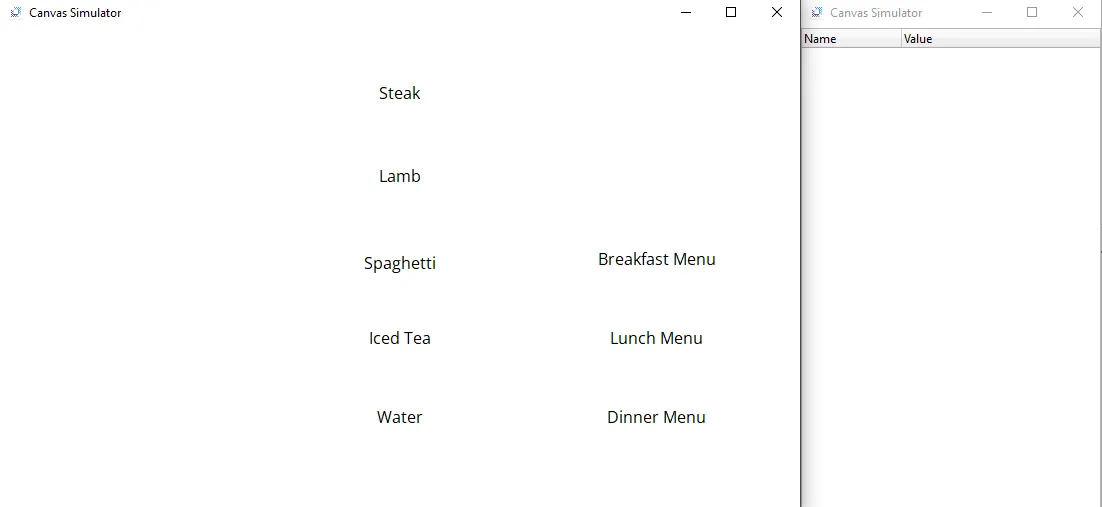
- Click on “Breakfast Menu.” This will cause all items in the middle column to change to their translations from the breakfast column in the String Table Editor.
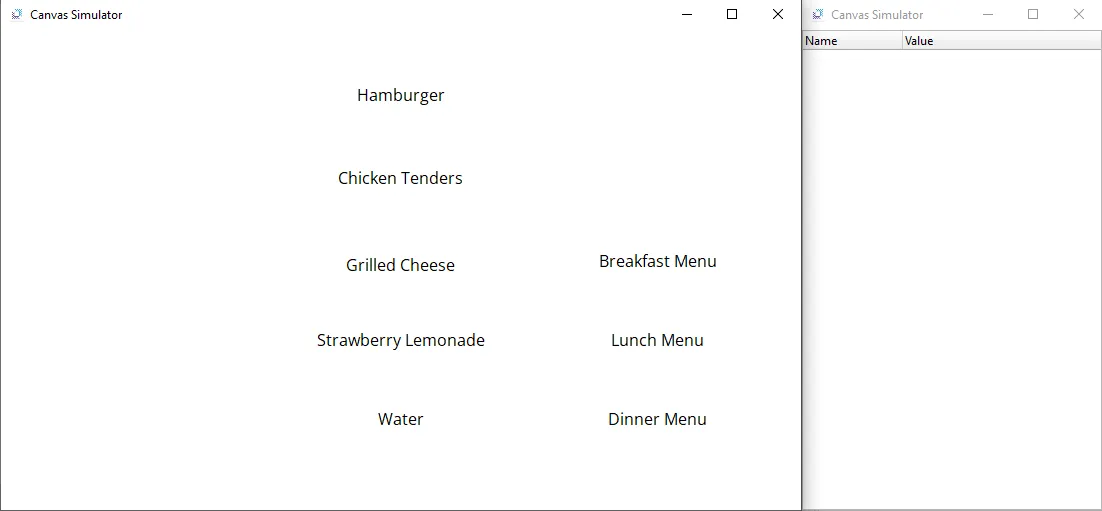
- Do this as well for "Lunch Menu" and "Dinner Menu". The text will be translated to their respective translations that were listed within the String Table Editor.