Identity and Access Management Exercise
Exercise
Exercise: Setting up Identity and Access Management
Please follow the below exercise to understand Identity and Access Management functionality.
Configuration
The following configuration is used to set up this exercise.
Permission Configuration
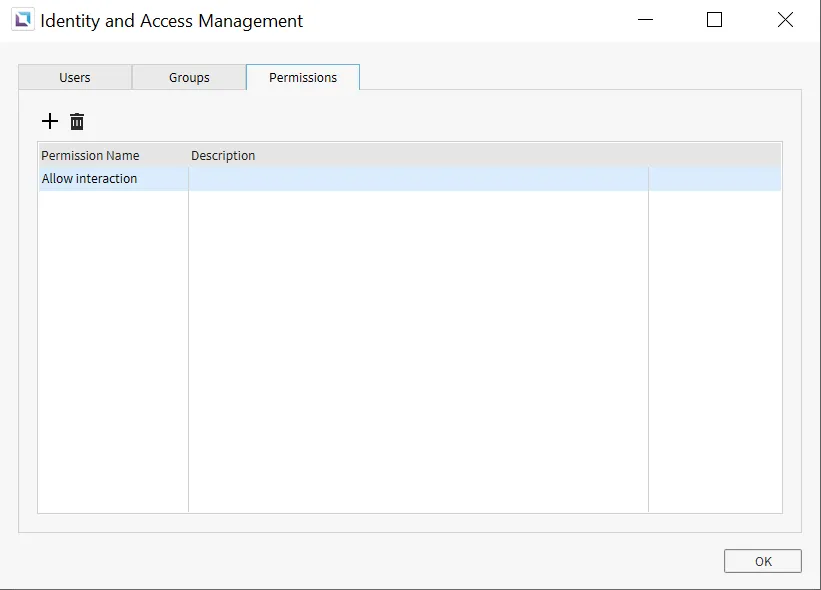
- Click on Tools > Identity and Access Management and select Permissions. Create the following permission:
- Allow interaction
User Configuration
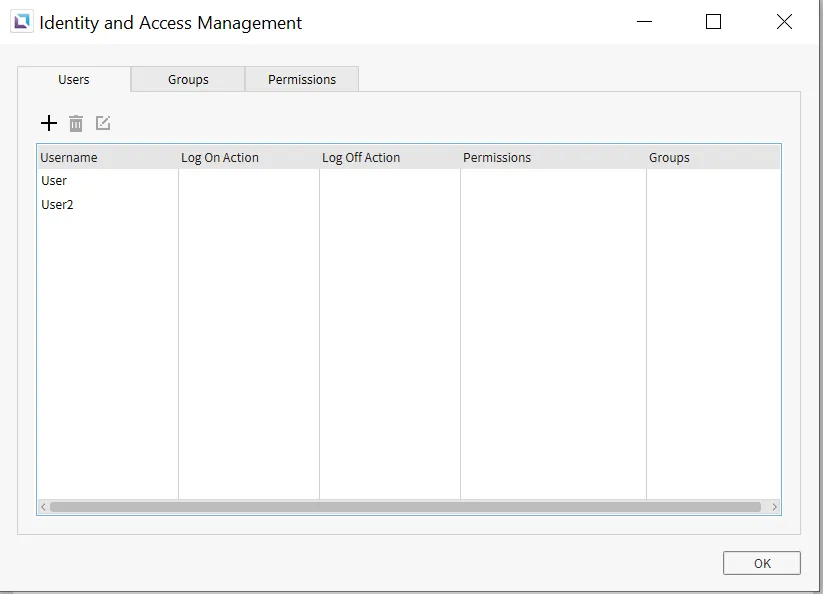
- Select Users and create the following users:
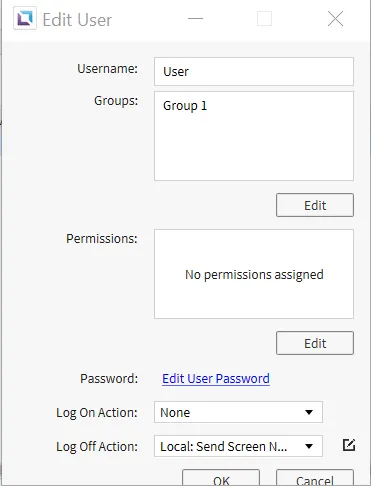
- User
- Username: User
- Password: 123
- Log Off Action: Send Screen Notification
- Message: Successfully logged out!
- User2
- Username: User2
- Password: 123
- Log Off Action: Send Screen Notification
- Message: Successfully logged out!
- User
Group Configuration
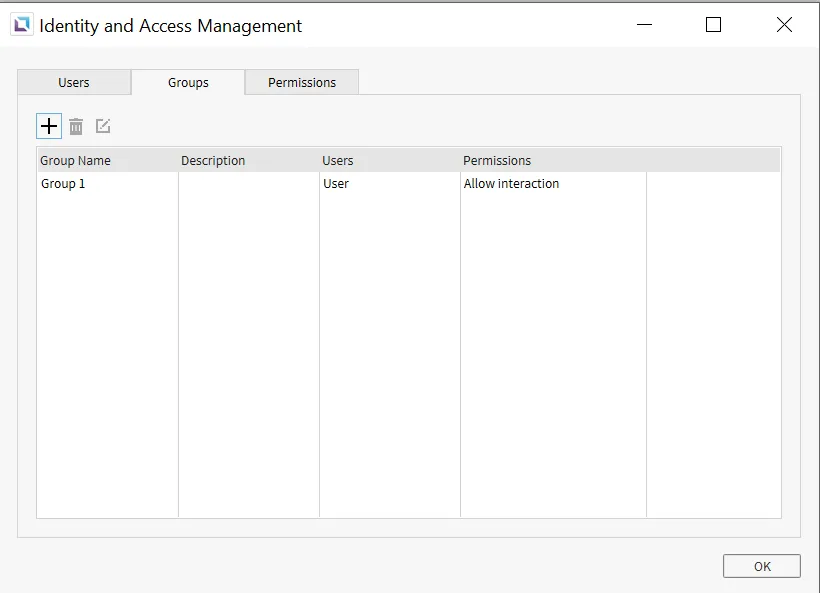
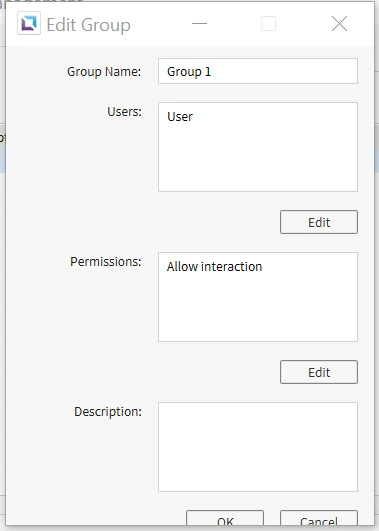
- Select Groups and create the following group:
- Group 1
- Group Name: Group 1
- Users: User
- Permissions: Allow interaction
- Group 1
Project Configuration
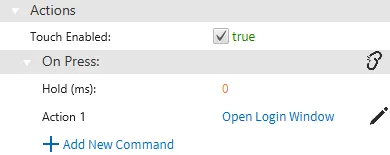
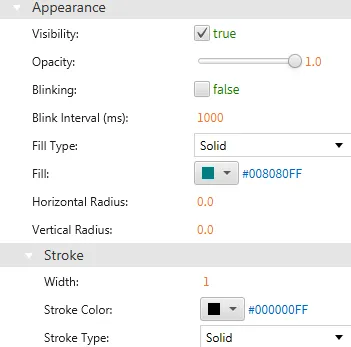
- Now, create a rectangle. Select it, go into Appearance, and change the fill to sea green or #008080. Then select Actions, On Press, and select Add New Command. Select the command Open Login Window. Make sure the Show User List is unchecked.
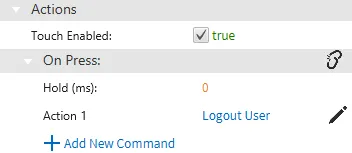
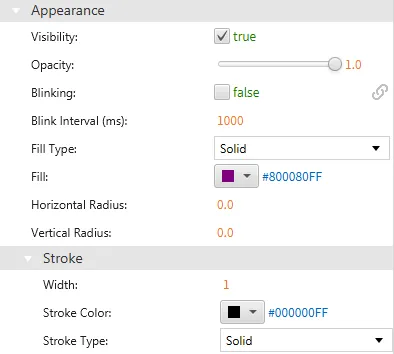
- Now, create a circle above the rectangle. Change the fill to purple or #800080. Then select Actions, On Press, and select Add New Command. Select the command Logout User.
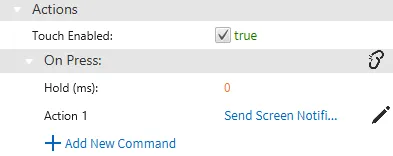
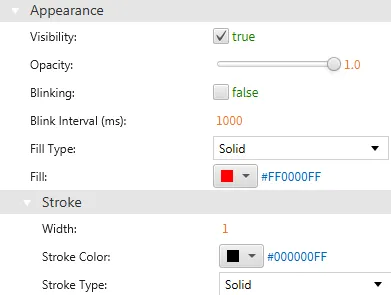
- Now, create a circle to the right of the rectangle and the circle. Change the fill to red or #ff0000. Then select the Actions property. Under Permissions, click the pencil icon to add permissions. Click the checkbox next to allow interaction. Under On Press, select Add New Command. Select the command Send Screen Notification. Have the message say, “User has sufficient Permission!”.

Project Deployment
- Click Tools > Launch Simulator to launch the Canvas Simulator.
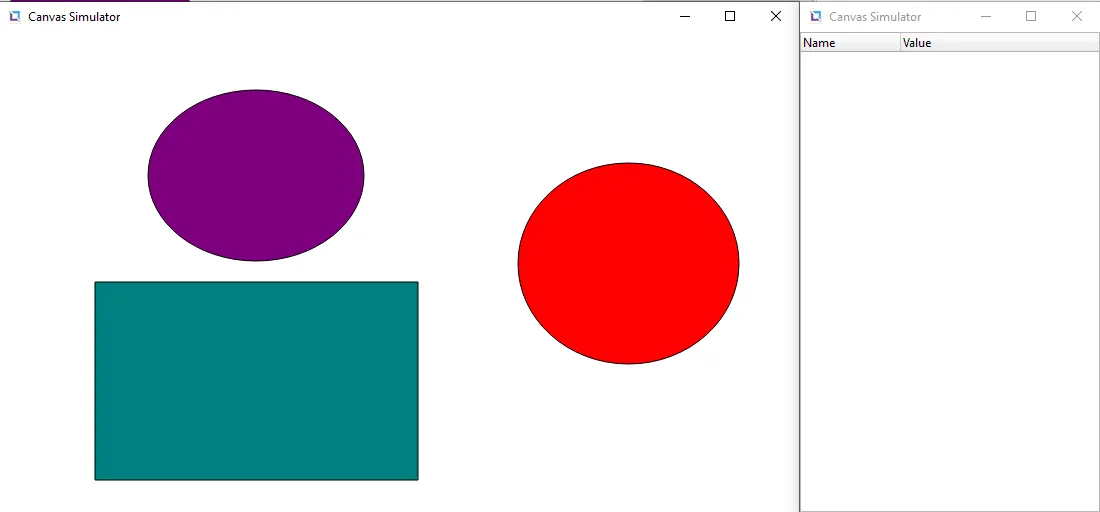
- Click on the red circle. There should be a notification that the user does not have permission. This is how objects with permission will interact with users who are not logged in.
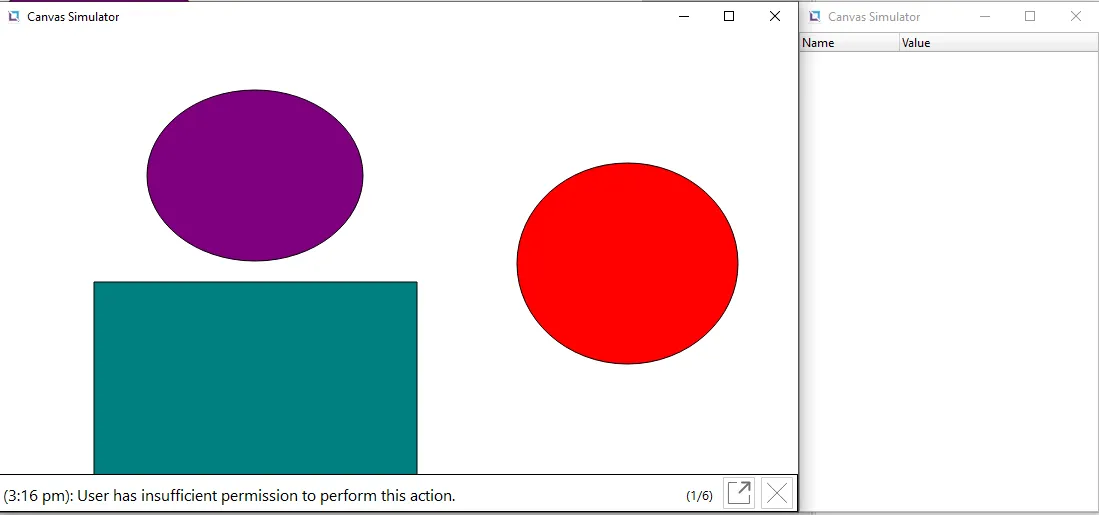
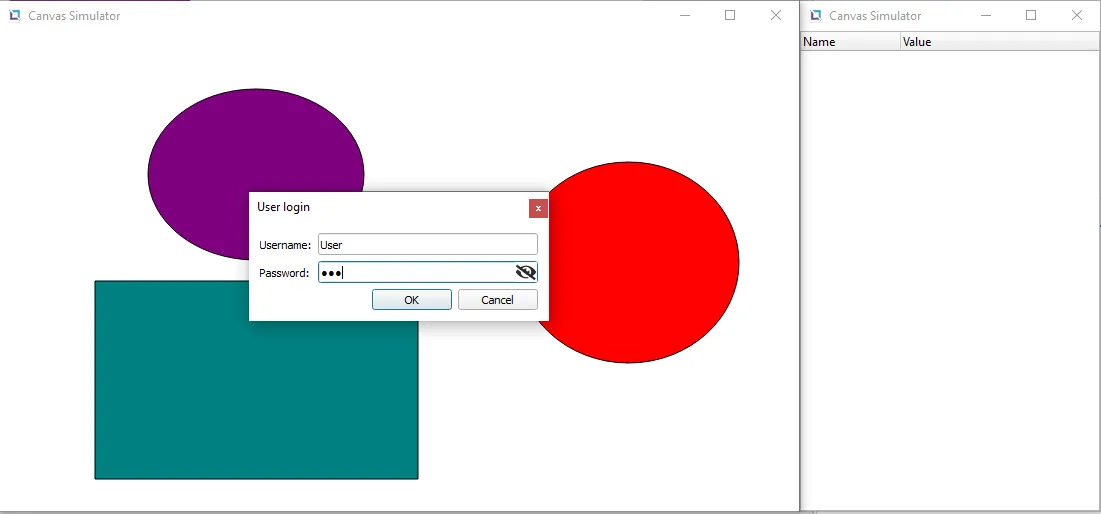
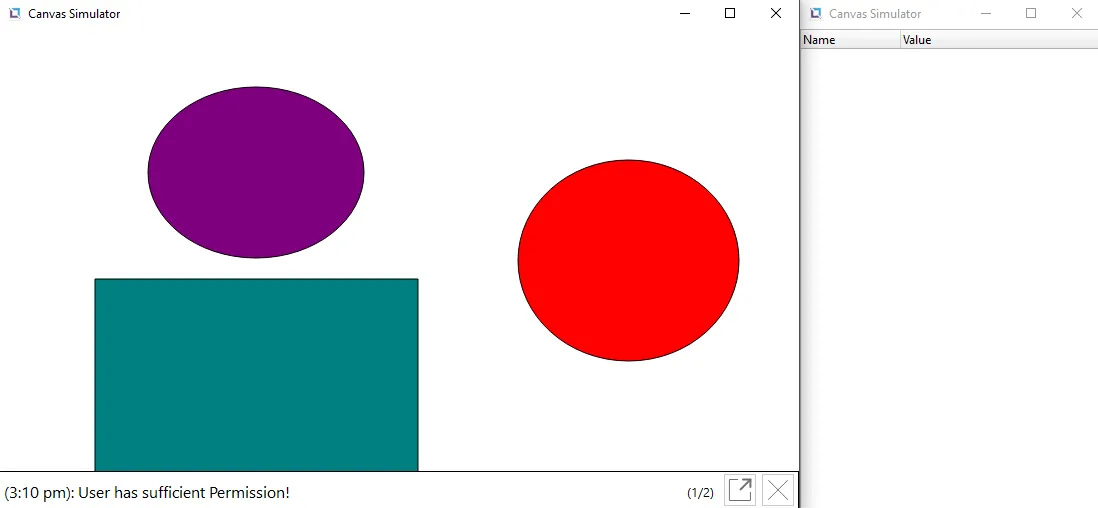
- Click on the rectangle to open the login window; once it is open, type in “User” into Username and “123” into Password. Click OK once all of that has been entered. Once logged in, click the red circle, and the screen notification, set up earlier, should now display.
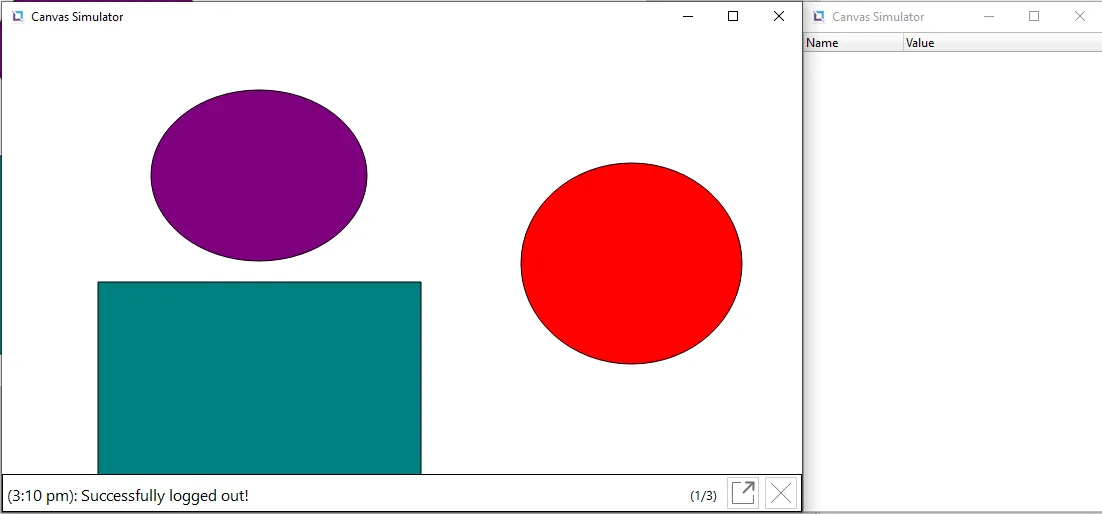
- Log out of User 1 by clicking the purple circle. Then log into “User2” with the password “123”.
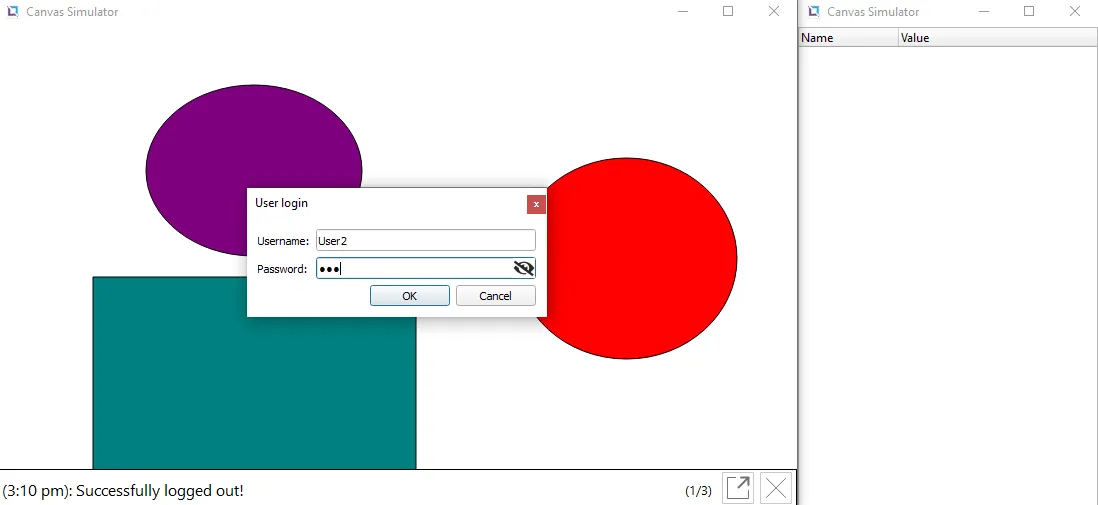
- Now try clicking the red circle. Notice how the insufficient permission notification came up again. This is due to User2 not having permission tied to the account and not being connected to Group 1, which also has permissions tied to it.