Data Server Editor
Data Server Editor
To access the Data Server Editor, go to Tools > Data Server Editor or click the Open Data Server Editor on the toolbar. To create a new device, click the + icon to open the Add New Server Device screen. Users can select the Connection Type as Ethernet or serial for that specific device. Users can also select the Device Type, which will open a dropdown of specific devices that Canvas supports connecting to. Once selected, the data server will be created with default settings.
Ethernet Device
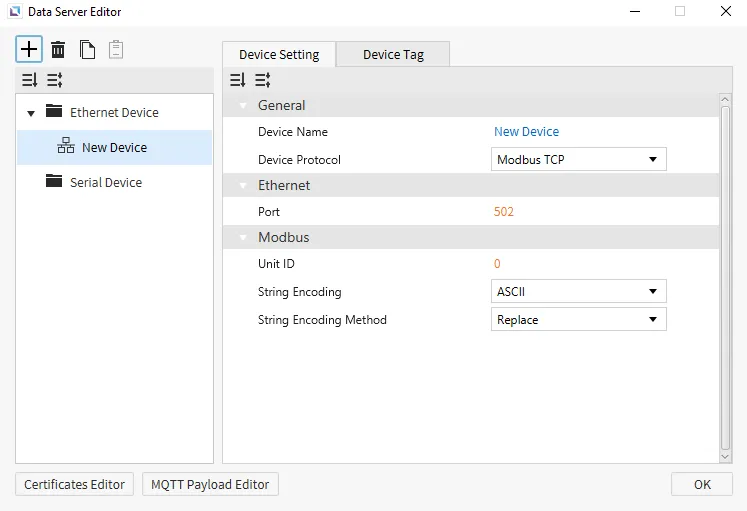
Ethernet devices are used when the connection to another device is via an Ethernet connection. Users will need to input the Port of the device they are connecting to for it to connect successfully. For Modbus TCP, users will need to enter the Unit ID via Modbus to connect successfully and the String Encoding and String Encoding Method.
Note: Aside from Modbus TCP Port 502, only numbers above 1023 are supported as Port numbers.
EtherNet/IP Server
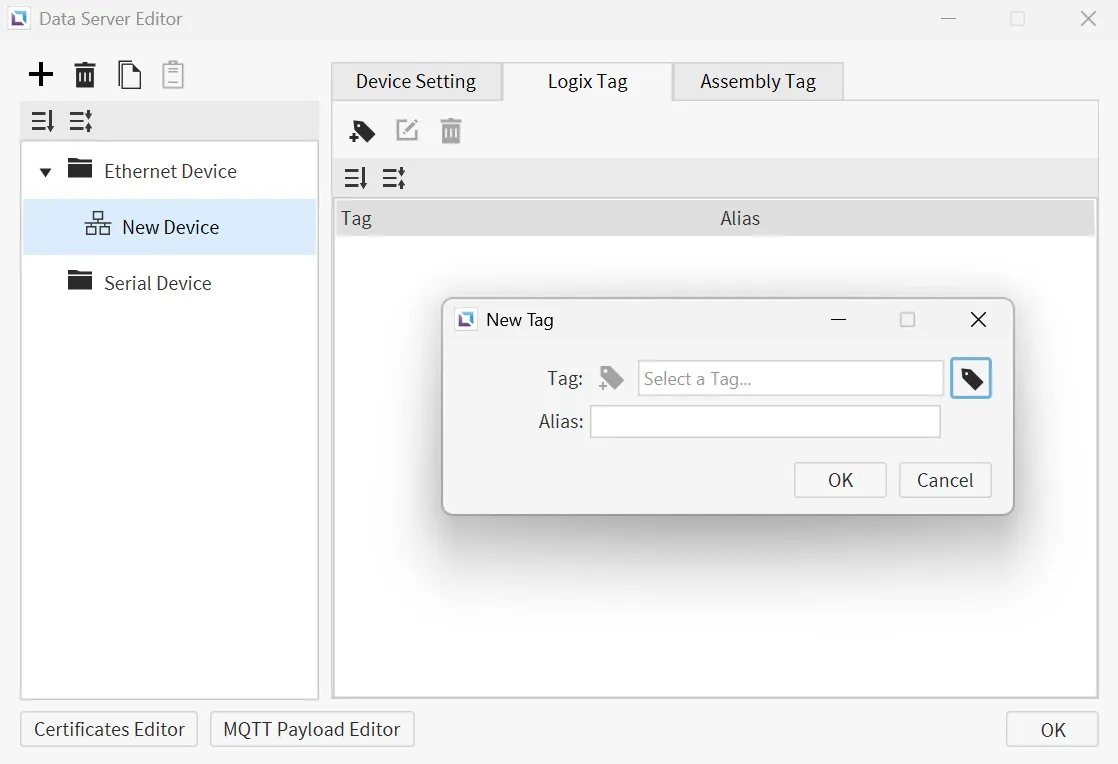
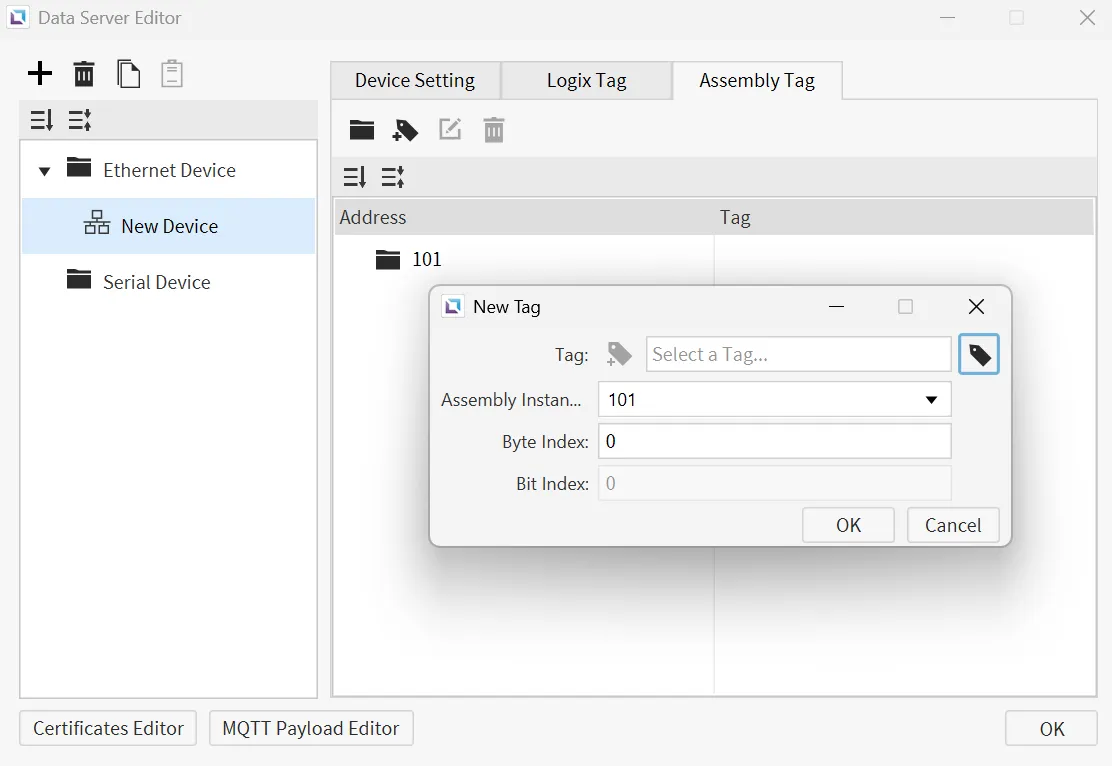
EtherNet/IP Server can be used to connect to a hosted EtherNet/IP Client device. All tags can be included or mentioned explicitly as Logix tags for data transfer. An Assembly Instance may be added with an Assembly Instance Number and Data Size. Then, an assembly tag may be assigned to the Assembly Instance using a Byte Index and Bit Index.
Canvas supports the export of explicit EDS files only.
MQTT JSON Publisher
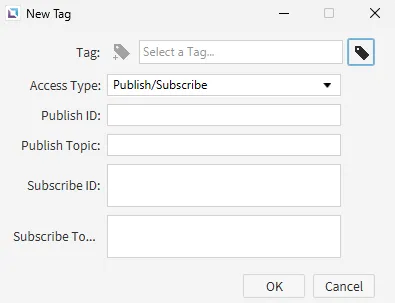
The MQTT JSON Publisher can be used to publish to the user and subscribe to read tag data. Users can set Subscribe Topic and Publish Topic to follow the subscribe/publishing method for MQTT JSON Publisher.
Modbus TCP
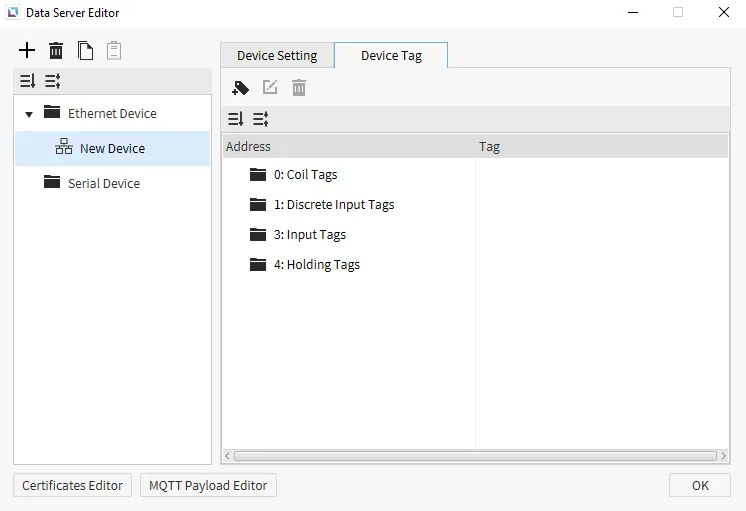
Modbus TCP hosts the following memory areas: 0, 1, 3, and 4. Users must use the Modbus address of the address they wish to target. If, for example, the user wishes to target Y00, the tag must target 000001. Depending on the tag data type, a different range of addresses will also be allocated.
In CIMON PLCs, 0 refers to Y, 1 refers to X, and 3 refers to M, 4 refers to D by default.
OPC UA Server
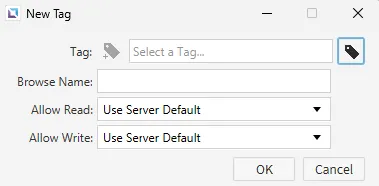
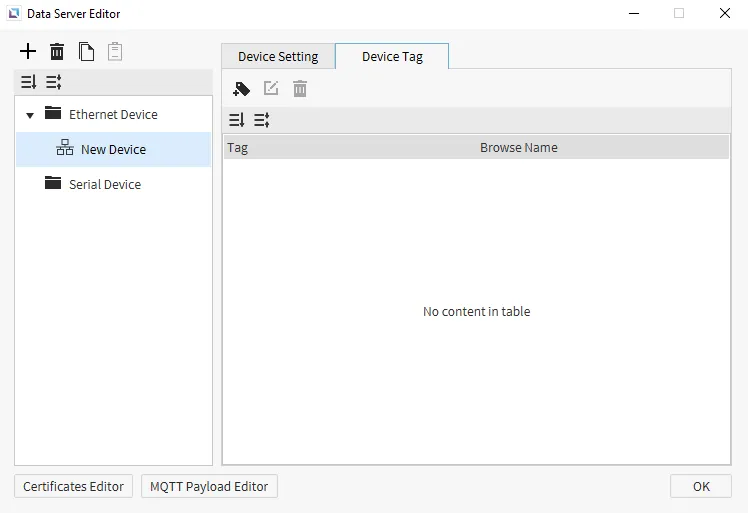
OPC UA Server tags must have a unique Browse Name. Users must set whether the Tag can be Allowed Read and Allowed Write when creating the Device Tag for the OPC UA Server.
The address used by the client will be ns=2;s=<server prefix>.<browse name>. Depending on the settings of the OPC UA Server, if the Server Layout is set to Basic, then the format will be ns=2;s=Tags.browseName, or if it is set to Device, then it will be ns=2;s=Tags.deviceName.browseName.
Sparkplug Edge Node
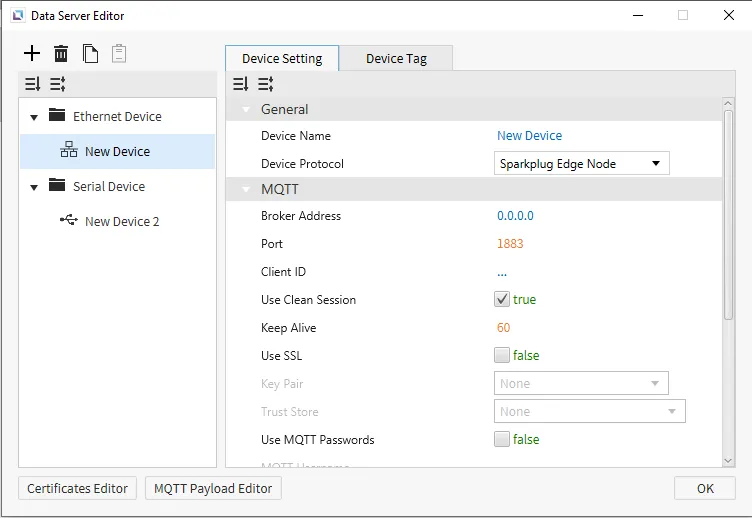
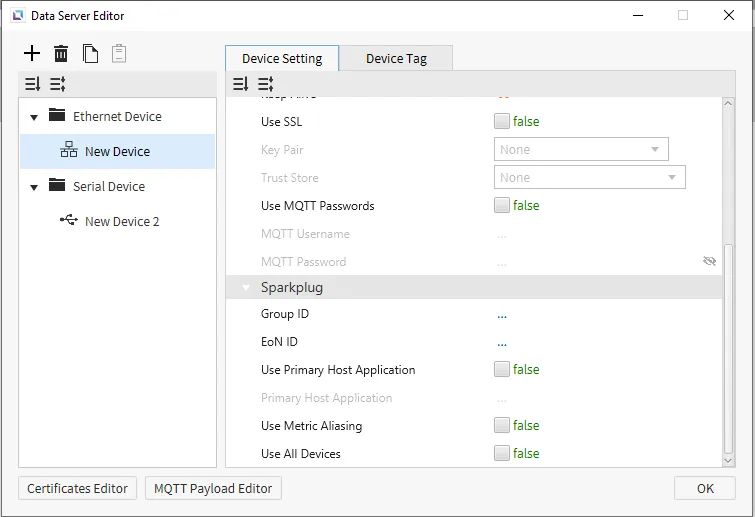
The Sparkplug Edge Node is an MQTT-based protocol that facilitates messages between clients using a publisher/subscriber topic system. Connected clients can subscribe to specific topics, and the broker will only send messages on those subscribed topics. The Group ID and EoN ID act as identifiers included in the topic structure.
Serial Device
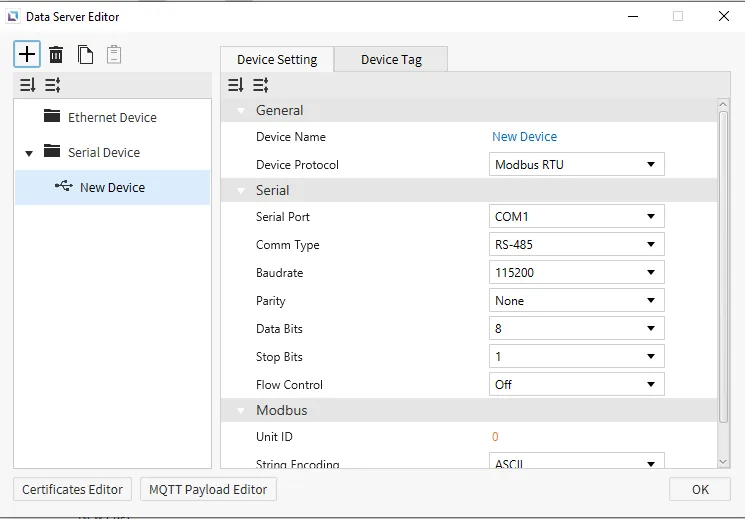
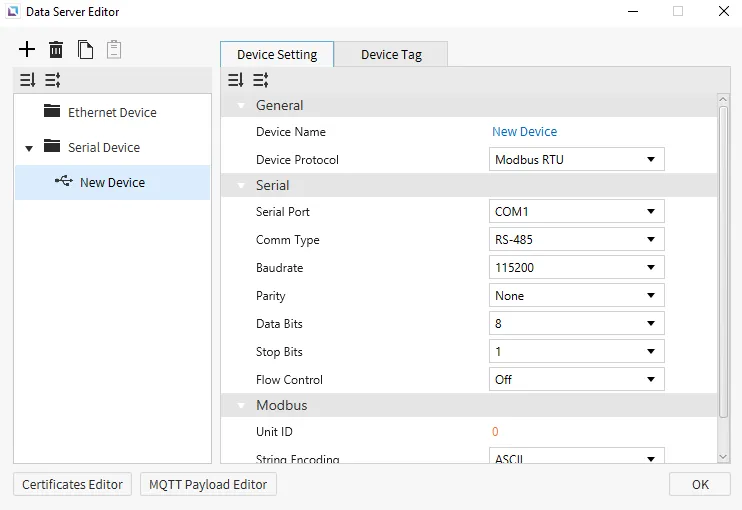
Serial Devices are used when a connection to another device is made via a serial cable. Users will need to input the Serial Port of the device they are connecting to, the Comm Type, and the Baudrate. Users can also select the PLC Type, the String Encoding, and the String Encoding Method. Users will also be able to change the name of the Device and the Protocol of the device as well. For Modbus TCP, users must enter the Unit ID via Modbus to connect successfully and the String Encoding and String Encoding Method. Modbus RTU is currently the only protocol for Serial Devices in the Data Server Editor.
Modbus RTU
Modbus RTU hosts the following memory areas: 0, 1, 3, and 4. Users must use the Modbus address of the address they wish to target. If, for example, the user wishes to target Y00, the tag must target 000001. Depending on the tag data type, a different range of addresses will also be allocated.
In CIMON PLCs, 0 refers to Y, 1 refers to X, and 3 refers to M, 4 refers to D by default.
Device Tag
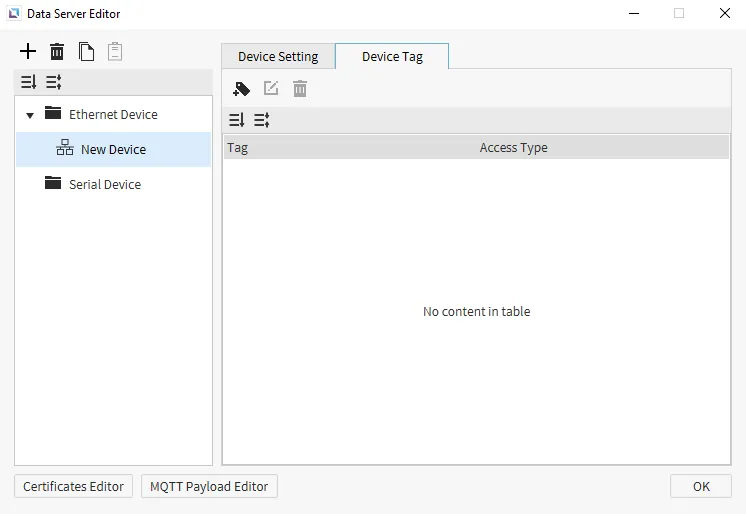
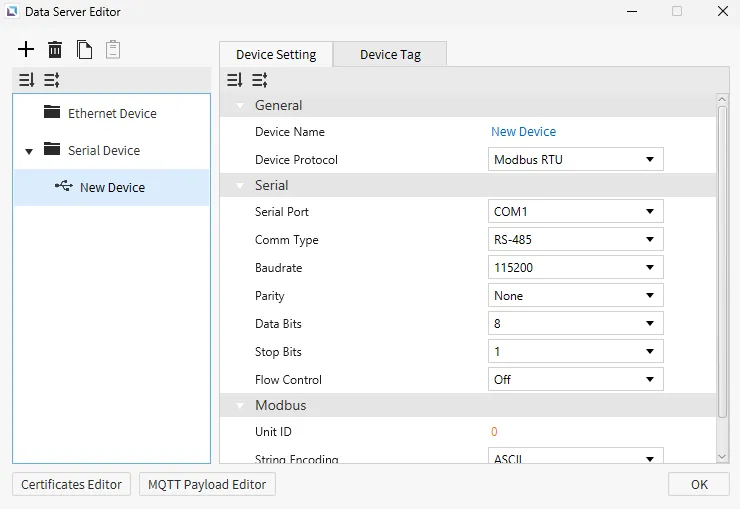
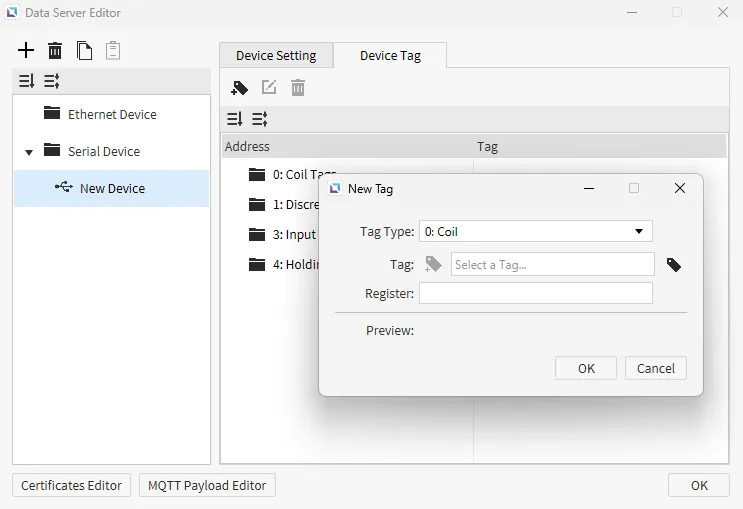
Device tags are used to connect tags with the server. The created server will host any tags listed within the Device Tag tab. Within the tab, addresses and other properties for each tag can be configured. Different protocols will have different configurations for device tags.
MQTT Payload Editor
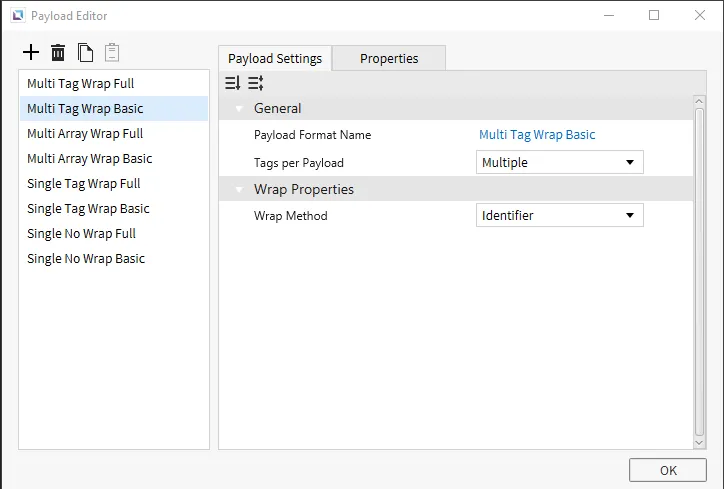
MQTT Payload Editor lets users edit the MQTT message sent to the server. This will allow users to configure how payloads are configured for specific devices to match the required format. Users can configure Multi Tag Wrap Basic and Multi Tag Wrap Full as an example and change how many Tags per Payload and the Wrap Method. These can be configured within the MQTT Payload Editor as needed.
Certificates Editor
The Certificates Editor is used to create and edit certificate files, which can be used to encrypt and authorize any connection to the project. Users can use this feature to add more security and encryption to their projects so that no unauthorized access can happen. Users can use their own Private Key and Certificate for their project.
Key Pairs
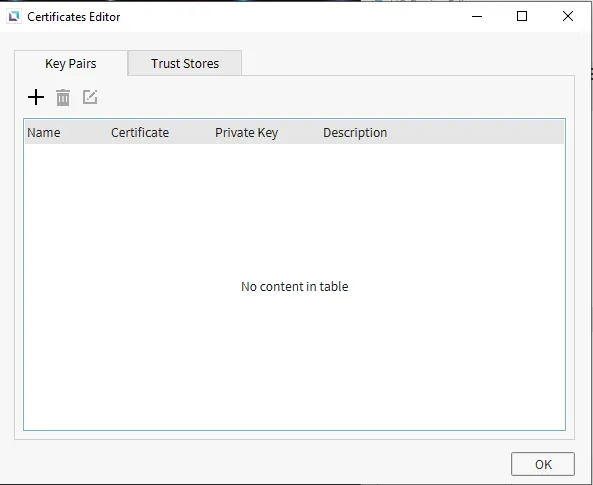
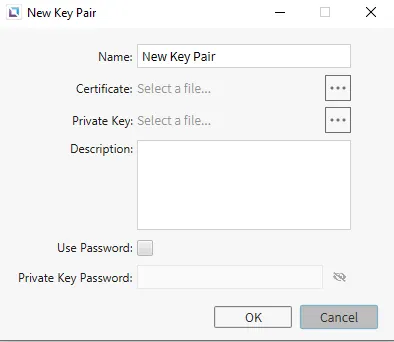
The Key Pairs page is where users can see their current Key Pairs. Clicking the + icon will create a new Key Pair. Users will need to insert a Name, a Certificate, a Private Key, and a Description. Users can also add a Password for the Private Key as an additional layer of security. Users will also be able to Delete and Edit any current Key Pairs they have.
Trust Stores
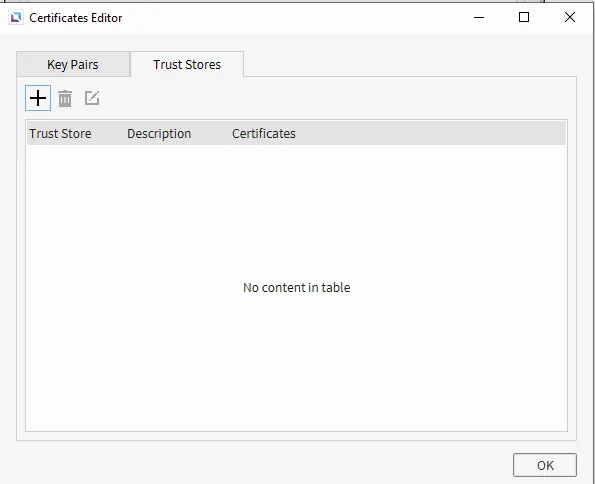
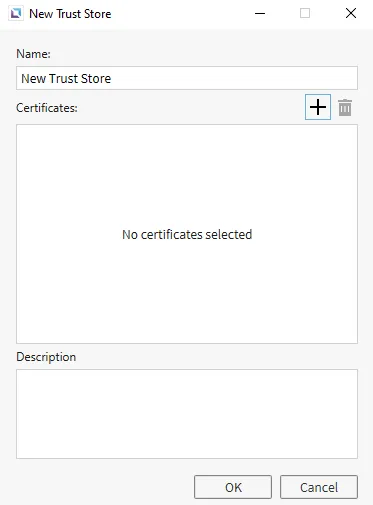
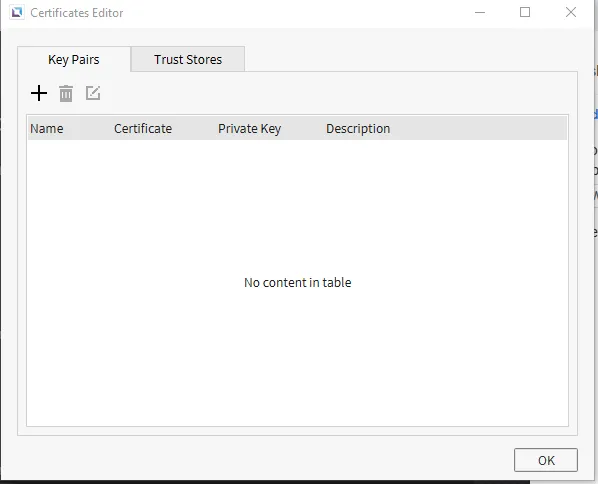
There is also a Trust Stores tab, where users can put all known certificates they use within the project. This is where certificates will be verified by the project to confirm that they are acceptable. Users can click the + icon to create a new Trust Store. This will open the New Trust Store pop-up page. Users will need to add a Name, Certifications, and a Description. Users can Delete and Edit any Trust Stores already created.