String Table Introduction
String Table Feature Description
The String Table Editor is used to support multiple languages within one project. Users can specify which languages they want to have supported in their project. Within it, they can set up translations for specific words for all languages and be able to set up which languages to display via the Command Editor within the project.
String Table Designer Functionalities
The following functionalities can be configured in the Canvas software.
String Table Editor
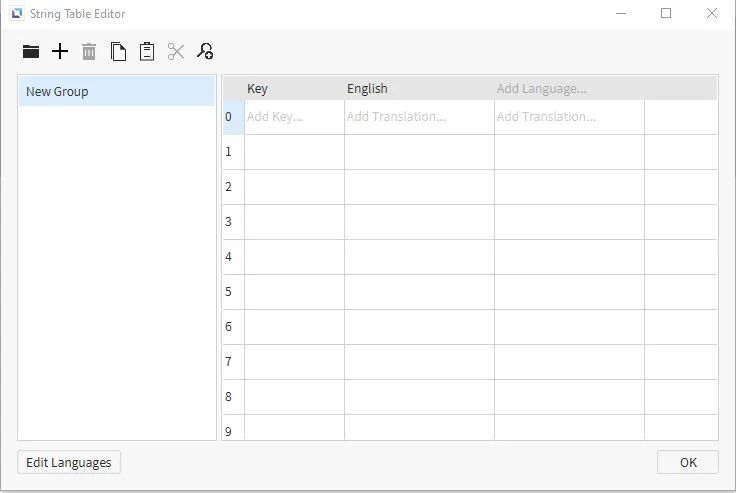
To open the String Table Editor, go to Tools > String Table Editor or select Open String Table Editor on the toolbar. In the String Table Editor, English will appear by default. Users can add new keys and as many languages as needed for the project. Users will be able to create, delete, copy and paste, or cut and paste keys.
Keys
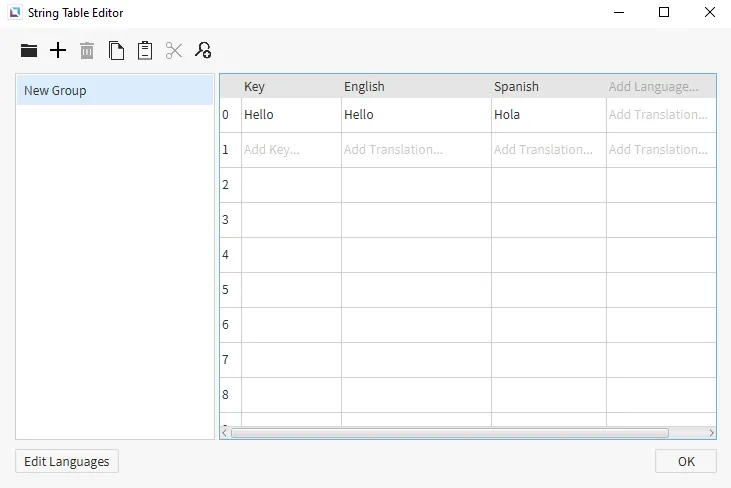
Keys are used as the master for translation. Once a key is set, the user can set translations for what languages it needs to be translated in. Keys must be established for the String Table Editor to translate any words set within it.
Languages
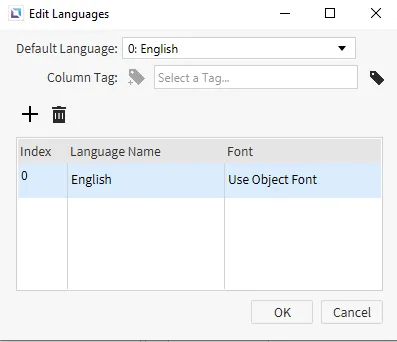
Users can set any language within the String Table Editor. Simply double click on the Edit Languages button and define the language to be added. Up to 20 languages can be added at one time. Users can also select different fonts for each language added. Users will also be able to edit or delete these languages if they are no longer needed within the project.
Multi-Language String
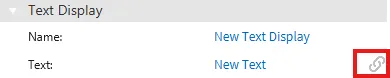
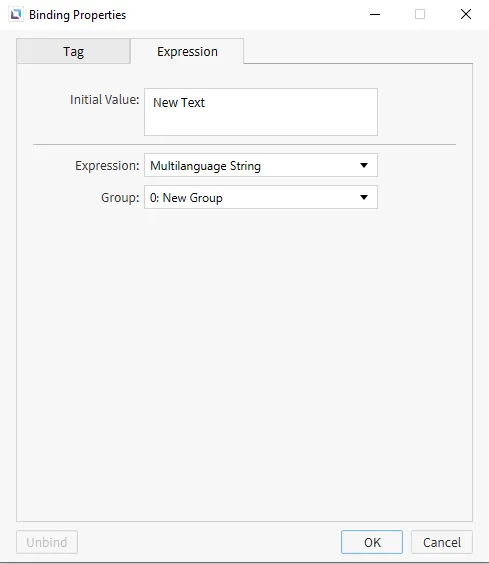
To display translated text from the String Table Editor, users must set the text display to be Multilanguage String. To change the text display to Multilanguage String, select the text display. In the properties pane, hover over Text. Click the chain link icon. Click the Expression tab. Under expression, select Multilanguage String. Text displays that are not set to Multilanguage String will not translate.
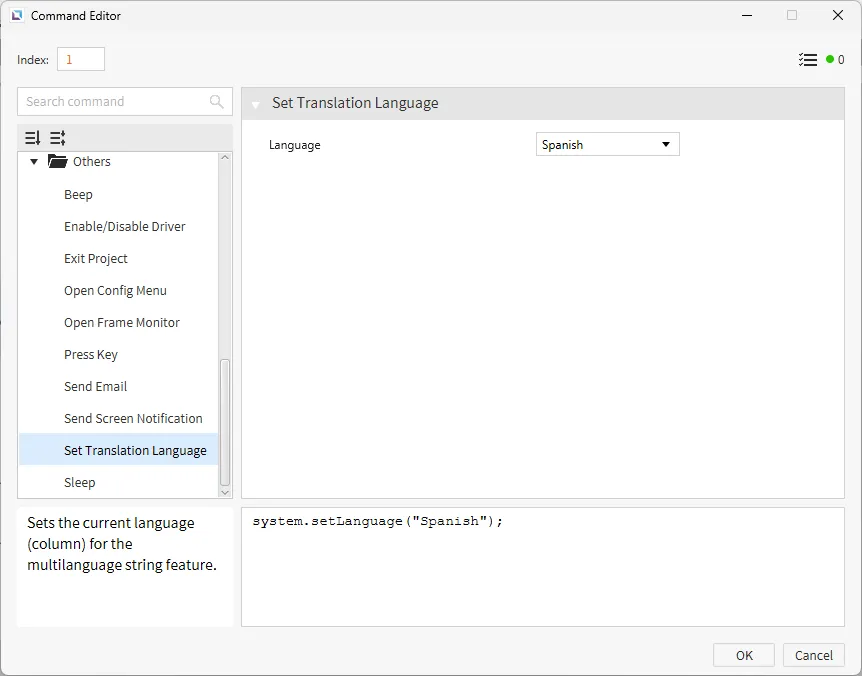
Set Translation Language
Users can use the command Set Translation Language within the Command Editor to change the translation language. Any object that can have an On Press, On Release, or On Double Click Actions property can use this command set.