Entry Object Exercise
Exercise
Exercise: Creating a Keypad to Input Data
Please follow the below exercise to understand Entry Object functionality.
Configuration
The following configuration is used to set up this exercise.
Tag Configuration
- Create the following tags:
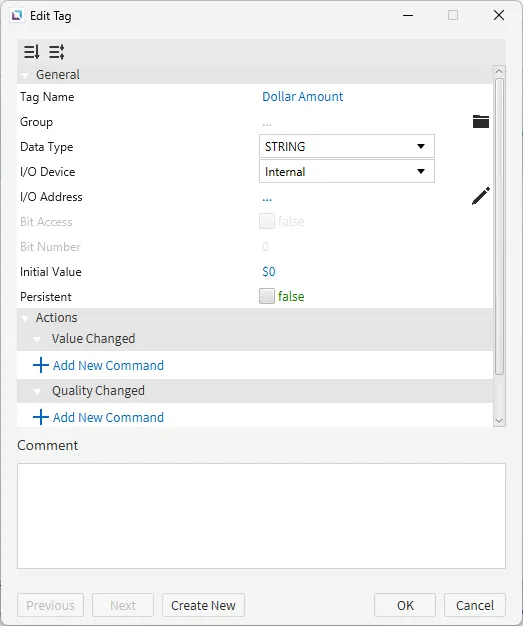
- Dollar Amount
- Data type: String
- Initial value: $0
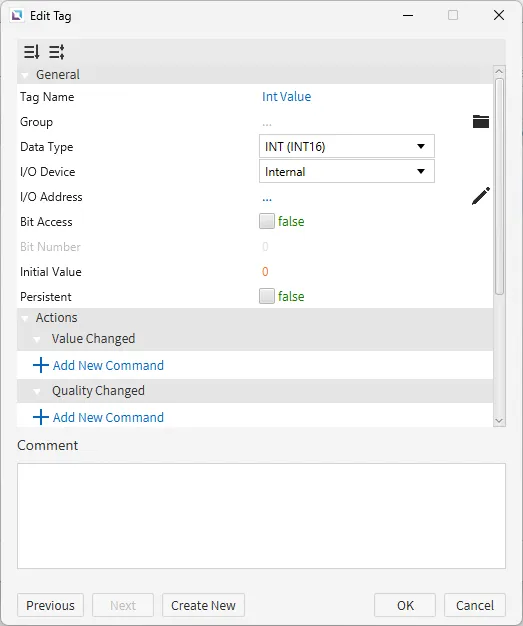
- Int Value
- Data type: INT (INT16)
- Initial value: 0
- Dollar Amount
Project Configuration
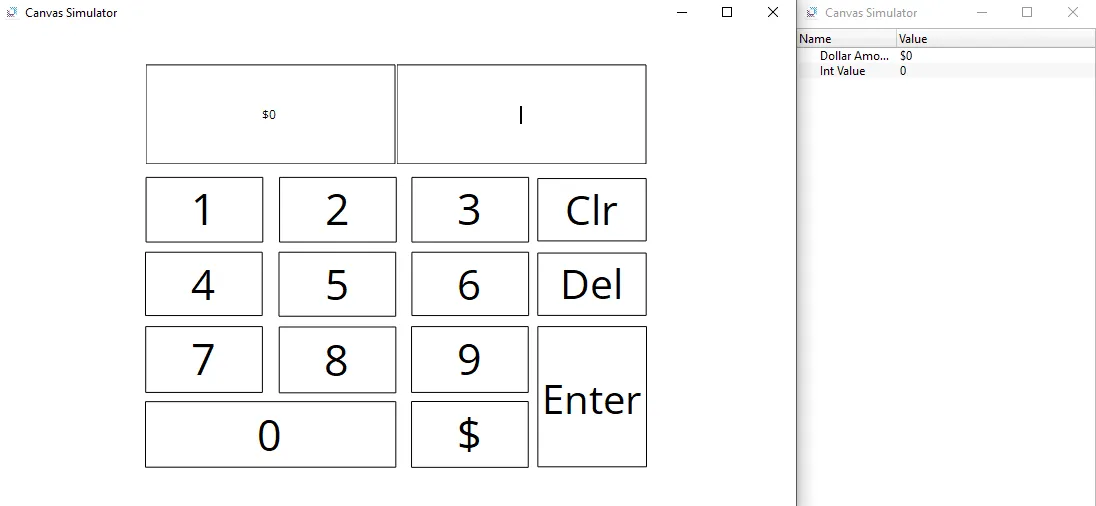
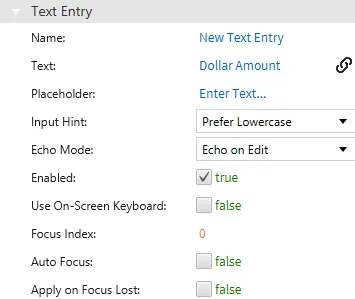
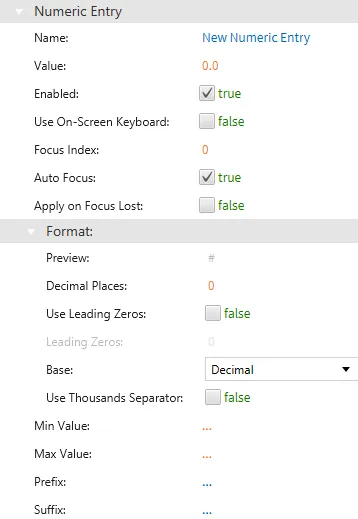
- Create a Text Entry object and a Numeric Entry object. Click Insert > Text Entry or the Insert Text Entry icon in the toolbar. Click and drag on the page to bring up the Text Entry object. Click Insert > Numeric Entry or the Insert Numeric Entry icon in the toolbar. Click and drag on the page to bring up the Numeric Entry object. Bind the "Dollar Amount" tag to the Text Entry object and the "Int Value" tag to the Numeric Entry object. Be sure to disable the on-screen keyboard for both entry objects.
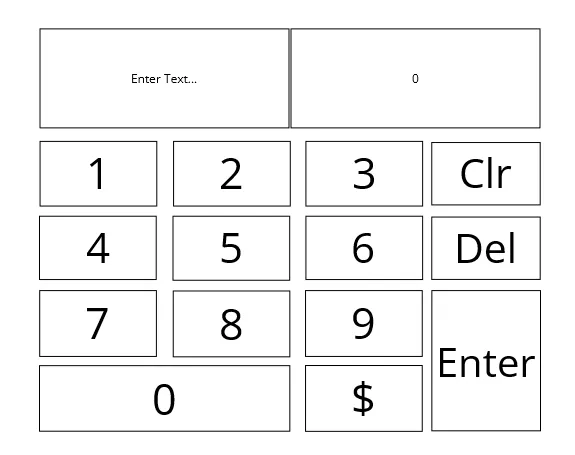
- Create 14 Text Entry objects. Click Insert > Text or the Insert Text icon in the toolbar. Click and drag on the page to bring up the Text Entry object. Set them up in a way to resemble a keypad. The text will be as follows: 1, 2, 3, 4, 5, 6, 7, 8, 9, 0, $, Clr, Del, and Enter.
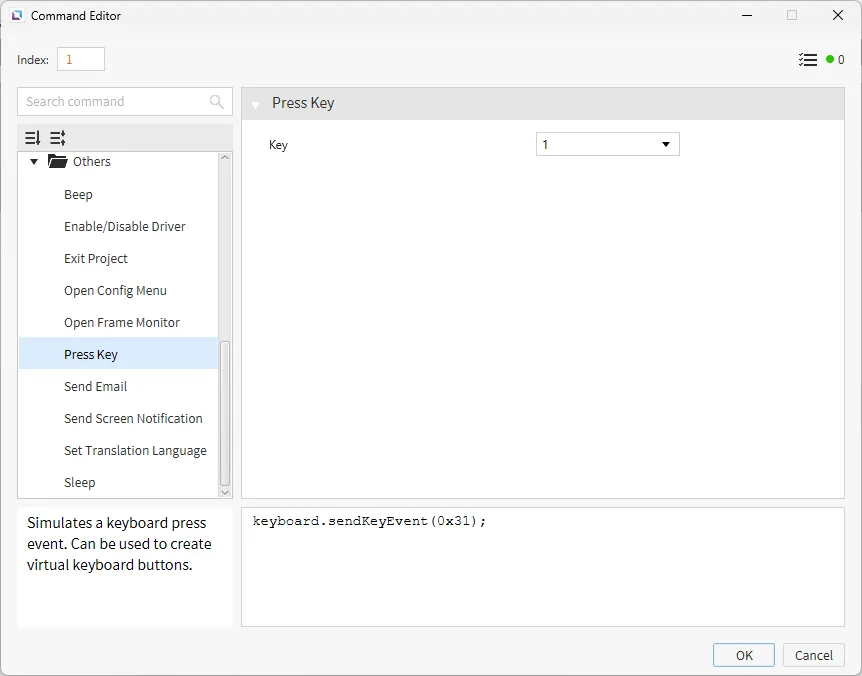
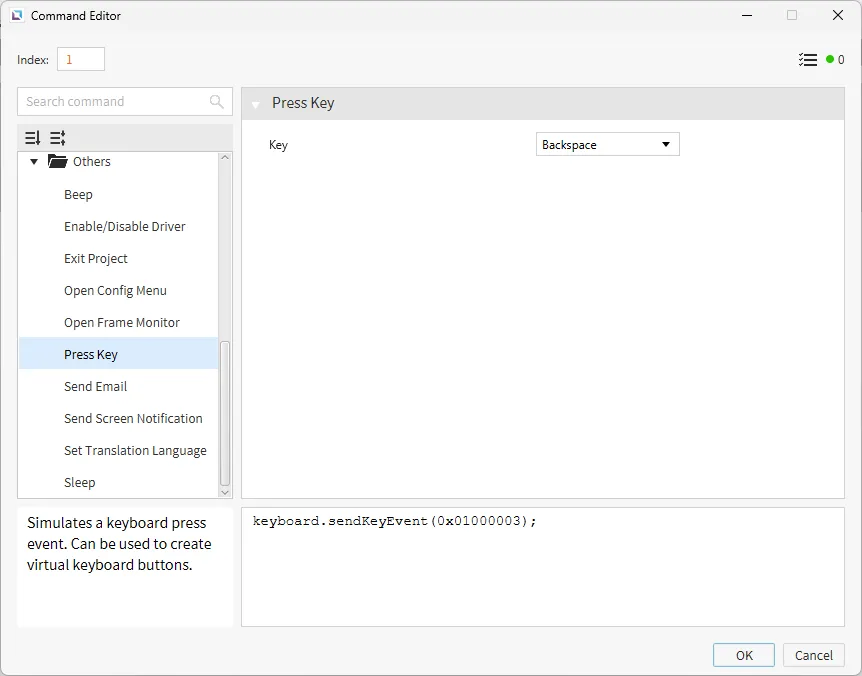
- Select an input key, and go to the Actions property. Set an On Press action for each key. The action will be set to Press Key. The Key will be set to the corresponding number or symbol. An example of what the 1 key will look like is shown below.
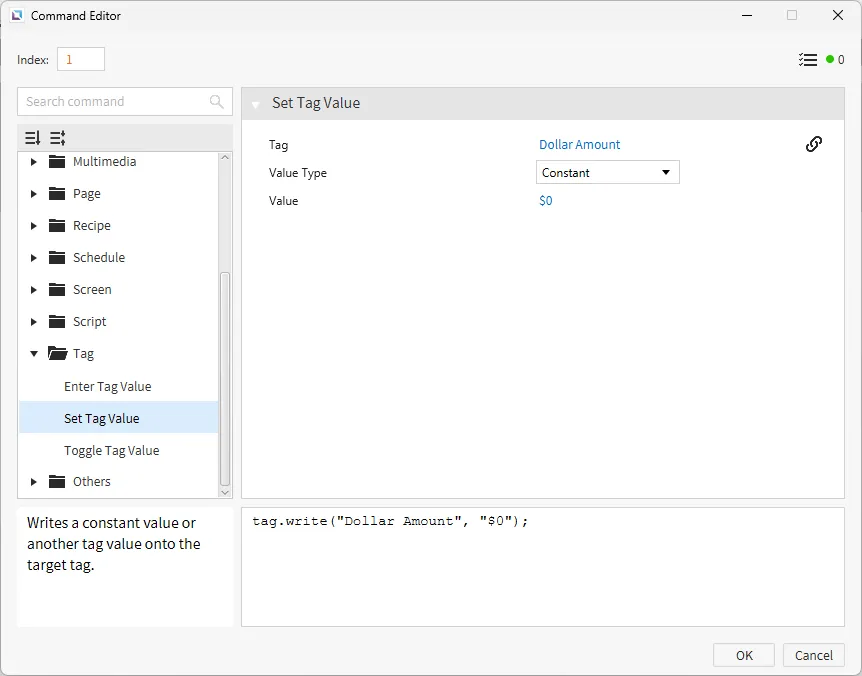
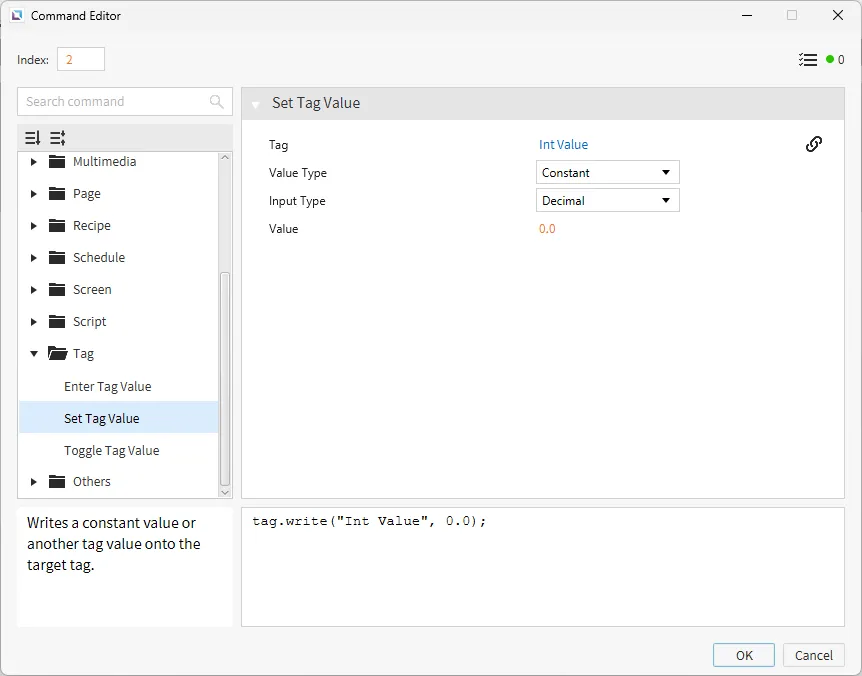
- For Delete, the action will be set to "Backspace". For Clr, the action will be Set Tag Value, for "Dollar Amount" it will reset to $0, and for "Int Value", it will be reset to 0. In the action for Clr, add an action to Press Key that with the key being backspace. Copy this command about 5 - 10 times to ensure the entry is cleared if selected.
Project Deployment
- Click Tools > Launch Simulator to launch the Canvas Simulator.
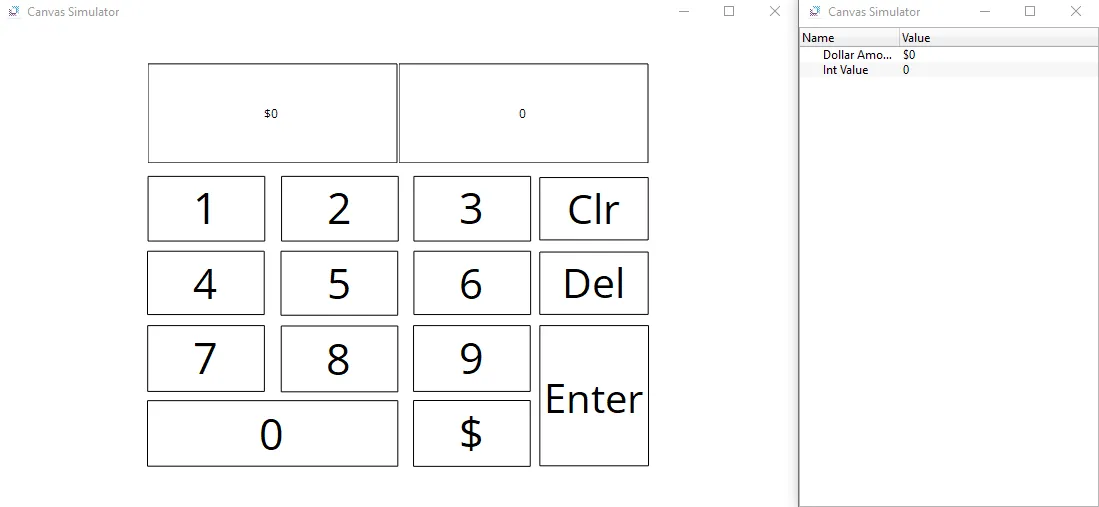
- Select the Text Entry Object and input '$2525'. Hit Enter, and the data will be saved to the tag 'Dollar Amount'. The data will not be retained in the Entry if the user clicks off the Entry before hitting enter.
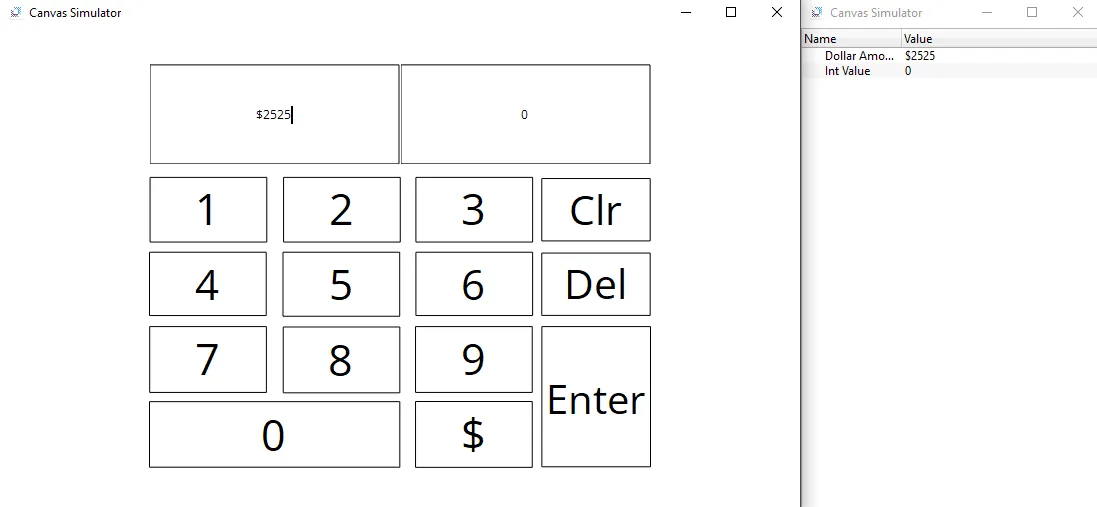
- Select the Numeric Entry Object and try to input a '$' into the Numeric Entry Object. Note how the entry will not accept the '$' character due to it being a Numeric Entry Object. After this, input '2525'. Hit Enter, and the data will be saved to the tag "Int Value".
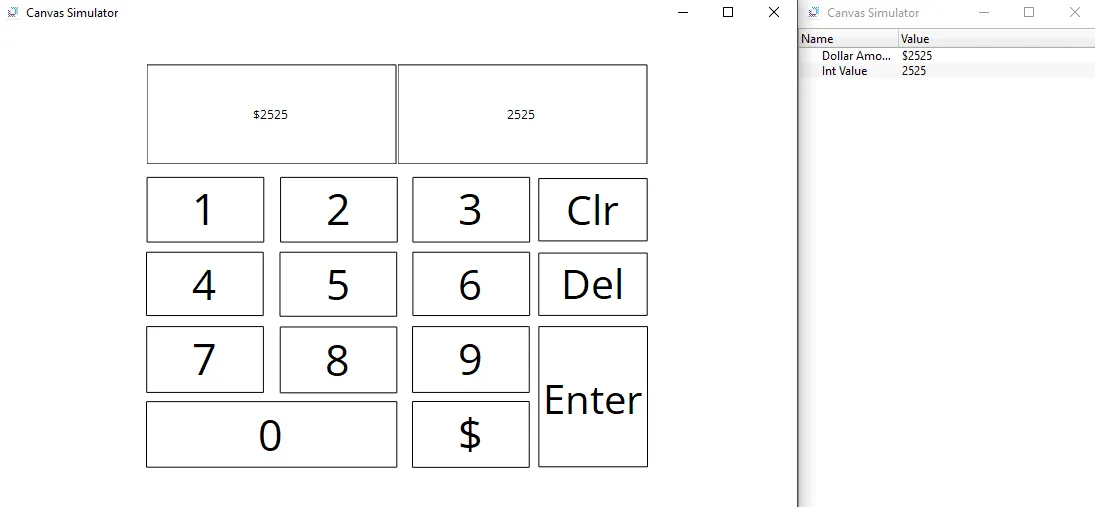
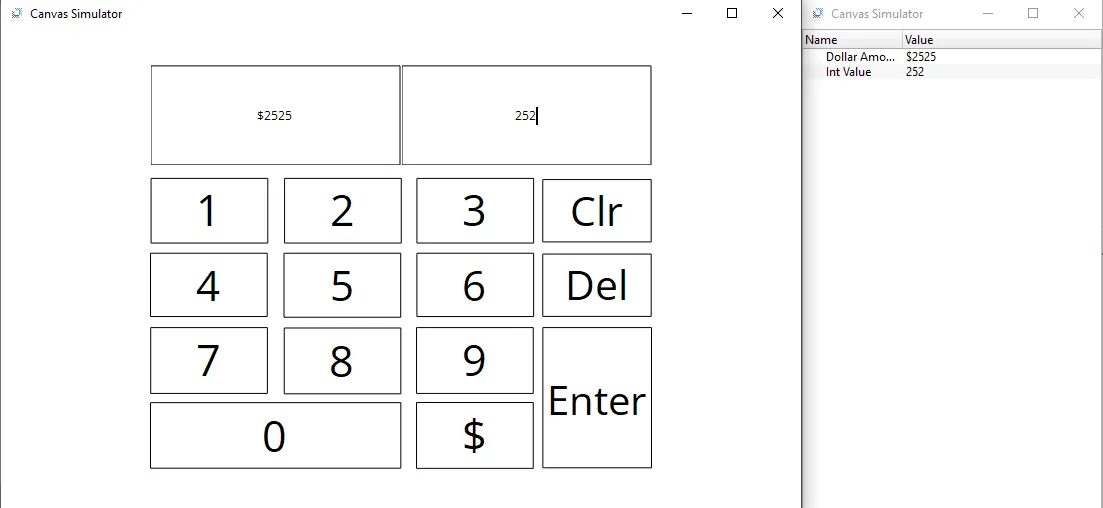
- Click Del to delete the last character in the Numeric Entry Object. Hit enter, and the data will now be saved in the tag as '252'.
- Click Clr to clear the tag data. The values in the entry will reflect this change, and any currently selected entry will be blank.