Script Introduction
Script Feature Description
The Script Editor is an interface for users to create, control, and modify specific portions of the project's workflow. The Script Editor also has debugging support, giving the user an error whenever the script is called to run1. The Script Editor uses JavaScript ES52 for syntax and language, though it has commands unique to Canvas.
Script Designer Functionalities
The following functionalities can be configured in the Canvas software.
Script Editor
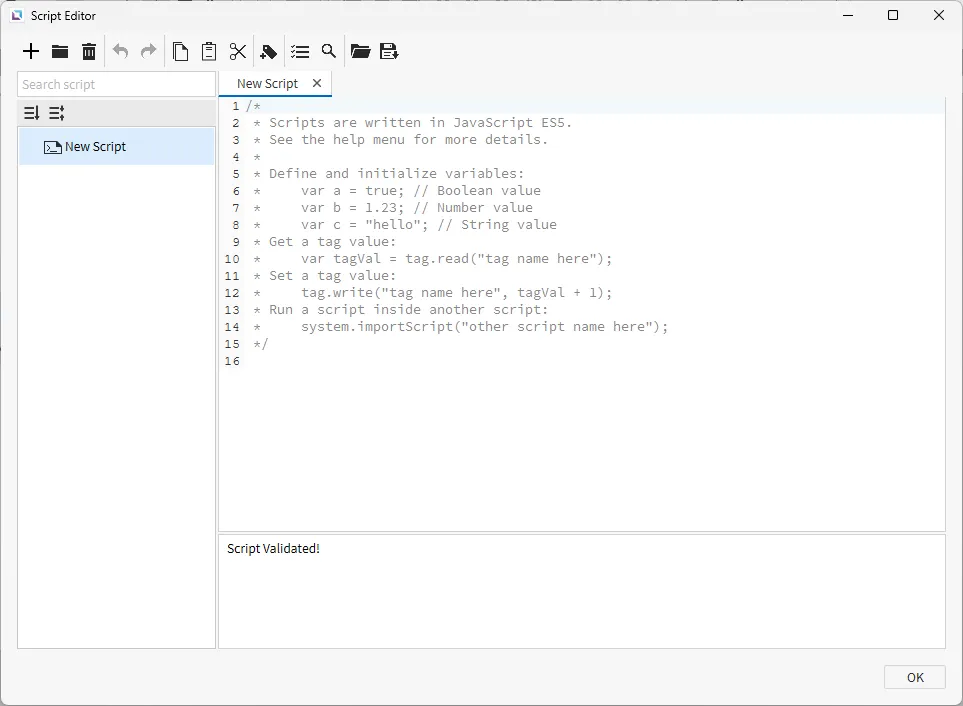
To open the Script Editor, go to Tools > Script Editor, or on the toolbar, click on Open Script Editor. The screen will then show all created scripts and what the content of each one is. Users can edit, delete, add, import, or export scripts within the Script Editor.
Creating Scripts
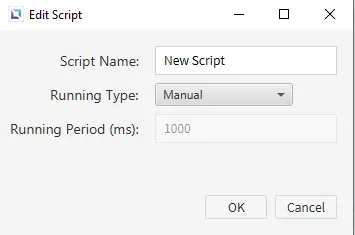
To create a script, click the +, or New Script, icon in the Script Editor. This will open a new window to create a script. Users can provide a name and specify the running type. Script names must unique throughout the project.
There are three different running types:
- Manual: The script will execute only when called.
- Periodic: The script will execute every specified milliseconds.
- This is defined by the running period: 0ms ~ 2,147,483,647ms
- Startup: The script will execute on the startup of the project.
Editing a Script
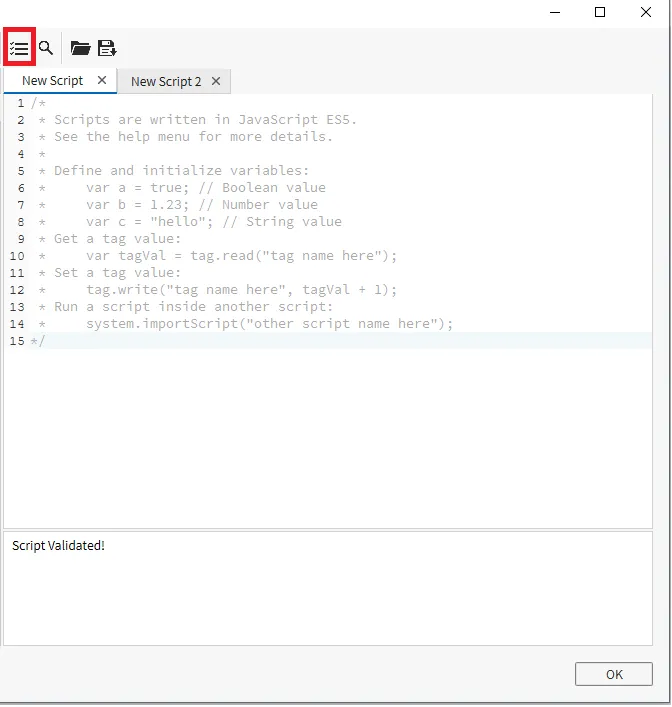
To edit a script, double-left-click on the script. This will open up a panel on the right side of the Script Editor screen. This displays all of the functionality of a script. Users can make changes to the script on this screen. Changes are automatically saved as users make edits.
Users can also compile any script by clicking the Validate Script icon. This will confirm that the syntax is correct and can compile properly.
Find and Replace
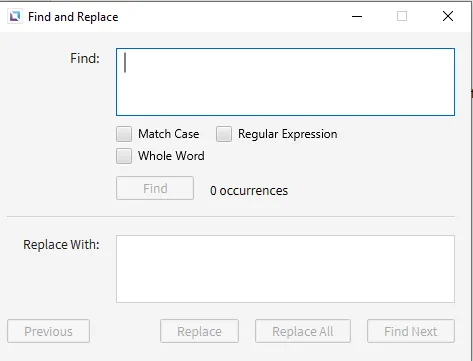
Find and Replace allow users to search for specific parts of the code within the Script Editor. It also allows for mass replacement of specific code if needed.
Users can be more specific in searches by specifying the case, only by searching for the same words, or by using regular expressions in the search.
Command Calling
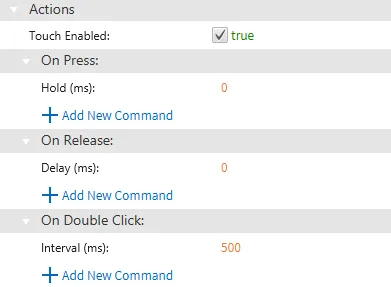
If a Canvas object allows for any of the On Press, On Release, or On Double Click Actions properties, scripts can be executed manually by pressing or releasing that object.
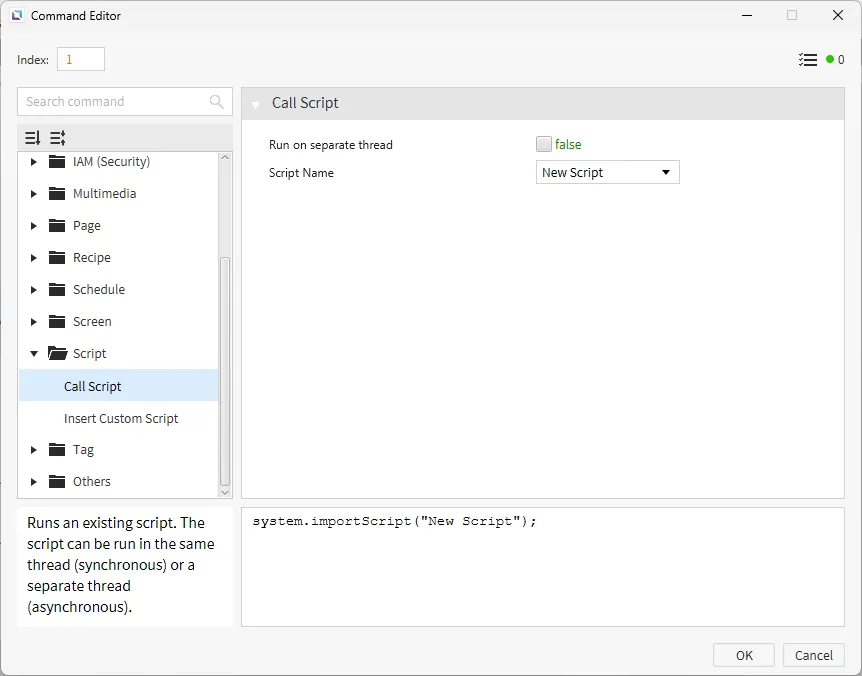
Call Script
The Call Script command allows existing scripts, created in the Script Editor, to be manually executed.
If the Run on separate thread checkbox is enabled, the script will run asynchronously. This means that the script will run separately from the main program thread.
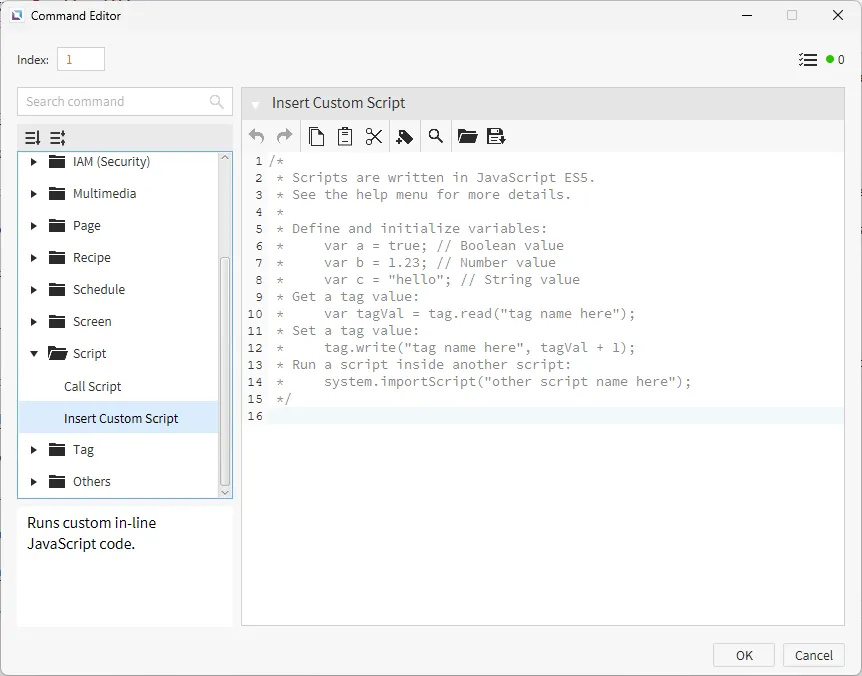
Insert Custom Script
The Insert Custom Script command creates a custom script for the selected object specifically. This means that the script only lives in the object and will not appear in the Script Editor.
Footnotes
-
Canvas can only run 100 scripts concurrently. If any more scripts attempt execution while 100 scripts are running, the script will not execute, and a warning notification will be displayed during runtime. ↩
-
The Script Editor uses JavaScript ES5. Only Features from ES5 or before are available to be used. Please refer to ECMAScript Documentation for complete specifications on the language. Features related to Document Object Model (DOM) are not supported in the Script Editor. ↩