Recipe Introduction
Recipe Feature Description
Recipes are a way to save preset parameters for tag values and can be changed to presets during runtime. Users can create new Recipes with a similar or completely different preset. Recipes make it much easier to change multiple tag values simultaneously. Sending a recipe record will write the recipe parameter values to the specified tags. Receiving a recipe record will save the recipe's current tag values and allow those same values to be called back during runtime.
Recipe Designer Functionalities
The following functionalities can be configured in the Canvas software.
Recipe Editor
The Recipe Editor is where users can create, edit, and delete recipes. Users can also import and export CSV files to bring pre-existing recipes into the project. Users can also edit the parameter bindings, add and delete records within the recipe, and edit the parameter values for each record.
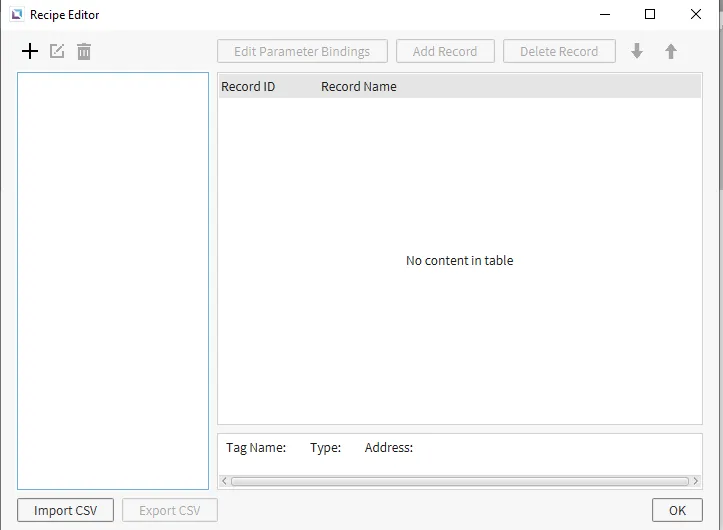
Add / Edit Recipe Database
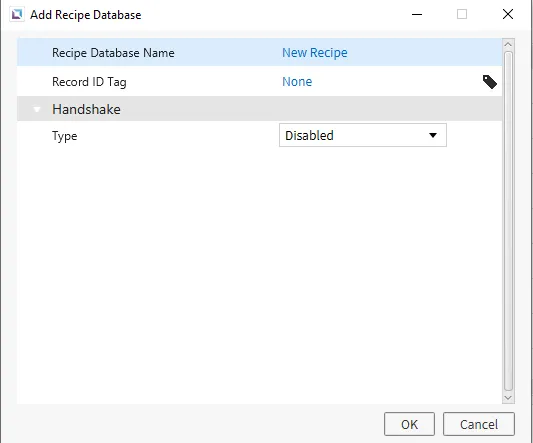
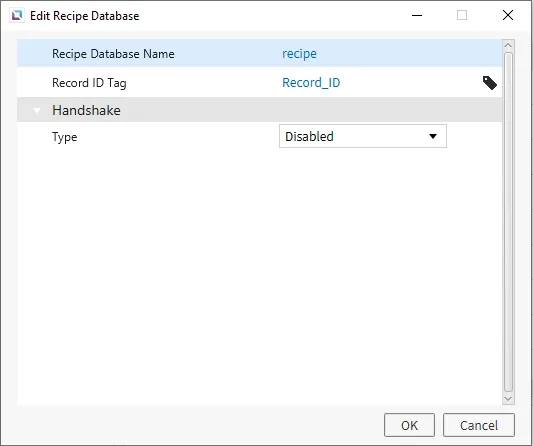
Clicking the + icon on the Recipe Editor, or Edit Recipe, will open a pop-up window to create a new Recipe Database. Here, users can set the recipe's name and the tag to which the record ID will be stored. The record ID allows users to navigate different records within the recipe easily. Users also have the option to enable handshake.
Handshake is used to verify the communication status while recipe data is being transferred. This option is off by default. If enabled, the handshake tag will be set to lock while recipe data is transmitting. Generally, you should avoid using tags bound to recipe parameters until the handshake tag returns to the unlock value.
Parameter Bindings
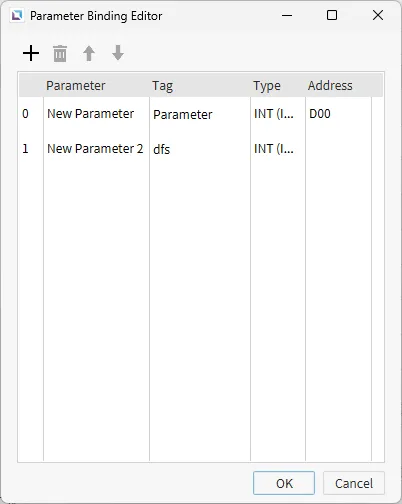
Parameter bindings bind a tag to each specific parameter. This allows users to specify which tags will be updated when a recipe is received. Users can create, delete, edit and set tags for each parameter. The order of parameters can also be changed.
Recipe Runtime Functionalities
Receive and Send
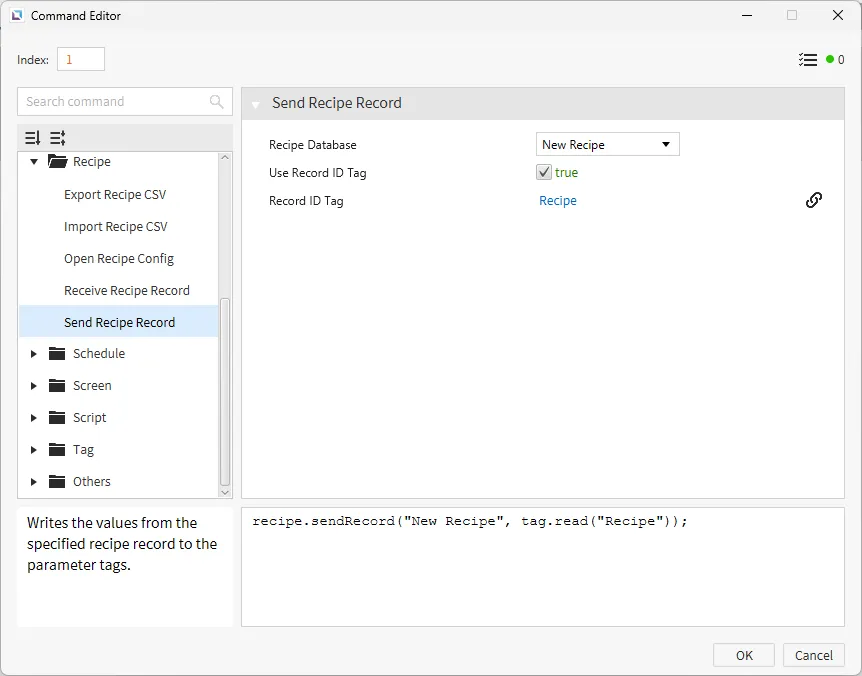
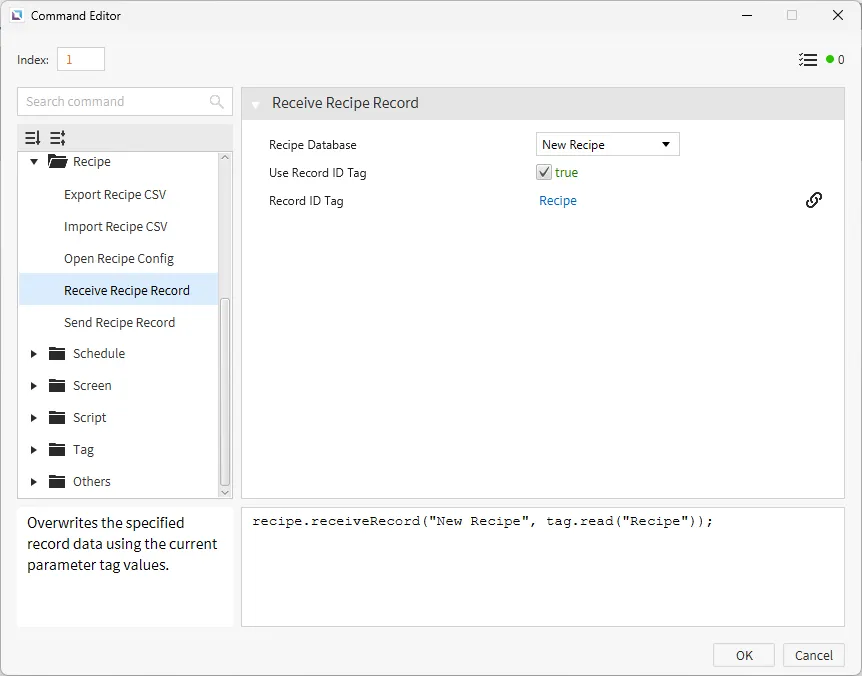
Recipes can receive and send data to tags with commands. Recipes have action commands that allow users to interact with the recipe list during runtime. Sending a recipe record will set the tag values to whatever values are saved within that record. Receiving a recipe record will store the current tag values within the recipe, which can be sent again later within the runtime.
CSV Generation
The user can export past alarm data to a CSV on to a USB, SD card, project memory, local memory1, or via File Transfer Protocol (FTP) for record keeping., Project memory, or to local memory* on Linux Xpanel.
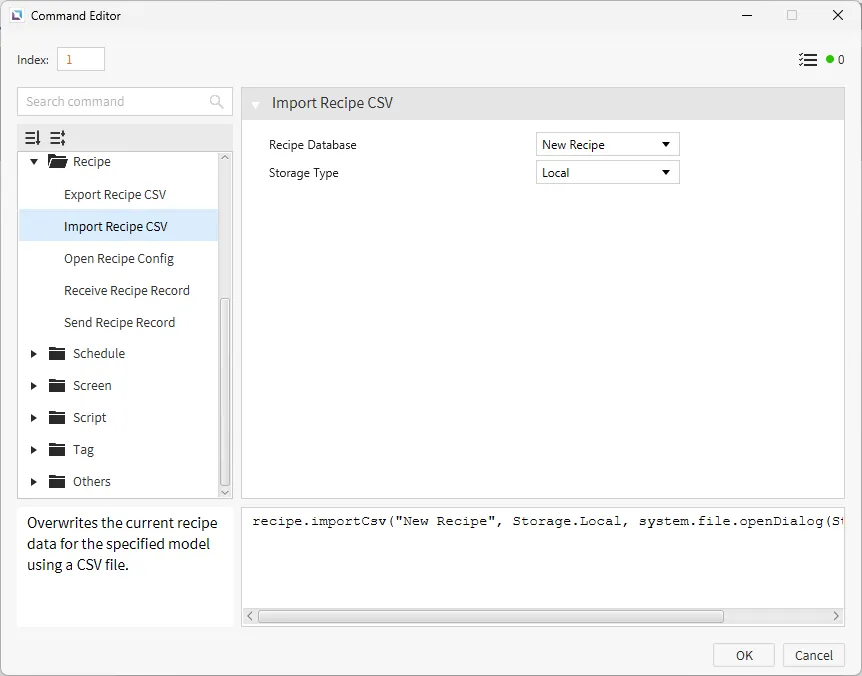
A CSV file can be imported in two ways: creating a command set to Import Recipe CSV or creating a script that calls the following function: recipe.importCsv(String recipe, Storage type, String path). The user can specify the recipe database, storage location, and a path to the CSV.
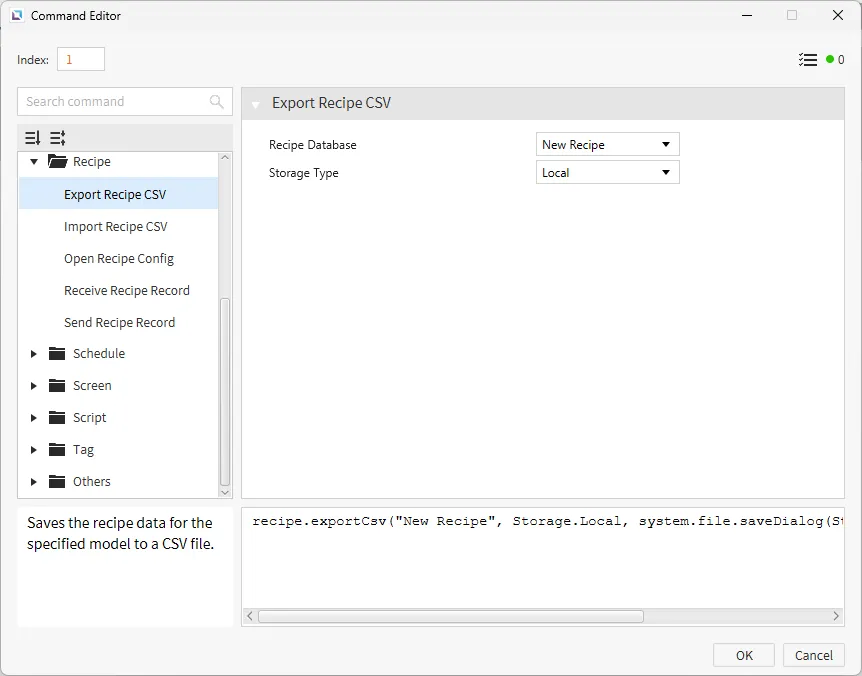
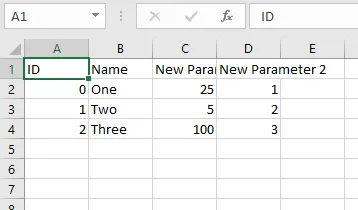
A CSV file can be created in two ways: a command set to Export Recipe CSV or a script that calls the following function: recipe.exportCsv(String recipe, Storage type, String path). The user can specify the recipe database, storage location, and path to the CSV.
An example of what the CSV file would look like after generation is shown below:
Footnotes
-
Disclaimer: CIMON recommends exclusively using a USB or SD card for storage types. Any CSV creation to local or FTP storage will be restricted if the available storage is less than 1 GB. ↩