Update Device
Check Xpanel Version
To check the Xpanel version, exit the runtime, and select About Xpanel.
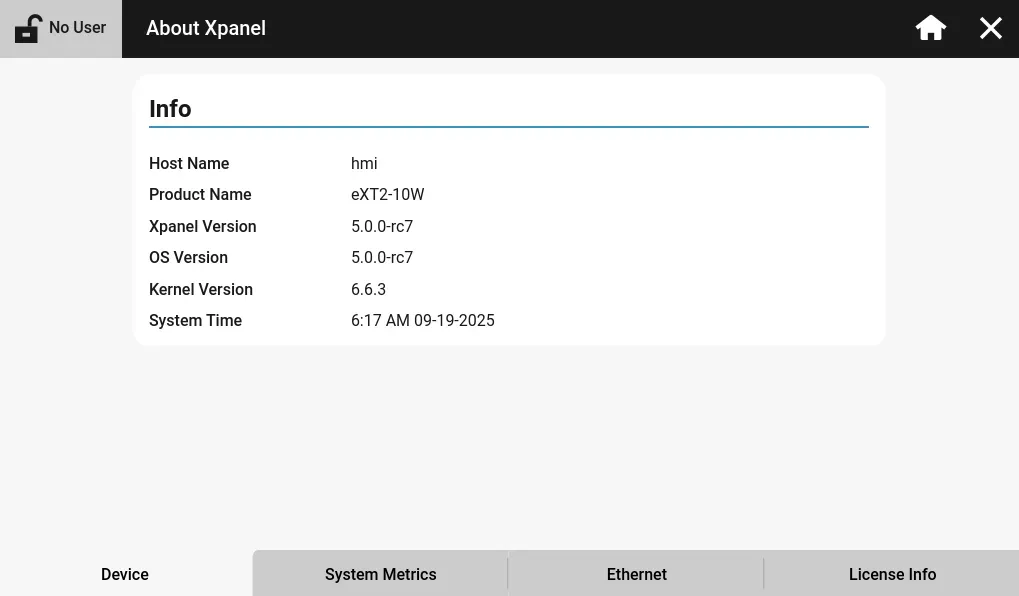
This page shows the version of the Xpanel and the operating system.
Note: the version of the Canvas software and Xpanel must match the minor version.
Example: you can have the Xpanel version on 4.2.2 and use the Canvas software on version 4.2.0 to edit projects.
Xpanel version 5.0.0 with Canvas software on version 4.2.0 is NOT valid.
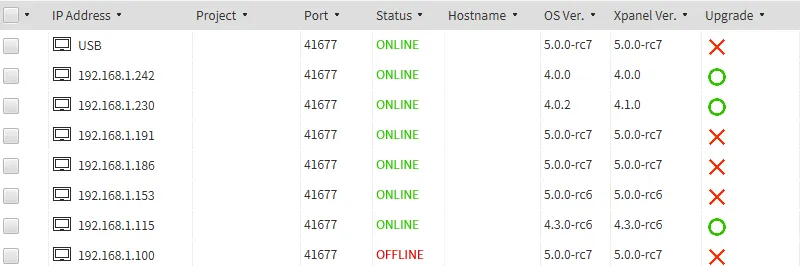
Another option is to connect the Xpanel to the computer. In the Canvas software, go to Tools > Connection Setup. This updated window shows which Xpanel devices can be updated.
Software Update
As of Canvas 5.0.0, users can upgrade their Xpanel devices directly through Canvas. However, the Xpanel must be version 5.0.0 or higher. If the Xpanel version is less than 5.0.0 (4.4.0 or lower), please refer to the File Update section.
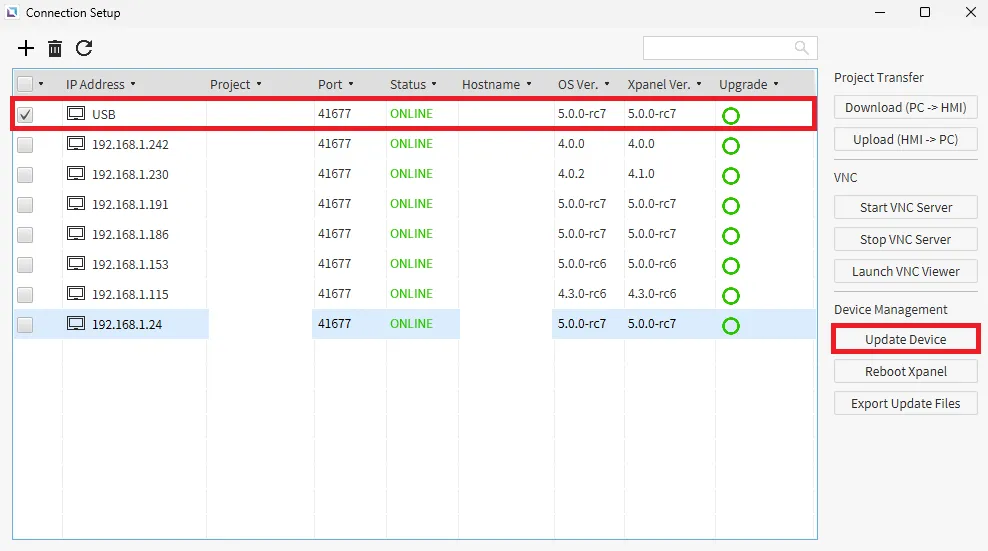
To update the Xpanel in Canvas, go to Tools > Connection Setup. Select the Xpanel from the list and click Upgrade Device.
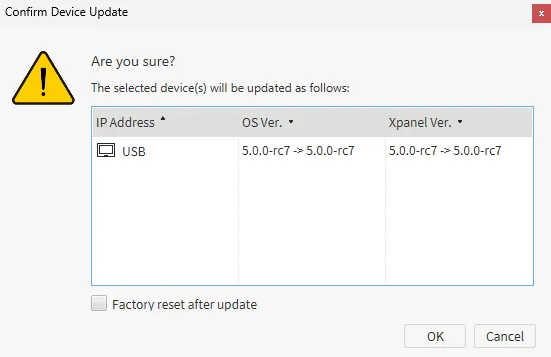
The Confirm Device Update window will show the update changes in the operating system and Canvas viewer. Click OK to proceed with the upgrade.
Users can also factory reset the Xpanel after the update if they choose.
File Update
As of Canvas 5.0.0, users can receive SWU and BIN files directly from the Canvas software. SWU files are required when updating between major versions.
Example: 4.4.0 → 5.0.0
Application updates are required when updating between patch and minor versions.
Example: 5.0.0 → 5.1.3
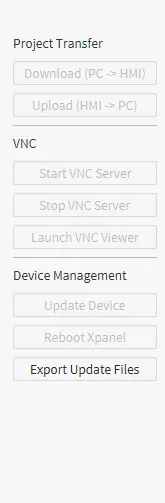
To export the files, in the Canvas software, go to Tools > Connection Setup and click Export Update Files.
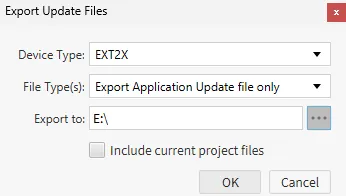
Select the device series, type of files, and the location to save the files to. The files should be saved to a USB drive (formatted in exFAT or FAT32) or an SD card.
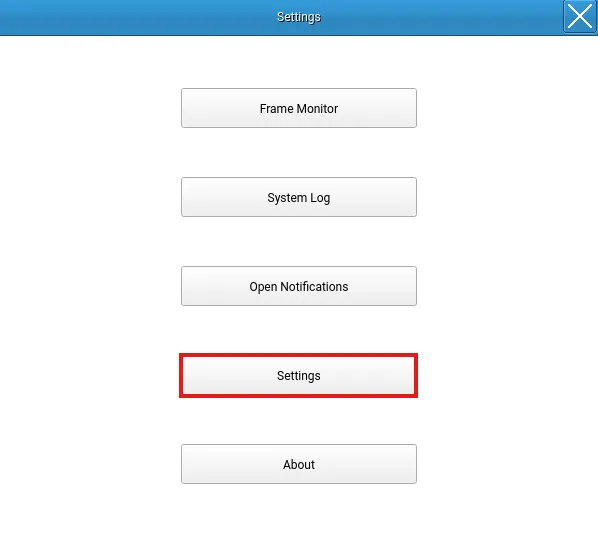
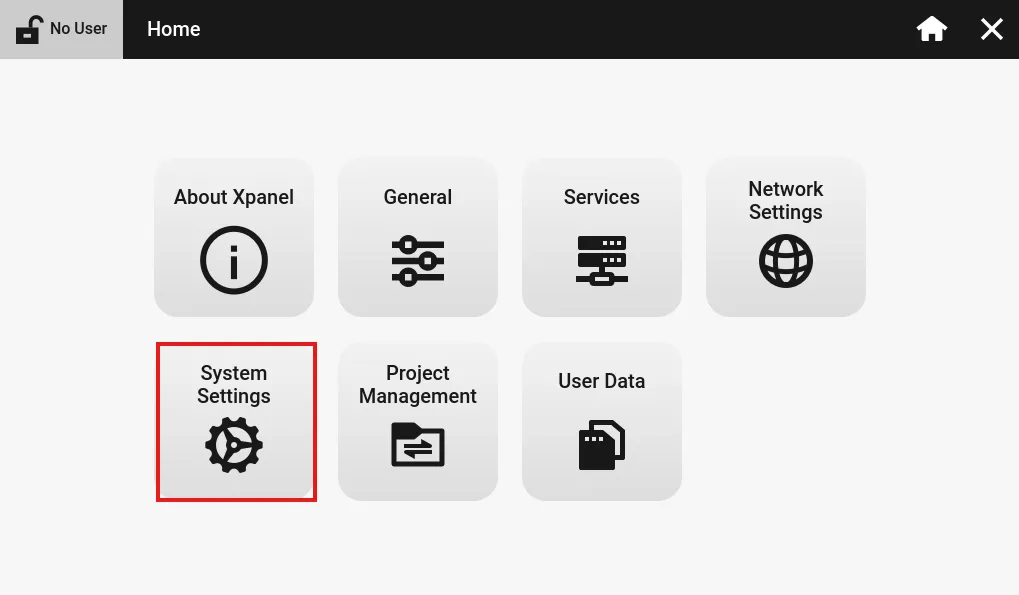
On the Xpanel, exit the runtime and select Settings.
In the settings menu, select System Settings.
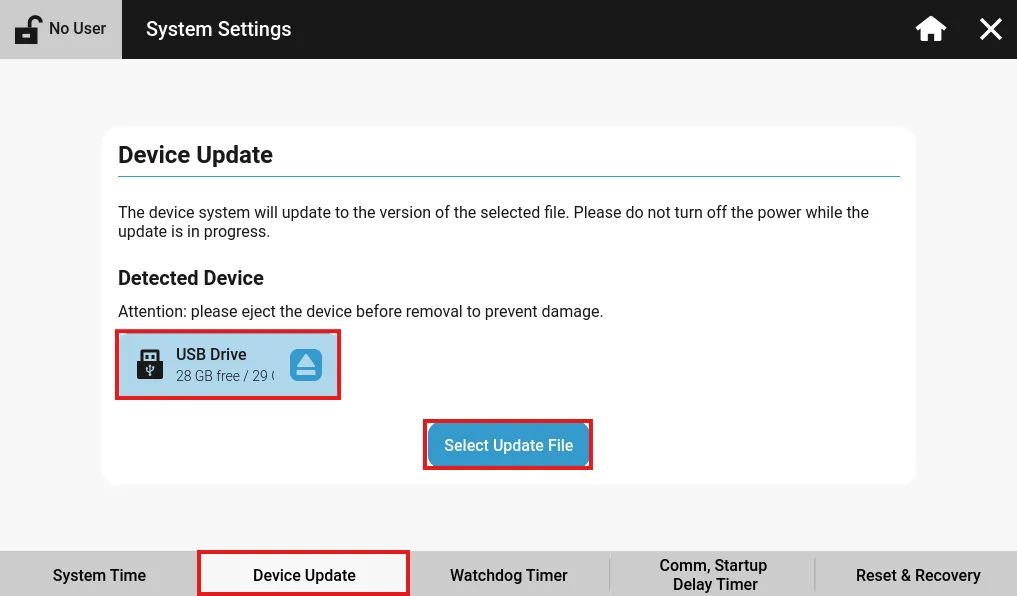
Navigate to the Device Update tab. With the USB or SD card inserted into the Xpanel, click the detected device and select Select Update File.
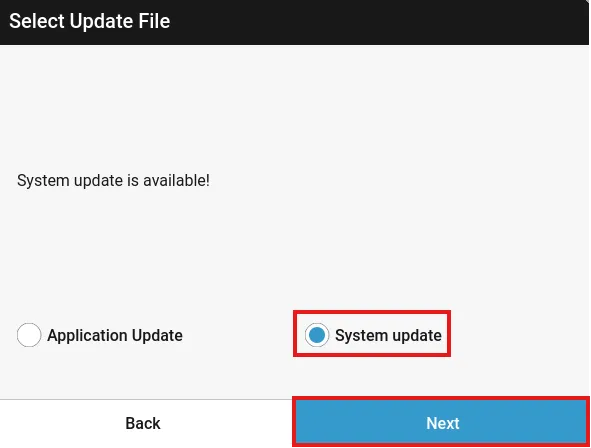
System Update
To upgrade between major versions, i.e., 4.4.0 → 5.0.0, select System Update and select Next.
Exporting the Checksum file will help verify if the SWU file is safe to update.
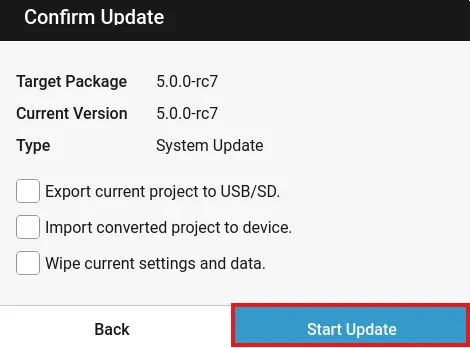
Three options can be selected before updating:
- Export current project to USB/SD
- This will upload the current Xpanel project to the inserted storage device before upgrading.
- Import converted project to device
- This will take the existing project version, i.e., 4.4.0, upgrade it to the new version, and export it on the same storage device as the SWU file.
- Wipe current settings and data
- This will reset all saved settings and data
Press Start Update to begin the system update.
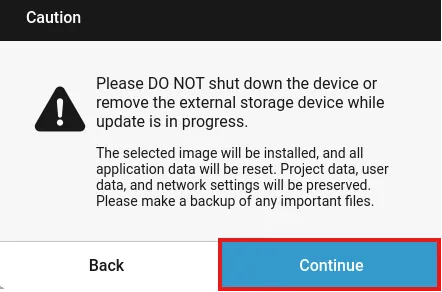
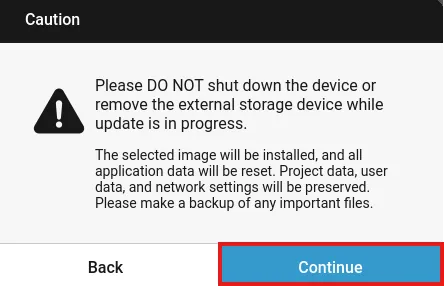
Acknowledge the caution message before continuing with the system update. After clicking Continue, the Xpanel will begin updating.
Application Update
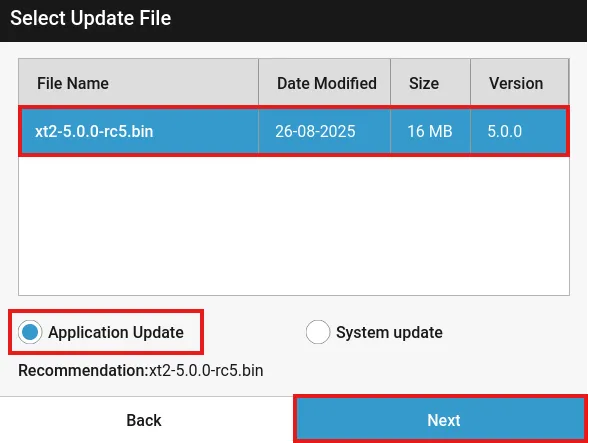
To upgrade between patch and minor version, i.e., 5.0.0 → 5.1.3, select Application Update, choose the BIN file to update with, and select Next.
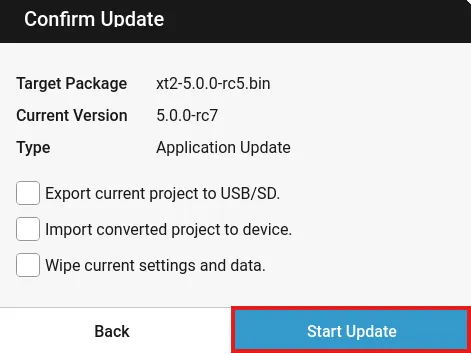
Three options can be selected before updating:
- Export current project to USB/SD
- This will upload the current Xpanel project to the inserted storage device before upgrading.
- Import converted project to device
- This will take the existing project version, i.e., 5.0.0, upgrade it to the new version, and export it on the same storage device as the SWU file.
- Wipe current settings and data
- This will reset all saved settings and data
Press Start Update to begin the system update.
Acknowledge the caution message before continuing with the system update. After clicing Continue, the Xpanel will begin updating.