Combobox Exercise
Exercise
Exercise: Creating a Point-of-Sale Menu
Please follow the below exercise to understand ComboBox functionality.
Configuration
The following configuration is used to set up this exercise.
Tag Configuration
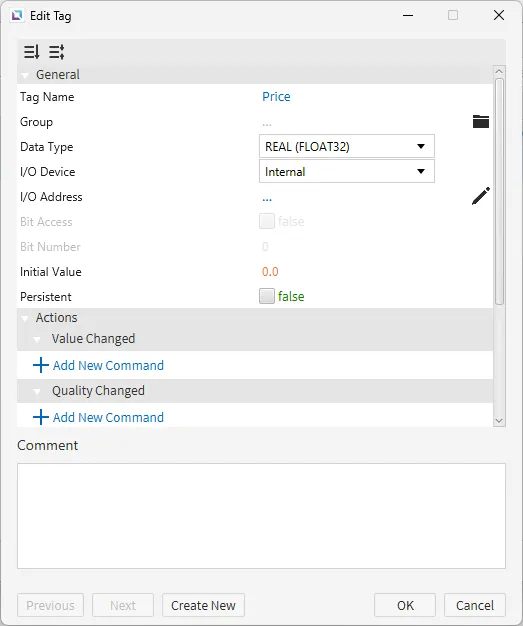
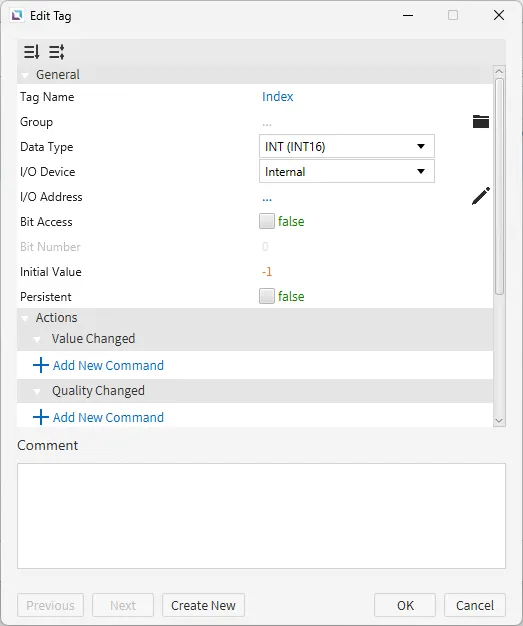
- Create the following tags:
- Price
- Data type: Real (FLOAT32)
- Initial value: 0.0
- Index
- Data type: INT (INT16)
- Initial value: -1
- Price
Recipe Configuration
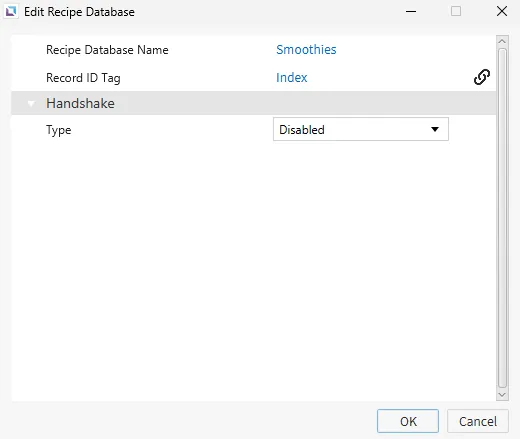
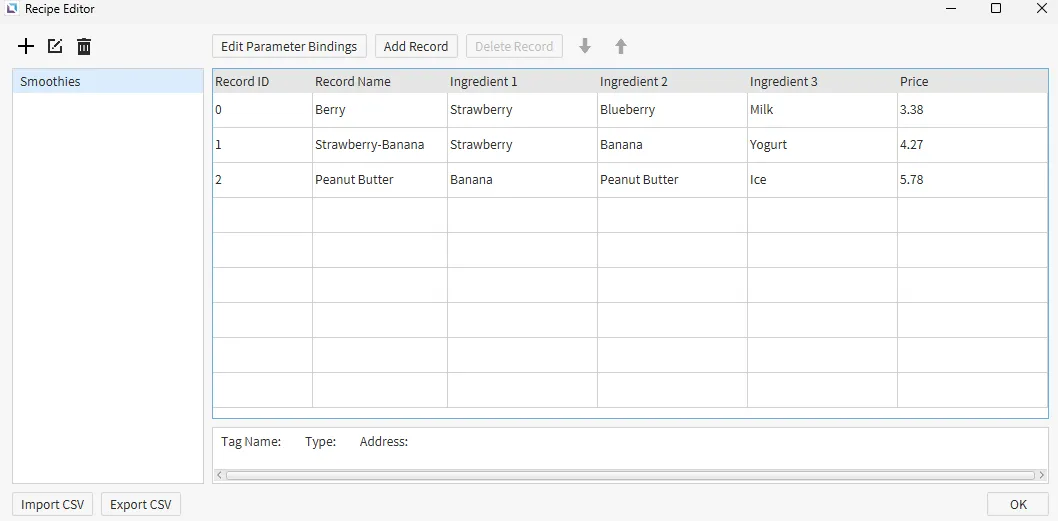
- Create the following recipe database:
- Smoothies
- Record ID Tag: Index
- Parameter bindings: Ingredient 1, Ingredient 2, Ingredient 3, Price
- Smoothies
Create three different records with three different ingredients and prices for each one.
Bind a tag to each parameter to prevent an error warning. The tags don't have to be used.
Script Configuration
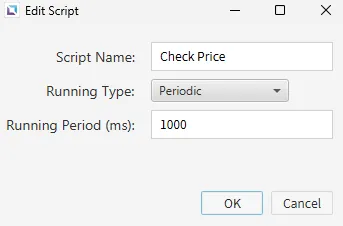
- Create the following script:
- Check Price
- Running type: Periodic
- Check Price
if (tag.read("Index") != -1) {
	tag.write("Price", recipe.getParameter("Smoothies", tag.read("Index"), 3));
}
This script checks if the Index tag is NOT -1 and writes the corresponding price from the record ID to the Price tag.
Project Configuration
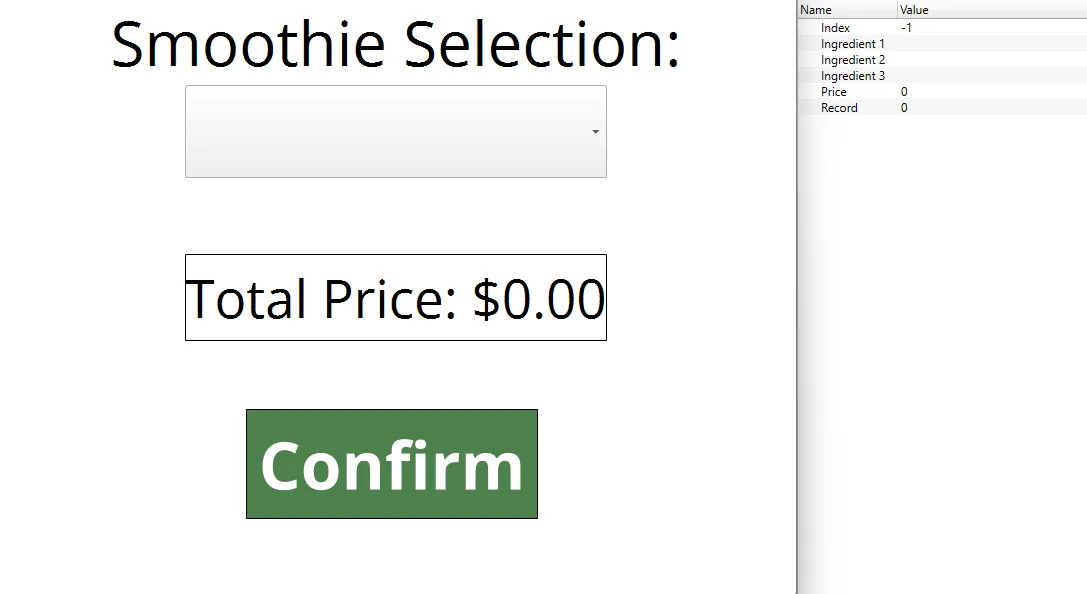
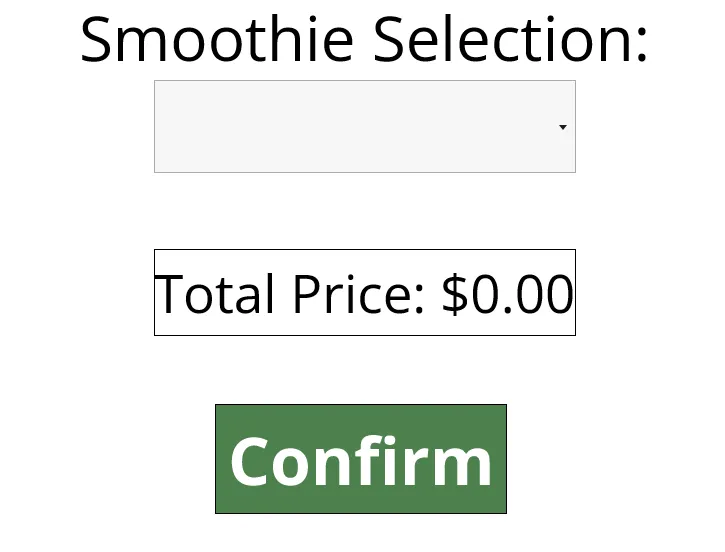
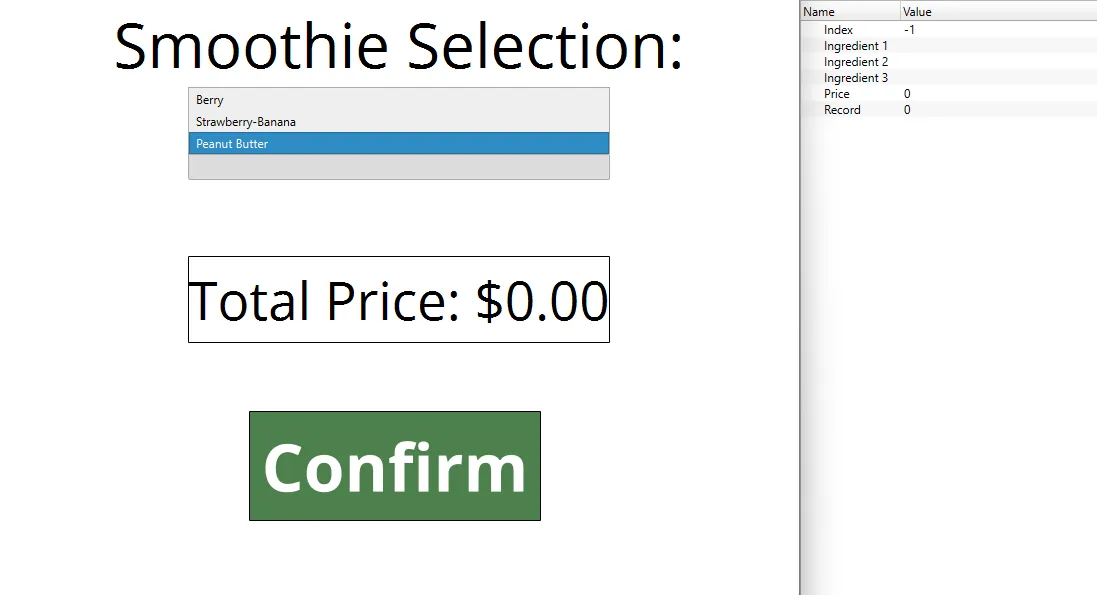
- Set up the project to look like the below image. The project utilizes the combobox object, numeric display object, and a few text display objects.
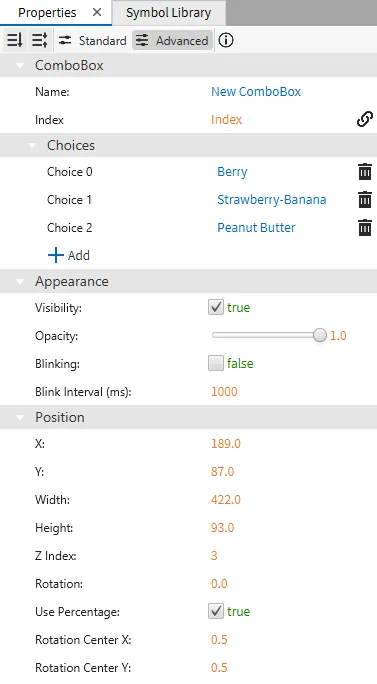
- For the combobox object, bind the Index tag to the index property. Add three choices: Berry, Strawberry-Banana, and Peanut Butter. These correspond to the record names in the recipe.
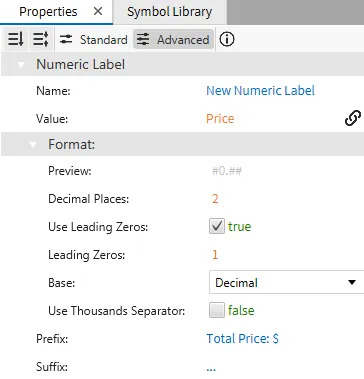
- For the numeric display object, bind the Price tag to the value property. In the format section, set the decimal places to 2, enable use leading zeros, and set leading zeros to 1. Set the prefix property to "Total Price: $".
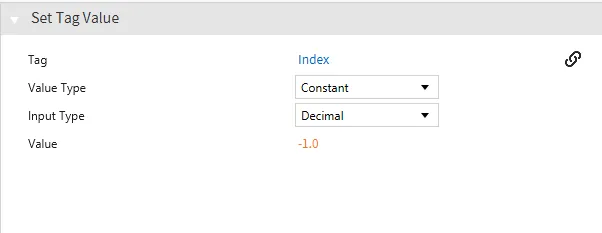
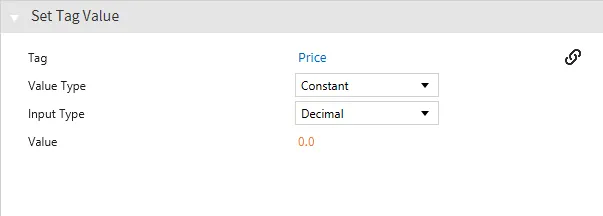
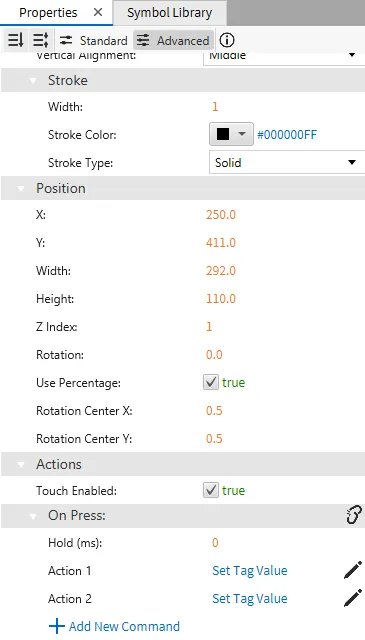
- For the text display object that displays "Confirm", add two On Press action properties: Set Tag Value for the Index tag to -1.0 and Set Tag Value for the Price tag to 0.0.
Project Deployment
-
Click Tools > Launch Simulator to launch the Canvas Simulator.
-
In the combobox, select an item. The price will correspond to the Price tag from the recipe.


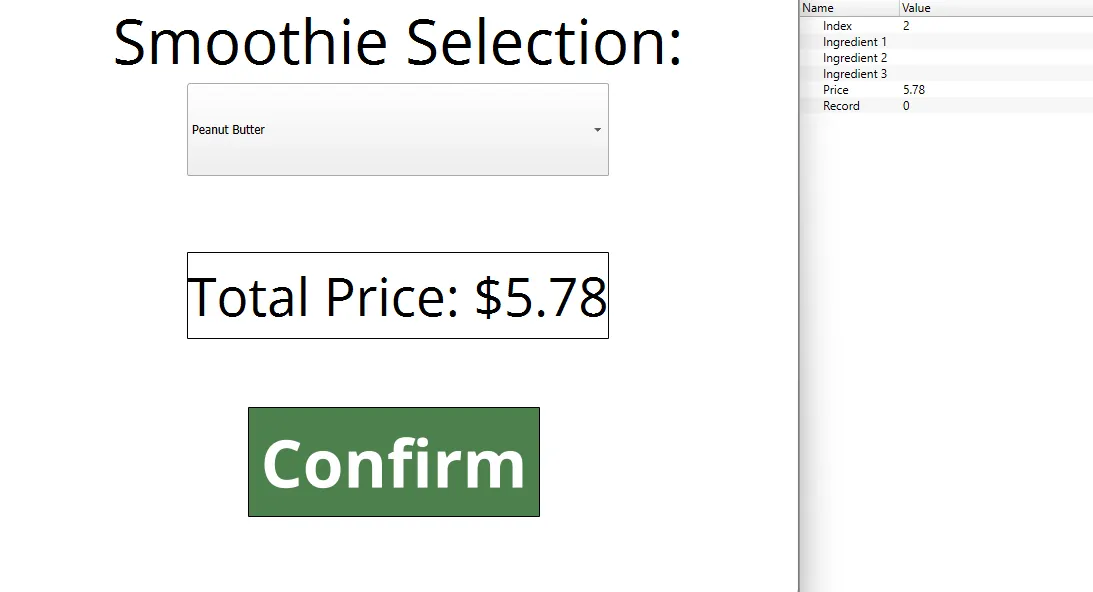
- After the confirm button is pressed, the combobox selection is reset, and the price is also reset.