Button Exercise
Exercise
Exercise: Using Momentary and Action Buttons
Please follow the below exercise to understand Button functionality.
Configuration
The following configuration is used to set up this exercise.
Tag Configuration
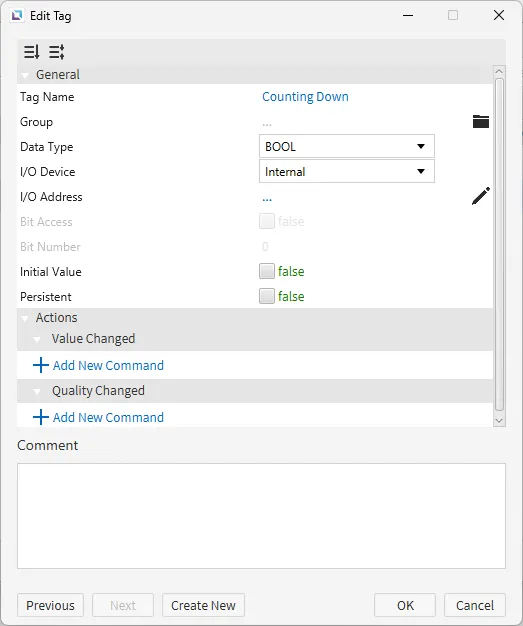
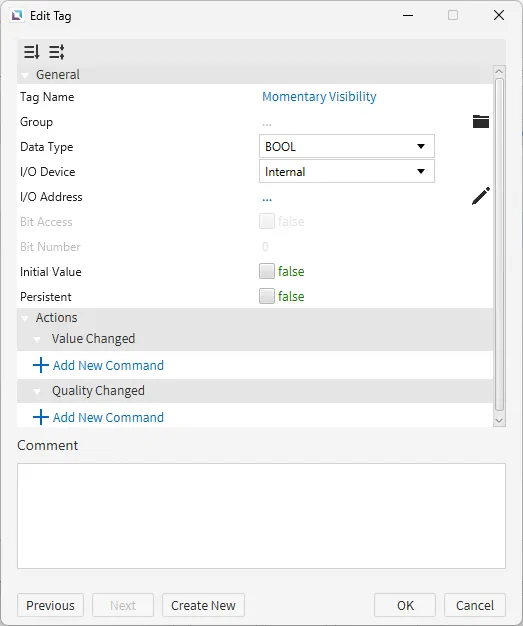
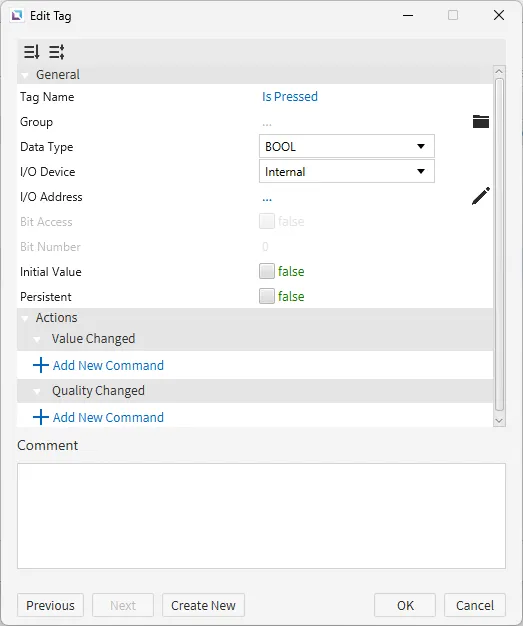
- Create the following tags:
- Counting Down
- Data type: BOOL
- Initial value: false
- Momentary Visibility
- Data type: BOOL
- Initial value: false
- Is Pressed
- Data type: BOOL
- Initial value: false
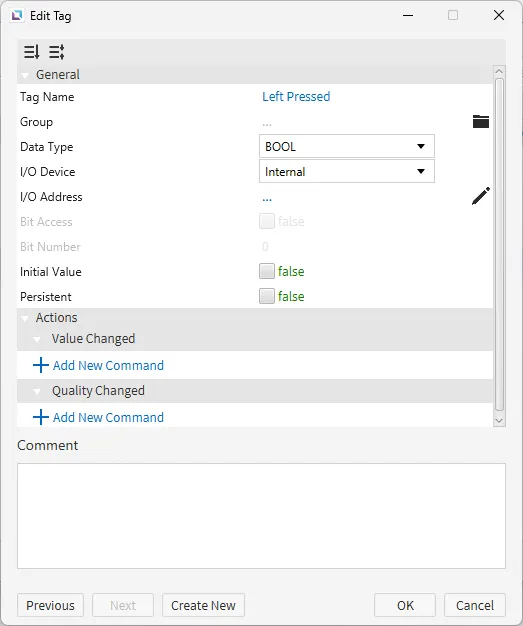
- Left Pressed
- Data type: BOOL
- Initial value: false
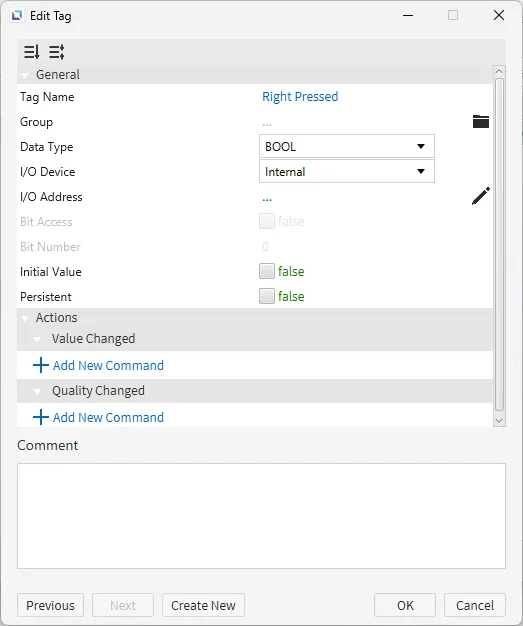
- Right Pressed
- Data type: BOOL
- Initial value: false
- Counting Down
Script Configuration
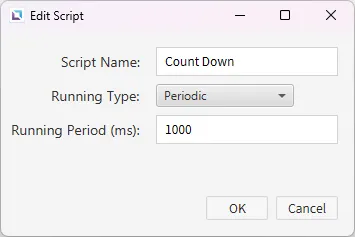
- Create the following script:
- Count Down
- Running type: Periodic
- Count Down
- Paste the following code into the Count Down script.
if(tag.read("Right Pressed") || tag.read("Left Pressed") && !tag.read("Counting Down")) {

	var time = 10;
	tag.write("Counting Down", true);
	tag.write("Momentary Visibility", true);

	if (time > 0) {
	    for (time = 10; time > 0; time--) {
	        thread.sleep(1)
	    }
	}

	tag.write("Counting Down", false);
	tag.write("Momentary Visibility", false);
}- This code will be used for the objects in the next section. If either the left or right button is pressed, a 10-second timer counts down and makes another button appear.
Project Configuration
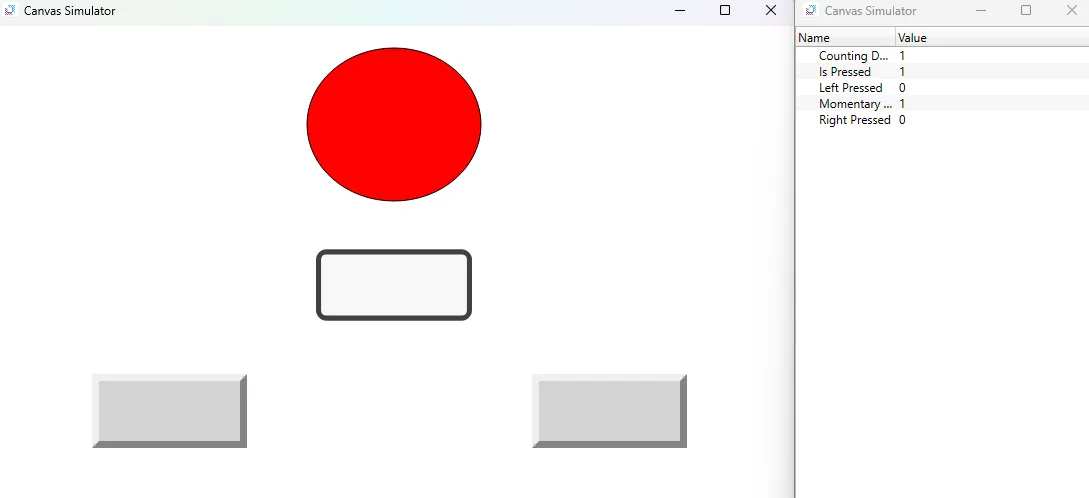
- Draw 4 objects on the screen: an ellipse, one momentary button, and two action buttons.
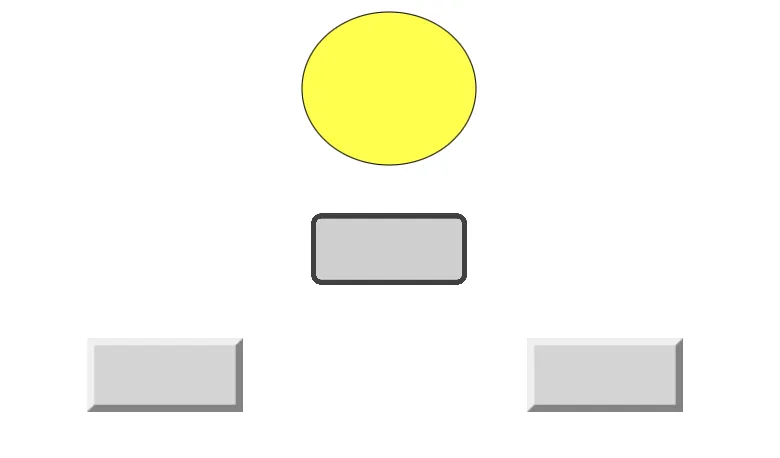
- Select the ellipse object. Change the Fill type to the below condition map:
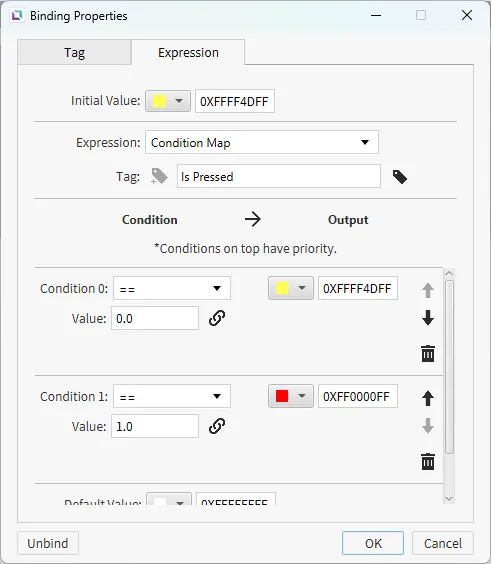
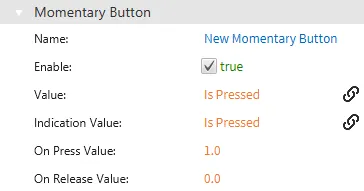
- Smart bind (drag-and-drop) the Is Pressed tag onto the momentary button.
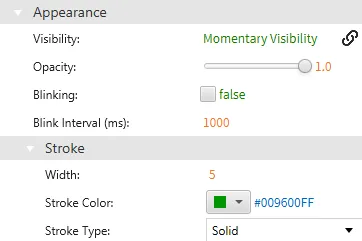
- Under the visibility property of the momentary button, bind the Momentary Visibility tag to it.
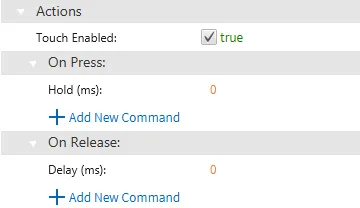
- For the left and right action buttons, go to the Actions property, On Press, and select Add New Command.
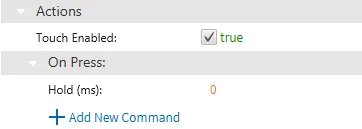
- Add a new command and select Toggle Tag Value.
- For the left action button, bind the Left Pressed tag to the command.
- For the right action button, bind the Right Pressed tag to the command.
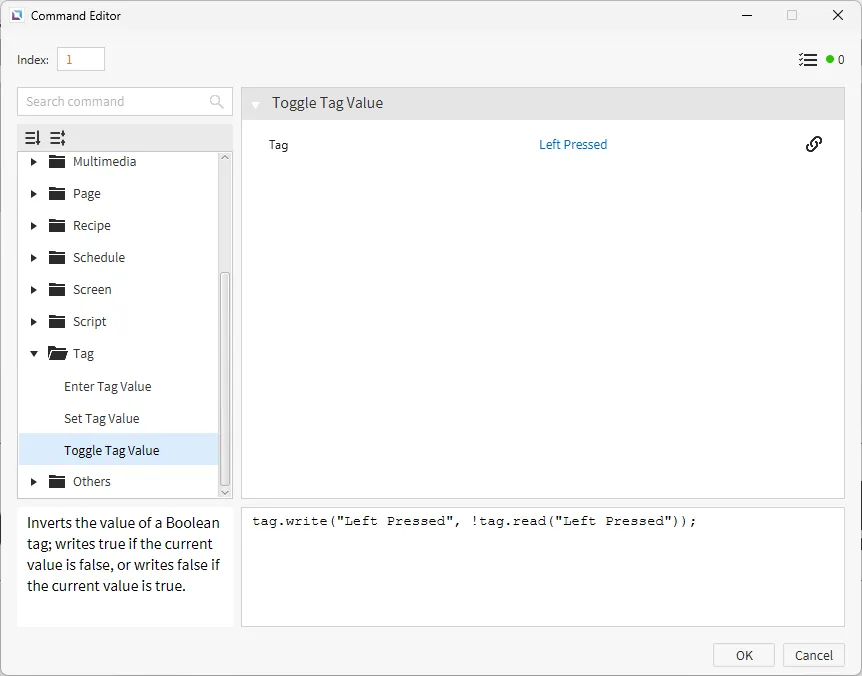
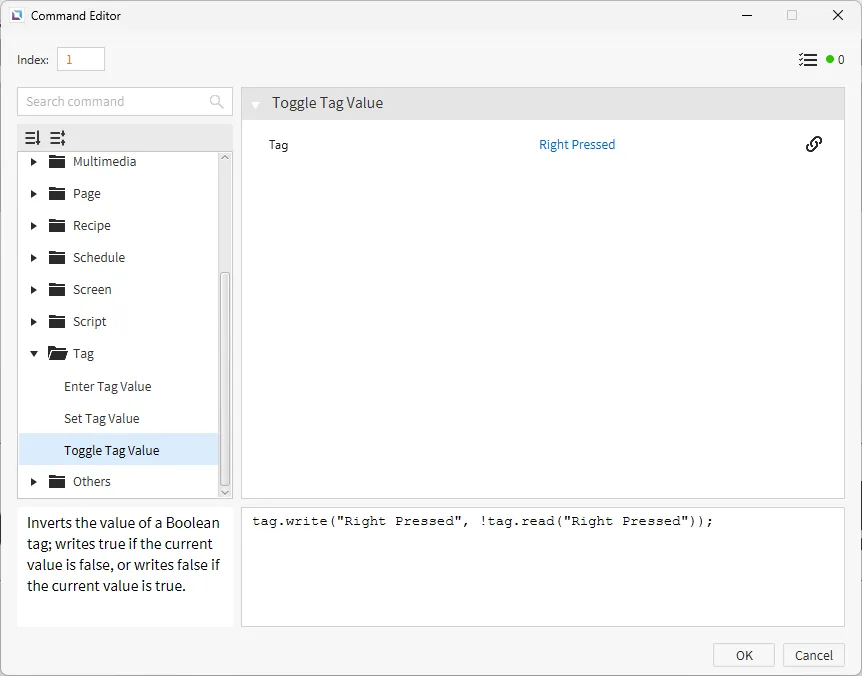
- Repeat steps 7 and 8 for the On Release property of both the left and right action buttons.
Project Deployment
- Click Tools > Launch Simulator to launch the Canvas Simulator.
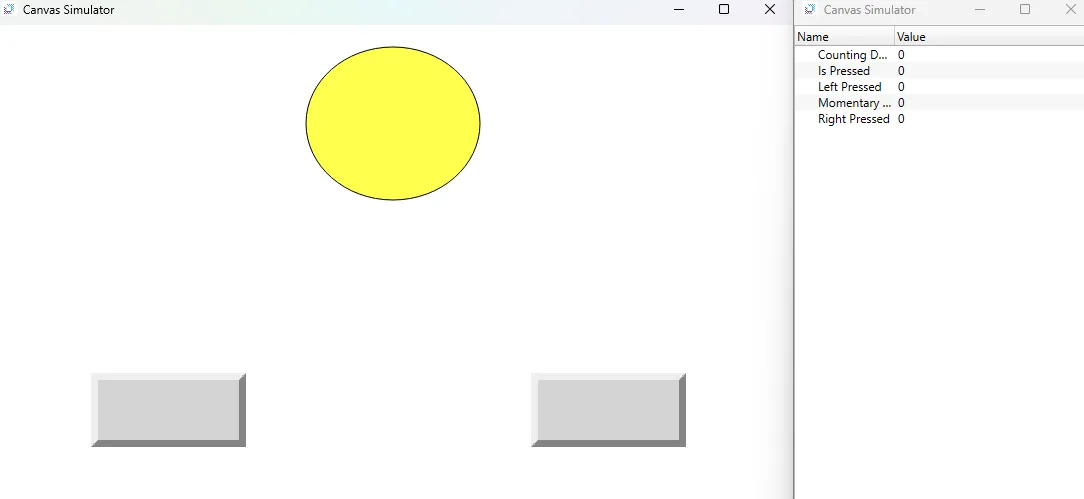
- Press either the left or right action button.
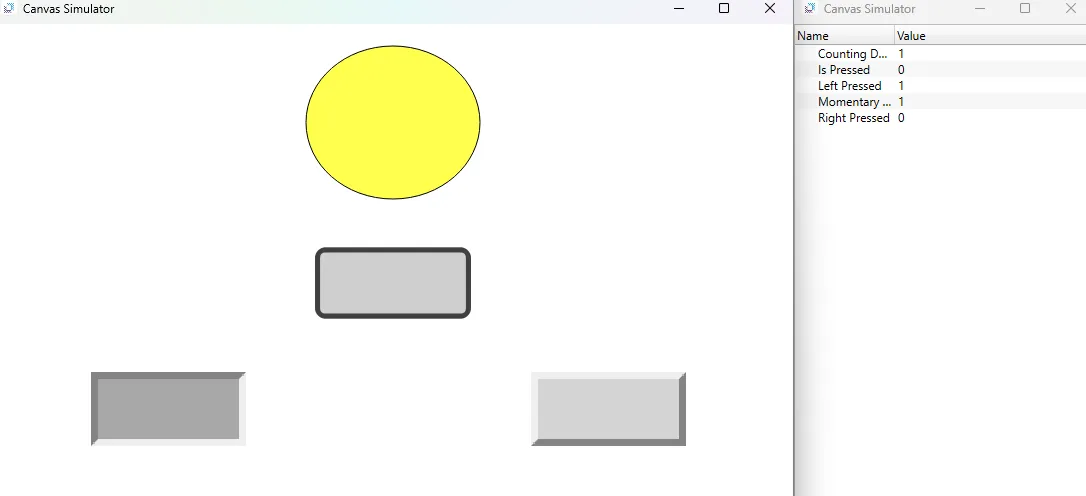
- Press the momentary button that appears. The ellipse should now turn red.