Web Widget Introduction
Web Widget Feature Description
Canvas offers the Web Widget object. This object allows users to display, interact, and browse the internet on their HMI screen.
Web Widget Designer Functionalities
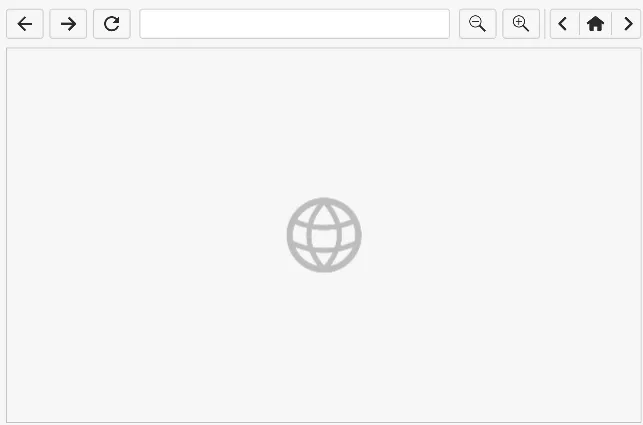
Click Insert > Web Widget or click the Insert Web Widget icon on the toolbar. Click and drag on the page to bring up the Web Widget as shown below:
Properties
The Web Widget object can be customized based on specific properties.
To ensure the property windows are enabled, click View > Properties.
Basic Properties
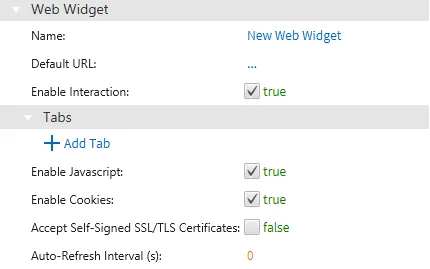
The Basic Properties section allows users to configure the fundamental aspects of the Web Widget. Users can set the object's name, URL, tabs, enable JavaScript, Cookies, and SSL/TLS certificates.
Appearance
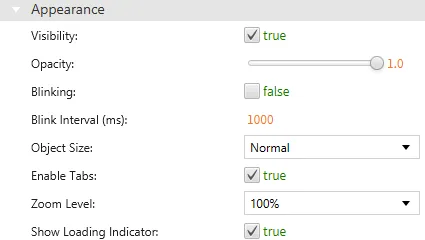
The Appearance section enables the use of selections to alter visible characteristics.
Position
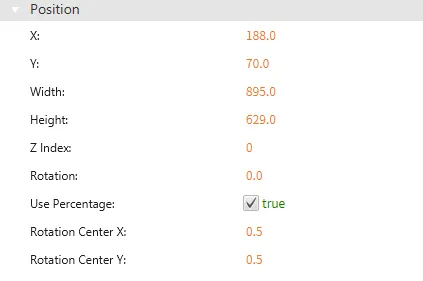
The Position section provides adjustable properties that reshape or move the object.
Web Widget Runtime Functionalities
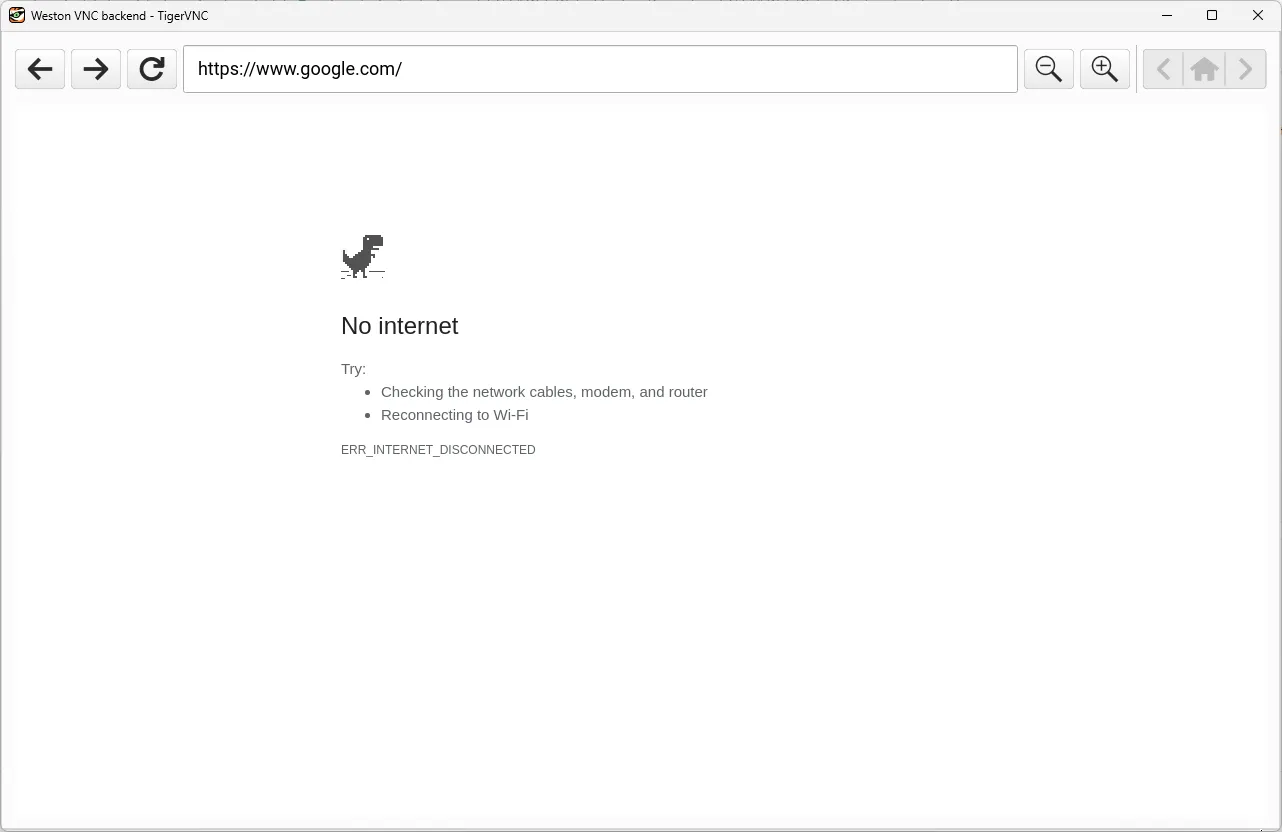
When the HMI is connected to the internet, it will display the Web Widget object similar to an internet browser.
Note: This feature does not work in the Canvas simulator.